
BOXPUT H96 MAX 3528
User Manual: H96 Max RK3528 Android 13.0 Smart TV Box
Model: H96 MAX 3528 | Brand: BOXPUT
Wstęp
This user manual provides comprehensive instructions for setting up, operating, and maintaining your H96 Max RK3528 Android 13.0 Smart TV Box. This device is designed to transform your television into a smart entertainment hub, offering access to a wide range of streaming services, applications, and multimedia content with advanced features like 8K decoding and Wi-Fi 6 connectivity.
Co jest w pudełku

The package for your H96 Max RK3528 Android 13.0 Smart TV Box includes all necessary components to get started. Please verify that all items listed below are present:
- 1x Android TV Box (H96 MAX 3528)
- 1x IR Remote control
- 1x HD cable (HDMI cable)
- 1x zasilacz (wtyczka amerykańska)
- 1x Instrukcja obsługi
Przewodnik po konfiguracji
1. Podłączenie Urządzenia
- Połącz z telewizorem: Insert one end of the provided HD cable (HDMI) into the HDMI OUT port on the TV Box and the other end into an available HDMI input on your television.
- Podłącz zasilanie: Podłącz zasilacz do portu DC IN w TV Box, a następnie podłącz zasilacz do gniazdka ściennego.
- Połączenie sieciowe (opcjonalnie):
- Ethernet: For a stable wired connection, connect an Ethernet cable from your router to the LAN port on the TV Box.
- Wi-Fi: You can connect to Wi-Fi later during the initial setup process or via the settings menu.
2. Pierwsze uruchomienie
Once connected, the TV Box should power on automatically. If not, press the power button on the remote control. Select the correct HDMI input on your TV using your TV's remote control. The Android 13.0 home screen will appear after a brief loading period.
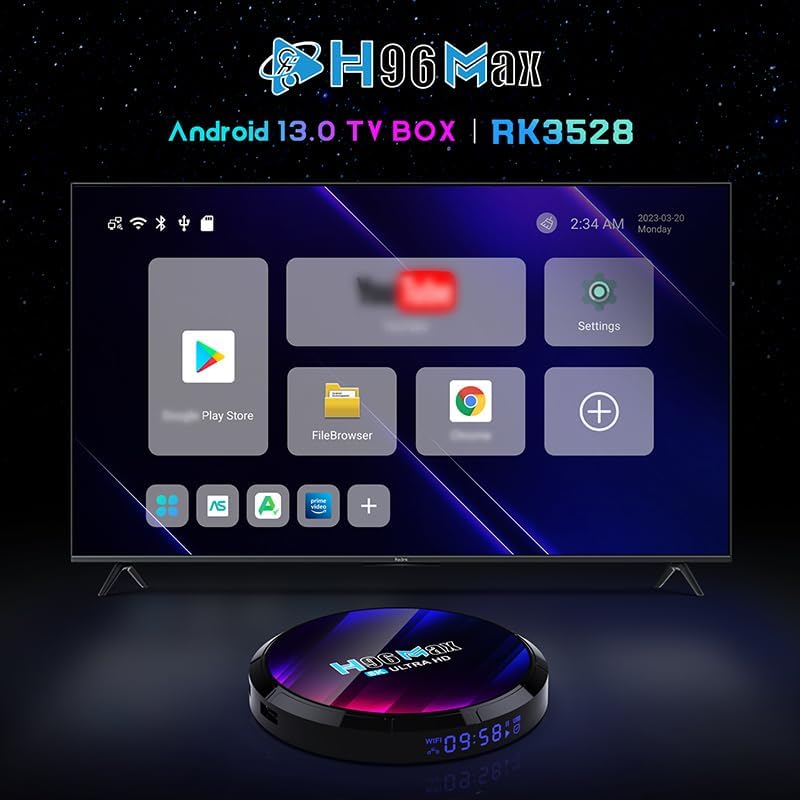
The H96 Max TV Box displaying its Android 13.0 user interface on a connected television.
Instrukcja obsługi
Poruszanie się po interfejsie
Use the provided IR remote control to navigate the Android 13.0 interface. The directional buttons (up, down, left, right) move the cursor, and the "OK" button selects items. The "Back" button returns to the previous screen, and the "Home" button returns to the main home screen.

The H96 Max TV Box and its included IR remote control for navigation.
Łączenie z siecią Wi-Fi
- Z ekranu głównego przejdź do Ustawienia icon and press "OK".
- Wybierać Sieć i Internet.
- Włączyć coś Wi-Fi if it's not already enabled.
- Wybierz żądaną sieć Wi-Fi z listy.
- Wprowadź hasło Wi-Fi za pomocą klawiatury ekranowej i wybierz Łączyć.

The H96 Max TV Box supports Wi-Fi 6 for faster and more reliable network performance.
Installing and Managing Applications
The H96 Max TV Box runs on Android 13.0, allowing you to download and install applications from the Google Play Store. Ensure you are logged in with a Google account.
- Zainstaluj aplikacje: Przejdź do Sklep Play icon on the home screen, search for your desired app, and select Zainstalować.
- Odinstaluj aplikacje: Idź do Ustawienia > Aplikacje, select the app you wish to uninstall, and choose Odinstaluj.
Mirroring and Casting (DLNA, Miracast, Airplay)
The TV Box supports various screen mirroring protocols, allowing you to display content from your smartphone or tablet directly onto your TV screen.

Multi-screen interaction features like Airplay, DLNA, and Miracast are supported for seamless content sharing.
To use these features, ensure your mobile device and the TV Box are connected to the same Wi-Fi network. The specific steps for mirroring will depend on your mobile device's operating system and the casting app you use.
8K Video Decoding
The H96 Max TV Box supports Ultra HD 8K H.265 video decoding, providing a high-quality visual experience. Ensure your TV supports 8K resolution to fully utilize this feature.

Experience stunning visuals with 8K video decoding capabilities.
Customizing UI and Wallpaper
You can personalize the user interface and change the background wallpaper of the main UI.
- Find the "Wallpaper" app in the box's application list.
- Using the Wallpaper app, you can set images from your USB drive or the device's storage as the wallpaper. Image format required: *.png, 1920*1080 pixels.
You can also customize UI buttons:
- Customize UI buttons by clicking "OK" and selecting any app logo.
- Press and hold "OK" to remove or replace an app logo.
Aktualizacja OTA Online
The device supports Over-The-Air (OTA) updates to receive the latest firmware versions, bug fixes, and new features.
- Connect the box to the internet by Ethernet or Wi-Fi.
- Find the "System update" app, click "CHECK NOW".
- If a new version is released, it will be displayed, and then you can update according to the prompt.
- The system cannot be powered off during the upgrade, and the box will restart. After the successful upgrade, the box will automatically enter the main screen.
Konserwacja
- Czyszczenie: Use a soft, dry cloth to clean the surface of the TV Box. Do not use liquid cleaners or aerosols.
- Wentylacja: Upewnij się, że TV Box znajduje się w dobrze wentylowanym miejscu, aby zapobiec przegrzaniu. Nie blokuj żadnych otworów wentylacyjnych.
- Wyłączone: When not in use for extended periods, it is recommended to unplug the power adapter from the wall outlet.
- Unikaj wilgoci: Trzymaj urządzenie z dala od wody i środowisk o wysokiej wilgotności.
Rozwiązywanie problemów
| Problem | Możliwa przyczyna | Rozwiązanie |
|---|---|---|
| Brak zasilania/Urządzenie się nie włącza | Power adapter not connected; Power outlet issue; Device malfunction. | Check power connections. Try a different power outlet. Contact support if issue persists. |
| Brak obrazu na telewizorze | Incorrect HDMI input selected; Loose HDMI cable; TV Box not powered on. | Ensure TV is on correct HDMI input. Check HDMI cable connection. Power cycle the TV Box. |
| Problemy z połączeniem Wi-Fi | Nieprawidłowe hasło; Router jest za daleko; Zakłócenia sieciowe. | Re-enter Wi-Fi password. Move TV Box closer to router. Restart router. |
| Pilot nie odpowiada | Low batteries; Obstruction between remote and box; Remote not paired (if Bluetooth). | Replace batteries. Ensure clear line of sight. For BT remotes, re-pair if necessary (refer to remote's specific instructions). |
| Aplikacje ulegają awarii lub działają wolno | Too many apps running; Low storage; Outdated app version. | Close background apps. Clear app cache/data. Uninstall unused apps. Update apps. |
Specyfikacje
| Funkcja | Szczegół |
|---|---|
| System operacyjny | Android 13.0 |
| Edytor | Rockchip RK3528 Quad Core Cortex-A53 |
| Procesor graficzny | Mali-450 |
| BARAN | 4 GB |
| ROM (pamięć wewnętrzna) | 64 GB |
| Wi-Fi | 2.4GHz/5.8GHz Dual-band Wi-Fi 6 |
| Bluetooth | BT5.0 |
| Sieć Ethernetowa | 100 mln |
| Dekodowanie wideo | 8K H.265 Ultra HD, 4K supported |
| Porty USB | USB 3.0 (for fast transfer) and USB 2.0 |
| Cechy specjalne | DLNA, Miracast, 3D support |
| Wymiary | 7.49 x 4.84 x 2.46 cala |
| Waga | 13.6 uncji |

Key features of the H96 Max TV Box, including Android 13.0 and 8K support.
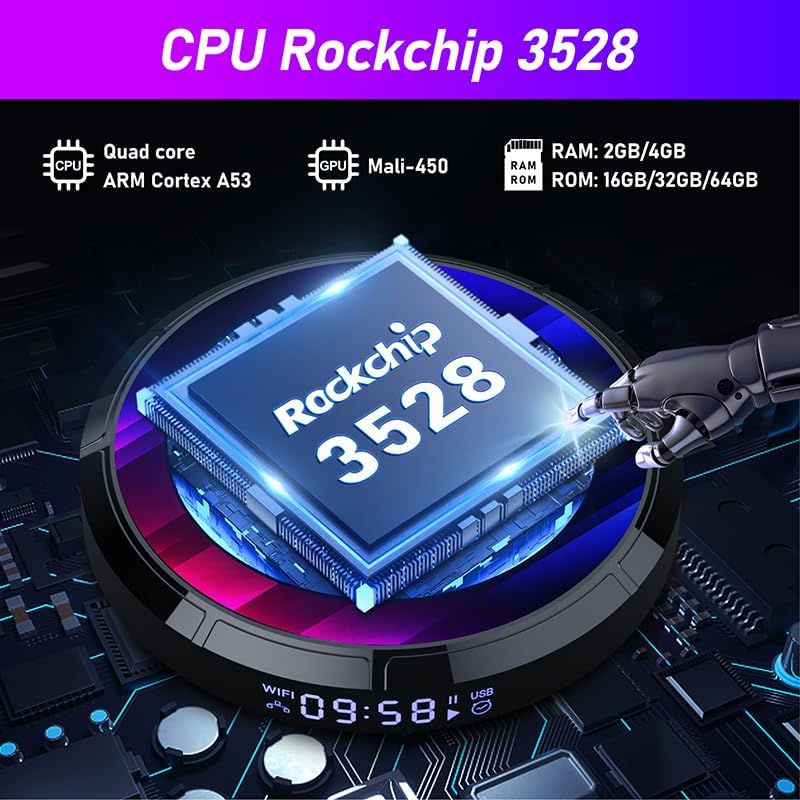
Detailed specifications of the Rockchip RK3528 processor.
Produkt ponadview Wideo
This video provides an unboxing and review of the H96 MAX 3528 Android TV Box, showcasing jego komponentów i początkowej konfiguracji.
Gwarancja i wsparcie
For warranty information and technical support, please refer to the official BOXPUT webOdwiedź stronę internetową lub skontaktuj się bezpośrednio z działem obsługi klienta. Zachowaj paragon jako dowód zakupu na wypadek ewentualnych roszczeń gwarancyjnych.
Official BOXPUT Store: BOXPUT Amazon Store
Ask a question about this manual
Ask about setup, troubleshooting, compatibility, parts, safety, or missing instructions. Manuals+ will review the question and use this page’s manual context to help answer it.