
Roinvou Roinvou 4+64G
Roinvou Car Radio Instruction Manual
Model: Roinvou 4+64G | For VW Volkswagen Beetle 2004-2010
Wstęp
This manual provides detailed instructions for the installation, operation, and maintenance of your Roinvou 9-inch Touch Screen Car Radio. Please read this manual thoroughly before installation and use to ensure proper function and safety. Keep this manual for future reference.
Informacje dotyczące bezpieczeństwa
- Zalecana profesjonalna instalacja: Due to the complexity of car electrical systems and potential dashboard modifications, professional installation is highly recommended.
- Zasilanie: Upewnij się, że radio samochodowe jest podłączone do źródła zasilania 12 V prądu stałego z ujemnym biegunem uziemienia.
- Okablowanie: Incorrect wiring can cause damage to the unit or vehicle. Follow all wiring diagrams carefully.
- Bezpieczeństwo jazdy: Nie używaj urządzenia w sposób rozpraszający Cię podczas jazdy. Zawsze priorytetowo traktuj bezpieczeństwo na drodze.
- Temperatura: Unikaj wystawiania urządzenia na działanie ekstremalnych temperatur lub bezpośredniego światła słonecznego przez dłuższy czas.
Zawartość opakowania
Sprawdź, czy w przesyłce znajdują się wszystkie elementy wymienione poniżej:
- Roinvou Volkswagen Beetle Car Stereo
- Kabel zasilający
- Antenna Head Adapter
- Radio Antenna
- Uprząż RCA
- Antena GPS
- Kamera cofania AHD
- Mikrofon zewnętrzny
- Kabel wejściowy kamery tylnej
- Dual USB Cable
- Installation Tool & Accessories
Konfiguracja i instalacja
This car radio is designed for VW Volkswagen Beetle models from 2004 to 2010. It comes with a plug-and-play cable for simplified connection. Some dashboard modification may be required for a proper fit.
1. Kontrola przed instalacją
- Confirm vehicle compatibility (VW Beetle 2004-2010).
- Przed rozpoczęciem instalacji należy odłączyć akumulator pojazdu.
- Ostrożnie zdejmij oryginalne radio samochodowe i elementy ozdobne deski rozdzielczej.
2. Połączenia okablowania
Refer to the 'Connection Reference & Package List' diagram for detailed wiring instructions. Ensure all cables are securely connected.

Opis obrazu: A detailed diagram illustrating the various connection points on the back of the car stereo unit, including power, USB, GPS, and camera inputs. Alongside, a visual list of all included components such as cables, antennas, and the backup camera.
3. Instalacja kamery cofania
Connect the AHD backup camera using the provided cables. The reverse input cable must be plugged in even if the camera is not used, as it affects Bluetooth and WiFi signal reception.

Opis obrazu: A diagram showing how to connect the backup camera to the car stereo. It illustrates the video output, power connections (red wire to reversing lamp, black to ground), and the camera power cable.
4. Sterowanie z kierownicy (SWC)
Without CANBUS Decoder: Connect the steering wheel control wires (Key1/Key2) in the power cable to the corresponding port of your original car. Then, access the 'Steering Wheel Key' manual match in settings to activate button functions.
With CANBUS Decoder: Connect the CANBUS before powering on the machine. Navigate to Apps > Settings > Factory Settings (8888/8317) > Vehicle > Automotive type. Select the brand of the CANBUS decoder and then the matching model and year.

Opis obrazu: An illustration of a car's steering wheel with an overlay showing the on-screen interface for configuring steering wheel controls. Text provides instructions for both CANBUS and non-CANBUS setups.
5. Instalacja końcowa
Once all connections are made, carefully mount the car radio into the dashboard. Reconnect the vehicle's battery and test all functions.
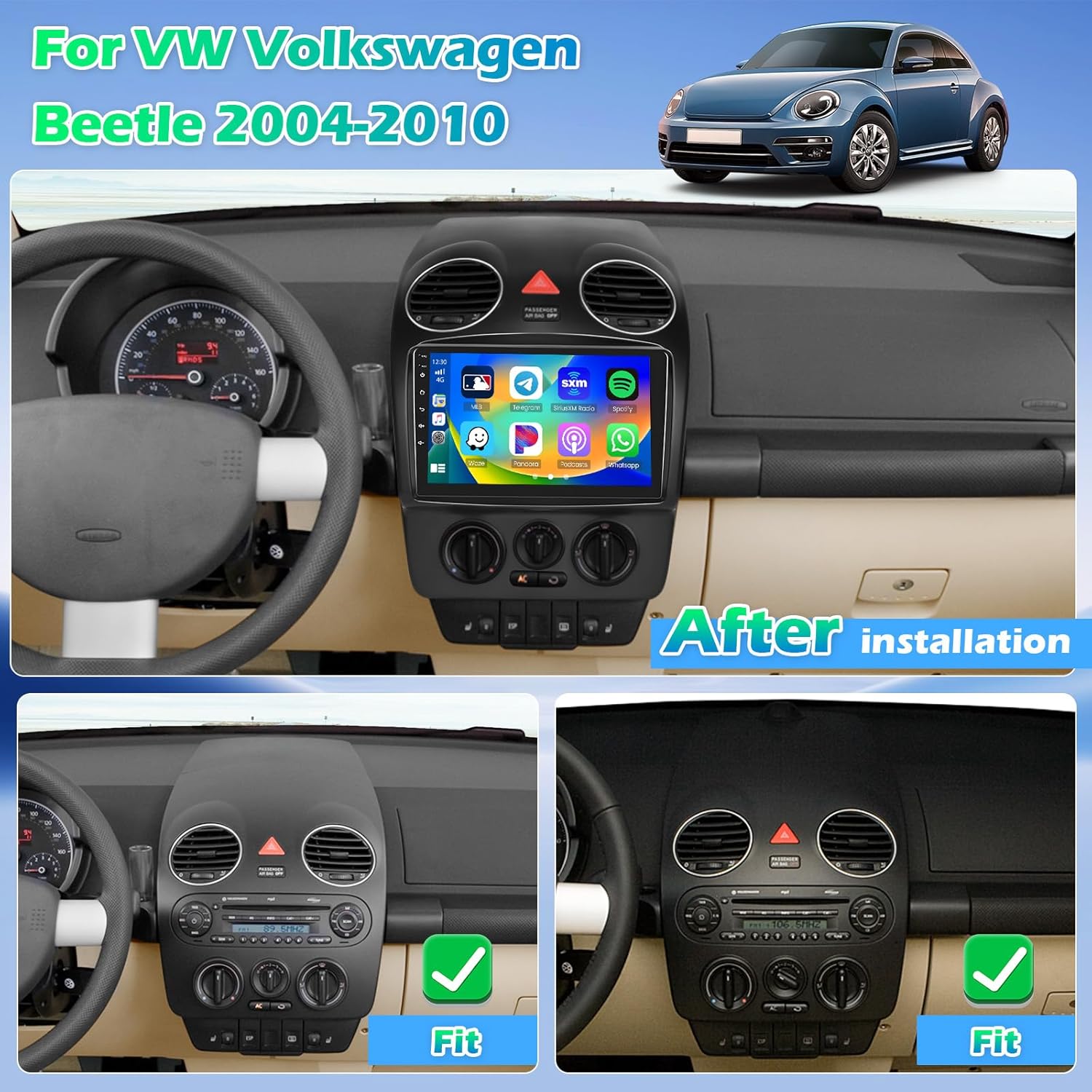
Opis obrazu: A view of the Roinvou car radio seamlessly integrated into the dashboard of a Volkswagen Beetle, showing the modern touch screen display in place of the original radio.
Instrukcja obsługi
1. Włączanie/wyłączanie zasilania
Naciśnij i przytrzymaj przycisk zasilania (zazwyczaj znajdujący się na panelu przednim), aby włączyć lub wyłączyć urządzenie. Krótkie naciśnięcie zazwyczaj wycisza lub włącza dźwięk.
2. Interfejs ekranu dotykowego
The unit features a 9-inch 1280*720 HD capacitive touch screen. Navigate through menus and applications by tapping, swiping, and pinching gestures similar to a smartphone.
3. Bezprzewodowy CarPlay i Android Auto
Connect your smartphone wirelessly via Bluetooth to access CarPlay or Android Auto. This allows for hands-free calls, navigation, music playback, and app management directly from the car radio screen.

Opis obrazu: A split screen view demonstrating the user interfaces for both Apple CarPlay and Android Auto, showing various applications like maps, music, and communication tools, emphasizing wireless connectivity.
4.Bluetooth 5.0
Pair your mobile device via Bluetooth for audio streaming and hands-free calling. Access the Bluetooth menu in settings to search for and connect to devices.
5. Radio FM/RDS
Tune into your favorite radio stations. The built-in FM/RDS radio allows for preset stations and displays real-time traffic and weather information where available.

Opis obrazu: A three-panel image showcasing the user interfaces for Bluetooth connectivity (dialer screen), FM/RDS radio (station tuning), and the 32-band equalizer for audio adjustments.
6. Nawigacja GPS i Wi-Fi
The unit includes built-in GPS navigation. Download offline maps from the Play Store for navigation without an internet connection. Connect to WiFi to use online maps and download various applications.

Opis obrazu: A visual representation of the GPS navigation interface showing a map with a route, alongside various app icons indicating WiFi connectivity and access to online services.
7 Funkcja łącza lustrzanego
Synchronize your Android or iOS smartphone screen to the car radio display to enjoy videos and other content on a larger screen.

Opis obrazu: An image showing a smartphone screen being mirrored onto the car radio display, illustrating the Mirror Link function for both iOS and Android devices via WiFi.
8. Sound Adjustment (32 EQ)
Utilize the pre-installed car tuning software with 32-band EQ technology to adjust frequencies and sound types, optimizing audio quality to your preference.
9. Funkcja podzielonego ekranu
The unit supports a split-screen feature, allowing you to run two applications simultaneously, such as navigation and music playback.

Opis obrazu: A visual demonstration of the split-screen functionality, showing two applications running side-by-side on the car radio display, along with various customizable user interface themes.
Konserwacja
- Czyszczenie: Do czyszczenia ekranu i urządzenia używaj miękkiej, suchej ściereczki. Unikaj środków czyszczących o właściwościach ściernych i rozpuszczalników.
- Aktualizacje oprogramowania: Regularnie sprawdzaj dostępność aktualizacji oprogramowania, aby zapewnić optymalną wydajność i dostęp do nowych funkcji. Aktualizacje zazwyczaj można pobrać przez Wi-Fi.
- Warunki środowiskowe: Protect the unit from extreme heat, cold, and moisture.
Rozwiązywanie problemów
| Problem | Możliwa przyczyna | Rozwiązanie |
|---|---|---|
| Urządzenie nie włącza się | Incorrect wiring; Blown fuse; Insufficient power supply | Check all power connections; Inspect vehicle fuses; Ensure 12V DC power. |
| Brak wyjścia audio | Odłączone przewody głośnikowe; Głośność zbyt niska; Wyciszenie włączone | Verify speaker connections; Adjust volume; Check mute status. |
| CarPlay/Android Auto nie łączy się | Bluetooth not paired; Phone settings; Software issue | Ensure Bluetooth is on and paired; Check phone's CarPlay/Android Auto settings; Restart unit and phone. |
| Kamera cofania nie jest wyświetlana | Camera not connected; Reverse trigger wire not connected; Faulty camera | Check camera and reverse trigger wire connections; Test camera functionality. |
| Unit freezes or overheats | Software glitch; Poor ventilation; Excessive load | Restart the unit; Ensure adequate ventilation around the unit; Close unnecessary applications. If persistent, contact support. |
| Sterowanie na kierownicy nie działa | Incorrect wiring; SWC not configured | Verify Key1/Key2 wiring; Perform SWC learning/configuration in settings. |
Specyfikacje
- Rozmiar ekranu: 9 cali
- Rezolucja: 1280x720
- System operacyjny: Android (Version not specified, but typically Android 13 for 4-core models)
- Edytor: 4-rdzeniowy
- BARAN: 4 GB
- Pamięć wewnętrzna (ROM): 64 GB
- Bluetooth: Wersja 5.0
- Wi-Fi: 5G WiFi support
- Korektor: 32-pasmowy korektor
- Łączność: Bluetooth, USB, Wi-Fi
- Typ montażu: Montaż na desce rozdzielczej
- Rodzaj serwisu pojazdu: Car (VW Volkswagen Beetle 2004-2010)
- Waga przedmiotu: 5.54 funta
- Wymiary opakowania: 19 x 12 x 11 cala

Opis obrazu: A stylized diagram illustrating the internal 4-core processor and its specifications, including Android 13, 4GB RAM, and 64GB ROM, highlighting the unit's processing power.
Gwarancja i wsparcie
For any questions, technical assistance, or warranty claims, please contact Roinvou customer support. You can reach us via email at roinvouservices@163.com. Please provide your product model and purchase details for faster service.

Opis obrazu: An image detailing customer support options, including a contact email address and instructions on how to reach out for assistance.
Ask a question about this manual
Ask about setup, troubleshooting, compatibility, parts, safety, or missing instructions. Manuals+ will review the question and use this page’s manual context to help answer it.