
Xiaomi AX3000T
Instrukcja obsługi routera bezprzewodowego Xiaomi AX3000T
Comprehensive guide for setup, operation, and maintenance of your Xiaomi AX3000T Router.
1. Wprowadzenie
The Xiaomi AX3000T Wireless Router is designed to provide high-speed, stable, and wide-ranging Wi-Fi coverage for your home or office. Featuring Wi-Fi 6 technology, it delivers speeds up to 3000 Mbps, making it ideal for environments with multiple connected devices and demanding internet usage.
Główne cechy obejmują:
- Next-Generation Connectivity: Equipped with Wi-Fi 6 technology for speeds up to 3000 Mbps, perfect for homes with multiple devices and high internet demands.
- Wide and Stable Coverage: High-performance antennas and Beamforming technology ensure broad and stable Wi-Fi coverage throughout your home, eliminating dead zones.
- Wydajny procesor: With a quad-core processor and multiple Digital Signal Processors (DSPs), it delivers powerful and stable performance even with multiple connected devices.
- Zaawansowane zabezpieczenia: Integrates advanced security protocols like WPA3 to protect your network and devices from external threats.
- Easy Management and Configuration: Simple setup via the Mi Wi-Fi app, allowing you to manage parental controls, Quality of Service (QoS), and more from your smartphone.
2. Koniec produktuview
Familiarize yourself with the components and indicators of your Xiaomi AX3000T Router.

Rysunek 2.1: Xiaomi AX3000T Router placed on a wooden table, showcasindzięki eleganckiemu białemu wzornictwu i czterem zewnętrznym antenom.
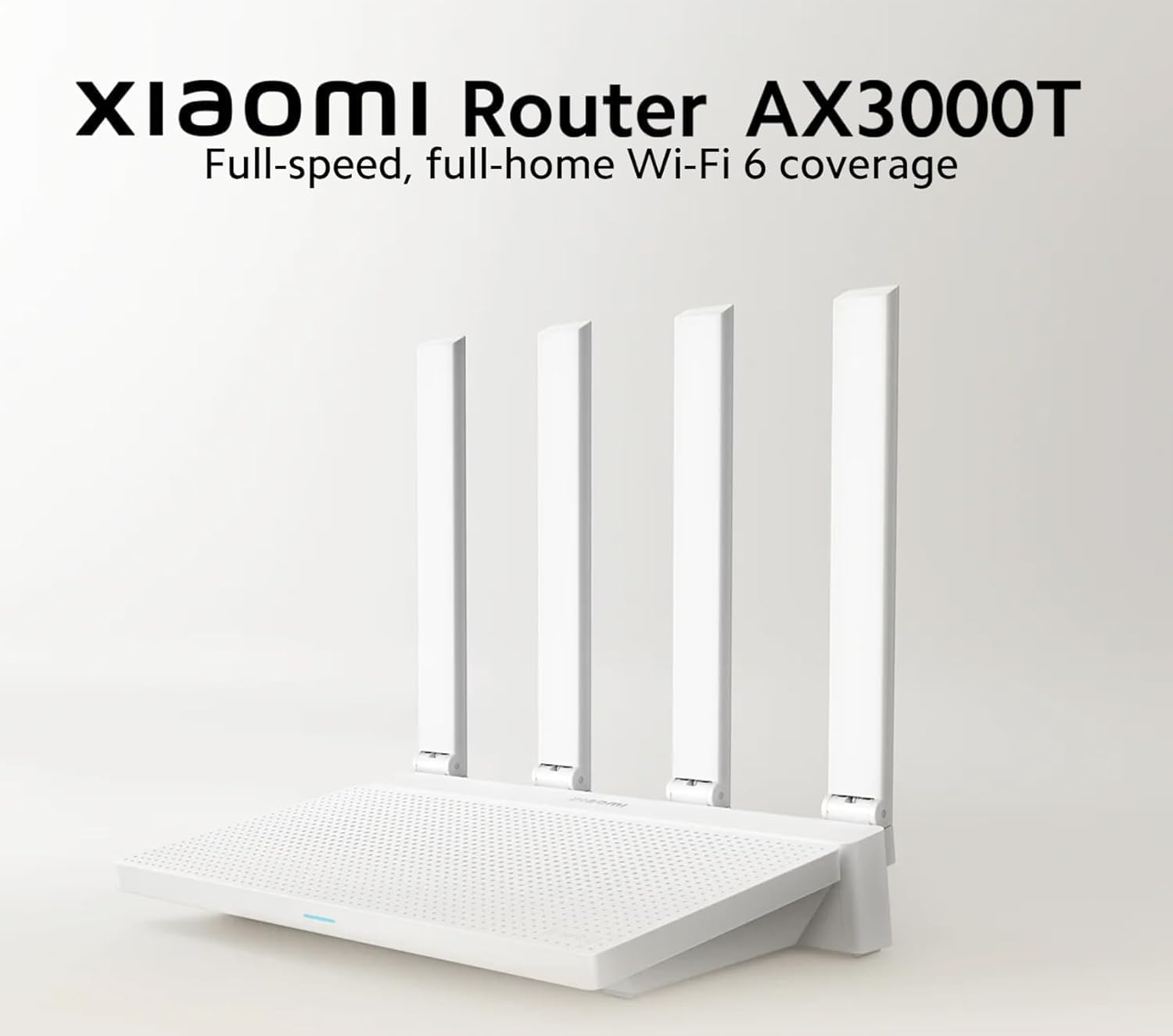
Rysunek 2.2: Przód view of the Xiaomi AX3000T Router, highlighting its four antennas and the product name with a tagline emphasizing full-speed, full-home Wi-Fi 6 coverage.

Rysunek 2.3: An illustrative diagram demonstrating the extensive Wi-Fi coverage provided by the Xiaomi AX3000T Router across multiple rooms and floors within a typical home environment.

Rysunek 2.4: A visual representation indicating the router's 128MB memory capacity, capable of supporting stable connections for up to 128 devices simultaneously, suitable for smart home ecosystems.
3. Przewodnik konfiguracji
Follow these steps for the initial setup of your Xiaomi AX3000T Router.
- Rozpakuj router: Carefully remove the router and its accessories from the packaging. Ensure all components are present: the router unit, power adapter, and Ethernet cable.
- Podłącz sprzęt:
- Podłącz zasilacz do portu zasilania routera, a następnie do gniazdka elektrycznego.
- Connect one end of the Ethernet cable to the WAN port (usually blue) on your router. Connect the other end to your modem's LAN port or the fiber optic network interface.
- (Optional) If connecting a wired device, use another Ethernet cable to connect it to any of the LAN ports (usually yellow) on the router.
- Włączanie: Wait for the router's indicator lights to stabilize. The system indicator should turn solid blue, indicating a successful boot-up.
- Połącz się z Wi-Fi:
- Na komputerze lub smartfonie wyszukaj dostępne sieci Wi-Fi.
- Select the network name (SSID) that starts with "Xiaomi_" or "Mi_Router_" followed by some characters. There is no password for the initial connection.
- Konfiguracja wstępna:
- Otwórz web przeglądarka i typ www.miwifi.com or 192.168.31.1 do paska adresu.
- Follow the on-screen instructions to set up your Wi-Fi name (SSID) and password for both 2.4GHz and 5GHz bands. You can also choose to unify them into a single SSID.
- Set an administrator password for the router's management interface.
- Alternatively, download the "Mi Wi-Fi" app from your smartphone's app store and follow the in-app instructions for guided setup.
- Internet Connection Test: Once configured, ensure your devices can access the internet.
4. Obsługa routera
This section covers common operations and features of your Xiaomi AX3000T Router.
4.1 Podłączanie urządzeń
- Połączenie bezprzewodowe: Szukaj your configured Wi-Fi network name (SSID) on your device and enter the password you set during setup. The router supports both 2.4GHz and 5GHz bands for optimal performance.
- Połączenie przewodowe: Connect devices like desktop computers, gaming consoles, or smart TVs to the router's LAN ports using an Ethernet cable for a stable, high-speed connection.
4.2 Managing Network Settings via Mi Wi-Fi App
The Mi Wi-Fi app provides convenient control over your router's features.
- Tryb gościa: Create a separate Wi-Fi network for guests, keeping your main network secure. This feature is useful for visitors who need temporary internet access without compromising your primary network's security.
- Jakość usług (QoS): Prioritize network traffic for specific applications or devices (e.g., gaming, video streaming) to ensure smooth performance even under heavy network load.
- Xiaomi Mesh: If you have multiple Xiaomi Mesh-compatible routers, you can expand your Wi-Fi coverage seamlessly throughout larger homes by creating a unified mesh network. Refer to the Mi Wi-Fi app for instructions on setting up a mesh network.
- Kontrola rodzicielska: Zarządzaj czasem dostępu do Internetu i blokuj określone websites for connected devices, ensuring a safe online environment for children.
- Połączone urządzenia: View all devices connected to your network, monitor their usage, and manage their access.

Rysunek 4.1: An illustration showing the router broadcasting a unified Wi-Fi network name, simplifying connection for users by combining 2.4GHz and 5GHz bands under one SSID.
5. Konserwacja
Właściwa konserwacja gwarantuje długowieczność i optymalną wydajność routera.
- Aktualizacje oprogramowania układowego: Regularly check for and install firmware updates via the Mi Wi-Fi app or the web interfejs zarządzania. Aktualizacje często obejmują poprawę wydajności, poprawki zabezpieczeń i nowe funkcje.
- Czyszczenie: Gently wipe the router's exterior with a soft, dry cloth. Do not use liquid cleaners or abrasive materials. Ensure ventilation holes are free from dust accumulation to prevent overheating.
- Optymalne rozmieszczenie: Place the router in a central location in your home, away from obstructions like thick walls, large metal objects, and other electronic devices that may cause interference (e.g., microwaves, cordless phones). Elevating the router can also improve signal dispersion.
- Ponowne uruchamianie: If you experience network issues, a simple restart of the router (by unplugging and replugging the power adapter after 10 seconds) can often resolve minor glitches.
6. Rozwiązywanie Problemów
W tej sekcji omówiono często spotykane problemy i ich rozwiązania.
| Problem | Możliwa przyczyna | Rozwiązanie |
|---|---|---|
| Brak dostępu do Internetu | Incorrect cable connection, modem issue, ISP problem, incorrect router settings. |
|
| Słaby sygnał Wi-Fi lub martwe strefy | Router placement, interference, large home size. |
|
| Nie można połączyć się z siecią Wi-Fi | Incorrect password, router not broadcasting, device issue. |
|
| Niska prędkość Internetu | Too many devices, network congestion, outdated firmware, ISP speed. |
|
7. Specyfikacje
Detailed technical specifications for the Xiaomi AX3000T Router.
| Nazwa modelu | Router Xiaomi AX3000T |
| Numer modelu | RD23 |
| Marka | Xiaomi |
| Kolor | Biały |
| Technologia łączności | Ethernet, Wi-Fi |
| Standard komunikacji bezprzewodowej | 802.11a, 802.11ac, 802.11ax (Wi-Fi 6), 802.11g, 802.11n |
| Klasa pasma częstotliwości | Dwuzakresowy (2.4 GHz, 5 GHz) |
| Maksymalna prędkość bezprzewodowa | Do 3000 Mb/s |
| System operacyjny | RouterOS (Xiaomi's custom OS) |
| Cechy specjalne | Guest Mode, QoS, Xiaomi Mesh |
| Kompatybilne urządzenia | Tablets, Smartphones, Printers, Computers, AIoT devices |
| Pamięć | 128 MB (supports up to 128 devices) |
| Edytor | Quad-core with multiple DSPs |
| Protokół bezpieczeństwa | WPA3 |
| Zawarte komponenty | Router, Power Adapter, Ethernet Cable |
| Kraj pochodzenia | Chiny |
8. Gwarancja i wsparcie
Aby uzyskać informacje dotyczące gwarancji i pomocy technicznej, zapoznaj się z oficjalną stroną Xiaomi webwitryny lub skontaktuj się z obsługą klienta.
- Gwarancja: This product comes with a standard manufacturer's warranty. Please retain your proof of purchase for warranty claims. Specific warranty terms and duration may vary by region.
- Wsparcie techniczne:
- Visit the official Xiaomi support webwitryna z odpowiedziami na często zadawane pytania, poradnikami rozwiązywania problemów oraz możliwością pobrania sterowników/oprogramowania sprzętowego.
- Use the Mi Wi-Fi app for in-app support and diagnostics.
- Contact Xiaomi customer service directly for personalized assistance.
Information regarding spare parts availability and software updates beyond the initial period is generally provided by the manufacturer on their official support channels.