
1. Wprowadzenie
Thank you for choosing the Zelotes Wireless Trackball Mouse. This ergonomic device is designed to provide comfort and efficiency for various computing tasks, reducing wrist and arm strain. It offers versatile connectivity options, including 2.4 GHz wireless and Bluetooth, allowing seamless switching between up to three devices. This manual provides detailed instructions for setup, operation, maintenance, and troubleshooting to ensure you get the most out of your new trackball mouse.

Image: The Zelotes F33 Wireless Trackball Mouse, showcasing its ergonomic design and trackball.
2. Funkcje produktu
- Ergonomiczna konstrukcja: Utilizes a trackball for cursor movement, minimizing wrist and arm motion. Features an innovative adjustable angle (0° to 18°) with a removable aluminum alloy base for natural palm positioning and reduced fatigue during prolonged use.
- Łączność wielomodowa: Supports both 2.4 GHz USB wireless and Bluetooth connections. Connects simultaneously to three devices (one via USB, two via Bluetooth) and allows seamless switching between them.
- Wbudowany akumulator: Equipped with a 730mAh rechargeable Lithium-ion battery and includes a USB charging cable. The mouse can be used while charging.
- Regulowane DPI: Offers 5 adjustable DPI settings: 800, 1200, 1600, 2400, and 4800 DPI, allowing you to customize cursor sensitivity to your preference.
- 8 programowalnych przycisków: Includes standard left/right click, scroll wheel, and dedicated forward/back side buttons for enhanced navigation and file kierownictwo.
- Oświetlenie LED: Features vibrant LED lighting with 16.8 million color options, which can be turned off if desired.
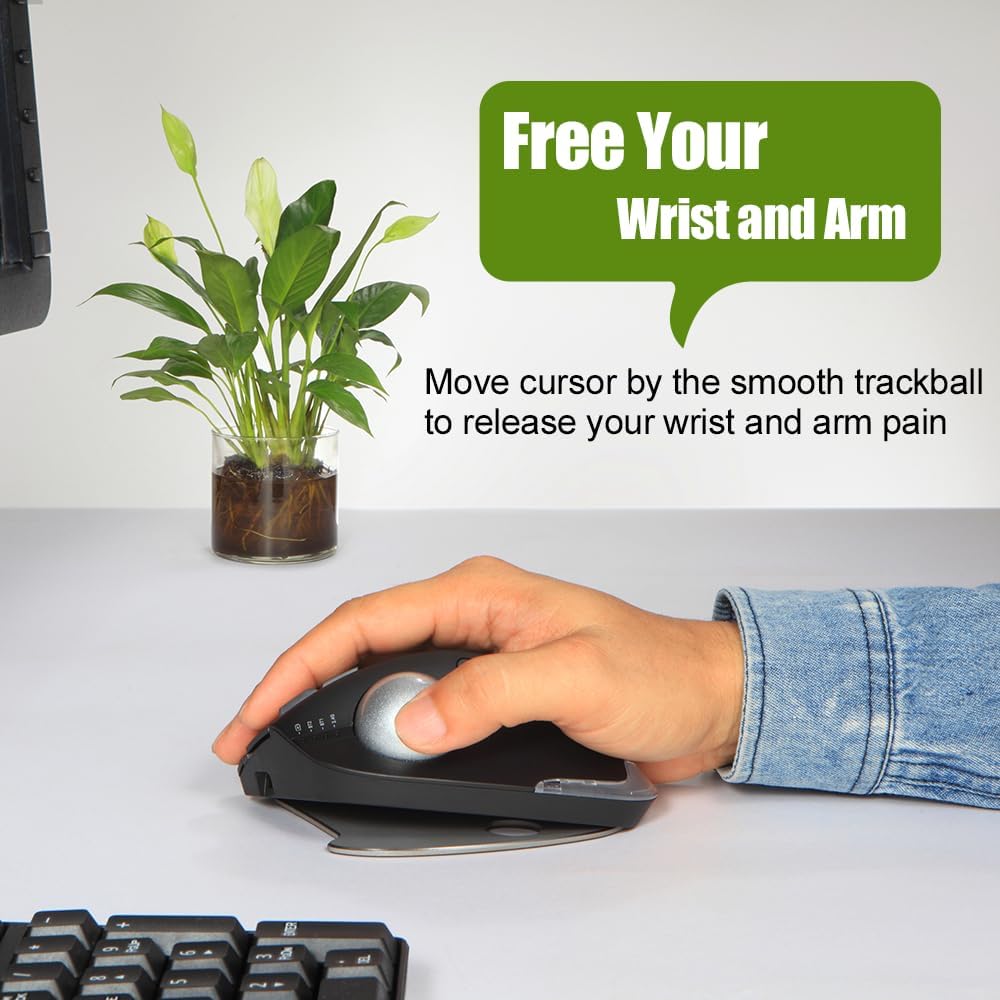
Image: A hand resting comfortably on the trackball mouse, illustrating how it helps free the wrist and arm from strain.

Image: The trackball mouse demonstrating its adjustable angles (0° and 18°) for personalized comfort.
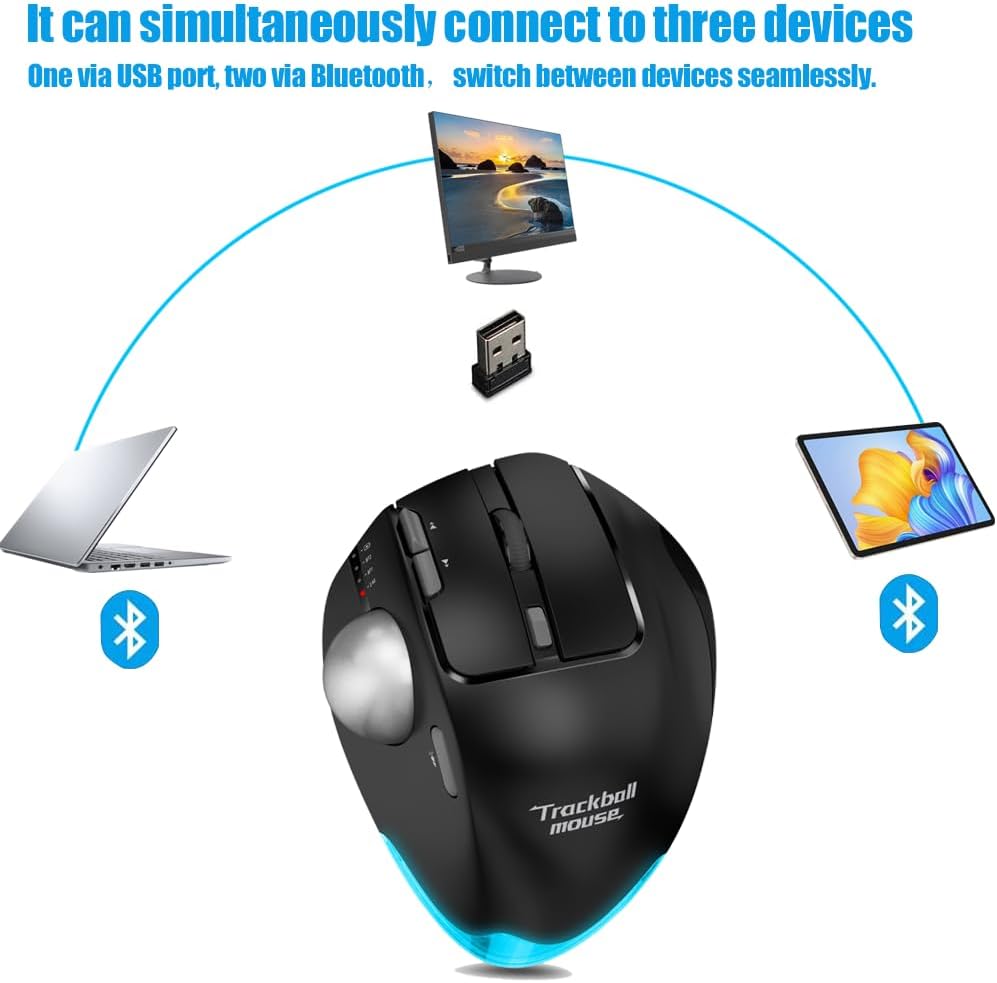
Image: Diagram showing the trackball mouse simultaneously connected to a laptop (Bluetooth), desktop (USB), and tablet (Bluetooth).

Image: The trackball mouse being charged via a USB cable, with an indicator showing its 730mAh battery capacity.

Image: The trackball mouse displaying its customizable LED lighting in various colors.
3. Zawartość opakowania
Proszę sprawdzić, czy w paczce znajdują się następujące elementy:
- Zelotes Wireless Trackball Mouse (F33)
- USB Receiver (stored in the mouse's battery compartment)
- Kabel ładujący USB
- Instrukcja obsługi (ten dokument)
4. Konfiguracja
4.1 Pierwsze ładowanie
For optimal performance, fully charge the mouse before first use.
- Podłącz dołączony kabel ładujący USB do portu ładowania z przodu myszy.
- Podłącz drugi koniec kabla USB do źródła zasilania USB (np. portu USB komputera, zasilacza ściennego USB).
- The charging indicator light will illuminate. Once fully charged, the light may change color or turn off (refer to mouse indicators for specific behavior).
4.2 Połączenie bezprzewodowe 2.4 GHz
W tym trybie do stabilnego połączenia bezprzewodowego wykorzystywany jest dołączony odbiornik USB.
- Znajdź odbiornik USB, zwykle umieszczony w gnieździe na spodzie myszy.
- Podłącz odbiornik USB do dostępnego portu USB w komputerze.
- Włącz mysz za pomocą włącznika zasilania na dole.
- Switch the mouse to 2.4G mode (indicated by a specific light or switch position, refer to mouse markings). The mouse should automatically connect to your computer.
4.3 Połączenie Bluetooth (BT1 / BT2)
The mouse supports two independent Bluetooth connections.
- Włącz mysz.
- Switch the mouse to either BT1 or BT2 mode using the mode switch on the mouse. The corresponding indicator light will blink, indicating pairing mode.
- Na swoim urządzeniu (komputerze, tablecie, smartfonie) przejdź do ustawień Bluetooth i wyszukaj nowe urządzenia.
- Select "Zelotes F33" (or similar name) from the list of available devices to pair.
- Once paired, the indicator light will become solid. Repeat for a second Bluetooth device using the other BT mode (BT2 if you used BT1 first).
4.4 Przełączanie między urządzeniami
To switch between connected devices (2.4G, BT1, BT2), simply use the mode switch button on the mouse. The mouse will seamlessly transition control to the selected device.
5. Instrukcja obsługi
5.1 Regulacja DPI
The mouse features a dedicated DPI button to cycle through sensitivity settings.
- Press the DPI button (usually located near the scroll wheel or trackball) to change the cursor speed.
- The available DPI settings are 800, 1200, 1600, 2400, and 4800.
- Observe the indicator lights or on-screen feedback (if supported by your OS) to confirm the current DPI setting.
5.2 Funkcje przycisków
The Zelotes F33 mouse has 8 buttons with default functions:
- Lewy przycisk myszy: Wybór standardowy.
- Kliknij prawym przyciskiem myszy: Menu kontekstowe.
- Kółko przewijania: Vertical scrolling; press for middle click.
- Przyciski Dalej/Wstecz: Nawigować web strony lub foldery.
- Przycisk DPI: Adjust cursor sensitivity.
- Przycisk przełączania trybu: Switch between 2.4G, BT1, and BT2 modes.
- Kulka: Move the cursor by rotating the trackball with your thumb.
Note: Some buttons may be programmable via software (not included) for custom functions depending on your operating system.
5.3 Ergonomiczna regulacja kąta
The mouse comes with a removable aluminum alloy base that allows you to adjust its angle for improved comfort.
- Gently detach the base from the bottom of the mouse.
- Reattach the base in the desired orientation to achieve either a 0° (flat) or 18° (tilted) angle.
- Ensure the base is securely attached before use.
6. Konserwacja
6.1 Trackball Cleaning Guide
Regular cleaning of the trackball ensures smooth and precise cursor movement.
- Krok 1: The trackball can be pushed out from the trackball socket at the bottom of the mouse.
- Krok 2: Remove the trackball and gently clean the trackball socket with a cotton cloth.
- Krok 3: Place the trackball back into the mouse to complete the cleaning process.

Image: A visual guide demonstrating the three steps to disassemble and clean the trackball for smoother operation.

Image: The trackball separated from the mouse, showing the socket for cleaning.
* If the surface of the trackball needs cleaning, gently wipe it with water and allow it to air dry. Avoid using chemical agents.
6.2 Ogólne czyszczenie
Wipe the exterior of the mouse with a soft, dry, or slightly damp płótno. Nie używaj ostrych środków chemicznych ani ściernych środków czyszczących.
6.3 Pielęgnacja baterii
Aby przedłużyć żywotność baterii, unikaj częstego całkowitego rozładowywania myszy. Naładuj ją, gdy pojawi się wskaźnik niskiego poziomu naładowania baterii.
7. Rozwiązywanie Problemów
| Problem | Możliwa przyczyna | Rozwiązanie |
|---|---|---|
| Mouse not responding / Cursor erratic | Low battery; Trackball dirty; Connection issue; USB receiver not plugged in (2.4G mode) | Charge the mouse; Clean the trackball and socket (refer to Section 6.1); Re-pair Bluetooth or re-insert USB receiver; Ensure correct mode is selected. |
| Nie można połączyć się przez Bluetooth | Mouse not in pairing mode; Device Bluetooth off; Already connected to max devices | Ensure mouse is in BT1/BT2 pairing mode (blinking light); Turn on Bluetooth on your device; Disconnect from another device if necessary. |
| Mysz się nie ładuje | Cable faulty; Power source issue; Charging port damaged | Try a different USB cable; Use a different USB port or power adapter; Contact customer support if port is damaged. |
| Przyciski nie działają | Software conflict; Physical damage | Restart your computer; Test on another device; Contact customer support. |
8. Specyfikacje
| Funkcja | Specyfikacja |
|---|---|
| Marka | zelotes |
| Nazwa modelu | F-33 (F33) |
| Kolor | Czarny |
| Technologia łączności | Bluetooth, 2.4 GHz USB Bezprzewodowy |
| Technologia wykrywania ruchu | Kulka manipulacyjna |
| Liczba przycisków | 8 |
| Ustawienia DPI | 800 / 1200 / 1600 / 2400 / 4800 |
| Orientacja dłoni | Prawidłowy |
| Typ baterii | Litowo-jonowy |
| Pojemność baterii | 730 mAh (w przybliżeniu) |
| Możliwość ładowania | Tak |
| Kompatybilne systemy operacyjne | Win11, Win10, Win8, Win7, Mac OS, Chrome OS, Android 5.0 or later |
| Kompatybilne urządzenia | Personal computer, Tablet, Smartphone, Game console |
| Cechy specjalne | Programmable button, Ergonomic design, LED light, Rechargeable, Adjustable angle (0°/18°) |
9. Gwarancja i wsparcie
Zelotes products are manufactured to high-quality standards. For information regarding warranty coverage, technical support, or service inquiries, please refer to the warranty card included with your product or visit the official Zelotes webStrona. Zachowaj dowód zakupu na wypadek roszczeń gwarancyjnych.


