
1. Wprowadzenie
This manual provides essential information for setting up, operating, and maintaining your HP Series 5 27-inch FHD Monitor. Please read these instructions carefully before using your monitor to ensure optimal performance and safety.
The HP Series 5 27-inch FHD Monitor is designed for comfortable viewing with features like Eye Safe certification, 99% sRGB color accuracy, IPS technology for wide viewing angles, a 100 Hz refresh rate, and an anti-glare screen. Its micro-edge design offers an immersive visual experience.
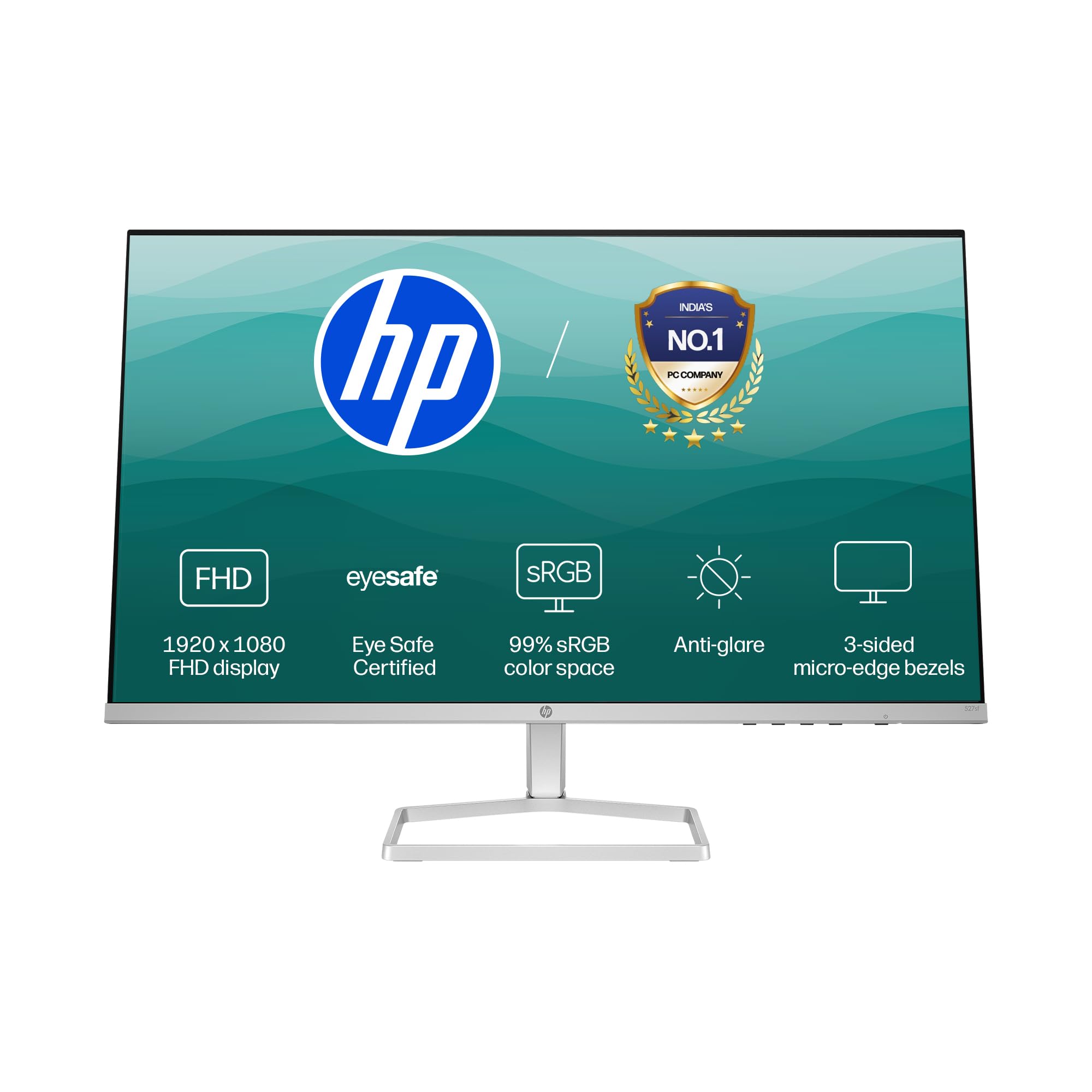
Image: HP Series 5 27-inch FHD Monitor, showcasing its sleek design on a desk.
2. Co znajduje się w pudełku
Sprawdź, czy w opakowaniu znajdują się wszystkie elementy:
- HP Series 5 27-inch FHD Monitor
- Stojak na monitor (podstawa i szyjka)
- Kabel HDMI
- Zasilacz
- Przewód zasilający AC
- Dokumentacja (Szybki przewodnik konfiguracji, Karta gwarancyjna)

Image: Illustration of the monitor and its included accessories: monitor, HDMI cable, power adapter, and AC power cord.
3. Instrukcje konfiguracji
3.1 Montaż podstawy monitora
- Ostrożnie wyjmij monitor i elementy stojaka z opakowania.
- Przymocuj podstawę do panelu monitora. Upewnij się, że jest pewnie zamocowana.
- Przymocuj podstawę do szyjki podstawy. Dokręć wszystkie śruby, jeśli są dołączone, zazwyczaj znajdujące się na spodzie podstawy.
- Zmontowany monitor należy umieścić na stabilnej, płaskiej powierzchni.
3.2 Podłączanie monitora
The monitor supports both HDMI and VGA connections.
- Podłączenie zasilania: Connect the power adapter to the monitor's power input port, then plug the AC power cord into the adapter and a wall outlet.
- Połączenie wideo:
- For HDMI: Connect one end of the HDMI cable to an HDMI port on your computer and the other end to one of the two HDMI 1.4 ports on the monitor.
- For VGA: Connect one end of the VGA cable to the VGA port on your computer and the other end to the VGA port on the monitor.
- Upewnij się, że wszystkie kable są bezpiecznie podłączone.

Obraz: Tył view of the HP Series 5 monitor, highlighting the VGA port and two HDMI 1.4 ports for device connectivity.
4. Obsługa monitora
4.1 Włączanie/wyłączanie zasilania
Press the power button, usually located on the bottom right bezel or rear of the monitor, to turn the monitor on or off. The power indicator light will illuminate when the monitor is on.
4.2 Nawigacja po menu ekranowym (OSD)
Use the physical buttons on the monitor (typically on the bottom right or rear) to access and navigate the On-Screen Display (OSD) menu. This menu allows you to adjust various display settings.
- Wybór wejścia: Use the OSD or a dedicated input button to switch between connected devices (e.g., HDMI 1, HDMI 2, VGA). The monitor may also auto-detect active inputs.
- Jasność/Kontrast: Dostosuj te ustawienia do swoich potrzeb viewing environment. The monitor offers 300 nits brightness for clear visuals.
- Ustawienia kolorów: Fine-tune color temperature, gamma, and other color parameters. The monitor provides 99% sRGB color accuracy for vivid and realistic colors.
- Tryby obrazu: Select from preset picture modes optimized for different content types (e.g., Standard, Gaming, Movie).

Image: The HP Series 5 monitor showcasing its bright display, emphasizing 300 nits brightness for clear visuals.

Image: The HP Series 5 monitor displaying rich and realistic colors, highlighting its 99% sRGB color accuracy.
4.3 Funkcje zapewniające komfort oczu
The monitor is equipped with HP Eye Ease and Eyesafe certification, which limits blue light emissions to reduce eye strain without compromising color accuracy. This feature is always-on and does not require OSD adjustments.

Image: The HP Series 5 monitor displaying a dynamic scene, demonstrating its low blue light feature for comfortable extended viewing.
4.4 IPS Technology and Refresh Rate
IPS (In-Plane Switching) technology ensures consistent image accuracy and vivid colors across wide 178-degree horizontal and vertical viewing angles. The 100 Hz refresh rate provides smooth scrolling and fluid motion, enhancing your viewzdobywania doświadczenia.

Image: The HP Series 5 monitor displaying a colorful jungle scene, highlighting the vivid colors and crystal-clear viewing from all angles due to IPS technology.
5. Konserwacja
5.1 Czyszczenie monitora
- Przed czyszczeniem należy zawsze wyłączyć monitor i odłączyć przewód zasilający.
- Delikatnie użyj miękkiej, niestrzępiącej się szmatki dampCzyścić wodą lub nieściernym środkiem do czyszczenia ekranów.
- Delikatnie przetrzyj ekran i powierzchnie zewnętrzne. Unikaj nadmiernego nacisku.
- Do not use alcohol, ammonia-based cleaners, or abrasive materials, as these can damage the anti-glare coating and plastic surfaces.
5.2 Ogólna opieka
- Unikaj umieszczania ciężkich przedmiotów na monitorze i jego kablach.
- Trzymaj monitor z dala od bezpośredniego światła słonecznego, źródeł ciepła i nadmiernej wilgoci.
- Aby zapobiec przegrzaniu, należy zapewnić odpowiednią wentylację wokół monitora.
- Utilize the integrated cable containment features to manage wires and reduce clutter.

Obraz: Tył view of the HP Series 5 monitor, illustrating its design for less clutter around the workspace with integrated cable management.
6. Rozwiązywanie Problemów
Jeśli masz problemy z monitorem, zapoznaj się z poniższymi typowymi rozwiązaniami:
- Brak zasilania: Upewnij się, że przewód zasilający jest prawidłowo podłączony do monitora i do sprawnego gniazdka elektrycznego. Sprawdź podłączenie zasilacza.
- Brak obrazu/sygnału: Verify that the video cable (HDMI or VGA) is correctly connected to both the monitor and your computer. Ensure the correct input source is selected via the OSD menu. Try restarting your computer.
- Migotanie lub zniekształcenie obrazu: Check the video cable for damage or loose connections. Ensure your computer's display resolution and refresh rate are compatible with the monitor's specifications.
- Display Anomalies (e.g., light bleeding): While minor variations can occur, if you notice significant or distracting light bleeding, especially from the edges, ensure the monitor is properly seated on its stand and that no external pressure is being applied to the screen. If the issue persists, contact HP support.
- Przyciski nie odpowiadają: Odłącz przewód zasilający monitora, odczekaj 15 sekund, a następnie podłącz go ponownie i spróbuj jeszcze raz.
7. Specyfikacje
| Funkcja | Specyfikacja |
|---|---|
| Marka | HP |
| Numer modelu | 94F45AA |
| Rozmiar ekranu | 27 cala (68.6 cm) |
| Rezolucja | FHD 1080p (1920x1080) |
| Proporcje obrazu | 16:9 |
| Opis powierzchni ekranu | Antyodblaskowy |
| Współczynnik kontrastu | 1500:1 |
| Częstotliwość odświeżania | 100 Hz |
| Typ wyświetlacza | LCD (IPS Panel) |
| Viewing kąt | 178 stopni (poziomo/pionowo) |
| Jasność obrazu | 300 nitów |
| Czas reakcji | 5 milisekund |
| Łączność | 2 x HDMI 1.4, 1 x VGA |
| Adaptacyjna synchronizacja | FreeSync |
| Cechy produktu | Flicker-Free, HP Eye Ease with Eyesafe certification |
| Wymiary przedmiotu (gł. x szer. x wys.) | 18.8D x 60.8W x 43.7H centymetrów |
| Waga przedmiotu | 3.2 kilograma |
| UPC | 197498944876 |
8. Informacje o gwarancji
This HP Series 5 27-inch FHD Monitor comes with a Roczna gwarancja na miejscu. Please retain your proof of purchase for warranty claims. For detailed terms and conditions, refer to the warranty card included in your product packaging or visit the official HP support webstrona.
9. Wsparcie
For further assistance, technical support, or service inquiries, please contact HP Customer Support. You can find contact information on the official HP webstronie internetowej lub w dokumentacji dołączonej do monitora.
For ergonomic setup guidance, refer to the HP Display Center software, which can help you customize your comfort settings.
Producent: HP, HP India Sales Pvt. Ltd.
Dane kontaktowe importera: HP India Sales Private Limited, No. 24, Kothari Arena, Hosur Main Road, Adugodi, Bangalore, Karnataka, India, 560030
10. Informacje o środowisku
The HP Series 5 monitor is designed with sustainability in mind:
- Designed from recycled materials and ocean-bound plastics.
- EPEAT® registered.
- Certyfikat ENERGY STAR®.

Image: The HP Series 5 monitor displayed with environmental elements, emphasizing its construction from recycled materials and ocean-bound plastics, EPEAT registration, and ENERGY STAR certification.