
Wstęp
This manual provides detailed instructions for the TECPHILE iPad Keyboard Case, Model T5509D. It covers setup, operation, maintenance, and troubleshooting to ensure optimal use of your device. Please read this manual thoroughly before using the product.
Zgodność
The TECPHILE iPad Keyboard Case (Model T5509D) is specifically designed for the following iPad Pro 12.9-inch models:
- iPad Pro 12.9-inch (6th Generation, 2022): Modele A2436, A2764, A2437, A2766
- iPad Pro 12.9-inch (5th Generation, 2021): Modele A2378, A2379, A2461, A2462
- iPad Pro 12.9-inch (4th Generation, 2020): Modele A2233, A2229, A2069, A2232
- iPad Pro 12.9-inch (3rd Generation, 2018): Modele A1876, A2014, A1895, A1983
To etui nie jest kompatybilne z żadnym innym modelem iPada.

Image: Compatibility chart for TECPHILE iPad Keyboard Case. Please verify your iPad model number on the back of your device to ensure compatibility.
Zawartość opakowania
Po otwarciu opakowania prosimy upewnić się, że znajdują się w nim wszystkie elementy:
- TECPHILE iPad Keyboard Case (with integrated kickstand and pencil holder)
- Detachable Wireless Backlit Keyboard
- Kabel ładujący USB-C
- Instrukcja obsługi (ten dokument)
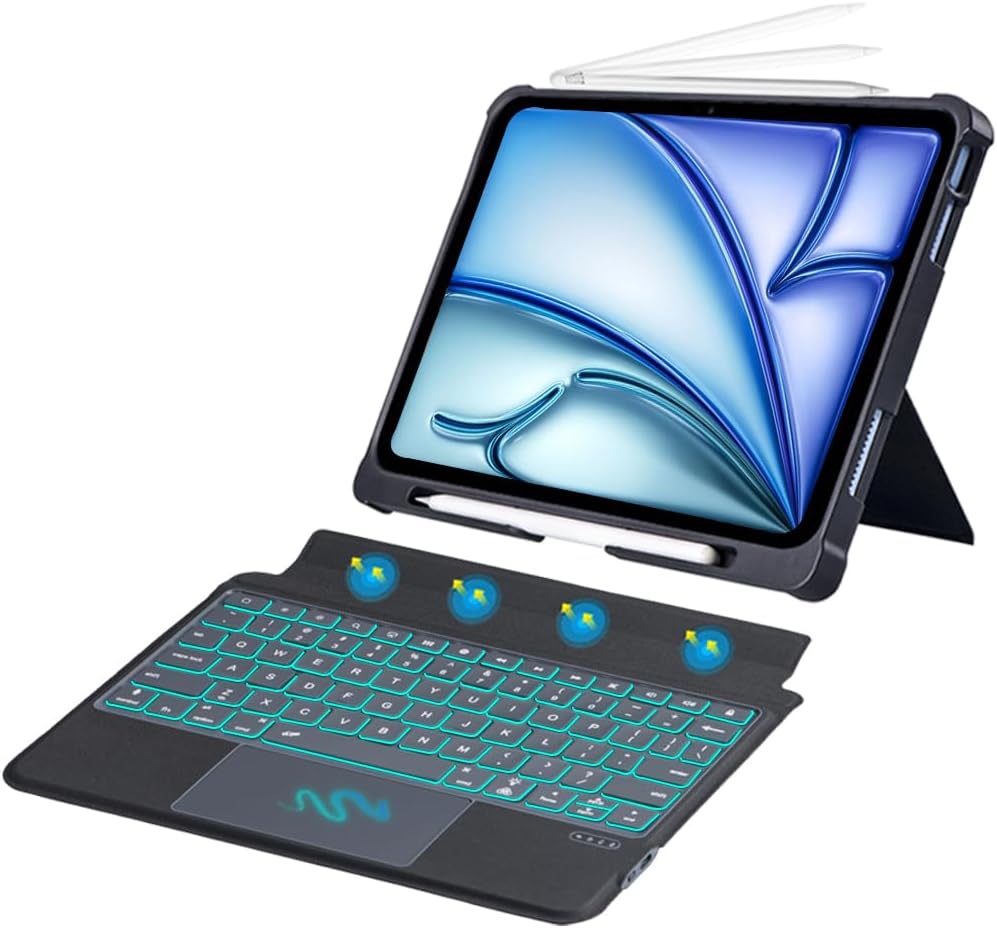
Obraz: Ponadview of the TECPHILE iPad Keyboard Case components, including the case with an iPad and the detached wireless keyboard.
Przewodnik po konfiguracji
1. Mocowanie iPada do etui
- Gently align your iPad Pro 12.9-inch with the case.
- Insert the iPad into the protective shell, ensuring all corners are securely fitted. The case provides full protection and features honeycomb heat release design.
- The case includes a dedicated pencil holder and supports wireless charging for your Apple Pencil.
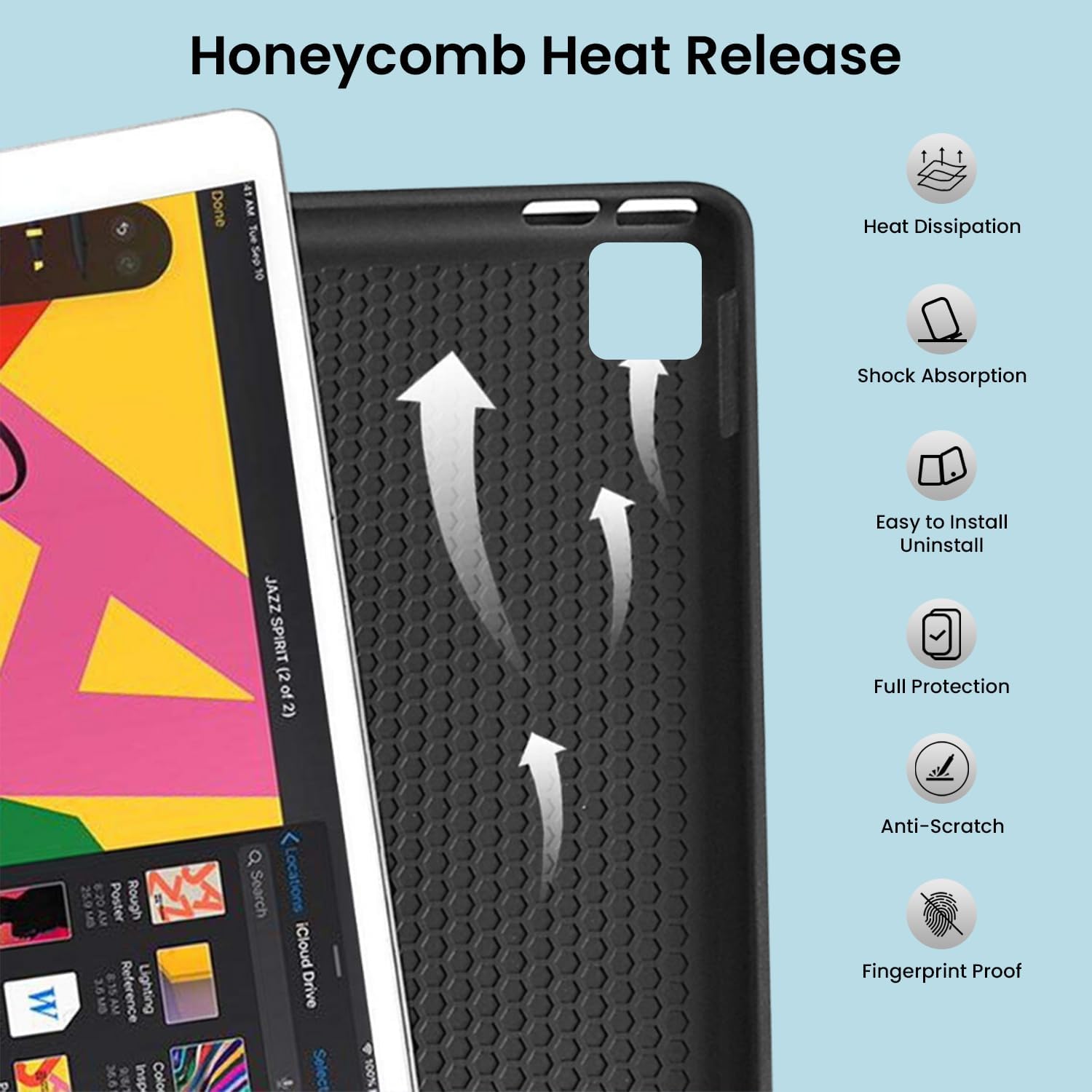
Image: Detail of the case's honeycomb structure for heat dissipation and protective features.

Image: Illustrates the wireless charging capability for the Apple Pencil and the integrated pencil holder.
2. Ładowanie klawiatury
Before initial use, fully charge the keyboard. The keyboard has a 500mAh battery capacity.
- Znajdź port ładowania USB-C z boku klawiatury.
- Connect the provided USB-C cable to the keyboard and a power source (e.g., USB wall adapter, computer USB port).
- The charging indicator light will illuminate. Once fully charged, the light may change or turn off.
A full charge provides approximately 80 hours of use without backlight or 5 hours with backlight enabled.

Image: Keyboard charging port and battery performance details.
3. Connecting the Keyboard via Bluetooth
The keyboard connects wirelessly to your iPad via Bluetooth.
- Sprawdź, czy klawiatura jest naładowana i włączona.
- Na klawiaturze naciśnij Fn+Z keys simultaneously. The Bluetooth indicator light will start blinking, indicating it's in pairing mode.
- Na iPadzie przejdź do Ustawienia > Bluetooth.
- Włącz Bluetooth. Twój iPad wyszuka dostępne urządzenia.
- Locate and tap "Bluetooth Keyboard" (or similar name) in the list of devices to connect.
- Once connected, the Bluetooth indicator light on the keyboard will stop blinking.

Image: Visual guide for Bluetooth pairing process.
Instrukcja obsługi
Funkcje klawiatury
The detachable keyboard features a QWERTY layout with additional function keys for iPad control.
- Kontrola podświetlenia: Naciskać Klawisz + 💡 (light bulb icon) to turn on/off the backlight and cycle through 7 different colors. Press Klawisz + ☀️ (sun icon) to adjust the 3 levels of brightness.
- Full Shortcut Row: Access common iPad functions directly from the top row of keys.
- Intelligent Voice Input Function: Utilize the dedicated key for voice input.

Obraz: Szczegółowy view of the keyboard's backlit keys and function controls.
Smart Multi-Gesture Trackpad
The integrated large trackpad supports multi-touch gestures for enhanced navigation.
- Podstawowa nawigacja: Move the cursor by sliding your finger across the trackpad.
- Click Functions: Supports right and left click functions.
- Multi-Finger Gestures: Utilize native iPad multi-finger gestures for scrolling, swiping, and other actions. Refer to your iPad's settings for a full list of supported gestures.
- Turn On/Off Trackpad: Naciskać Klawisz + 🖱️ (trackpad icon) to enable or disable the trackpad.
Adjustable Kickstand and Usage Modes
The case features an adjustable kickstand that allows for multiple viewing angles and usage modes.
- Tryb pisania: Position the iPad upright with the keyboard attached for a laptop-like experience.
- View Tryb: Adjust the kickstand to a comfortable angle for watching videos or presentations without the keyboard.
- Tryb czytania: Fold the keyboard behind the iPad for a tablet-like reading experience.
- Tryb szkicowania: Lower the angle for drawing or writing with the Apple Pencil.
The kickstand offers a seamless range of angles, smoothly reclining from 30° to 160° while maintaining stability.

Image: Various usage modes enabled by the adjustable kickstand and detachable keyboard.
Auto Wake/Sleep Function
The keyboard case includes an auto wake/sleep function to conserve battery life. Closing the case will put your iPad to sleep, and opening it will wake it up.
Konserwacja
- Czyszczenie: Użyj miękkiego, damp cloth to wipe the exterior of the case and keyboard. Avoid harsh chemicals or abrasive materials.
- Składowanie: Jeśli klawiatura nie jest używana przez dłuższy czas, przechowuj ją w chłodnym i suchym miejscu. Upewnij się, że klawiatura jest wyłączona, aby oszczędzać baterię.
- Pielęgnacja baterii: Aby przedłużyć żywotność baterii, unikaj częstego całkowitego rozładowywania klawiatury. Regularnie ją ładuj.
Rozwiązywanie problemów
Klawiatura nie łączy się
- Sprawdź moc: Sprawdź, czy klawiatura jest włączona i czy bateria jest wystarczająco naładowana.
- Ponowne sparowanie Bluetooth:
- Na iPadzie przejdź do Ustawienia > Bluetooth.
- Forget or unpair the "Bluetooth Keyboard" if it appears in "My Devices".
- Uruchom ponownie iPada.
- Put the keyboard into pairing mode (press Fn+Z).
- Szukaj and connect to the keyboard again on your iPad.
- Ingerencja: Odsuń się od innych urządzeń bezprzewodowych, które mogą powodować zakłócenia.
Klawisze nie reagują
- Poziom naładowania baterii: Naładuj klawiaturę całkowicie.
- Połączenie Bluetooth: Sprawdź, czy klawiatura jest prawidłowo podłączona przez Bluetooth.
- Uruchom ponownie: Turn the keyboard off and on again.
Trackpad Not Working
- Enable Trackpad: Ensure the trackpad is enabled by pressing Klawisz + 🖱️ (trackpad icon).
- Ustawienia iPada: Check iPad accessibility settings for pointer control.
- Wyczyść gładzik: Upewnij się, że powierzchnia gładzika jest czysta i wolna od zanieczyszczeń.
Specyfikacje
| Nazwa modelu | T5509D |
| Zgodność | iPad Pro 12.9" (6th, 5th, 4th, 3rd Gen) |
| Łączność | Bluetooth |
| Układ klawiatury | QWERTY |
| Podświetlenie | 7 kolorów, 3 poziomów jasności |
| Gładzik | Large Multi-Gesture Trackpad |
| Pojemność baterii | 500 mAh (litowo-jonowy) |
| Battery Life (Non-backlight) | Do 80 godzin |
| Battery Life (Backlight) | Do 5 godzin |
| Port ładowania | USB-C |
| Wymiary produktu | Wymiary 29 x 24 x 2 cm |
| Waga przedmiotu | 735 gramów |
| Tworzywo | Leatherite and ABS Plastic |
| Cechy specjalne | Adjustable Kickstand (30°-160°), Detachable Keyboard, Pencil Holder, Wireless Pencil Charging Support, Auto Wake/Sleep, Honeycomb Heat Release |
Gwarancja i wsparcie
For warranty information or technical support, please refer to the documentation included with your purchase or contact TECPHILE customer service through the retailer where the product was purchased. Please have your model number (T5509D) and purchase details ready when contacting support.