
Phomemo TP88
Phomemo TP88 Tattoo Transfer Stencil Printer User Manual
Model: TP88
1. Koniec produktuview
The Phomemo TP88 Tattoo Transfer Stencil Printer is a compact, portable thermal printer designed for tattoo artists and enthusiasts. It utilizes HD thermal technology to produce clear tattoo stencils without the need for ink. The device supports both A4 and US Letter size transfer paper and offers wide compatibility with smartphones (iOS and Android) via Bluetooth and PCs (Windows, Mac OS, Chrome OS, Linux) via USB connection. Its built-in 1200 mAh battery ensures long-lasting operation, capable of printing up to 140 sheets on a full charge.
Główne cechy obejmują:
- Połączenie bezprzewodowe: Bluetooth for smartphones and USB for PCs.
- Druk termiczny bez użycia atramentu: High-definition stencils without ink cartridges.
- Przenośna konstrukcja: Kompaktowy i lekki, co ułatwia transport.
- Wide Paper Compatibility: Supports A4 and US Letter size tattoo transfer paper.
- Anti-Wrinkle Function: Designed to prevent paper rolling during printing.
- Powerful Mobile App: Features image editing, cropping, and tattoo preview funkcje.
2. Co znajduje się w pudełku
Upon unboxing your Phomemo TP88 Tattoo Transfer Stencil Printer, you should find the following items:
- 1x Phomemo TP88 Tattoo Transfer Stencil Printer
- 10x Thermal Transfer Paper sheets
- 1x kabel ładujący typu C
- 1x Docking Station (USB-A to USB-C adapter)
- 1x Velvet Pouch for carrying
- Przewodnik szybkiego startu 1x

Image: The Phomemo TP88 printer shown with its accessories, including transfer paper, charging cable, adapter, and velvet pouch.
Video: An unboxing demonstration of the Phomemo TP88 tattoo machine, showcasing wszystkie zawarte komponenty.
3. Setup and Paper Loading
Follow these steps to prepare your TP88 printer for use:
- Włączanie: Naciśnij i przytrzymaj przycisk zasilania drukarki, aż zaświeci się kontrolka.
- Otwórz drukarkę: Press the two side buttons simultaneously to open the printer cover.
- Prepare Transfer Paper:
- Remove the yellow backing paper from the thermal transfer sheet.
- Carefully peel off the transparent protective paper.
- Włóż papier: Insert the white transfer paper (with the white side facing up) into the printer's paper slot until it is gently gripped by the rollers. Ensure the paper is aligned straight to prevent misprints.

Image: Visual instructions demonstrating how to prepare and load the thermal transfer paper into the TP88 printer.
Video: A demonstration of preparing and loading Phomemo tattoo thermal paper into the printer.
4. Instrukcja obsługi
4.1. Printing from a Smartphone (Bluetooth)
- Pobierz aplikację: Pobierz aplikację „Phomemo” ze sklepu App Store (iOS) lub Google Play Store (Android).
- Połącz przez Bluetooth: Open the Phomemo app and enable Bluetooth on your smartphone. Szukaj and select "TP88" from the list of available devices to connect.
- Select/Edit Design: Within the app, you can choose from massive material templates, upload your own images, or use the free editing tools to adjust, crop, or splice designs. The app also allows you to convert pictures into transfer lines and preview tattoo patterns.
- Wydrukować: Adjust print parameters as needed within the app, then initiate printing. The printer will feed the paper and create your stencil.

Image: A smartphone screen showing the Phomemo app interface with options for editing and printing, connected to the TP88 printer.
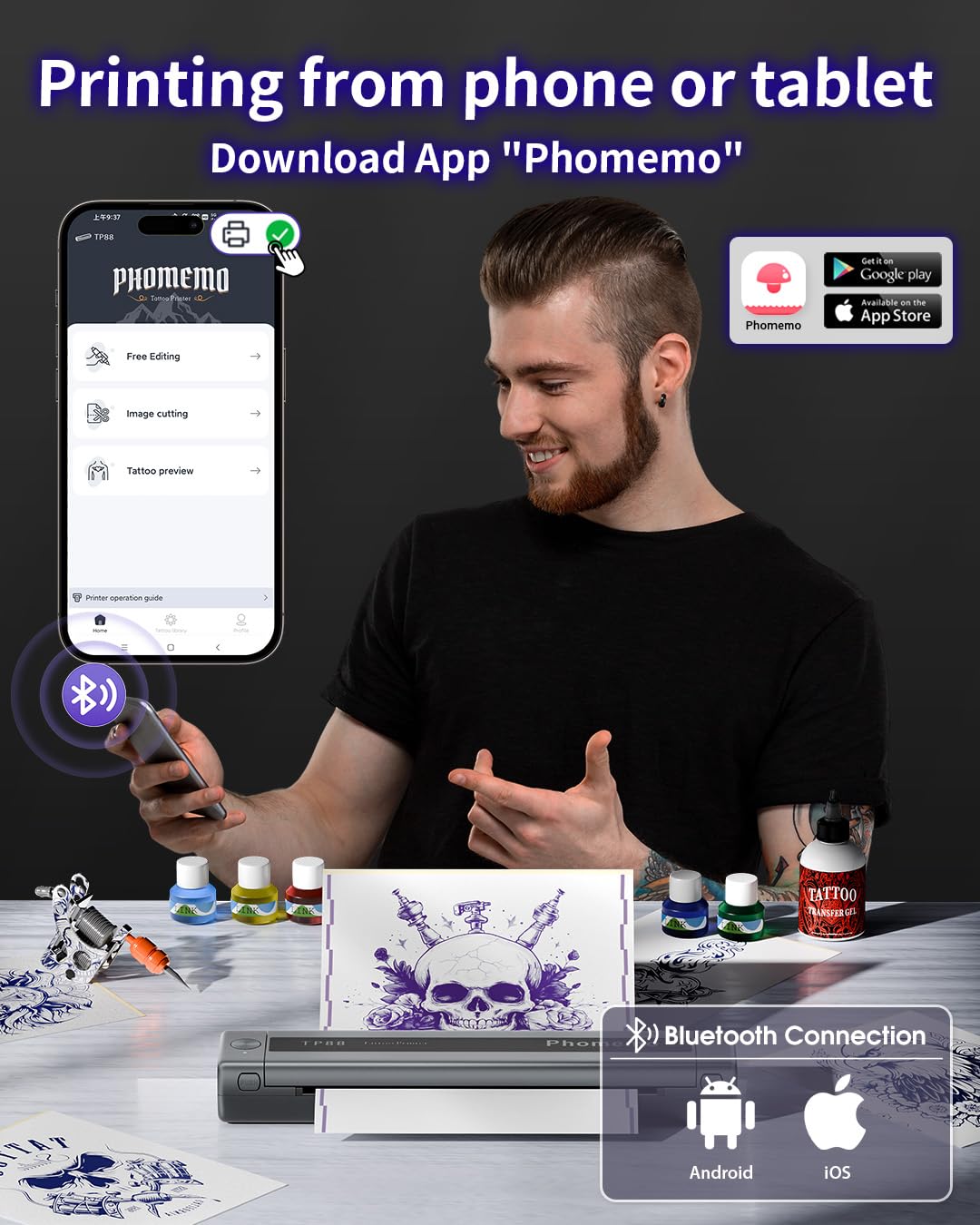
Obraz: Szczegółowy view of the Phomemo app's features, including tattoo library, image cutting, and tattoo preview.
4.2. Printing from a Computer (USB)
- Pobierz sterownik: Odwiedź oficjalną stronę Phomemo website (pages.phomemo.com/#/TP88) to download the appropriate driver for your operating system (Windows, Mac OS, Chrome OS, or Linux).
- Zainstaluj sterownik: Follow the on-screen instructions to install the printer driver on your computer.
- Podłącz drukarkę: Connect the TP88 printer to your computer using the provided Type-C charging cable. If your computer lacks a USB-A port, use the included docking station (USB-A to USB-C adapter).
- Wydrukować: Open your desired image or design on your computer, select the TP88 printer from your print options, and initiate printing.

Image: A laptop connected to the Phomemo TP88 printer, demonstrating the process of printing a tattoo stencil from a computer.
Video: A step-by-step guide on how to use the Phomemo TP88 tattoo machine to print stencils via a computer connection.
5. Konserwacja
To ensure the longevity and optimal performance of your Phomemo TP88 printer, regular maintenance is recommended:
- Czyszczenie: Periodically clean the paper path and thermal print head with a soft, lint-free cloth. If necessary, use a small amount of isopropyl alcohol on the cloth for stubborn residue, ensuring the printer is powered off and disconnected from power.
- Składowanie: Przechowuj drukarkę w chłodnym, suchym miejscu, z dala od bezpośredniego światła słonecznego i ekstremalnych temperatur.
- Pielęgnacja baterii: For extended storage, ensure the battery is charged to approximately 50-70% to maintain battery health. Avoid fully discharging the battery for long periods.
- Obsługa papieru: Always use high-quality thermal transfer paper designed for stencil printers. Store paper in its original packaging to protect it from light and moisture.
6. Rozwiązywanie Problemów
If you encounter issues with your Phomemo TP88 printer, consider the following common solutions:
- Drukarka nie włącza się: Ensure the printer is fully charged. Connect it to a power source using the provided Type-C cable and a standard 5V/2A (10W) charger.
- Słaba jakość druku:
- Check if the thermal transfer paper is loaded correctly (white side up).
- Ensure the paper is not wrinkled or damaged.
- Wyczyść głowicę drukującą zgodnie z opisem w rozdziale Konserwacja.
- Verify the image resolution and settings in the app or computer driver.
- Connection Issues (Bluetooth):
- Make sure Bluetooth is enabled on your smartphone and the printer is within range.
- Uruchom ponownie drukarkę i smartfon.
- Upewnij się, że żadne inne urządzenia nie zakłócają połączenia Bluetooth.
- Re-pair the device through the Phomemo app.
- Problemy z połączeniem (USB):
- Verify that the USB cable is securely connected to both the printer and the computer.
- Ensure the correct printer driver is installed and updated for your operating system.
- Spróbuj użyć innego portu USB lub kabla.
- Zakleszczenie papieru: Power off the printer, gently open the cover, and carefully remove any jammed paper. Ensure no small pieces of paper remain inside before closing the cover and powering on.
7. Specyfikacje
| Funkcja | Szczegół |
|---|---|
| Numer modelu | TP88 |
| Wymiary produktu | 12.2 x 1.57 x 2.64 cala |
| Waga | 2.47 funtów |
| Bateria | 1 Lithium Polymer battery (1200 mAh), included |
| Technologia druku | Termiczny (bezatramentowy) |
| Zgodność papieru | A4, US Letter size thermal transfer paper |
| Łączność | Bluetooth (iOS, Android), USB (Windows, Mac OS, Chrome OS, Linux) |
| Zawarte komponenty | TP88 Tattoo Machine, 10x Thermal Transfer Paper, Type-C Charging Cable, Docking Station, Velvet Pouch |
| Kolor | Czarny |
| Poziom wodoodporności | Nie jest wodoodporny |
8. Gwarancja i wsparcie
For any product inquiries, technical support, or warranty claims, please contact Phomemo customer service:
- E-mail: bestservice2012@outlook.com
- Telefon: + 1 833 879 0321 (bezpłatny)
- WhatsApp: +1 971 476 7804
- Godziny otwarcia: Poniedziałek - Piątek, 9:00 - 17:00 (EST)
Szczegóły gwarancji znajdziesz w dokumentacji zakupu.
Ask a question about this manual
Ask about setup, troubleshooting, compatibility, parts, safety, or missing instructions. Manuals+ will review the question and use this page’s manual context to help answer it.