
1. Wprowadzenie
The Yesido TV12 Gaming TV Box is a versatile device designed to transform your television into a smart entertainment hub. It combines 4K media streaming capabilities with extensive gaming emulation, offering a comprehensive entertainment experience. This manual provides essential information for setting up, operating, maintaining, and troubleshooting your device.
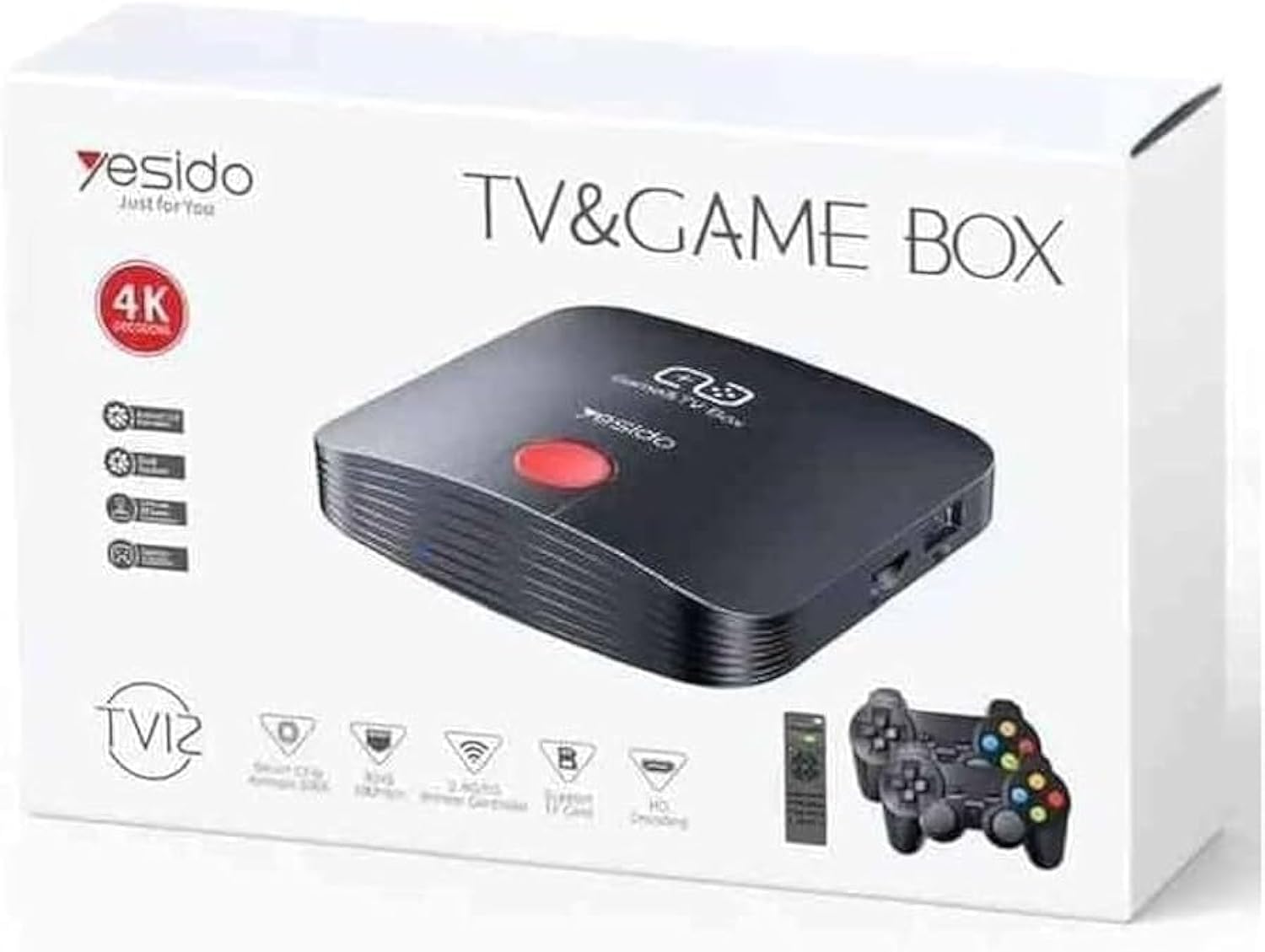
Image 1.1: The Yesido TV12 Gaming TV Box and included game controllers.
2. Koniec produktuview
The Yesido TV12 is a high-tech smart TV box that supports high-definition 4K resolution, allowing you to enjoy movies and TV shows with stunning clarity. It features an Amlogic S905 smart chip and runs on an Android 12.0 dual system. The device is equipped with 2GB RAM and 16GB internal storage, facilitating multitasking and storage of your favorite media and games. A powerful Mali-G31 MP2 GPU ensures smooth performance for demanding games.
Główne cechy:
- 4K HD Resolution Support (1080P to 4K)
- Android 12.0 Dual System
- Amlogic S905 Smart Chip
- Procesor graficzny Mali-G31 MP2
- 2 GB pamięci RAM i 16 GB pamięci masowej
- Supports over 10,000 game emulations (14 types)
- Integrated 2.4G/5G Wi-Fi and 100Mbps RJ45 Ethernet
- Compatible with popular streaming services (Netflix, Hulu, Amazon Prime Video, Disney+)
- Voice-controlled remote for easy navigation
- Compatible with two game controllers
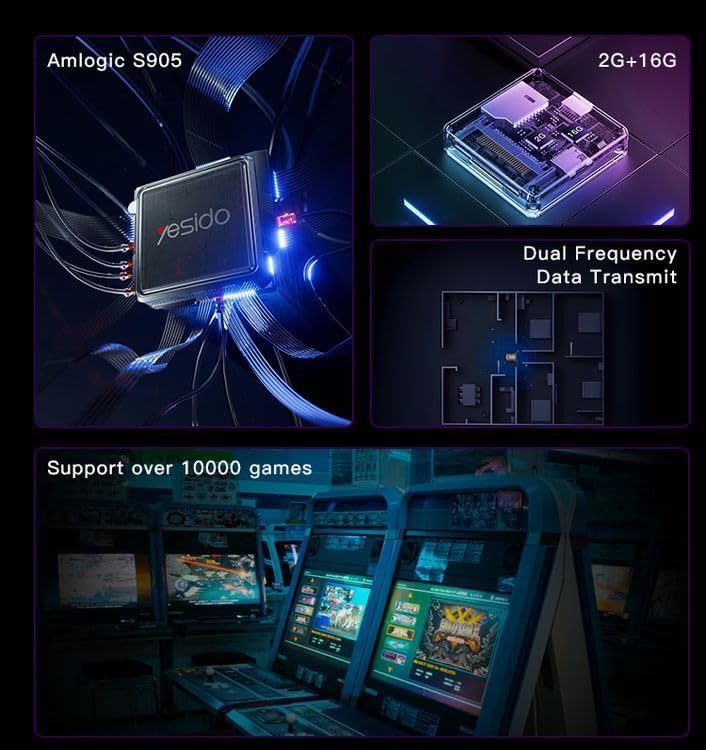
Image 2.1: Internal architecture highlighting the Amlogic S905 chip, memory, and data transmission capabilities.
3. Przewodnik konfiguracji
3.1 Rozpakowywanie i komponenty
Ostrożnie wyjmij wszystkie elementy z opakowania. Upewnij się, że znajdują się w nim następujące elementy:
- Yesido TV12 Gaming TV Box
- Zasilacz
- Kabel HDMI
- Zdalne sterowanie
- Game Controllers (quantity may vary)
- Instrukcja obsługi (ten dokument)
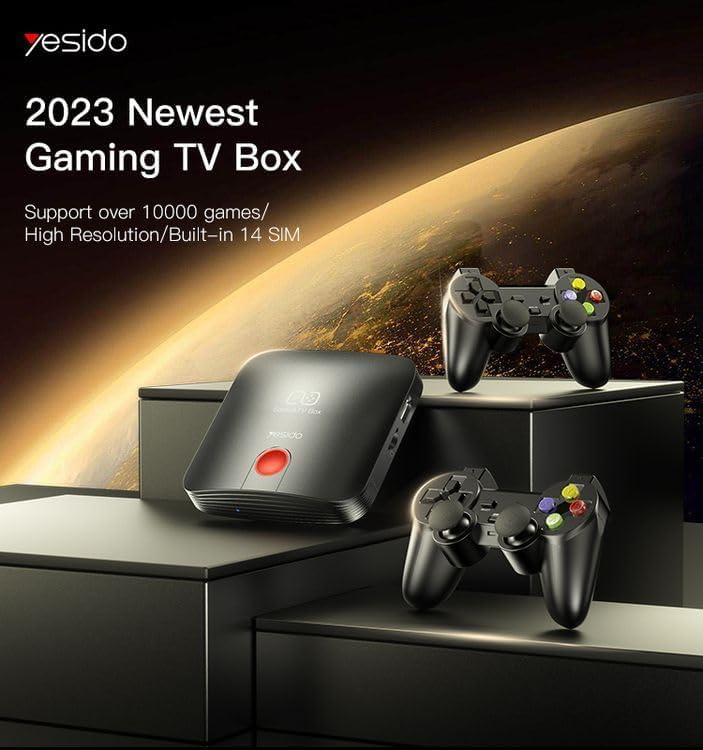
Image 3.1: The TV Box and game controllers, ready for setup.
3.2 Podłączanie do telewizora
- Connect one end of the HDMI cable to the HDMI port on the Yesido TV12.
- Connect the other end of the HDMI cable to an available HDMI input port on your television. Note the HDMI input number (e.g., HDMI 1, HDMI 2).
3.3 Włączanie
- Podłącz zasilacz do portu DC IN w TV Boxie.
- Podłącz zasilacz do gniazdka ściennego.
- Włącz telewizor i za pomocą pilota telewizora wybierz odpowiednie wejście HDMI.
- The TV Box will automatically power on and display the boot-up screen.
3.4 Połączenie sieciowe
For internet access, you can connect via Wi-Fi or Ethernet.
- Wi-Fi: Navigate to Settings > Network > Wi-Fi. Select your network from the list, enter the password, and connect.
- Ethernet: Connect an Ethernet cable from your router to the RJ45 port on the TV Box. The connection should be established automatically.
3.5 Remote Control and Gamepad Pairing
The included remote control is typically pre-paired. If not, or if pairing gamepads:
- Ensure batteries are inserted correctly into the remote/gamepad.
- For Bluetooth gamepads, go to Settings > Connected Devices > Pair new device and follow the on-screen instructions.
4. Instrukcja obsługi
4.1 Poruszanie się po interfejsie
Use the remote control to navigate the Android 12.0 interface. The directional buttons move the cursor, the OK button selects, and the Back button returns to the previous screen. The Home button returns to the main launcher screen.
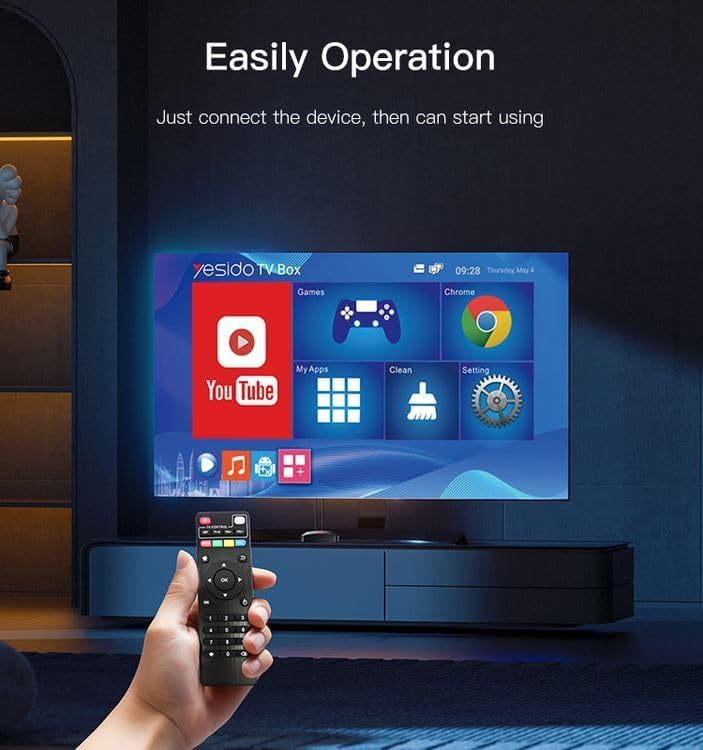
Image 4.1: Navigating the Yesido TV Box interface with the remote control.
4.2 Streaming Media
The TV Box supports various streaming applications. Pre-installed apps like YouTube are available, and you can download more from the app store (e.g., Netflix, Hulu, Amazon Prime Video, Disney+).
- Select the desired streaming app from the home screen or 'My Apps' section.
- Zaloguj się, podając dane swojego konta.
- Przeglądaj i wybieraj treści, które chcesz obejrzeć.
4.3 Gry
The Yesido TV12 is designed for gaming, supporting over 10,000 game emulations. Connect your game controllers as described in Section 3.5.
- Access the 'Games' or 'Emulator' section from the home screen.
- Select your desired game or emulator.
- Use the connected game controllers for an immersive gaming experience.

Image 4.2: The wireless gamepads compatible with the TV Box.
4.4 Sterowanie głosowe
If your remote control supports voice input, press the voice button and speak your commands or search queries. This allows for hands-free content search and device control.
5. Konserwacja
5.1 Czyszczenie urządzenia
To maintain optimal performance and appearance, regularly clean the TV Box:
- Przed czyszczeniem odłącz urządzenie od gniazdka elektrycznego.
- Do wycierania powierzchni zewnętrznych należy używać miękkiej, suchej ściereczki.
- Nie należy używać środków czyszczących w płynie, aerozoli ani materiałów ściernych, gdyż mogą one uszkodzić urządzenie.
5.2 Aktualizacje oprogramowania
Keep your device's software updated to ensure the best performance and access to new features:
- Connect the TV Box to the internet.
- Navigate to Settings > About > System Update.
- Postępuj zgodnie z instrukcjami wyświetlanymi na ekranie, aby sprawdzić dostępność aktualizacji i je zainstalować.
5.3 Zarządzanie magazynem
With 16GB of internal storage, managing your space is important:
- Przejdź do Ustawienia > Pamięć, aby view wykorzystanie pamięci masowej.
- Uninstall unused applications or delete unnecessary files aby zwolnić miejsce.
- The device supports TF cards for expandable storage.
6. Rozwiązywanie Problemów
6.1 Brak zasilania
- Upewnij się, że zasilacz jest solidnie podłączony do TV Boxa i działającego gniazdka elektrycznego.
- Spróbuj użyć innego gniazdka elektrycznego.
6.2 No Signal / No Display
- Sprawdź, czy kabel HDMI jest prawidłowo podłączony do dekodera i telewizora.
- Sprawdź, czy w telewizorze wybrane jest właściwe źródło sygnału HDMI.
- Spróbuj użyć innego kabla HDMI lub portu HDMI w telewizorze.
6.3 Problemy z połączeniem sieciowym
- Wi-Fi: Check if your Wi-Fi router is working correctly. Re-enter the Wi-Fi password in Settings > Network.
- Ethernet: Ensure the Ethernet cable is properly connected to both the TV Box and the router.
- Uruchom ponownie router i TV Box.
6.4 Pilot zdalnego sterowania nie odpowiada
- Sprawdź i wymień baterie w pilocie.
- Upewnij się, że między pilotem a dekoderem TV nie ma żadnych przeszkód.
- Re-pair the remote control if necessary (refer to Section 3.5).
6.5 Problemy z wydajnością gry
- Zamknij wszystkie aplikacje działające w tle, aby zwolnić pamięć RAM.
- Upewnij się, że dostępna jest wystarczająca ilość miejsca do przechowywania.
- For online games, check your internet connection stability.
7. Specyfikacje
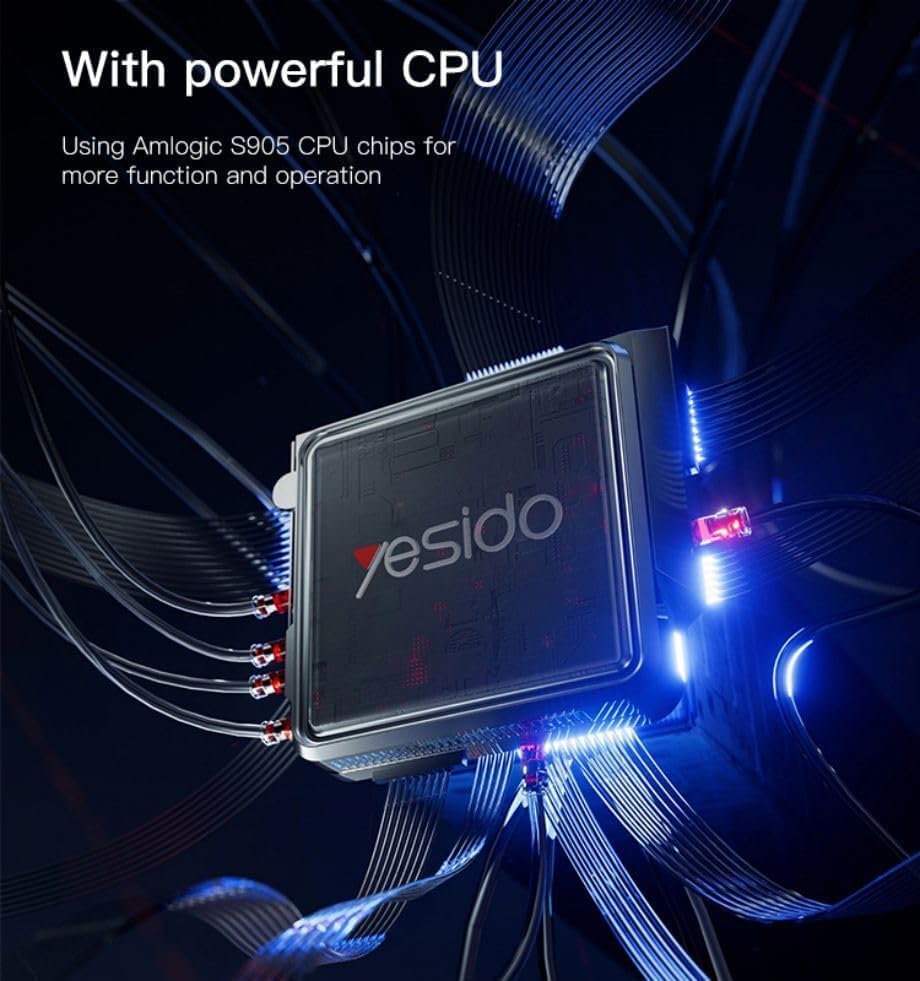
Image 7.1: The powerful Amlogic S905 CPU at the core of the TV Box.
| Funkcja | Opis |
|---|---|
| Nazwa marki | Yesido |
| Nazwa modelu | Telewizja 12 |
| System operacyjny | Android 12.0 Dual System |
| Procesor | Amlogic S905 |
| Procesor graficzny | Mali-G31 MP2 |
| Zainstalowana pamięć RAM | 2 GB |
| Pojemność pamięci masowej | 16 GB |
| Rozdzielczość wyjściowa wideo | 1080P to 4K |
| Technologia łączności | HDMI, Wi-Fi (2.4G/5G), RJ45 (100Mbps) |
| Typ złącza | HDMI |
| Obsługiwane usługi internetowe | Netflix, Hulu, Amazon Prime Video, Disney+ |
| Kompatybilne urządzenia | Telewizja |
| Zawarte komponenty | TV Box, Controllers |
| Kolor | Czarny |
| Waga przedmiotu | 1200 gramów |
| Wymiary produktu (dł. x szer. x wys.) | Wymiary 20 x 5 x 10 cm |
8. Gwarancja i wsparcie
8.1 Informacje o gwarancji
The Yesido TV12 Gaming TV Box comes with a standard manufacturer's warranty. Please refer to the warranty card included in your product packaging for specific terms, conditions, and duration. Keep your proof of purchase for warranty claims.
8.2 Obsługa klienta
If you encounter any issues not covered in this manual or require further assistance, please contact Yesido customer support. Contact details can typically be found on the product packaging, the official Yesido webwitrynę lub stronę pomocy technicznej sprzedawcy.