
1. Wprowadzenie
Welcome to the user manual for your Bmax Y13 Pro 2-in-1 Touchscreen Laptop. This device combines the functionality of a laptop with the versatility of a tablet, featuring a 13.3-inch Full HD IPS touch display and a 360-degree flip design. Powered by an Intel 12th Gen N100 processor, 16GB DDR5 RAM, and a 512GB SSD, it is designed for efficient performance in various tasks, from work and study to daily entertainment. This manual provides essential information for setting up, operating, maintaining, and troubleshooting your device.
2. Zawartość opakowania
Sprawdź, czy w przesyłce znajdują się wszystkie elementy:
- Bmax Y13 Pro 2-in-1 Touchscreen Laptop
- Zasilacz/ładowarka
3. Koniec produktuview
The Bmax Y13 Pro is designed for flexibility and performance. Below are key features and components.

Rysunek 3.1: The Bmax Y13 Pro 2-in-1 Touchscreen Laptop, showcasing its 13.3-inch display and sleek design.
3.1 Główne cechy
- Intel 12th Gen N100 Processor: Efficient performance for daily computing.
- 13.3" FHD IPS Touch Display: Vibrant visuals and interactive control.
- 360° Flip Design: Transforms between laptop, tablet, tent, and stand modes.
- 16GB DDR5 RAM & 512GB SSD: Fast multitasking and ample magazyn.
- Podświetlana klawiatura: Enhanced typing experience in low-light conditions.
- Łączność: Dual-band WiFi 5, Bluetooth 4.2, USB Type-C ports, Micro SD slot.
3.2 Procesor i wydajność

Rysunek 3.2: Diagram illustrating the Intel 12th Gen N100 Processor with its 4 cores, 4 threads, 6M cache, 6W power consumption, and 3.40GHz turbo frequency.
The laptop is equipped with an Intel 12th Gen N100 processor, featuring 4 cores and 4 threads, designed for balanced power and energy efficiency. It operates at up to 3.4GHz, suitable for everyday computing tasks.
3.3 Pamięć i przechowywanie

Rysunek 3.3: Visual representation of the laptop's 16GB LPDDR5 RAM and 512GB SSD storage, highlighting M.2 2280 expansion capability.
With 16GB LPDDR5 RAM and a 512GB SSD, the Bmax Y13 Pro offers substantial capacity for multitasking and rapid data access. Storage can be expanded via a microSD card.
3.4 Display and Convertible Design

Rysunek 3.4: Details of the 13.3-inch FHD 1920x1080 IPS display, featuring a slim 5mm bezel and 81.7% screen-to-body ratio.
The 13.3-inch FHD (1920x1080) IPS touchscreen display provides clear and vibrant visuals. Its slim bezel design enhances the viewing experience. The 360° flip design allows for multiple usage modes:

Rysunek 3.5: The Bmax Y13 Pro shown in laptop, tent, stand, and tablet modes, demonstrating its 360° convertible functionality.
- Tryb laptopa: Tradycyjne wykorzystanie laptopa do pisania i pracy.
- Tryb namiotu: Ideal for presentations or watching videos in confined spaces.
- Tryb stojący: Perfect for media consumption or video calls.
- Tryb tabletu: Całkowicie składany, umożliwiający obsługę ekranu dotykowego.
3.5 Klawiatura i touchpad
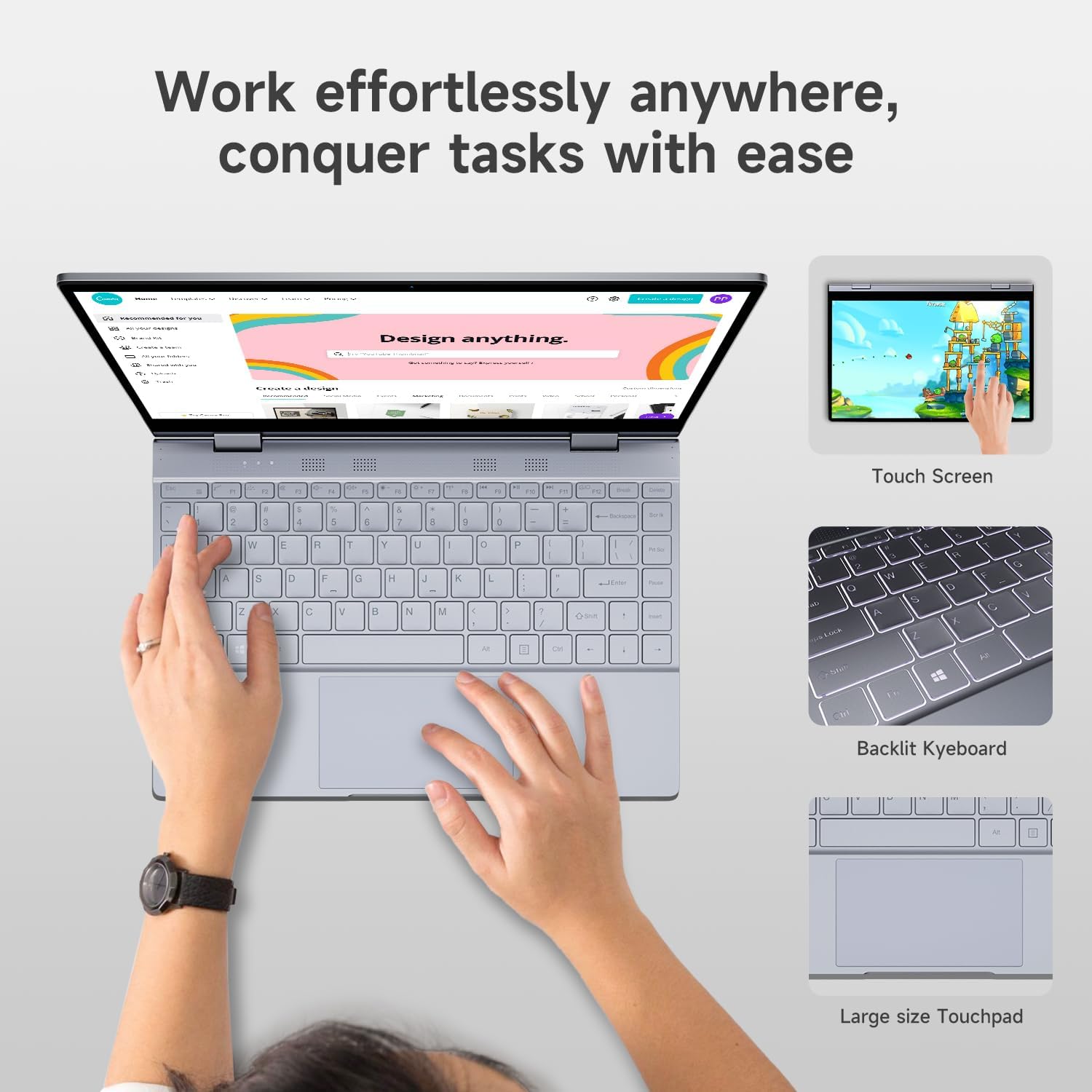
Rysunek 3.6: Close-up of the Bmax Y13 Pro's backlit keyboard and large touchpad, designed for comfortable input.
The laptop features a backlit keyboard for comfortable typing in various lighting conditions and a large touchpad for precise navigation.
3.6 Porty i łączność

Rysunek 3.7: Szczegółowy view of the laptop's ports, including two Type-C ports (one full-featured, one for data transmission), a 3.5mm headset jack, a Micro SD slot, and the power button.
The Bmax Y13 Pro includes multiple ports for diverse connectivity needs:
- 2 x USB Type-C ports (one full-featured, one for data transmission)
- 1 x 3.5mm Headset Jack
- 1 x gniazdo Micro SD
Wireless connectivity is provided by Dual-band WiFi 5 and Bluetooth 4.2.
4. Konfiguracja
4.1 Pierwsze ładowanie
Before first use, connect the provided power adapter to the laptop's Type-C charging port and a power outlet. Allow the device to charge for at least 30 minutes, or until the battery indicator shows sufficient charge, before powering it on.
4.2 Włączanie i konfiguracja początkowa
- Press and hold the Power Button (located on the side, near the Micro SD slot) until the screen illuminates.
- Follow the on-screen prompts to complete the Windows operating system setup. This typically includes selecting your language, region, connecting to a Wi-Fi network, and creating a user account.
- Ensure your device is connected to the internet to download necessary updates during the setup process.
5. Instrukcja obsługi
5.1 Korzystanie z ekranu dotykowego
The 13.3-inch display supports multi-touch gestures. You can interact with the operating system and applications directly on the screen using your fingers. Common gestures include:
- Uzyskiwać: Odpowiednik kliknięcia myszką.
- Naciśnij i przytrzymaj: Odpowiednik kliknięcia prawym przyciskiem myszy.
- Powiększanie za pomocą szczypania: Użyj dwóch palców, aby przybliżać i oddalać.
- Trzepnąć: Navigate through content or activate system functions (e.g., opening Action Center).
5.2 Przełączanie między trybami
The 360° hinge allows you to seamlessly switch between laptop, tent, stand, and tablet modes. Simply rotate the screen to your desired configuration. The operating system may automatically detect the mode change and adjust the display and input methods accordingly (e.g., enabling Tablet Mode in Windows).
5.3 Funkcje klawiatury
The keyboard includes standard keys and function keys (F1-F12) that can be activated with the Fn key for special functions like adjusting brightness, volume, or enabling/disabling Wi-Fi. The keyboard backlight can typically be toggled using a dedicated function key combination (refer to keyboard icons).
5.4 Podłączanie urządzeń peryferyjnych
- USB typu C: Use the Type-C ports to connect compatible devices, external displays, or for charging.
- Gniazdo słuchawkowe 3.5 mm: Podłącz słuchawki lub głośniki zewnętrzne.
- Gniazdo Micro SD: Włóż kartę Micro SD w celu rozszerzenia pamięci.
- Bluetooth: Pair Bluetooth devices (e.g., mice, keyboards, headphones) through Windows settings.
- Wi-Fi: Connect to wireless networks via Windows network settings.
6. Konserwacja
6.1 Czyszczenie laptopa
- Ekran: Użyj miękkiej, niestrzępiącej się ściereczki, lekko wyczyśćampPrzemyj wodą lub płynem do czyszczenia ekranów. Unikaj silnych środków chemicznych.
- Klawiatura i obudowa: Użyj miękkiej ściereczki. W przypadku uporczywych zabrudzeń, delikatnie przetrzyj.amp cloth is acceptable. Ensure no liquid enters openings.
- Porty: Delikatnie usuń kurz z portów za pomocą sprężonego powietrza.
6.2 Pielęgnacja baterii
- Unikaj ekstremalnych temperatur, gdyż mogą one skrócić żywotność baterii.
- Aby zapewnić optymalną żywotność akumulatora, należy unikać jego całkowitego rozładowywania i utrzymywania na poziomie 100% naładowania przez dłuższy czas.
- Jeśli laptop będzie przechowywany przez dłuższy czas, naładuj go do poziomu 50–60% przed wyłączeniem.
6.3 Aktualizacje oprogramowania
Regularly check for and install operating system updates (Windows Update) and driver updates to ensure optimal performance and security.
7. Rozwiązywanie Problemów
W tej sekcji omówiono typowe problemy, na które możesz natrafić.
7.1 Problemy z zasilaniem i ładowaniem
- Laptop się nie włącza: Ensure the laptop is charged. Connect the power adapter and wait a few minutes before attempting to power on again.
- Laptop się nie ładuje: Verify the power adapter is securely connected to both the laptop and the power outlet. Try a different outlet. Ensure the Type-C port used for charging is functional.
- Laptop gets hot while charging: It is normal for laptops to generate some heat during charging or heavy use. If the heat is excessive or causes discomfort, ensure proper ventilation and avoid using the laptop on soft surfaces that block vents.
7.2 Problemy z wyświetlaczem i ekranem dotykowym
- Ekran jest pusty: Ensure the laptop is powered on. Try adjusting screen brightness. Connect to an external monitor to check if the issue is with the laptop's display.
- Ekran dotykowy nie reaguje: Restart the laptop. Ensure there are no physical obstructions or excessive dirt on the screen. Check for updated display drivers.
7.3 Problemy z łącznością
- Brak połączenia Wi-Fi: Check if Wi-Fi is enabled in Windows settings. Restart your router and the laptop. Ensure you are entering the correct Wi-Fi password.
- Urządzenie Bluetooth nie łączy się: Ensure Bluetooth is enabled on both the laptop and the device. Place devices close to each other. Try removing and re-pairing the device.
7.4 Ogólne problemy z wydajnością
- Niska wydajność: Close unnecessary applications. Check for sufficient free storage space. Run a virus scan. Ensure Windows and drivers are up to date.
- System crashes/freezes: Perform a system restart. Check for recent software installations that might be causing conflicts.
8. Specyfikacje
| Funkcja | Specyfikacja |
|---|---|
| Marka | Bmax |
| Nazwa modelu | Y13 Pro |
| Rozmiar ekranu stojącego | 13.3 cali |
| Rozdzielczość ekranu | 1920 x 1080 pikseli (FHD IPS) |
| Edytor | Intel 12th Gen N100 (up to 3.4 GHz) |
| BARAN | 16 GB DDR5 |
| Dysk twardy | Dysk SSD 512 GB |
| Koprocesor graficzny | Grafika Intel UHD |
| System operacyjny | OS |
| Typ bezprzewodowy | 802.11a/b/g/n/ac (WiFi 5) |
| Bluetooth | 4.2 |
| Liczba portów USB 3.0 | 2 (typ C) |
| Waga przedmiotu | 2.75 funta |
| Wymiary produktu | 12 x 8.1 x 0.57 cala |
| Bateria | 38.0Wh Lithium Polymer (up to 6-8 hours usage) |
| Cechy specjalne | Backlit Keyboard, Memory Card Slot (Micro SD) |
9. Informacje o gwarancji
The Bmax Y13 Pro laptop typically comes with a 12-month repair period od daty zakupu. Dodatkowo 30-dniowa polityka zwrotów may apply, subject to the retailer's terms and conditions. Please retain your proof of purchase for warranty claims. For specific warranty details and terms, refer to the documentation included with your product or contact Bmax customer support.
10. Wsparcie
For further assistance, technical support, or inquiries regarding your Bmax Y13 Pro laptop, please refer to the following resources:
- Wsparcie online: Visit the official Bmax webwitryna z odpowiedziami na często zadawane pytania, możliwością pobrania sterowników i informacjami kontaktowymi dotyczącymi pomocy technicznej.
- Wsparcie dla sprzedawców detalicznych: Contact the retailer from whom you purchased the device for return or exchange policies.
- Wsparcie e-mailowe: Check the Bmax website for dedicated email support channels.
Bmax offers 24-hour online support for after-sales service.