
1. Wprowadzenie
This manual provides detailed instructions for the installation, operation, and maintenance of your ninetom 10.25-inch Car Radio Touchscreen. This device is designed to upgrade the infotainment system in specific BMW 1 Series models.
1.1 Zgodność
This touchscreen is compatible with BMW 1 Series E81, E82, E87, E88 models manufactured between 2008 and 2012, specifically those equipped with the CIC system. It is not suitable for vehicles with CCC or NBT systems. Please verify your car's system before installation.

Image 1.1: Compatibility check for BMW systems. The device is compatible with CIC systems (indicated by a green checkmark) and incompatible with CCC, NBT, and EVO systems (indicated by red crosses).

Image 1.2: Visual guide to identify compatible BMW 1 Series models and their respective CIC, CCC, NBT, and EVO systems. The product is designed for CIC systems.
2. Informacje dotyczące bezpieczeństwa
Read all instructions carefully before installation and use. Improper installation or operation can lead to vehicle damage or personal injury. Always prioritize safe driving practices. Do not operate the device in a way that distracts you from the road. Consult a professional for installation if you are unsure about any steps.
3. Zawartość opakowania
Przed rozpoczęciem instalacji sprawdź, czy w opakowaniu znajdują się wszystkie komponenty:
- 1 x 10.25-inch Upgraded Car Radio Touchscreen
- 1 x kabel zasilający
- 1 x kabel USB
- Kabel 1 x AUX
- 1 x Bracket (Note: Back bracket may vary depending on model)
- Instrukcje instalacji

Image 3.1: Contents of the product package, showing the 10.25-inch screen, power cable, USB cable, AUX cable, and mounting bracket.
4. Konfiguracja i instalacja
Installation is designed to be non-destructive, meaning no original cables will be damaged. The process primarily involves removing the original car screen and connecting the new unit.
4.1 Czynności przed instalacją
- Ensure your vehicle is turned off and the battery is disconnected to prevent electrical damage.
- Carefully remove the original car screen and any associated trim panels. Refer to your vehicle's service manual for specific removal procedures.
- Verify the compatibility of your car's system (CIC) as outlined in Section 1.1.
4.2 Podłączanie urządzenia
- Connect the provided power cable to the new touchscreen and the vehicle's wiring harness.
- Connect the USB and AUX cables as needed for additional functionality.
- Secure the new touchscreen using the provided bracket.
4.3 Po instalacji
- Podłącz ponownie akumulator pojazdu.
- Turn on the vehicle and test the new touchscreen's functionality.
- Ensure all original car functions (radio, amplifier, joystick, etc.) are still operational.
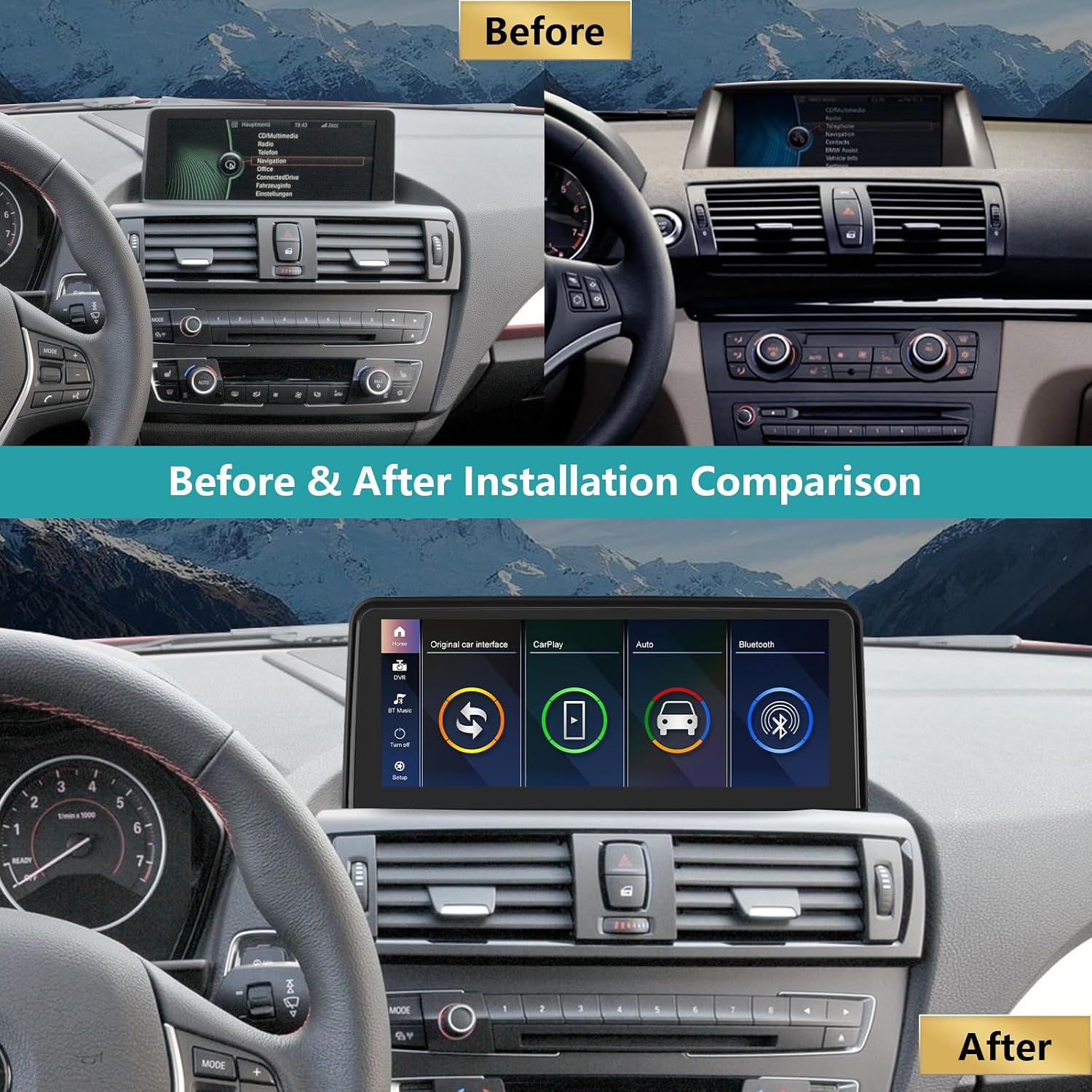
Image 4.1: A visual comparison showing the car's dashboard before and after the installation of the ninetom 10.25-inch touchscreen, highlighting the integrated appearance.

Image 4.2: Another perspective of the car's interior, illustrating the transformation from the original display to the new ninetom touchscreen.
5. Instrukcja obsługi
The ninetom touchscreen offers a range of features to enhance your driving experience. It operates on a Linux system and provides seamless integration with your original car functions.
5.1 System ponadview
The device features a 10.25-inch HD full touch capacitive monitor with a resolution of 1920x720. It supports one-button switching between the new Linux system interface and the original car interface.

Image 5.1: Displays the Linux system interface with icons for original car interface, CarPlay, Auto, and Bluetooth, alongside the original BMW factory system interface.

Image 5.2: Illustrates the retention of original car functions such as radio, GPS navigation, Bluetooth, DVD/CD, rear view camera, joystick control, and steering wheel controls.
5.2 Apple CarPlay i Android Auto
The unit comes with integrated wireless and wired Apple CarPlay and Android Auto functionalities. This allows you to access GPS navigation, make phone calls, send messages, and play music directly from your smartphone on the car's display.

Image 5.3: Demonstrates the navigation capabilities with CarPlay and Android Auto, support for original navigation, various navigation software, multiple languages, and Mirrorlink functionality for both iOS and Android phones.

Image 5.4: Shows the wireless connectivity for CarPlay and Android Auto, along with the Mirrorlink feature for screen mirroring from smartphones.
5.3 Mirrorlink
Mirrorlink functionality allows you to mirror your iOS or Android smartphone screen onto the 10.25-inch display, enabling you to view maps, videos, and other content.
5.4 Nawigacja
Utilize GPS navigation through Apple CarPlay, Android Auto, or other supported navigation software. The system supports various map types and offers clear visual guidance.

Image 5.5: A visual representation of the navigation map displayed on the touchscreen, indicating routes and points of interest.
5.5 Media Playback & Connectivity
The unit supports music playback through CarPlay/Android Auto, Bluetooth, and AUX input. It retains the original car radio and amplifier functions. Steering wheel controls are also supported for convenient media management.

Image 5.6: An icon representing the AUX and Bluetooth connectivity options available for audio input.

Image 5.7: Shows the steering wheel buttons for multimedia control and the iDrive controller, both of which remain functional with the new system.
5.6 Rear Camera & Parking Assistance
The system supports the original rear camera and aftermarket cameras, as well as parking radar functions, providing visual assistance when reversing.

Image 5.8: A display of the rear camera view on the touchscreen, complete with parking guidelines and proximity sensors.
5.7 Demonstracja wideo
Video 5.1: A demonstration of the ninetom car radio touchscreen in operation, showcasing features such as Apple CarPlay, navigation, music playback, hands-free calling, switching to the original car system, and rear camera functionality. This video highlights the user interface and key interactions.
6. Konserwacja
To ensure the longevity and optimal performance of your touchscreen, follow these maintenance guidelines:
- Czyszczenie: Do czyszczenia ekranu należy używać miękkiej, niepozostawiającej włókien ściereczki. W przypadku uporczywych plam, należy delikatnie przetrzeć.ampPrzetrzyj ściereczkę wodą lub środkiem do czyszczenia ekranów. Unikaj materiałów ściernych i silnych środków chemicznych.
- Temperatura: Unikaj wystawiania urządzenia na działanie ekstremalnych temperatur.
- Ekspozycja na płyny: Prevent liquids from entering the unit.
- Aktualizacje oprogramowania: Okresowo sprawdzaj dostępność aktualizacji oprogramowania od producenta, aby zapewnić sobie najlepszą wydajność i dostęp do nowych funkcji.
7. Rozwiązywanie Problemów
If you encounter issues with your ninetom touchscreen, refer to the following common problems and solutions:
| Problem | Możliwa przyczyna | Rozwiązanie |
|---|---|---|
| Brak zasilania/pusty ekran | Luźne podłączenie zasilania, przepalony bezpiecznik, nieprawidłowe okablowanie. | Check all power connections. Verify vehicle fuses. Ensure correct wiring according to the installation guide. |
| Brak dźwięku | Incorrect AUX input selection, volume too low, loose audio cables. | Ensure the correct AUX input is selected on the original car system. Increase volume. Check audio cable connections. |
| CarPlay/Android Auto nie łączy się | Bluetooth/Wi-Fi issues, incorrect phone settings, incompatible phone. | Ensure Bluetooth and Wi-Fi are enabled on your phone. Restart phone and unit. Check phone compatibility. For wired connection, try a different USB cable. |
| Original functions not working | Incorrect wiring, system not switched to original interface. | Verify wiring connections. Ensure you have switched to the "Original Car Interface" mode on the touchscreen. |
| Ekran dotykowy nie reaguje | Tymczasowa usterka oprogramowania, uszkodzenie ekranu. | Uruchom ponownie urządzenie. Jeśli problem będzie się powtarzał, skontaktuj się z obsługą klienta. |
If the problem persists after attempting these solutions, please contact ninetom customer support for further assistance.
8. Specyfikacje
- Nazwa modelu: NT-BMW1-CIC-10.25
- Rozmiar ekranu: 10.25 cali
- Rezolucja: 1920x720
- Typ ekranu: Ekran dotykowy pojemnościowy
- System operacyjny: Linux
- Łączność: Bluetooth, USB, AUX
- Cechy szczególne: Apple CarPlay (Wireless/Wired), Android Auto (Wireless/Wired), Mirrorlink, GPS Navigation, Spotify, Retains Original Car Functions (Radio, Amplifier, Joystick, Rear Camera)
- Kompatybilny typ pojazdu: Automobile (BMW 1 Series E81, E82, E87, E88 with CIC system, 2008-2012)
- Typ montażu: On-dash
- Tryb wyjścia audio: Stereofoniczny
- Wymiary przedmiotu (dł. x szer. x wys.): Wymiary 39.5 x 18.4 x 17.3 cm
- Waga przedmiotu: 1.7 kilograma
- Kraj pochodzenia: Chiny
9. Gwarancja i pomoc techniczna
9.1 Gwarancja na produkt
This ninetom product comes with a 1-letnia gwarancja od daty zakupu. Gwarancja obejmuje wady produkcyjne i usterki powstałe w wyniku normalnego użytkowania. Nie obejmuje uszkodzeń spowodowanych nieprawidłową instalacją, niewłaściwym użytkowaniem, wypadkami lub nieautoryzowanymi modyfikacjami.
9.2 Obsługa klienta
For technical assistance, installation support, or warranty claims, please contact ninetom customer service. Refer to the contact information provided with your purchase or visit the official ninetom webstrona.