
Wstęp
The Baseus AeQur GH02 RGB Gaming Headset is designed to provide an immersive audio experience for gaming and multimedia. Featuring high-quality sound drivers, customizable RGB lighting, and versatile connectivity options, this headset offers comfort and performance for extended use. This manual provides detailed instructions on setting up, operating, maintaining, and troubleshooting your headset.

Image: The Baseus AeQur GH02 RGB Gaming Headset, showcasing its sleek black design and integrated microphone.
Produkt ponadview i funkcje
The AeQur GH02 headset combines advanced audio technology with user-friendly features:
- Przetworniki 40 mm: Delivers powerful and clear sound with a frequency range of 20-40,000Hz for an immersive audio experience.
- Oświetlenie RGB: Customizable RGB illumination to enhance your gaming setup.
- Wszechstronna łączność: Supports Bluetooth, 3.5mm wired connection, and 2.4GHz wireless via a USB dongle for broad compatibility.
- Removable Microphone: High-sensitivity microphone (-45dB) ensures clear communication and can be detached when not needed.
- Konstrukcja nauszna: Provides acoustic isolation and prolonged comfort during long gaming sessions.
- Długa żywotność baterii: Do 40 godzin odtwarzania na jednym ładowaniu.
- Aktywna redukcja szumów: Redukuje hałas otoczenia, zapewniając lepsze wrażenia słuchowe.

Image: Close-up of the headset's ear cup, highlighting the vibrant RGB lighting around the edge, which can be customized for different visual effects.
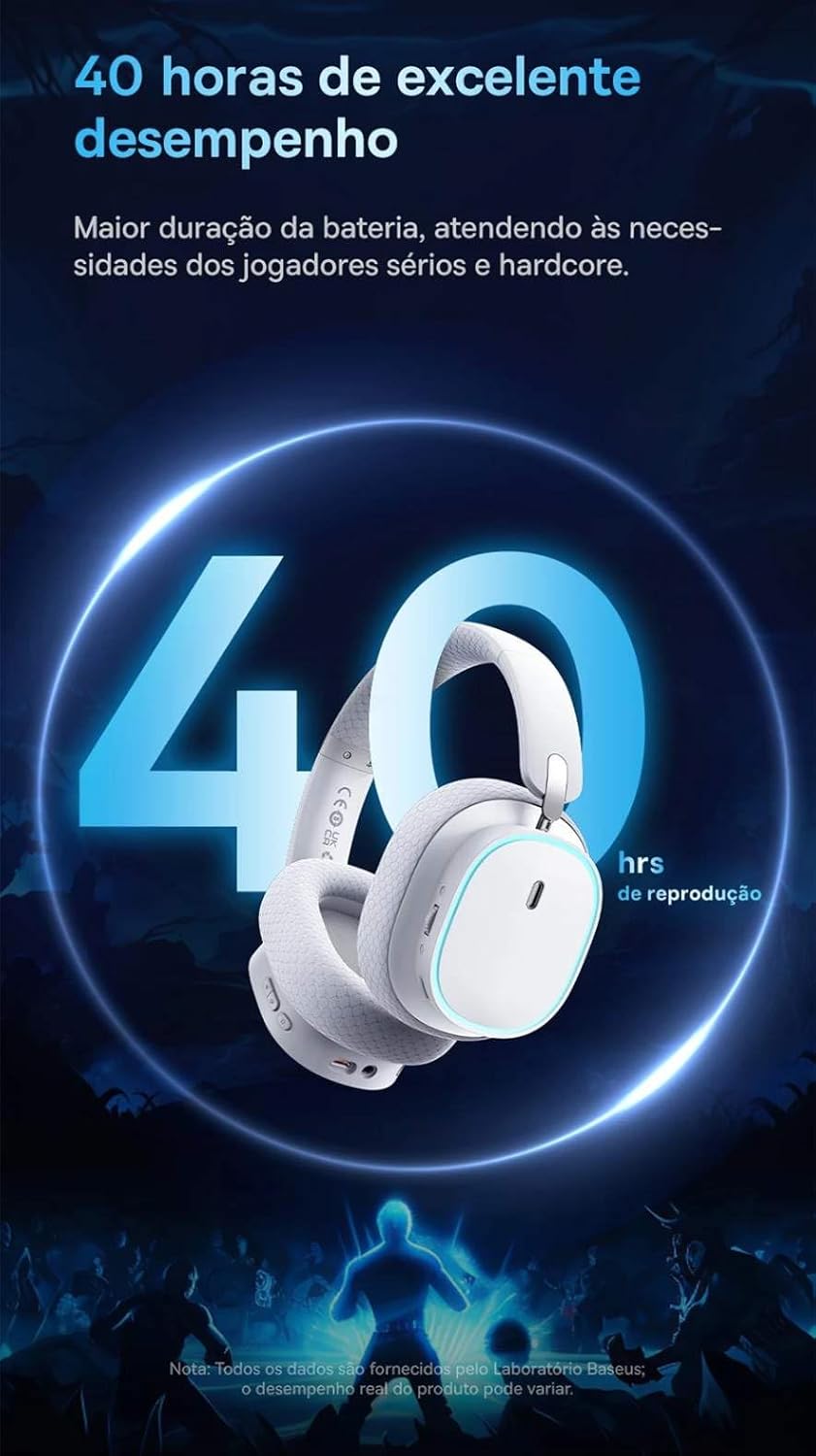
Image: A visual representation of the headset emphasizing its 40-hour battery life, indicating extended usage without frequent recharging.
Organizować coś
1. Ładowanie zestawu słuchawkowego
Before first use, fully charge the headset. Connect the provided USB-C charging cable to the headset's charging port and the other end to a USB power source (e.g., computer USB port, wall adapter). The LED indicator will show charging status and turn off or change color when fully charged.
2. Łączenie się przez sieć bezprzewodową 2.4 GHz (zalecane do gier)
- Locate the 2.4GHz USB wireless dongle included with your headset.
- Plug the USB dongle into an available USB port on your PC, PlayStation (PS4/PS5), or other compatible gaming device.
- Włącz zestaw słuchawkowy. Powinien automatycznie połączyć się z kluczem sprzętowym. Dioda LED potwierdzi pomyślne połączenie.
- Upewnij się, że w ustawieniach dźwięku Twojego urządzenia zestaw słuchawkowy jest wybrany jako urządzenie wejściowe i wyjściowe audio.
3. Łączenie przez Bluetooth
- With the headset powered on, activate Bluetooth pairing mode (refer to the operating section for specific button presses). The LED indicator will typically flash to indicate pairing mode.
- On your smartphone, tablet, or PC, go to Bluetooth settings and search for available devices.
- Select "Baseus AeQur GH02" from the list of found devices to pair.
- Po sparowaniu dioda LED zacznie świecić światłem ciągłym.
4. Podłączanie za pomocą kabla audio 3.5 mm
- Podłącz jeden koniec kabla audio 3.5 mm do gniazda audio 3.5 mm zestawu słuchawkowego.
- Connect the other end to the 3.5mm audio output port on your device (e.g., PC, console controller, phone).
- When connected via 3.5mm cable, the headset operates in passive mode, and battery power is not required for audio, though some features like RGB lighting may be disabled.

Image: The Baseus AeQur GH02 headset displayed alongside various compatible gaming and mobile devices, including a PC, PlayStation console, Nintendo Switch, and smartphone, illustrating its broad connectivity.

Image: Icons representing compatibility with Android smartphones/tablets, PCs/notebooks, and gaming consoles like PS5/PS4/Switch/Steam Deck/VR, highlighting the headset's versatile use cases.
Obsługa zestawu słuchawkowego
Sterownica
- Przycisk zasilania: Naciśnij i przytrzymaj, aby włączyć/wyłączyć. Naciśnij krótko, aby włączyć/wstrzymać (w trybie Bluetooth).
- Koło głośności: Przewiń w górę, aby zwiększyć głośność, przewiń w dół, aby ją zmniejszyć.
- Przycisk wyciszenia mikrofonu: Naciśnij, aby wyciszyć/anulować wyciszenie mikrofonu.
- Przycisk podświetlenia RGB: Short press to cycle through RGB lighting modes or turn off.
Użycie mikrofonu
The microphone is removable. To attach, align the microphone jack with the port on the left ear cup and insert firmly. To remove, gently pull it out. Ensure the microphone is properly inserted for clear voice pickup.
Integracja aplikacji Baseus
For advanced customization, download the official Baseus app on your smartphone. The app allows you to:
- Adjust EQ settings (Equalizer).
- Dostosuj efekty świetlne i kolory RGB.
- Switch between audio modes (e.g., Normal Mode, Music Mode, Game Mode for spatial acoustics).
- View stan baterii.

Image: Screenshots of the Baseus mobile application interface, demonstrating options for spatial acoustics, EQ mode, and lamp effects, allowing users to customize their headset's performance and lighting.
Konserwacja
- Czyszczenie: Do czyszczenia zestawu słuchawkowego użyj miękkiej, suchej ściereczki. W przypadku poduszek nausznych delikatnie przetrzyjamp cloth can be used, but ensure they are completely dry before use. Do not use harsh chemicals or abrasive materials.
- Składowanie: Store the headset in a cool, dry place away from direct sunlight and extreme temperatures. If storing for extended periods, ensure it is partially charged (around 50%) to preserve battery health.
- Obsługiwanie: Avoid dropping the headset or subjecting it to strong impacts. Do not twist or bend the headband excessively.
Rozwiązywanie problemów
| Problem | Możliwa przyczyna | Rozwiązanie |
|---|---|---|
| Brak dźwięku w zestawie słuchawkowym | Headset not powered on; Low battery; Not properly connected (Bluetooth/2.4GHz/3.5mm); Incorrect audio output selected on device. | Ensure headset is powered on and charged. Re-pair Bluetooth or re-plug 2.4GHz dongle/3.5mm cable. Check device's sound settings to ensure "Baseus AeQur GH02" is selected as output. |
| Mikrofon nie działa | Microphone muted; Not properly inserted; Incorrect input device selected; Software issues. | Ensure microphone is not muted (check mute button). Re-insert the removable microphone firmly. Check device's sound settings to ensure "Baseus AeQur GH02" is selected as input. Restart application/game. |
| Headset not pairing/connecting | Out of range; Interference; Headset not in pairing mode; Device's Bluetooth/USB port issue. | Ensure headset is in pairing mode and within range. Turn off other Bluetooth devices. Try connecting to a different USB port or device. Restart headset and device. |
| Krótki czas pracy baterii | Not fully charged; High volume usage; RGB lighting always on. | Ensure headset is fully charged. Reduce volume. Turn off RGB lighting when not needed. |
| Nie można używać podczas ładowania | Ograniczenia konstrukcyjne produktu. | The Baseus AeQur GH02 headset is designed not to be used while charging. Please allow the headset to fully charge before resuming use. |
Specyfikacje
| Funkcja | Szczegół |
|---|---|
| Nazwa modelu | AeQur GH02 |
| Technologia łączności | Wireless (Bluetooth, Wi-Fi 2.4GHz), Wired (3.5mm) |
| Średnica sterownika | 40mm |
| Częstotliwość słuchawek | 20 - 40000Hz |
| Czułość mikrofonu | -45dB |
| Kontrola hałasu | Aktywna redukcja szumów |
| Czas pracy baterii (średni) | 40 godzin |
| Kompatybilne urządzenia | Mobile Phones, Gaming Consoles (PC, PS5, PS4), Desktops, Laptops |
| Tworzywo | Metal, Plastik |
| Cechy specjalne | Fast charging, Volume control, Noise isolation, Lightweight, Built-in microphone |
| Kolor | Czarny |
| Impedancja | 35 omy |
| Orzecznictwo | Numer telefonu: 004842514894 |
Gwarancja i wsparcie
The Baseus AeQur GH02 RGB Gaming Headset comes with a 12-miesięczna gwarancja producenta Gwarancja obowiązuje od daty zakupu i obejmuje wady materiałowe i wykonawcze wynikające z normalnego użytkowania. Prosimy zachować dowód zakupu na potrzeby roszczeń gwarancyjnych.
For further support, technical assistance, or warranty inquiries, please visit the official Baseus store or contact their customer service through the details provided on their official webwitryny lub opakowania produktu.
Możesz również odwiedzić Oficjalny sklep Baseus na Amazon aby uzyskać więcej informacji i zasobów wsparcia.


