
1. Wprowadzenie
The Phomemo M950 Label Maker is a versatile, portable thermal label printer designed for both home and office use. It offers dual printing modes: direct input via its integrated keyboard and wireless printing via Bluetooth connection to a mobile application. This device utilizes thermal printing technology, eliminating the need for ink cartridges, and supports various label tape types for diverse labeling needs.
2. Informacje dotyczące bezpieczeństwa
- Keep the device away from water and high humidity to prevent electric shock or damage.
- Nie rozmontowuj ani nie próbuj naprawiać urządzenia samodzielnie. Skontaktuj się z obsługą klienta, aby uzyskać pomoc.
- Use only Phomemo-approved label tapes to ensure optimal performance and prevent damage to the print head.
- Przechowywać w miejscu niedostępnym dla dzieci.
- Unikaj wystawiania urządzenia na bezpośrednie działanie promieni słonecznych lub ekstremalnych temperatur.
- Charge the device using a compatible Type-C USB power adapter.
3. Zawartość opakowania
Please check the package contents upon unboxing. If any items are missing or damaged, contact your retailer or Phomemo customer support.
- Drukarka etykiet Phomemo M950
- 12mm Label Tape Roll (pre-installed or included separately)
- Kabel do ładowania USB typu C.
- Instrukcja obsługi (ten dokument)
4. Koniec produktuview
Familiarize yourself with the components of your Phomemo M950 Label Maker.

Image: Phomemo M950 Label Maker showing its main features including no ink, one-touch key, keyboard editing, app editing, 203 DPI resolution, backlight support, Type-C recharge, and built-in cutter.
Główne cechy:
- Wejście klawiatury: Integrated QWERTY keyboard for direct label creation.
- Łączność Bluetooth: Connects to smartphones for advanced label design via the Phomemo app.
- Druk termiczny: No ink required, uses thermal label tapes.
- Podświetlenie ekranu: Zapewnia widoczność w warunkach słabego oświetlenia.
- Wbudowany nóż: For clean and precise label cutting.
- Akumulator: Integrated 1200mAh battery, rechargeable via Type-C port.
5. Konfiguracja
5.1. Ładowanie urządzenia
Before first use, fully charge the label maker.
- Connect the provided USB Type-C cable to the charging port on the side of the label maker.
- Podłącz drugi koniec kabla do kompatybilnego zasilacza USB (nie ma go w zestawie) lub do portu USB komputera.
- The charging indicator light will show the charging status. Once fully charged, the indicator will change or turn off.

Image: Phomemo M950 Label Maker highlighting the Type-C charging port and its compact dimensions.
5.2. Ładowanie taśmy etykietowej
Ensure the device is powered off before loading or replacing tape.
- Open the tape compartment cover located on the top or back of the device.
- Insert the label tape roll with the label side facing up, ensuring it sits securely in the compartment.
- Feed the end of the label tape through the tape guide until it protrudes slightly from the output slot.
- Zamknij dokładnie pokrywę komory na taśmę.
5.3. Włączanie/wyłączanie zasilania
Press and hold the Power button (usually marked with a power symbol) for a few seconds to turn the device on or off.
6. Instrukcja obsługi
The Phomemo M950 offers two primary methods for creating labels.

Image: Phomemo M950 Label Maker illustrating the two usage modes: direct printing from the keyboard and printing via a mobile device using the 'Print Master' app.
6.1. Keyboard Printing
This mode allows you to create labels directly on the device without needing a smartphone.
- Włączanie: Turn on the label maker. The screen will illuminate.
- Type Text: Use the QWERTY keyboard to type your desired label text. The text will appear on the display.
- Dostosuj: Use the function keys (e.g., 'Fn', 'Shift', 'Symbol', 'Caps', 'Accent') to access various customization options such as font styles, sizes, symbols, and borders. The device supports multiple languages, borders, and symbols.
- Przedview: Use the 'Preview' button to see how your label will look before printing.
- Wydrukować: Press the 'Print' button to print the label. The built-in cutter will automatically cut the label after printing.

Image: Phomemo M950 Label Maker showcasing its extensive features including support for 23+ languages, 103+ borders, and 790+ symbols and icons for label customization.
6.2. Bluetooth App Printing
For more advanced design options, connect your label maker to the 'Print Master' mobile app.
- Pobierz aplikację: Download the 'Print Master' app from your mobile device's app store (App Store for iOS, Google Play for Android).
- Włącz Bluetooth: Ensure Bluetooth is enabled on your mobile device and the Phomemo M950.
- Łączyć: Open the 'Print Master' app and follow the on-screen instructions to connect to your M950 label maker via Bluetooth.
- Etykieta projektowa: Use the app's interface to design your label. The app offers massive templates, additional fonts, borders, and icons.
- Wydrukować: Once your design is complete, tap the print icon in the app to send the label to the M950 for printing.

Image: Phomemo M950 Label Maker demonstrating the use of the 'Print Master' app with numerous templates, 270+ borders, 110+ fonts, 1500 icons, and 14+ languages for creative label design.
6.3. Adjusting Print Density
For optimal print quality, especially with ribbon tapes, adjust the print density.
- Press the 'Fn' key, then select 'Pinter Densities' (Printer Densities).
- Choose 'High' for clearer prints, particularly when using ribbon tapes.

Image: Step-by-step guide on how to set the print density to 'High' on the Phomemo M950 Label Maker for clear prints, especially for ribbon tapes.
7. Konserwacja
7.1. Czyszczenie głowicy drukującej
Regular cleaning ensures consistent print quality.
- Turn off the label maker and open the tape compartment.
- Gently wipe the print head with a soft, lint-free cloth dampnasączone alkoholem izopropylowym.
- Przed zamknięciem komory i włączeniem urządzenia należy odczekać, aż głowica drukująca całkowicie wyschnie.
7.2. Przechowywanie taśm
Store label tapes in a cool, dry place away from direct sunlight to preserve their quality and adhesive properties.
8. Rozwiązywanie Problemów
If you encounter issues with your Phomemo M950, refer to the following common problems and solutions.
| Problem | Możliwa przyczyna | Rozwiązanie |
|---|---|---|
| Brak zasilania | Niski poziom baterii; Urządzenie wyłączone | Charge the device; Press and hold power button to turn on. |
| Niska jakość druku | Print head dirty; Incorrect print density; Low battery | Clean print head; Adjust print density to 'High'; Charge device. |
| Label not feeding | Tape incorrectly loaded; Tape jammed; Out of tape | Re-load tape correctly; Clear any jams; Replace tape roll. |
| Błąd połączenia Bluetooth | Bluetooth wyłączony; Urządzenie nie jest sparowane; Problem z aplikacją | Ensure Bluetooth is on for both devices; Re-pair in app; Restart app/device. |
| Frez nie działa | Tape jammed; Cutter mechanism obstructed | Clear any tape jams; Ensure no debris is blocking the cutter. |
9. Specyfikacje
| Funkcja | Szczegół |
|---|---|
| Nazwa modelu | M950 |
| Marka | Fomemo |
| Technologia druku | Termiczny |
| Technologia łączności | Bluetooth, Keyboard |
| Wyjście drukarki | Monochromia |
| Maksymalna rozdzielczość druku | 203 dpi |
| Maksymalny rozmiar nośnika | 12mm * 4000mm |
| Kompatybilne urządzenia | Smartfony |
| Moc | 10 watów |
| Typ baterii | Wbudowany akumulator litowo-jonowy 1200 mAh |
| Port ładowania | USB typu C |
| Wymiary produktu | Wymiary 15.2 x 5.4 x 11.2 cm |
| Waga przedmiotu | 490 gramów |
| Kolor | Biały |
| Funkcja specjalna | Portable, Backlight Screen, Built-in Cutter |
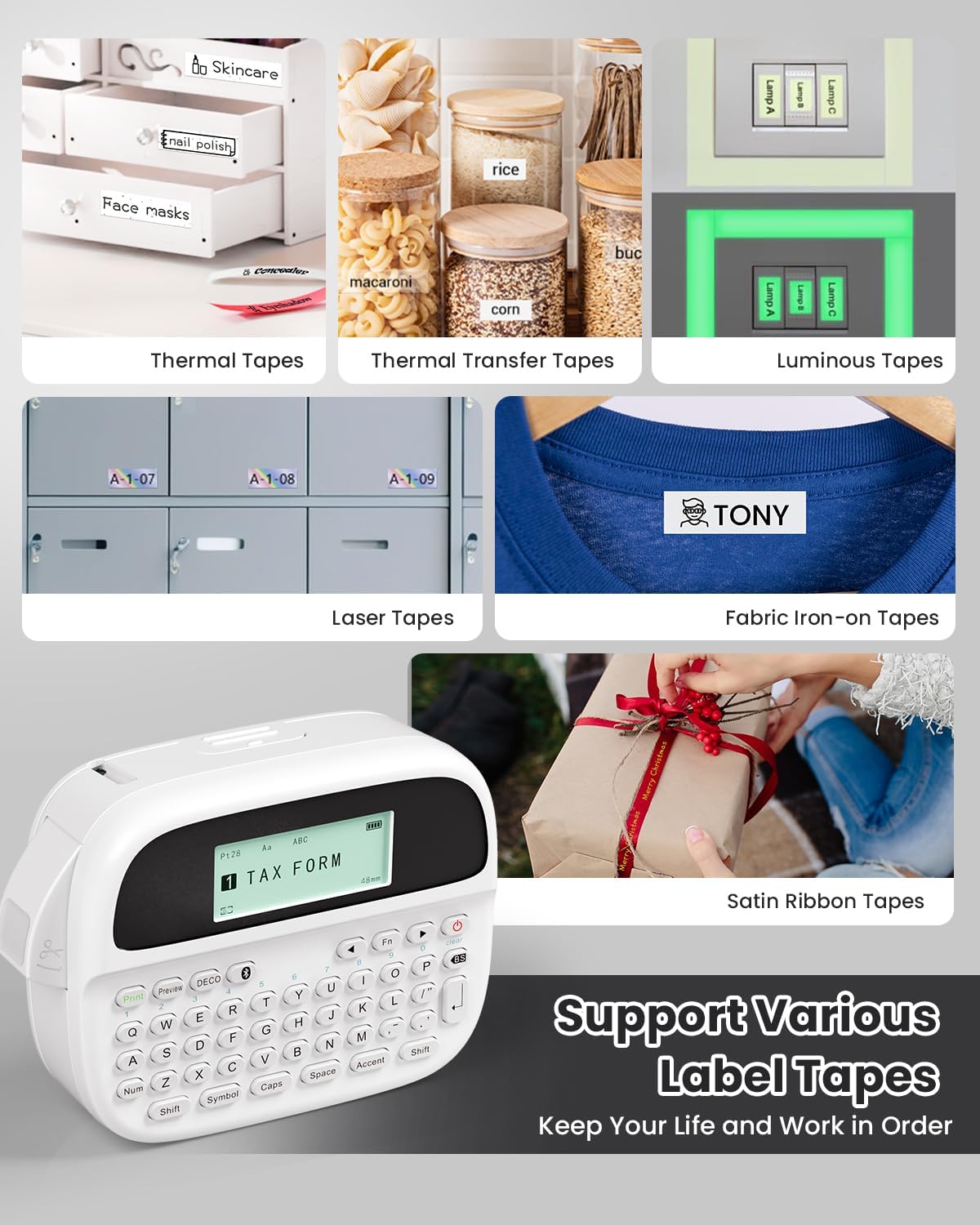
Image: Phomemo M950 Label Maker supporting various label tape types including Thermal, Thermal Transfer, Luminous, Laser, Fabric Iron-on, and Satin Ribbon tapes.

Image: Phomemo M950 Label Maker demonstrating its backlight screen feature, allowing for comfortable use even at night.
10. Gwarancja i wsparcie
For warranty information, technical support, or service inquiries, please refer to the official Phomemo webOdwiedź stronę internetową lub skontaktuj się bezpośrednio z działem obsługi klienta. Zachowaj paragon jako dowód zakupu na wypadek reklamacji.
Oficjalny Phomemo Webstrona: Odwiedź sklep Phomemo