
1. Koniec produktuview
The ID-COOLING FROZN A410 DK is an all-black single tower CPU air cooler designed for efficient heat dissipation. It features two 120mm FDB fans in a push-pull configuration and four direct contact heat pipes to effectively manage CPU temperatures. With a total height of 152mm, it offers broad compatibility with various chassis models and ensures non-interference with RAM and PCIe slots. The cooler supports a wide range of Intel and AMD sockets, including the latest LGA1700/1851 and AM4/AM5 platforms, providing a hassle-free installation experience.
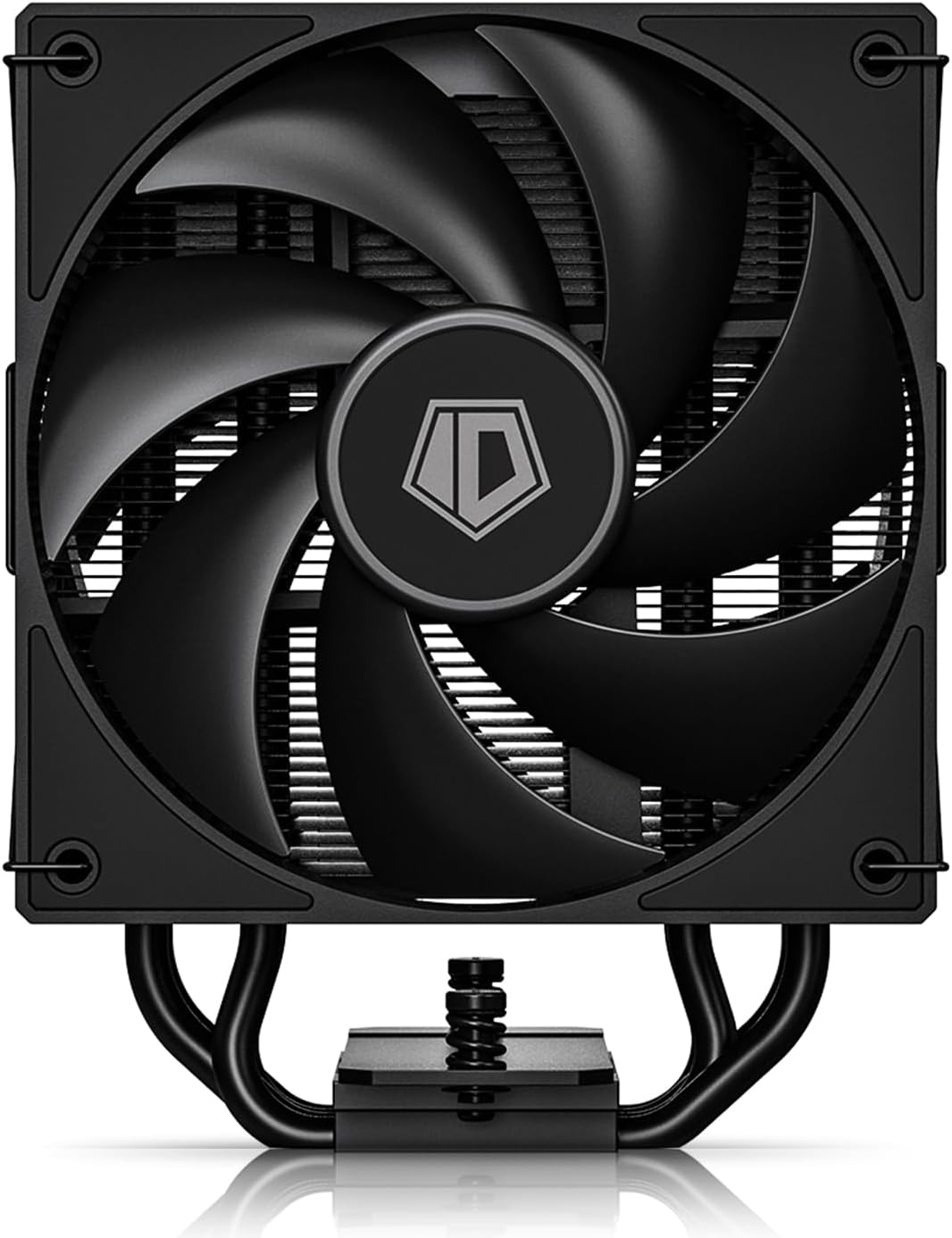
Rysunek 1: Główny view of the ID-COOLING FROZN A410 DK CPU Cooler.
2. Główne cechy
- Better Heat Dissipation: Single tower design with 4 heat pipes and two 120mm FDB fans in a push-pull configuration for excellent CPU cooling.
- Kompaktowa wysokość: 152mm total height ensures compatibility with a wide range of PC chassis.
- Kompatybilność z pamięcią RAM: Designed to avoid interference with memory modules and PCIe slots.
- Direct Contact Heat Pipes: Four Ø6mm direct contact heat pipes with exclusive technology for effective heat transfer.
- PWM Fans: Dual 120mm PWM fans offer automatic speed control and ultra-quiet operation (Max. Air Flow: 78.25CFM; Noise Level: 29.85dB(A) Max.).
- Bezproblemowa instalacja: Compatible with Intel LGA1700/1851/1200/1150/1151/1155/1156 and AMD AM4/AM5 sockets.
- Atrakcyjność estetyczna: All-black layout blends seamlessly into most computer cases.
3. Co znajduje się w pudełku
The ID-COOLING FROZN A410 DK CPU Cooler package includes:
- Radiator
- 2x 120mm Cooling Fans
- Mounting Hardware (for Intel and AMD sockets)
- Pasta termoprzewodząca
- 1-to-2 4-pin PWM Fan Splitter

Figure 2: Included components for the FROZN A410 DK CPU Cooler.
4. Instrukcja instalacji
Follow these steps for proper installation of your ID-COOLING FROZN A410 DK CPU Cooler. Refer to the video guides for visual assistance.
4.1. Intel LGA1700/1851/1200/115X Installation
- Prepare Backplate: Adjust the Intel backplate screws to the corresponding positions (pull outward for LGA1851/1700, pull inward for LGA1200/115X). Place the backplate through the back of the motherboard.
- Install Standoffs and Brackets: Install the rubber Intel standoffs and Intel bracket in sequence. Secure the bracket with screws.
- Nałóż pastę termoprzewodzącą: Clean the CPU surface. Peel off the protective sticker from the copper plate of the heatsink. Apply a thin, even layer of thermal grease to the CPU surface.
- Montaż radiatora: Carefully place the heatsink onto the CPU, aligning it with the mounting holes. Secure it by tightening the two screws on each side.
- Attach Fans: Use the provided fan clips to secure both 120mm fans to the heatsink tower in a push-pull configuration. Ensure the airflow direction is correct (typically, one fan pushes air into the heatsink, and the other pulls it through).
- Połącz fanów: Connect the two fan cables to the 1-to-2 4-pin splitter. Then, connect the splitter to the CPU_FAN header on your motherboard.
4.2. Instalacja procesora AMD AM4/AM5
- Remove Stock Brackets: Remove the original AMD plastic retention frame from the motherboard, but keep the stock backplate.
- Install Standoffs and Brackets: Install the red AMD standoffs and the universal AMD bracket. Secure them with screws.
- Nałóż pastę termoprzewodzącą: Clean the CPU surface. Peel off the protective sticker from the copper plate of the heatsink. Apply a thin, even layer of thermal grease to the CPU surface.
- Montaż radiatora: Carefully place the heatsink onto the CPU, aligning it with the mounting holes. Secure it by tightening the two screws on each side.
- Attach Fans: Use the provided fan clips to secure both 120mm fans to the heatsink tower in a push-pull configuration. Ensure the airflow direction is correct.
- Połącz fanów: Connect the two fan cables to the 1-to-2 4-pin splitter. Then, connect the splitter to the CPU_FAN header on your motherboard.
Installation Video Guide (Intel & AMD)
Video 1: Official installation guide for the FROZN A410 DK CPU Cooler, demonstrating steps for both Intel and AMD platforms.
Produkt ponadview and Installation Tips
Wideo 2: Krótki przeglądview of the FROZN A410 DK, highlighting key features and providing additional installation tips.
5. Instrukcja obsługi
Once installed, the FROZN A410 DK CPU Cooler operates automatically via the motherboard's PWM fan control. Ensure your motherboard BIOS settings are configured for optimal fan curves to balance cooling performance and noise levels.
- Ustawienia BIOS/UEFI: Access your motherboard's BIOS/UEFI to customize fan speed curves. You can set fan speeds to increase with CPU temperature for better cooling under load or decrease for quieter operation at idle.
- Monitorowanie temperatury: Use system monitoring software (e.g., HWMonitor, CPU-Z) to keep track of your CPU temperatures to ensure it stays within safe operating limits.
- Optymalizacja przepływu powietrza: Ensure good airflow within your PC case by properly arranging other case fans to complement the push-pull configuration of the CPU cooler.
6. Konserwacja
Regularna konserwacja pomaga zapewnić długowieczność i optymalną wydajność chłodzenia procesora.
- Czyszczenie kurzu: Okresowo czyść żeberka radiatora i łopatki wentylatora sprężonym powietrzem lub miękką szczotką z kurzu. Upewnij się, że wentylatory nie obracają się podczas czyszczenia.
- Pasta termoprzewodząca: Reapply thermal paste if you remove the heatsink for any reason. Old thermal paste can dry out and reduce cooling efficiency.
- Kontrola wentylatora: Check fan cables for secure connections and ensure fan blades are free from obstructions.
7. Rozwiązywanie Problemów
If you encounter issues with your CPU cooler, consider the following:
- Wysokie temperatury procesora:
- Check if the heatsink is securely mounted and making proper contact with the CPU.
- Sprawdź, czy pasta termoprzewodząca została nałożona prawidłowo i nie wyschła.
- Ensure fans are spinning and not obstructed.
- Check BIOS/UEFI fan settings to ensure an aggressive enough fan curve.
- Nadmierny hałas wentylatora:
- Check for dust buildup on fans and heatsink.
- Ensure fan cables are not hitting fan blades.
- Adjust BIOS/UEFI fan settings to a quieter fan curve if temperatures allow.
- Wentylatory nie kręcą się:
- Verify that the fan splitter is correctly connected to both fans and the CPU_FAN header on the motherboard.
- Check motherboard BIOS/UEFI settings to ensure fan control is enabled.
8. Specyfikacje
| Funkcja | Specyfikacja |
|---|---|
| Wymiary produktu | 4.72" dł. x 3.85" szer. x 5.98" wys. (120 mm dł. x 98 mm szer. x 152 mm wys.) |
| Marka | CHŁODZENIE ID |
| Typ złącza zasilania | 4-Pin PWM |
| Cotage (TDP) | 230 watów |
| Metoda chłodzenia | Powietrze |
| Kompatybilne urządzenia | Desktop CPUs (Intel LGA1700/1851/1200/1150/1151/1155/1156, AMD AM4/AM5) |
| Poziom hałasu | 29.85 dB(A) Max |
| Maksymalna prędkość obrotowa | 2000 obr./min. |
| Przepływ powietrza | 78.25 stopy sześcienne na minutę |
| Waga przedmiotu | 2.61 funta |
9. Gwarancja i wsparcie
For warranty information and technical support, please refer to the official ID-COOLING webOdwiedź stronę internetową lub skontaktuj się bezpośrednio z działem obsługi klienta. Zachowaj paragon zakupu na wypadek reklamacji.