
1. Wprowadzenie
Dziękujemy za zakupasing the FightBox B3-PC All Button Leverless Arcade Fight Stick Game Controller. This manual provides essential information for setting up, operating, and maintaining your new controller. Please read this manual thoroughly before use to ensure optimal performance and longevity of your device.
2. Koniec produktuview
The FightBox B3-PC is a high-performance all-button leverless arcade fight stick designed for precision and speed in fighting games. It features a compact, ultra-thin design for portability and is compatible with PC, PlayStation 3, and Nintendo Switch platforms.
Główne cechy:
- All-button leverless layout with an additional button.
- Portable and ultra-thin design for easy transport.
- Equipped with Cherry MX Black key switches, supporting hot-swapping.
- Professional arcade fighting board for extreme speed and minimized delay.
- Supports SOCD (Simultaneous Opposing Cardinal Directions) cleaning, adhering to tournament standards.

Rysunek 2.1: Kątowy view of the FightBox B3-PC controller, showcasinze względu na kompaktową konstrukcję i układ przycisków.

Rysunek 2.2: Strona view of the FightBox B3-PC controller, highlighting its ultra-thin profile.

Rysunek 2.3: Widok z góry na dół view of the FightBox B3-PC controller, showing the full button arrangement.
3. Instrukcje konfiguracji
The FightBox B3-PC controller is designed for plug-and-play functionality across supported platforms.
Connecting to your Device:
- Locate the USB Type-B port on the back of the FightBox B3-PC controller.
- Connect one end of the provided USB cable to the controller's USB Type-B port.
- Connect the other end of the USB cable to an available USB port on your PC, PlayStation 3 console, or Nintendo Switch dock.
- The controller should be automatically recognized by your system. For PC, drivers may install automatically.
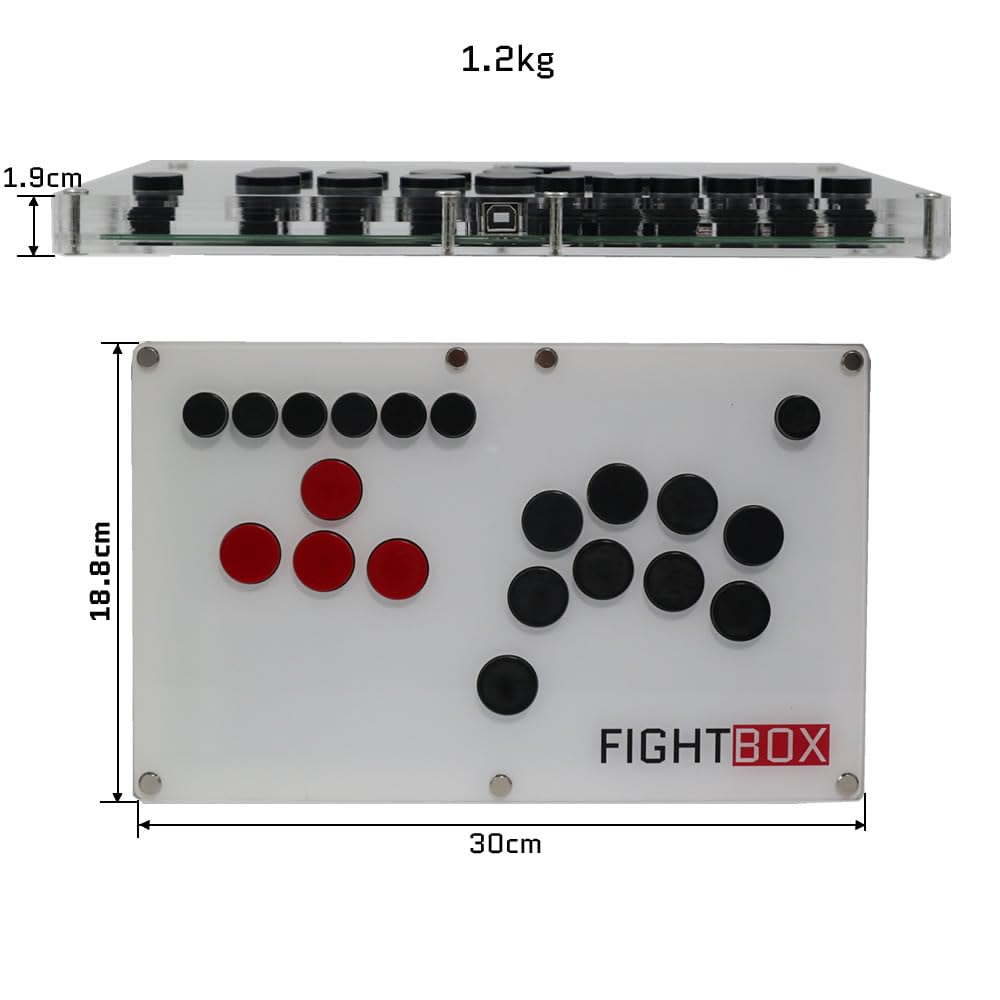
Figure 3.1: The USB Type-B port on the FightBox B3-PC controller for connecting to your gaming system.
4. Instrukcja obsługi
The FightBox B3-PC features a standard arcade button layout with additional function buttons for enhanced control.
Funkcje przycisków:
- Przyciski kierunkowe: The four red buttons on the left serve as directional inputs (Up, Down, Left, Right).
- Przyciski akcji: The black buttons on the right correspond to standard action inputs (X, Y, R1, B, R2, A, L1, L2).
- Przycisk DOMOWY: Used to switch between PC360 mode (default) and other modes.
- Przycisk TRYB: Used to switch between the cross keys (D-pad) and the left/right stick inputs.
- R3/L3 Buttons: Additional function buttons.
- Przyciski START/WYBIERZ: Standardowe przyciski sterujące grą.
- Przycisk TURBO: Aktywuje funkcję turbo po szybkim naciśnięciu przycisku.

Figure 4.1: Layout of the FightBox B3-PC buttons with their corresponding PC version labels and functions.
Tryby SOCD:
The FightBox B3-PC supports three SOCD (Simultaneous Opposing Cardinal Directions) modes, which are crucial for competitive fighting games to prevent conflicting directional inputs. These modes comply with tournament standards.
- Up Priority SOCD Mode (Default): If Up and Down are pressed simultaneously, Up input is prioritized. If Left and Right are pressed, Neutral is output.
- Neutral (CAPCOM) SOCD Mode: If opposing directions (e.g., Up+Down, Left+Right) are pressed simultaneously, a Neutral input is output.
- Last Win SOCD Mode: The last directional input pressed takes priority. For example, if Left is held and then Right is pressed, Right will be the active input.

Figure 4.2: Detailed explanation of SOCD modes and their behavior.
Demonstracja produktu:
Video 4.1: An official product video demonstrating the FightBox B3-PC All Button Leverless Arcade Game Controller in use, highlighting its features and responsiveness.
5. Konserwacja
Proper care will extend the life and performance of your FightBox B3-PC controller.
Czyszczenie:
- Wipe the surface of the controller with a soft, dry cloth.
- W przypadku uporczywych zabrudzeń użyj lekko damp szmatkę zwilżoną łagodnym mydłem, a następnie natychmiast wytrzeć do sucha.
- Avoid using harsh chemicals, abrasive cleaners, or excessive moisture, as these can damage the acrylic and internal components.
Key Switch Care:
The FightBox B3-PC uses Cherry MX Black key switches, which are hot-swappable. This allows for easy replacement or customization without soldering.
- If a switch becomes unresponsive, it can be carefully removed and replaced. Refer to specialized guides for hot-swapping mechanical keyboard switches if you are unfamiliar with the process.
- Ensure the controller is disconnected from power before attempting any switch replacement.

Figure 5.1: A Cherry MX Black key switch, used in the FightBox B3-PC controller.
6. Rozwiązywanie Problemów
If you encounter issues with your FightBox B3-PC, refer to the following common solutions:
Kontroler nie został rozpoznany:
- Sprawdź połączenie USB: Upewnij się, że kabel USB jest prawidłowo podłączony zarówno do kontrolera, jak i do urządzenia. Spróbuj użyć innego portu USB.
- Uruchom ponownie urządzenie: Sometimes, a simple restart of your PC or console can resolve connection issues.
- Try Another Cable: If available, test with a different USB Type-A to Type-B cable to rule out a faulty cable.
- Zgodność platformy: Ensure your device is running a compatible operating system (Windows for PC, or the correct firmware for PS3/Switch).
Przyciski nie odpowiadają:
- Przetestuj wszystkie przyciski: Use a controller testing utility on PC to verify individual button inputs.
- Sprawdź ustawienia gry: Ensure the game's control settings are correctly configured for an arcade stick or gamepad.
- Inspect Key Switches: If a specific button is unresponsive, the key switch might be faulty. Consider hot-swapping it as described in the Maintenance section.
Incorrect Directional Input (SOCD):
- Verify SOCD Mode: Ensure the controller is set to your desired SOCD mode. Refer to the Operating Instructions for details on SOCD modes.
7. Specyfikacje
| Funkcja | Szczegół |
|---|---|
| Nazwa modelu | B3-PC |
| Marka | FightBox |
| Kompatybilne urządzenia | Android, Nintendo Switch, PC, Windows, PlayStation 3 |
| Technologia łączności | USB 2.0 (Corded Electric) |
| Typ kontrolera | USB |
| Ilość przycisków | 19 |
| Przełączniki kluczykowe | Cherry MX Black (Hot-swappable) |
| Pozycja Wymiary (dł. x szer. x wys.) | 11.81 x 7.4 x 0.75 cala (30 x 18.8 x 1.9 cm) |
| Waga przedmiotu | 1.75 Kilograms (1.2 kg as per image) |
| Kolor | Biały |
| UPC | 766683159496 |
Figure 7.1: Physical dimensions and weight of the FightBox B3-PC controller.
8. Gwarancja i wsparcie
FightBox products are manufactured with quality and reliability in mind. For specific warranty information, please refer to the documentation included with your purchase or visit the official FightBox webstrona.
Obsługa klienta:
If you require technical assistance or have questions regarding your FightBox B3-PC controller, please contact our customer support team through the vendor's contact information provided at the point of purchase or on the official FightBox webstrona.