
DOOGEE T20mini Black
DOOGEE T20 Mini User Manual
Your comprehensive guide to the DOOGEE T20 Mini 4G Tablet
1. Wprowadzenie
Welcome to the user manual for your new DOOGEE T20 Mini 4G Tablet. This guide provides detailed instructions on how to set up, operate, and maintain your device, ensuring you get the most out of its features. The DOOGEE T20 Mini is a compact and powerful tablet designed for both productivity and entertainment.
Key features include an 8.4-inch FHD+ display, 4G network support, Android 13 operating system, a Spreadtrum T606 octa-core processor, 128GB internal storage, 4GB RAM (expandable), a 13MP main camera, and a 5060 mAh battery.

The DOOGEE T20 Mini tablet, showcasing its compact design and key specifications like 9GB RAM, 128GB storage, and Android 13 operating system.
2. Rozpoczęcie pracy: konfiguracja
2.1 Rozpakowanie i opłata początkowa
Upon unboxing your DOOGEE T20 Mini, ensure all components are present: the tablet, USB cable, and power adapter. It is recommended to fully charge the tablet before first use.
- Podłącz kabel USB do portu ładowania tabletu.
- Podłącz drugi koniec kabla USB do zasilacza.
- Podłącz zasilacz do gniazdka ściennego.
- Na ekranie pojawi się wskaźnik ładowania.
2.2 Włączanie/wyłączanie
- Włączanie: Naciśnij i przytrzymaj przycisk zasilania (znajdujący się z boku urządzenia), aż na ekranie pojawi się logo DOOGEE.
- Aby wyłączyć: Naciśnij i przytrzymaj przycisk zasilania, aż pojawi się menu opcji zasilania, a następnie wybierz opcję „Wyłącz”.
2.3 Instalacja karty SIM i karty MicroSD
The DOOGEE T20 Mini supports dual SIM cards and a MicroSD card for expanded storage.
- Znajdź tackę na kartę SIM/MicroSD z boku tabletu.
- Włóż narzędzie do wyjmowania karty SIM do małego otworu obok tacki, aby ją otworzyć.
- Ostrożnie wyciągnij tackę.
- Umieść kartę Nano-SIM i/lub kartę MicroSD w przeznaczonych do tego gniazdach na tacce, zwracając uwagę na prawidłową orientację.
- Delikatnie wsuń tackę z powrotem do tabletu, aż zatrzaśnie się na swoim miejscu.

Na bok view of the DOOGEE T20 Mini tablet, highlighting its slim design and the location of physical buttons and ports.
3. Korzystanie z tabletu
3.1 System operacyjny Android 13
Your DOOGEE T20 Mini runs on the latest Android 13 operating system, offering enhanced privacy features, improved performance, and a more personalized user experience.

Visual representation of the Android 13 system, emphasizing its faster and smoother operation through system upgrades.
3.2 Wyświetlacz i ekran dotykowy
The 8.4-inch FHD+ IPS display provides a clear and vibrant viewing experience. Use standard touch gestures for navigation:
- Uzyskiwać: Aby wybrać element lub otworzyć aplikację.
- Trzepnąć: Aby przewijać strony lub listy.
- Szczypta: Aby powiększyć lub pomniejszyć obrazy i web stron.
- Długie naciśnięcie: Aby uzyskać dostęp do menu kontekstowych lub przesuwać ikony.

The 8.4-inch FHD+ touch screen of the DOOGEE T20 Mini, offering excellent visual clarity and TÜV Blue Light certification for eye comfort.
3.3 Łączność (Wi-Fi, Bluetooth, 4G)
- Wi-Fi: Przejdź do Ustawienia > Sieć i internet > Wi-Fi, aby połączyć się z dostępnymi sieciami.
- Bluetooth: Przejdź do Ustawienia > Podłączone urządzenia > Bluetooth, aby sparować je z urządzeniami Bluetooth, takimi jak słuchawki lub głośniki.
- Sieć komórkowa 4G: With a valid SIM card inserted, your tablet will automatically connect to the 4G network for mobile data and calls. Manage data usage in Settings > Network & internet > Mobile network.
3.4 Korzystanie z kamery
The DOOGEE T20 Mini is equipped with a 13MP main camera and a 5MP front camera for capturing photos and videos.
- Otwórz aplikację „Aparat” na ekranie głównym lub w szufladzie aplikacji.
- Przełączaj się między przednim i tylnym aparatem za pomocą ikony aparatu.
- Naciśnij przycisk migawki, aby zrobić zdjęcie lub przycisk nagrywania, aby rozpocząć/zatrzymać nagrywanie wideo.
- Access various modes like Portrait, Panorama, or Pro mode if available.

The DOOGEE T20 Mini's 13MP main camera and 5MP front camera, capable of capturing clear photos and videos.
4. Konserwacja
4.1 Czyszczenie tabletu
To keep your tablet in optimal condition, clean it regularly:
- Do przecierania ekranu i obudowy należy używać miękkiej, niepozostawiającej włókien ściereczki (np. z mikrofibry).
- W przypadku uporczywych plam delikatnieampPrzetrzyj ściereczkę wodą lub płynem do czyszczenia ekranów przeznaczonym do urządzeń elektronicznych.
- Unikaj stosowania silnych środków chemicznych, materiałów ściernych i nadmiernej wilgoci.
4.2 Aktualizacje oprogramowania
Regular software updates provide new features, security patches, and performance improvements. Ensure your tablet is connected to Wi-Fi and has sufficient battery before performing an update.
- Przejdź do Ustawienia > System > Aktualizacja systemu.
- Check for available updates and follow the on-screen instructions.
4.3 Pielęgnacja baterii
The DOOGEE T20 Mini features a 5060 mAh battery. To maximize battery life and longevity:
- Unikaj ekstremalnych temperatur.
- Do not let the battery drain completely too often.
- Unikaj nadmiernego ładowania przez dłuższy czas.
- Należy używać oryginalnej ładowarki dołączonej do tabletu.
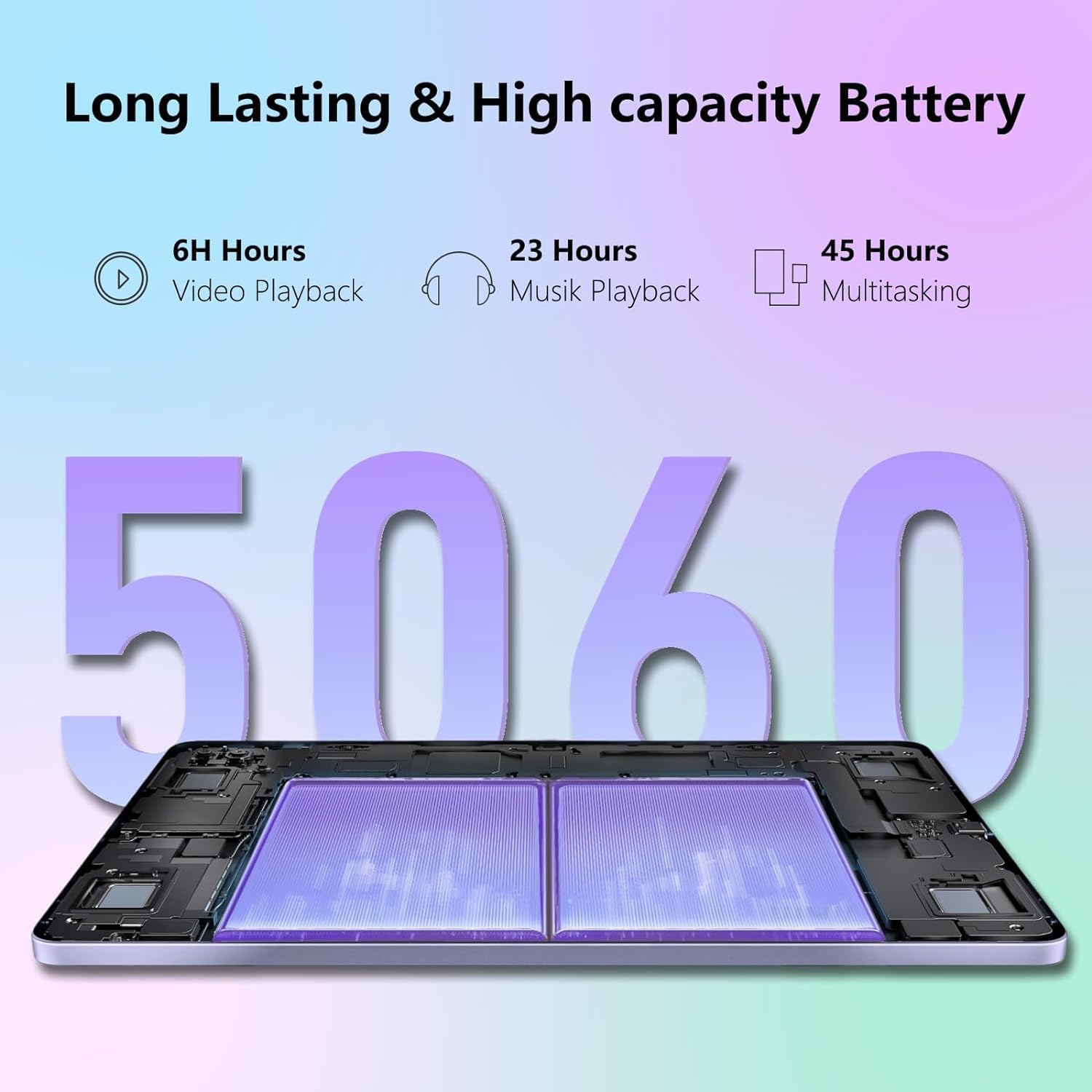
The 5060 mAh high-capacity battery of the DOOGEE T20 Mini, providing extended usage times for various activities.
5. Rozwiązywanie Problemów
If you encounter issues with your DOOGEE T20 Mini, refer to the common problems and solutions below:
| Problem | Rozwiązanie |
|---|---|
| Tablet nie włącza się. | Upewnij się, że bateria jest naładowana. Podłącz ładowarkę na co najmniej 10 minut. Jeśli nadal nie ma reakcji, naciśnij i przytrzymaj przycisk zasilania przez 15–20 sekund, aby wymusić ponowne uruchomienie. |
| Problemy z połączeniem Wi-Fi. | Uruchom ponownie tablet i router Wi-Fi. Usuń sieć z ustawień Wi-Fi i połącz się ponownie. Upewnij się, że jesteś w zasięgu sygnału Wi-Fi. |
| Aplikacje ulegają awarii lub zawieszają się. | Close the app and reopen it. Clear the app's cache (Settings > Apps > [App Name] > Storage & cache > Clear cache). Update the app from the Google Play Store. If the issue persists, consider uninstalling and reinstalling the app. |
| Niska wydajność. | Close unused apps running in the background. Clear cache and temporary files. Consider uninstalling rarely used apps. Restart the tablet regularly. |
| Tablet nie ładuje się. | Check if the charging cable and adapter are securely connected and undamaged. Try a different power outlet. Ensure the charging port on the tablet is clean and free of debris. |
6. Specyfikacje
Below are the detailed technical specifications for the DOOGEE T20 Mini tablet:
| Funkcja | Szczegół |
|---|---|
| Nazwa modelu | T20 Mini |
| System operacyjny | Android 13 |
| Edytor | Unisoc Spreadtrum T606 Octa-core (1.6GHz) |
| BARAN | 4GB (expandable to 9GB with RAM expansion technology) |
| Pamięć wewnętrzna | 128 GB (z możliwością rozszerzenia do 1 TB za pomocą karty MicroSD) |
| Rozmiar wyświetlacza | 8.4 cali |
| Rozdzielczość wyświetlacza | 1920 x 1200 pixels (FHD+ IPS) |
| Główna kamera | 13 megapiksela |
| Przednia kamera | 5 megapiksela |
| Pojemność baterii | 5060 mAh Li-Po |
| Łączność | Wi-Fi (802.11n), Bluetooth 5.0, 4G Cellular, GPS |
| Interfejs USB | USB 2.0 |
| Wymiary | Wymiary 23.1 x 15 x 5.6 cm |
| Waga | 630 gramów |
| Kolor | Czarny |
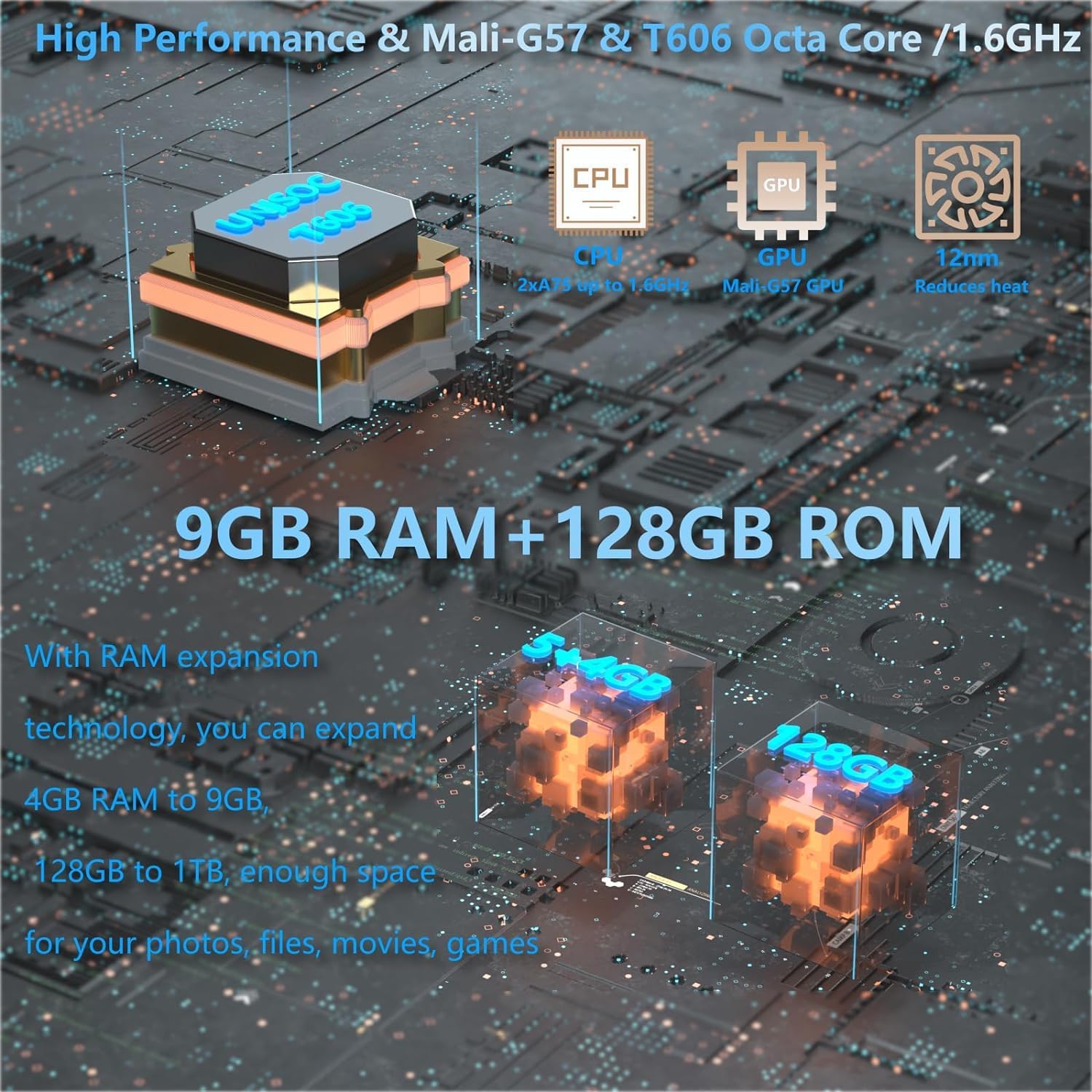
Szczegółowy view of the DOOGEE T20 Mini's internal components, highlighting its high-performance processor, GPU, and memory configuration.

The DOOGEE T20 Mini's design features, including its lightweight metal body, ultra-thin profile, and narrow bezels, making it highly portable.
7. Gwarancja i wsparcie
7.1 Gwarancja na produkt
The DOOGEE T20 Mini comes with a 2-letnia gwarancja handlowa. Please retain your proof of purchase for warranty claims. This warranty covers manufacturing defects and malfunctions under normal use conditions.
7.2 Obsługa klienta
For further assistance, technical support, or warranty inquiries, please visit the official DOOGEE website or contact their customer service. You may find FAQs, software downloads, and additional support resources online.
Official DOOGEE Webstrona: www.doogee.cc
Ask a question about this manual
Ask about setup, troubleshooting, compatibility, parts, safety, or missing instructions. Manuals+ will review the question and use this page’s manual context to help answer it.