
1. Koniec produktuview
CZEview 3K 5MP Indoor Security Camera is a versatile device designed for home surveillance, pet monitoring, and baby monitoring. It offers crystal-clear 3K 5MP resolution, dual-band 2.4/5GHz Wi-Fi connectivity, and advanced features such as remote pan, tilt, and zoom capabilities. The camera includes night vision for low-light conditions, motion detection with auto-tracking, and two-way audio communication. It is also compatible with Alexa for convenient voice control.


2. Co znajduje się w pudełku
Sprawdź zawartość paczki, aby upewnić się, że znajdują się w niej wszystkie elementy:
- 2x CZEview Kamera obrotowa/przechylna
- Zasilacz
- Szybki przewodnik
- Śruba montażowa
- Płyta montażowa
3. Przewodnik konfiguracji
3.1 Konfiguracja początkowa
- Podłączenie zasilania: Connect the camera to the power adapter using the provided micro-USB cable and plug it into a power outlet. The camera will power on and initiate its startup sequence.
- Pobieranie aplikacji: Download the designated mobile application (e.g., 'Elemage Cam' or as specified in the Quick Start Guide) from your device's app store (compatible with Android and iOS).
- Rejestracja konta: Otwórz aplikację i postępuj zgodnie z instrukcjami wyświetlanymi na ekranie, aby zarejestrować nowe konto lub zalogować się, jeśli już je posiadasz.
- Dodaj urządzenie: Within the app, select the option to add a new device. Follow the prompts to scan the QR code on the camera or manually select your camera model.
3.2 Połączenie Wi-Fi
CZEview camera supports both 2.4GHz and 5GHz Wi-Fi networks, offering flexibility and improved performance.

- Wybór sieci: Ensure your smartphone is connected to the Wi-Fi network you intend to connect the camera to.
- Wprowadzanie hasła: Enter your Wi-Fi password accurately into the app when prompted. Double-check for typos.
- Proces połączenia: The app will guide you through the connection process, which may involve displaying a QR code on your phone screen for the camera to scan, or emitting an audible tone.
- Potwierdzenie: Once connected, the camera will typically indicate a successful connection (e.g., a voice prompt or LED indicator change), and the app will confirm the device is online.
3.3 Montaż kamery
The camera is designed for indoor use and can be ceiling-mounted for optimal coverage.
- Lokalizacja: Wybierz lokalizację, która zapewnia pożądane viewpod odpowiednim kątem i znajduje się w zasięgu Twojej sieci Wi-Fi.
- Instalacja: Use the provided mounting plate and screws to secure the camera to a ceiling or wall. If mounting into wood, pre-drilling pilot holes is recommended.
4. Instrukcja obsługi
4.1 Pan, Tilt i Zoom (PTZ)
The camera offers a 355° horizontal rotation and 100° vertical rotation, allowing for comprehensive coverage of your indoor space. It also features 4x digital zoom.
- Kontrola: Użyj elementów sterujących kierunkiem w aplikacji mobilnej, aby zdalnie dostosować położenie kamery. viewkąt.
- Brzęczenie: Pinch-to-zoom on the live feed within the app to digitally zoom in on specific areas.

4.2 Widzenie nocne
Equipped with infrared LEDs, the camera provides clear video footage even in low-light or complete darkness.
- Aktywacja automatyczna: Widzenie nocne włącza się automatycznie, gdy poziom oświetlenia otoczenia jest niski.
- Przejrzystość: The 3K 5MP resolution ensures details are visible in night vision mode.
4.3 Detekcja ruchu i automatyczne śledzenie
The camera can detect motion and sound, sending instant notifications to your phone. It also features auto-tracking to follow detected movement.
- Powiadomienia: Enable motion and sound alerts in the app settings to receive real-time notifications.
- Automatyczne śledzenie: When enabled, the camera will automatically pan and tilt to keep a moving subject within its field of view.

4.4 Rozmowa dwukierunkowa
Communicate with family members or pets through the camera using the two-way talk feature.
- Aktywacja: Kliknij ikonę mikrofonu na żywo view interface of the app to speak through the camera's speaker.
- Słuchający: The camera's built-in microphone allows you to hear audio from the camera's location.

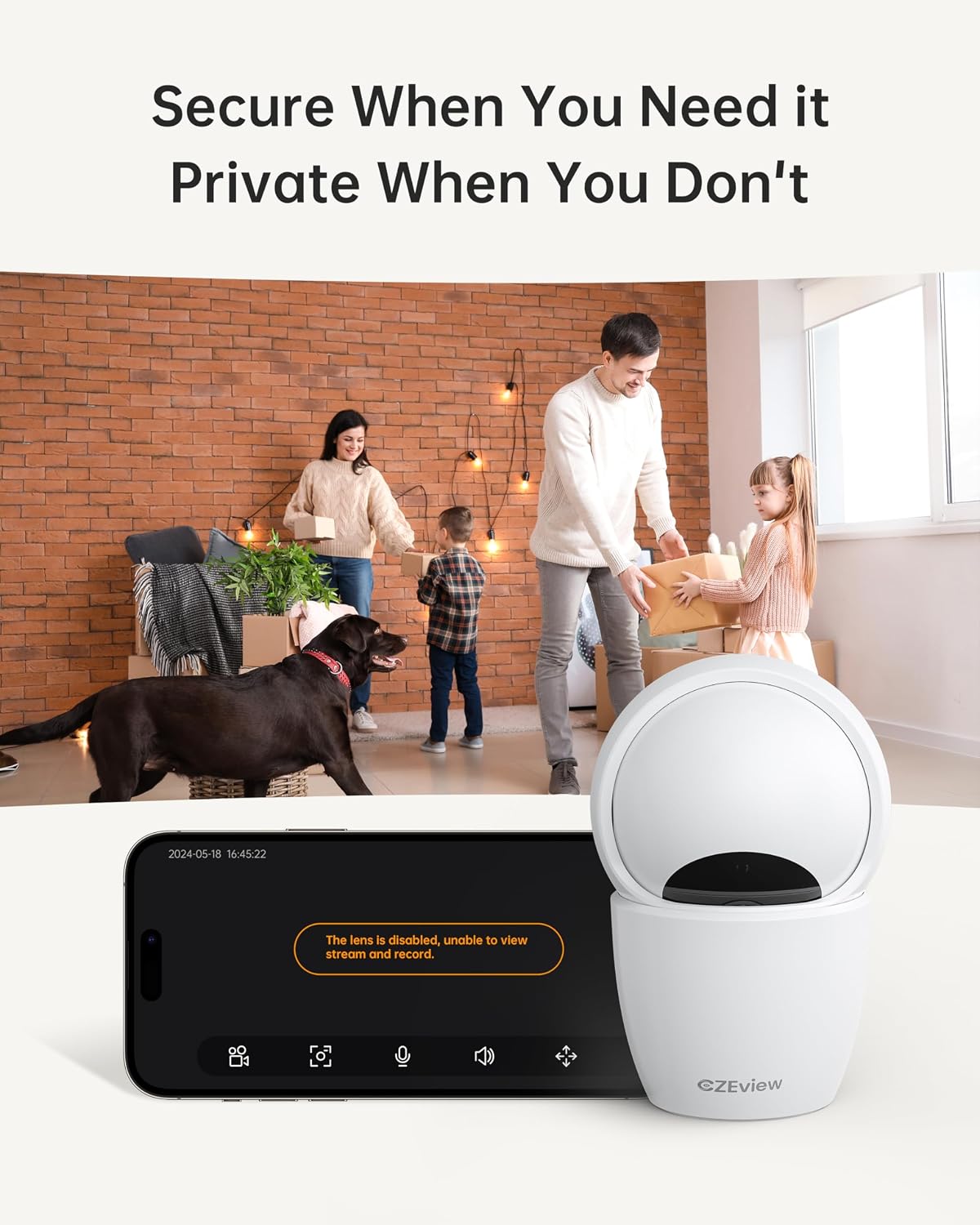
4.5 Tryb prywatności
To ensure privacy, the camera can be deactivated with a single click in the app, physically turning the lens away.
- Aktywacja: Locate the privacy mode option in the app settings or live view screen. Activating it will disable video streaming and recording.
- Harmonogram: Some app versions may allow scheduling privacy mode for specific times.

4.6 Nagrywanie i przechowywanie
The camera supports local storage via a Micro SD card (up to 128GB, not included) and offers optional cloud storage plans for continuous 24/7 recording.
- Karta micro sd: Insert the Micro SD card into the slot. To locate the slot and reset button, gently tilt the camera's 'eyeball' (lens housing) upward.
- Przechowywanie w chmurze: Refer to the app for details on available cloud storage plans and subscription options.
4.7 Integracja z Alexą
The camera works with Alexa, allowing for voice-activated control and viewing.
- Łączenie konta: Follow the instructions in the Alexa app to enable the CZEview skill and link your camera account.
- Polecenia głosowe: Użyj poleceń takich jak „Alexa, pokaż mi [nazwa kamery]”, aby view the live feed on compatible Alexa devices with screens.
5. Konserwacja
- Czyszczenie: Do czyszczenia obiektywu i korpusu aparatu używaj miękkiej, suchej ściereczki. Unikaj środków czyszczących o właściwościach ściernych i rozpuszczalników.
- Aktualizacje oprogramowania: Regularly check the mobile app for firmware updates to ensure optimal performance and security. Follow the in-app instructions for updating.
- Umieszczenie: Ensure the camera is placed in a stable, dry indoor environment, away from direct sunlight, extreme temperatures, and sources of vibration.
6. Rozwiązywanie Problemów
| Problem | Możliwa przyczyna | Rozwiązanie |
|---|---|---|
| Aparat nie łączy się z siecią Wi-Fi | Incorrect Wi-Fi password; Camera too far from router; Router band incompatibility; Network congestion. | Double-check Wi-Fi password. Move camera closer to router. Ensure router supports 2.4GHz or 5GHz (whichever you are connecting to). Try restarting your router and camera. |
| Niska jakość obrazu | Brudny obiektyw; Niedostateczne oświetlenie; Problemy z przepustowością sieci. | Clean the camera lens with a soft cloth. Ensure adequate lighting or verify night vision is active in low light. Check your internet speed. |
| Brak alertów o wykryciu ruchu | Motion detection disabled in app; Sensitivity too low; App notifications blocked. | Enable motion detection in the app settings. Adjust sensitivity level. Check your phone's notification settings for the app. |
| Two-way talk audio issues | Microphone/speaker muted in app; Network delay; Obstruction. | Ensure microphone and speaker are enabled in the app. Check network connection stability. Ensure no physical obstructions are blocking the microphone or speaker. |
| Camera is unresponsive / needs reset | Software glitch; Configuration error. | Unplug the camera, wait 10 seconds, then plug it back in. If issues persist, locate the reset button (by tilting the lens upward) and press it for 5-10 seconds until the camera resets. You may need to re-add the camera to the app after a factory reset. |
7. Specyfikacje
| Funkcja | Szczegół |
|---|---|
| Nazwa modelu | ZY-D4 |
| Zastosowanie wewnątrz/na zewnątrz | Wnętrz |
| Efektywna rozdzielczość obrazu nieruchomego | 5 MP (3K) |
| Rozdzielczość przechwytywania wideo | 1920p |
| Protokół łączności | Wi-Fi (2.4/5Ghz Dual Band) |
| Źródło zasilania | Elektryczny przewodowy |
| Typ kontrolera | Elemage Cam App |
| Typ montażu | Montaż sufitowy |
| Zakres obrotu/pochylenia | 355° w poziomie, 100° w pionie |
| Zoom cyfrowy | 4x |
| Opcje przechowywania | Karta Micro SD (do 128 GB, nie dołączona), pamięć masowa w chmurze (opcjonalnie) |
| Cechy specjalne | Night Vision, Motion Sensor, Dual Band Wi-Fi, Auto Tracking, Two-Way Talk, Privacy Mode, Alexa Compatible |
| Wymiary produktu | 3 x 3 x 5 cala |
| Waga przedmiotu | 1.37 funta |
8. Gwarancja i wsparcie
For warranty information and technical support, please refer to the Quick Start Guide included in your product packaging or visit the official CZEview webDane kontaktowe do działu obsługi klienta są zazwyczaj podane na stronie producenta. webstrona.