
ZEUSLAP ZL P16KT
Instrukcja obsługi przenośnego monitora dotykowego Zeuslap P16KT 16 cali
Model: ZL P16KT | Brand: ZEUSLAP
1. Wprowadzenie
This manual provides comprehensive instructions for the setup, operation, maintenance, and troubleshooting of your Zeuslap P16KT 16-inch Portable Touch Monitor. Designed for versatility, this monitor features a 2560x1600 resolution, 144Hz refresh rate, ADS-IPS panel with 100% sRGB color gamut, 500 Cd/m² brightness, and touch functionality, making it ideal for various applications including work, gaming, and multimedia consumption on the go.

Figure 1.1: Zeuslap P16KT Portable Monitor showcasing its 2.5K resolution, 144Hz refresh rate, 16-inch size, 100% sRGB, and touch capabilities.
2. Przewodnik konfiguracji
Follow these steps to set up your Zeuslap P16KT portable monitor.
2.1 Zawartość opakowania
- Zeuslap P16KT Portable Monitor
- Kabel USB-C do USB-C
- Mini-HDMI to HDMI Cable
- Power Adapter (if included, or use a compatible USB-C power source)
- Protective Cover/Stand
2.2 Podłączanie monitora
The Zeuslap P16KT offers versatile connectivity options. Ensure your device supports video output over USB-C (DisplayPort Alternate Mode) or HDMI.
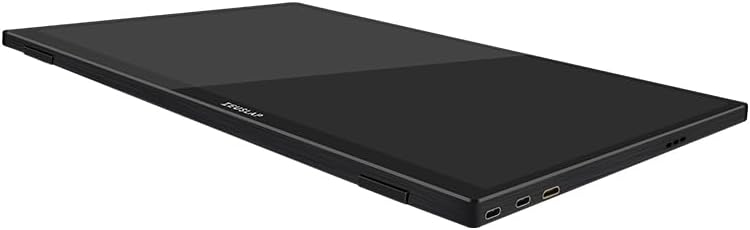
Rysunek 2.1: Profesjonalizm bocznyfile of the Zeuslap P16KT monitor, highlighting the USB-C and Mini-HD input ports.
- Podłączenie zasilania: Connect the monitor to a power source using one of the USB-C ports and a compatible power adapter (5V/3A or higher recommended). The monitor can also draw power directly from a connected device if it provides sufficient power via USB-C.
- USB-C Connection (Full Feature): For devices with a full-featured USB-C port (supporting video, audio, power, and touch data), connect one end of the provided USB-C to USB-C cable to the monitor's USB-C port and the other end to your device's USB-C port. This single cable can provide power, video, and enable touch functionality.
- Mini-HDMI Connection: For devices with an HDMI output, connect one end of the Mini-HDMI to HDMI cable to the monitor's Mini-HD port and the other end to your device's HDMI port. Note: When using Mini-HDMI, a separate USB-C connection for power and touch functionality (if desired) is required.
- USB-A Connection (for Touch): If using Mini-HDMI for video, connect a USB-A to USB-C cable from your device's USB-A port to the monitor's USB-C port to enable touch functionality.

Rysunek 2.2: Tył view of the Zeuslap P16KT, indicating the location of Mini-HD, Type-C ports, USB port, and OSD control buttons.
2.3 Using the Protective Cover as a Stand
The included protective cover can be folded to serve as a stand, allowing you to position the monitor at various viewkąty.
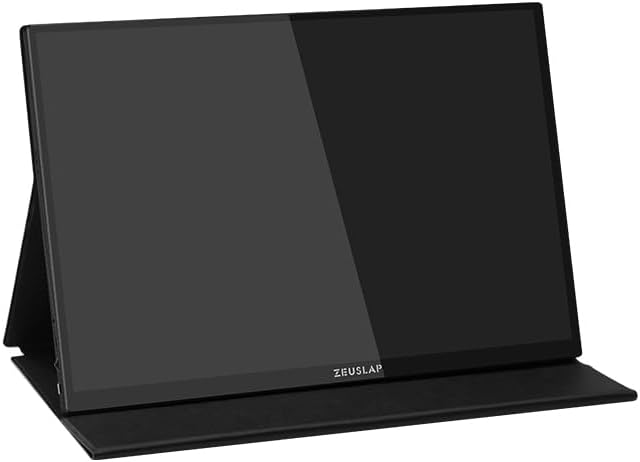
Figure 2.3: The Zeuslap P16KT monitor positioned using its multi-functional protective cover as a stable stand.
3. Instrukcja obsługi
Learn how to operate your Zeuslap P16KT monitor and utilize its features.
3.1 Włączanie/wyłączanie zasilania
Once connected to a power source and a video input, the monitor should automatically power on. To manually power off, press and hold the power button (usually integrated with the OSD joystick/button) for a few seconds.
3.2 Menu ekranowe (OSD)
The OSD menu allows you to adjust various display settings. The OSD controls are typically located on the side or back of the monitor.
- Dostęp do OSD: Press the OSD button/joystick to bring up the menu.
- Nawigacja: Use the joystick or directional buttons to navigate through menu options.
- Wybór: Press the OSD button/joystick to select an option.
- Wyjście: Navigate to the 'Exit' option or press the back button to close the OSD menu.
Common OSD settings include Brightness, Contrast, Color Temperature, Input Source, Aspect Ratio, and Refresh Rate (e.g., switching between 144Hz and 120Hz if supported by your device).
3.3 Funkcjonalność dotykowa
The Zeuslap P16KT features a responsive touch screen. Ensure the touch connection (via USB-C or separate USB-A to USB-C cable) is properly established with your device.
- System operacyjny Windows: Touch functionality should be plug-and-play. If not, check device manager for HID-compliant touch screen drivers.
- MacOS: macOS does not natively support touch input for external monitors. Third-party drivers may be available but are not officially supported.
- Android/Smartphones: Touch functionality depends on the phone's support for external touch displays via USB-C. Some phones may require specific settings or apps.
4. Konserwacja i pielęgnacja
Właściwa pielęgnacja zapewnia długowieczność i optymalną wydajność monitora.
- Czyszczenie ekranu: Delikatnie przetrzyj ekran miękką, niepozostawiającą włókien ściereczką. W przypadku uporczywych plam delikatnie przetrzyj.ampen the cloth with water or a non-abrasive, screen-safe cleaning solution. Do not spray liquid directly onto the screen.
- Czyszczenie Casing: Do czyszczenia monitora należy używać miękkiej, suchej ściereczki.asing. Unikaj silnych środków chemicznych i materiałów ściernych.
- Składowanie: Gdy monitor nie jest używany, należy go przechowywać w ochronnym etui w chłodnym, suchym miejscu, z dala od bezpośredniego światła słonecznego i ekstremalnych temperatur.
- Obsługiwanie: Zawsze trzymaj monitor za krawędzie. Unikaj wywierania nacisku na ekran.
5. Rozwiązywanie Problemów
W tej sekcji omówiono typowe problemy, na które możesz natrafić.
| Problem | Możliwa przyczyna | Rozwiązanie |
|---|---|---|
| Brak wyświetlacza/komunikat „Brak sygnału” | Incorrect input source selected; Loose cable connection; Insufficient power; Device not outputting video. | Check all cable connections (USB-C, Mini-HDMI). Ensure the monitor is receiving adequate power. Use the OSD menu to select the correct input source. Verify your device's video output settings. |
| Funkcja dotykowa nie działa | USB-C cable not full-featured; Separate USB cable for touch not connected; Device driver issue; Operating system limitation. | Ensure you are using a full-featured USB-C cable or have connected the separate USB-A to USB-C cable for touch data. Check device manager for touch screen drivers. Note that macOS does not natively support external touch displays. |
| Monitor frequently disconnects or flickers | Insufficient power; Faulty cable; Overheating. | Ensure the monitor is connected to a stable power source with sufficient wattage. Try a different USB-C or HDMI cable. Ensure adequate ventilation around the monitor. |
| Cannot connect to phone | Phone does not support DisplayPort Alternate Mode over USB-C; Phone requires specific settings. | Verify your phone's USB-C port supports video output. Some Android phones may require enabling 'Desktop Mode' or similar settings. Consult your phone's manual. |
| Obraz jest zniekształcony lub ma nieprawidłową rozdzielczość | Incorrect display settings on connected device. | Adjust the display resolution on your connected device to 2560x1600. Ensure the refresh rate is set correctly (e.g., 144Hz or 120Hz). |
6. Specyfikacje
Detailed technical specifications for the Zeuslap P16KT Portable Monitor.
| Funkcja | Szczegół |
|---|---|
| Marka | ZEUSLAP |
| Nazwa modelu | ZL P16KT |
| Rozmiar ekranu | 16 cali |
| Rozdzielczość wyświetlacza | 2560 x 1600 pikseli (2K) |
| Typ panelu | ADS-IPS |
| Częstotliwość odświeżania | 144 Hz |
| Gama kolorów | 100% sRGB |
| Jasność | 500 cd/m² |
| Technologia łączności | USB Type-C, Mini-HD |
| Funkcja specjalna | Portable, Touchscreen |
| Kompatybilne urządzenia | Komputer stacjonarny, laptop, smartfon |
| Wymiary produktu | Wymiary 0.5 x 35.5 x 23.2 cm |
| Kolor | Czarny |
| Pierwsza dostępna data | 27 lutego 2024 r. |
7. Gwarancja i wsparcie
For warranty information and technical support, please refer to the documentation included with your purchase or visit the official ZEUSLAP webZachowaj dowód zakupu na wypadek roszczeń gwarancyjnych.
If you encounter issues not covered in this manual, please contact ZEUSLAP customer service for assistance.