
Wstęp
Thank you for choosing the AZDOME M550 Pro 3 Channel Dash Cam. This manual provides detailed instructions for the installation, operation, and maintenance of your device. Please read this manual carefully before using the product to ensure proper functionality and safety. Keep this manual for future reference.
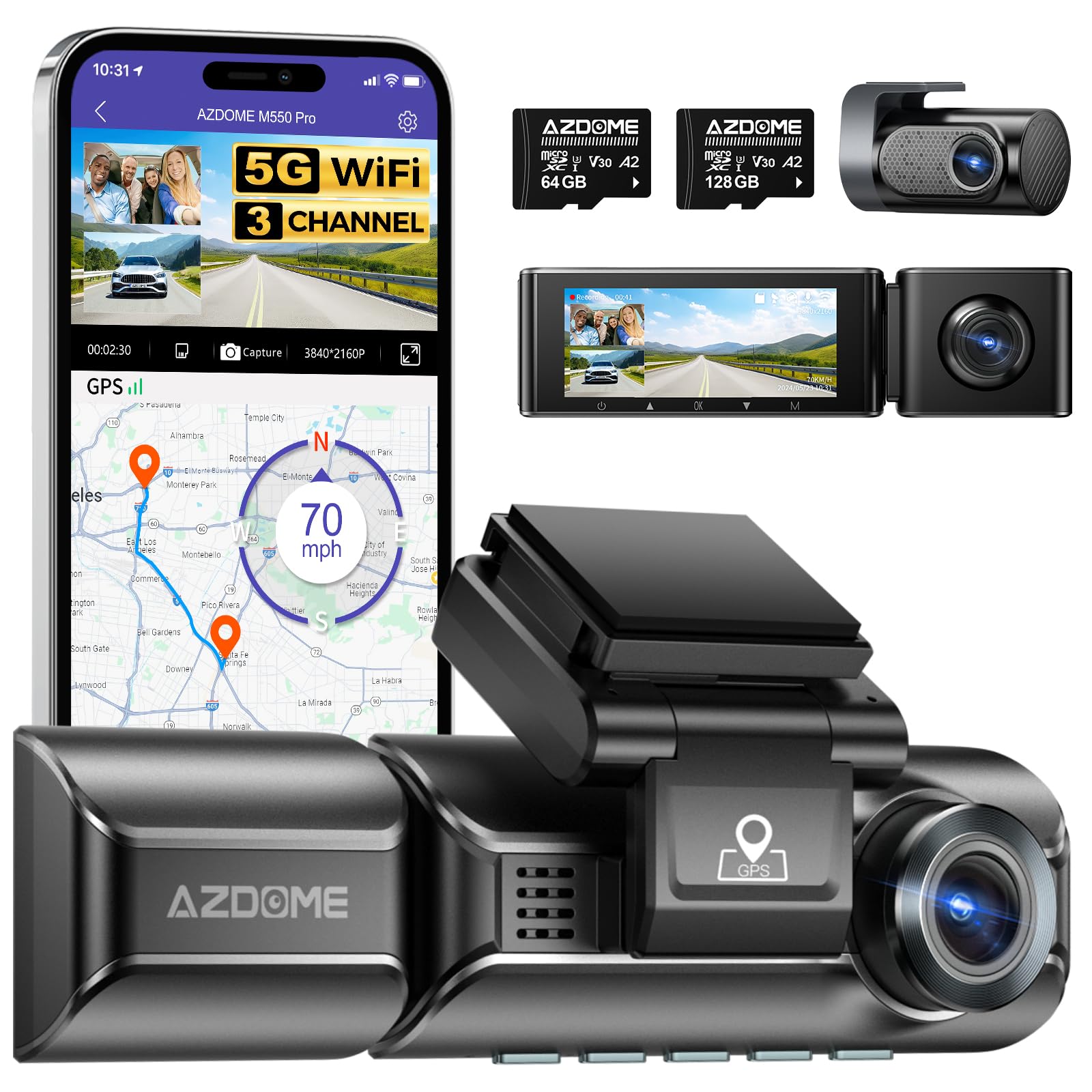
Image: The AZDOME M550 Pro dash cam, showing the main unit, interior camera, rear camera, and a smartphone displaying the companion app interface with GPS and video playback.
Zawartość opakowania
Proszę sprawdzić zawartość opakowania po rozpakowaniu. Jeśli brakuje któregokolwiek elementu lub jest on uszkodzony, prosimy o kontakt z obsługą klienta.
- AZDOME M550 Pro Dash Cam (Main Unit)
- Kamera wewnętrzna
- Kamera tylna
- AZDOME 128GB TF Card (Memory Card)
- Kabel zasilający (ładowarka samochodowa)
- Uchwyt montażowy
- Instrukcja obsługi

Image: A close-up of the AZDOME 128GB MicroSD TF Card, included with the dash cam.
Produkt ponadview
The AZDOME M550 Pro is a 3-channel dash cam system designed to record video from the front, interior, and rear of your vehicle. It features a 3.19-inch IPS screen, built-in 5.8G WiFi, GPS, and various parking monitoring modes.
Main Unit (Front Camera)
- Front Lens: Records the road ahead in up to 4K resolution.
- Display Screen: 3.19-inch IPS screen for live view i odtwarzanie.
- Control Buttons: For menu navigation and settings.
- GPS Module: Integrated for location and speed data.
- MicroSD Card Slot: For memory card insertion.
Kamera wewnętrzna
- Records the vehicle's interior in 1080P.
- Equipped with 6 IR LEDs for enhanced night vision inside the cabin.
- Removable (Type-C Port) for flexible installation.
Kamera tylna
- Records the rear view of the vehicle in 1080P.
- Łączy się z jednostką główną za pomocą dedykowanego kabla.
Organizować coś
1. Wkładanie karty MicroSD
- Sprawdź, czy kamera samochodowa jest wyłączona.
- Znajdź gniazdo karty MicroSD na jednostce głównej.
- Insert the 128GB TF card with the gold contacts facing the back of the dash cam until it clicks into place.
- Aby wyjąć kartę, delikatnie wciśnij ją, aż wysunie się.
2. Montaż kamery samochodowej
- Wyczyść obszar przedniej szyby w miejscu, w którym zamierzasz zamontować kamerę samochodową.
- Przymocuj uchwyt montażowy do kamery samochodowej.
- Secure the dash cam with the bracket to the windshield, ensuring a clear view of the road. Adjust the lens angle as needed.
3. Podłączanie zasilania
- Podłącz ładowarkę samochodową do portu zasilania kamery samochodowej.
- Podłącz drugi koniec ładowarki samochodowej do gniazda zapalniczki w pojeździe.
- Route the power cable neatly along the windshield and dashboard to avoid obstructing your view.
4. Installing the Interior and Rear Cameras
- Connect the interior camera to its dedicated port on the main unit. Mount it to capture the cabin view.
- Connect the rear camera to its dedicated port on the main unit. Mount it on the rear windshield, ensuring a clear view. Route the cable discreetly.
5. Pierwsze włączenie i ustawienia
- Po podłączeniu zasilania kamera samochodowa włączy się automatycznie i rozpocznie nagrywanie.
- Access the menu to set the correct date and time.
- It is recommended to format the MicroSD card within the dash cam's settings before first use and periodically thereafter to ensure optimal performance.
Instrukcja obsługi
1. 3 Channel Recording
The M550 Pro supports simultaneous recording from three cameras: front, interior, and rear. You can configure recording resolutions:
- Tylko przód: 4K (3840x2160P)
- Przód i tył: 4K + 1080P
- Front and Interior: 2K (2560x1440P) + 1080P
- Front, Interior, and Rear: 2K + 1080P + 1080P
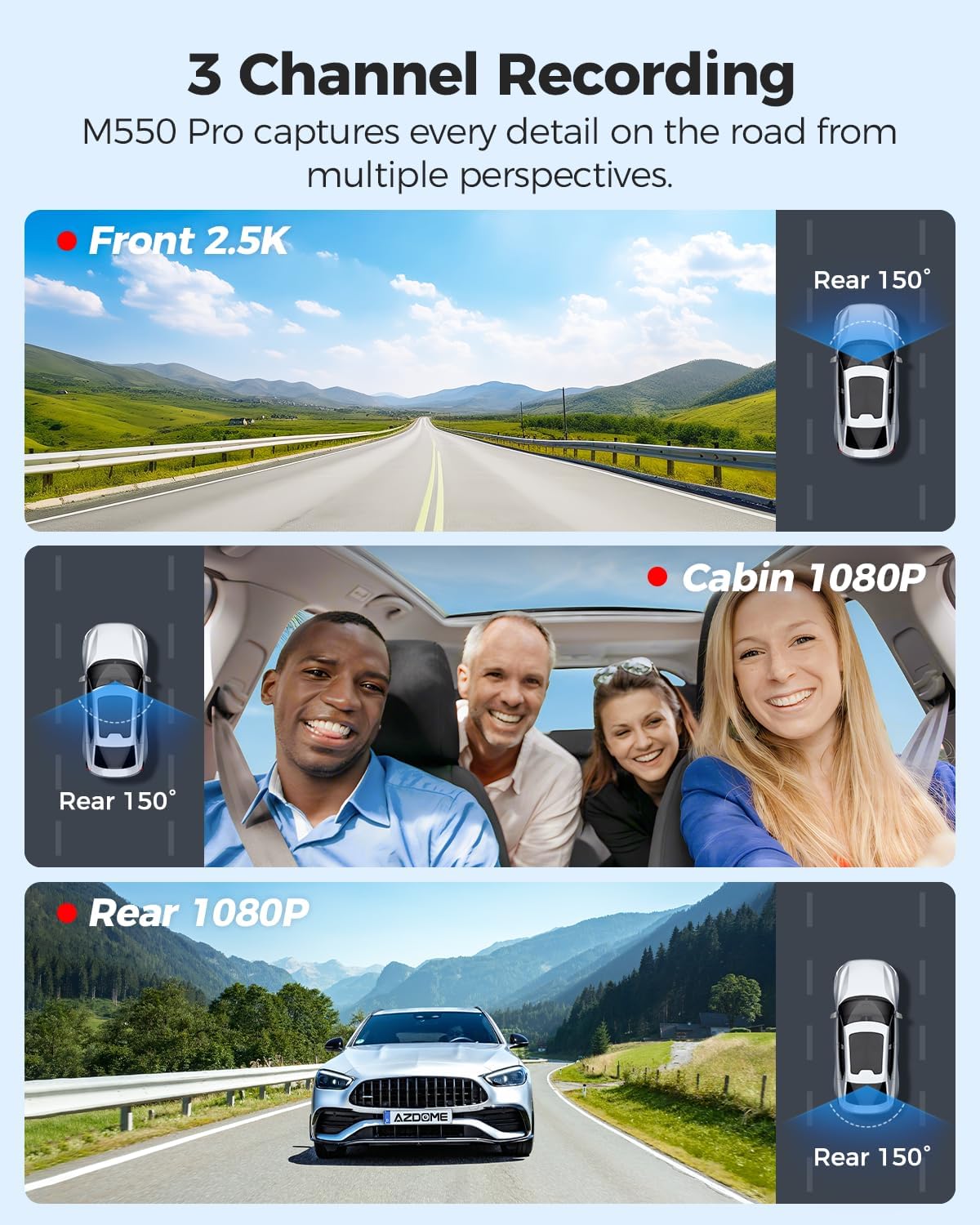
Image: Visual representation of the 3-channel recording capability, showing views from the front (2.5K), cabin (1080P), and rear (1080P) cameras.
2. Nagrywanie w pętli
Kamera samochodowa nagrywa wideo w pętli. Gdy karta pamięci jest pełna, najstarszy odblokowany film jest zapisywany. fileNagrania są automatycznie nadpisywane nowymi. Zapewnia to ciągłość nagrywania bez konieczności ręcznej ingerencji.
3. Czujnik G (wykrywanie kolizji)
The built-in G-sensor detects sudden impacts or collisions. When triggered, it automatically locks the current video segment, preventing it from being overwritten by loop recording. The sensitivity of the G-sensor can be adjusted in the settings.
4. Monitor parkingowy 24-godzinny
The M550 Pro offers two modes for 24-hour parking monitoring. A 3-lead hardwire kit (not included, ASIN: B096G6FKZP) is required for this feature.
- Tryb parkowania z wykrywaniem kolizji: The G-sensor detects impacts and automatically records and locks video segments.
- Tryb parkowania poklatkowego: The dash cam records continuously at a low frame rate (e.g., 1 FPS) for 24 hours, compressing long periods into short videos.

Image: Illustration of the 24-hour parking mode, detailing collision detection and time-lapse recording options, with a car parked under a protective shield icon.
5. Built-in 5.8G WiFi and App Usage
The dash cam features built-in 5.8G WiFi for faster data transfer. Download the AZDOME app on your smartphone to connect to the dash cam.
- Pobierz aplikację AZDOME ze sklepu Google Play lub Apple App Store.
- Enable WiFi on your dash cam and smartphone.
- Połącz swój smartfon z siecią WiFi kamery samochodowej (identyfikator SSID i hasło będą wyświetlane na ekranie kamery samochodowej).
- Użyj aplikacji na żywo view, video playback, downloading recorded files, and adjusting settings. 5.8GHz WiFi allows for downloading 800MB video within 10 seconds.
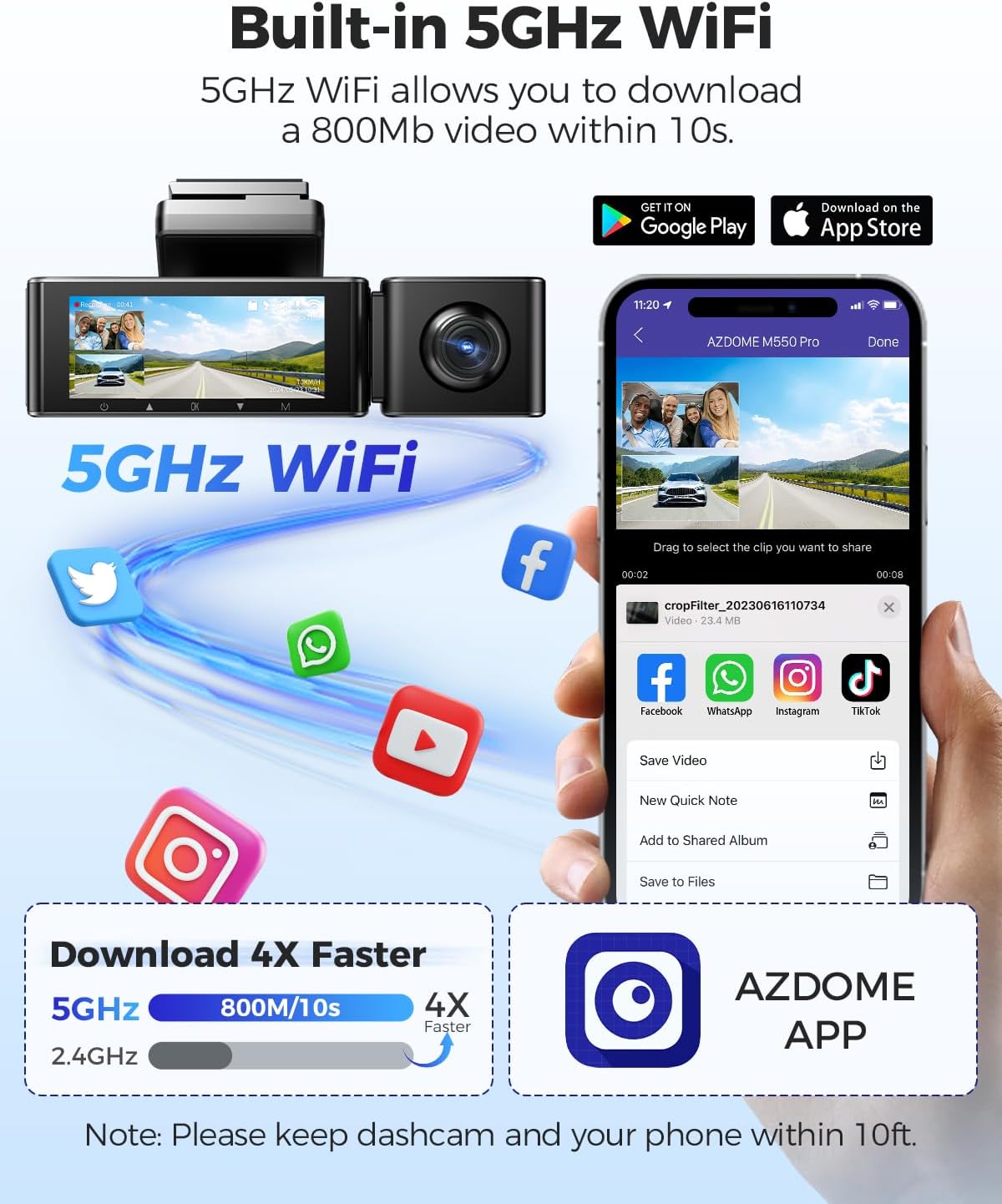
Image: Diagram showing the dash cam connecting to a smartphone via 5GHz WiFi, highlighting faster download speeds for videos through the AZDOME app.
6. Wbudowana funkcjonalność GPS
The integrated GPS module records your driving route, speed, latitude, and longitude data. This information can be viewed using the AZDOME GPS Player software on a computer.
- Download the AZDOME GPS Player software from the official AZDOME webstrona.
- Transfer recorded video files do twojego komputera.
- Otwórz wideo files with the AZDOME GPS Player to view synchronized video, map, and driving data.

Image: A laptop screen displaying the AZDOME GPS Player, showing video playback alongside a map with the driving route, speed, and location details.
7. Wizja nocna
The interior camera is equipped with 6 IR LEDs and a Starvis Sensor to provide clear recordings in low-light conditions inside the vehicle. The front camera also features a 6-glass lens and F=1.8 aperture for improved low-light performance.
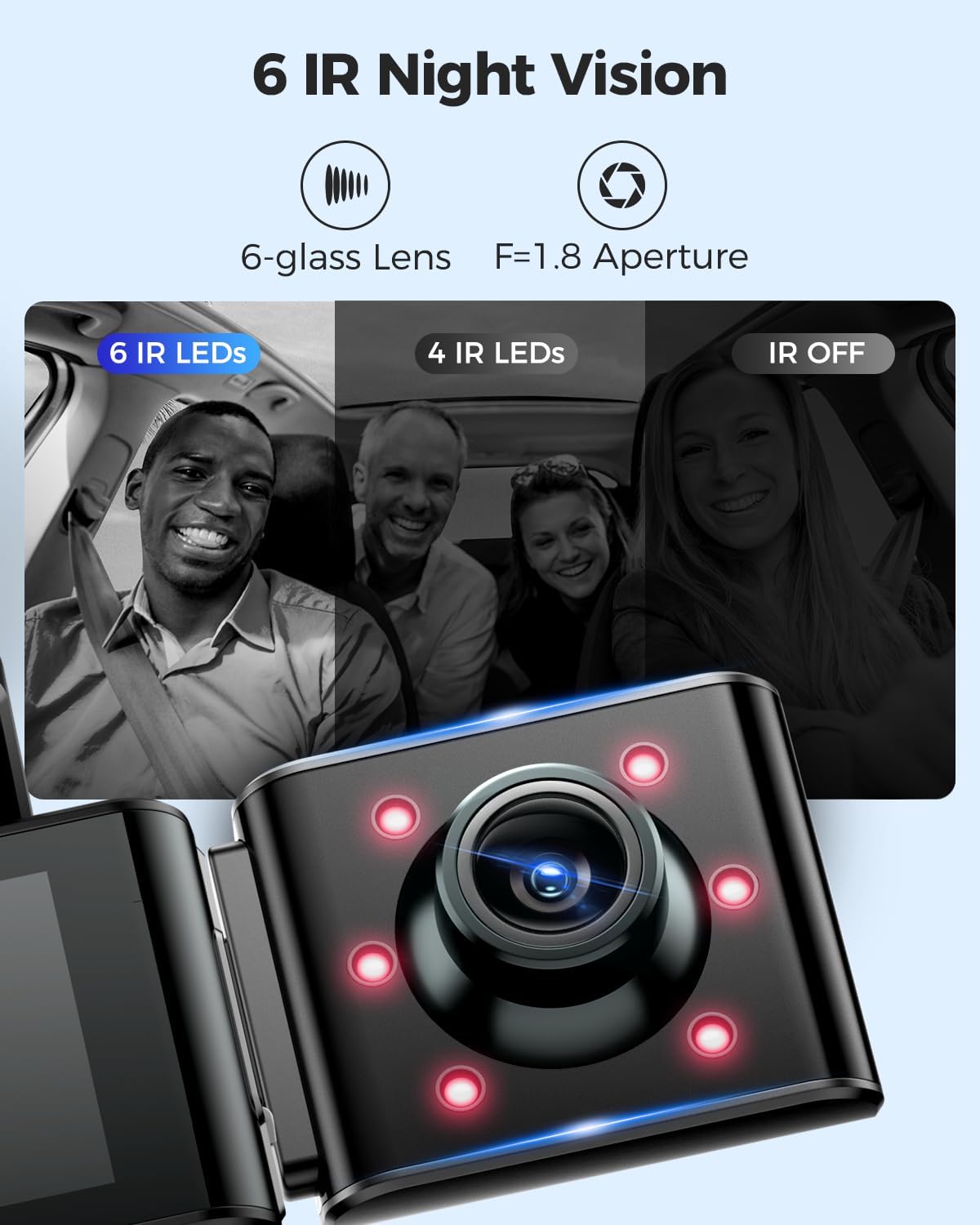
Image: A visual comparison demonstrating the effectiveness of 6 IR LEDs for night vision in the interior camera, showing clearer images compared to 4 IR LEDs or IR off.
Konserwacja
1. Pielęgnacja karty pamięci
- Regularly format the MicroSD card (at least once a month) through the dash cam's settings to prevent data corruption and ensure optimal recording performance.
- Use high-quality, high-endurance MicroSD cards (Class 10 or U3 recommended) for reliable operation.
- Avoid removing or inserting the MicroSD card while the dash cam is powered on to prevent damage to the card or device.
2. Czyszczenie urządzenia
- Use a soft, dry cloth to clean the dash cam's body and screen.
- For camera lenses, use a lens cleaning cloth and specialized lens cleaning solution to avoid scratches and ensure clear video quality.
- Nie należy używać środków czyszczących o właściwościach ściernych ani rozpuszczalników, gdyż mogą one uszkodzić urządzenie.
Rozwiązywanie problemów
- Kamera samochodowa nie włącza się: Check the power connection. Ensure the car charger is properly plugged into both the dash cam and the vehicle's power outlet. Test the power outlet with another device.
- Kamera samochodowa przestaje nagrywać: Ensure the MicroSD card is inserted correctly and has sufficient free space. Format the card. If the issue persists, try a different MicroSD card.
- Wideo files are corrupted or unplayable: Format the MicroSD card. Ensure the card is a high-quality, high-endurance type.
- Problemy z połączeniem WiFi: Ensure the dash cam's WiFi is enabled. Keep your smartphone within 10 feet of the dash cam for optimal connection. Restart both the dash cam and your phone.
- GPS nie działa: Upewnij się, że kamera samochodowa ma czyste pole widzenia. view of the sky. GPS signal acquisition may take a few minutes, especially after initial setup or in areas with poor signal.
- Monitor parkowania nie działa: Ensure the 3-lead hardwire kit is correctly installed and connected. Check parking monitor settings in the menu.
Specyfikacje
Below are the key specifications for the AZDOME M550 Pro Dash Cam:
| Funkcja | Specyfikacja |
|---|---|
| Model | M550 Pro |
| Rozmiar wyświetlacza | Ekran IPS 3.19" |
| Rozdzielczość wideo (maks.) | Front: 4K (3840x2160P) |
| 3-Channel Resolution | 2K(F)+1080P(I)+1080P(R) |
| Technologia łączności | 5.8G Wi-Fi |
| Funkcja specjalna | Parking Monitor (Collision Detection, Time-lapse) |
| Wbudowany GPS | Tak |
| Kamera wewnętrzna | Removable (Type-C Port), 6 IR LEDs, Starvis Sensor |
| Pole View | 170 stopni (przód) |
| Metoda kontroli | Aplikacja |
| Typ pamięci flash | TF (MicroSD) |
| Zawarte komponenty | Karta pamięci (128 GB) |

Image: A detailed comparison table highlighting features and specifications of the M550 Pro against other AZDOME models, including display size, video resolution, WiFi, and parking modes.
Gwarancja i wsparcie
Informacje o gwarancji
AZDOME products typically come with a standard manufacturer's warranty. Please refer to the warranty card included in your package or visit the official AZDOME webSzczegółowe warunki gwarancji znajdziesz na stronie. Zachowaj dowód zakupu na wypadek roszczeń gwarancyjnych.
Obsługa klienta
For technical assistance, troubleshooting, or any questions regarding your AZDOME M550 Pro Dash Cam, please contact AZDOME customer support. Contact information can usually be found on the official AZDOME webmiejscu lub na karcie gwarancyjnej.


