
1. Wprowadzenie
This manual provides detailed instructions for the setup, operation, and maintenance of your EMEET C960 AF Webcam. Designed for superior video quality and ease of use, this webcam is ideal for video calls, streaming, and online education.
Główne cechy:
- FHD 1080P Autofocus: Delivers up to 1080p resolution at 60fps with fast and precise PDAF autofocus (20-300cm range).
- 73° View Angle with Privacy Cover: Ideal for personal use, minimizing background distractions, and ensuring privacy when not in use.
- Built-in Dual Noise Reduction Microphones: Poprawia klarowność dźwięku poprzez redukcję szumów tła.
- Podłącz i używaj USB: No additional drivers required for quick setup.
- Szeroka kompatybilność: Supports Windows, MacOS, Linux, and Android TV, compatible with major applications like Zoom, Teams, and Google Meet.
- EMEETLINK Software Support: Umożliwia personalizację webustawienia kamery.

Visual comparison highlighting the superior clarity of 1080p at 60 frames per second provided by the EMEET C960 AF Webkamera

Demonstration of the PDAF autofocus feature, ensuring sharp and precise imagery during video calls.
2. Konfiguracja
2.1 Zawartość pudełka
- C960 Webcam AF Version
- Ochrona prywatności
- Instrukcja obsługi
2.2 Przekroczenie fizyczneview
The EMEET C960 AF Webcam features a compact design with integrated microphones and a lens. The adjustable stand allows for versatile placement.

Przód view of the EMEET C960 AF Webcam, showing the lens and microphone grilles.
2.3 Instalacja
Ten webcam can be installed on a monitor, laptop, or tripod.
- Na monitorze/laptopie:
Umieść webcam on top of your monitor or laptop screen. The adjustable clip base will securely rest on the top edge, with the rear foot providing stability against the back of the screen. Adjust the angle as needed.

The EMEET C960 AF Webcam securely clipped onto the top of a laptop screen.
- Na statywie:
Ten webcam's base includes a 1/4-inch tripod thread. Screw the webcam onto a compatible tripod. Adjust the tripod's height and position for optimal viewing.

The EMEET C960 AF Webcam attached to a tripod, suitable for desktop placement.
2.4 Podłączanie do komputera (Plug and Play)
The EMEET C960 AF Webcam is a plug-and-play device, requiring no additional drivers for basic functionality.
- Podłącz kabel USB-A do webkamerę do wolnego portu USB w komputerze.
- Your computer will automatically detect and install the necessary generic drivers. This process usually takes less than a minute.
- Po zainstalowaniu plik webcam is ready for use with your preferred video conferencing or streaming application.
Video demonstrating the unboxing, installation of the privacy cover, and connecting the EMEET C960 AF Webcam to a computer. This video also shows how to select the webcam and microphone in conference software.
3. Instrukcja obsługi
3.1 Korzystanie z osłony prywatności
The included physical privacy cover can be attached to the webcam to block the lens when not in use, ensuring your privacy and protecting the lens from dust.
- Odklej folię samoprzylepną od osłony prywatności.
- Wyrównaj pokrywę nad webcam lens and press firmly to secure it.
- Slide the cover open to use the webcam and close it when finished.

The EMEET C960 AF Webcam showing the privacy cover in both open and closed positions.
3.2 Zgodność oprogramowania
The C960 AF webcam is broadly compatible with various operating systems and applications:
- Systemy operacyjne: Windows 10/11, MacOS 10.14 or later, Linux, Android TV 7.0 or later.
- Zastosowania: Zoom, Microsoft Teams, Facetime, Google Meet, OBS, Twitch, Facebook, YouTube, and more.
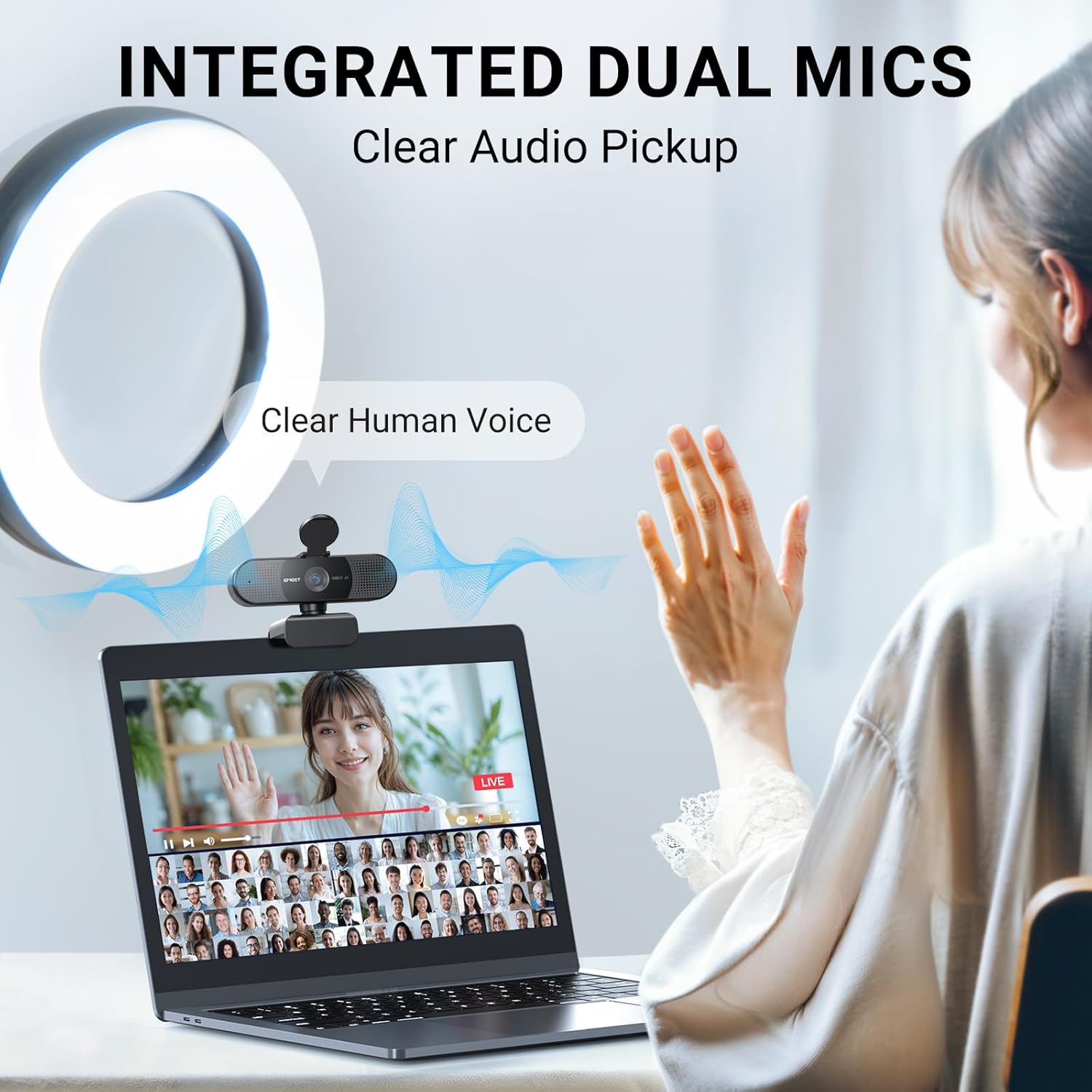
Image displaying the EMEET C960 AF Webcam and logos of compatible software platforms like Zoom, Teams, and Google Meet.
3.3 EMEETLINK Software Application
For advanced customization and optimal performance, download the EMEETLINK software from the official EMEET webstrona.
- Odwiedzać emeet.com and navigate to the "Support Center" -> "Downloads" section.
- Download and install the EMEETLINK software compatible with your operating system (Windows or MacOS).
- Within EMEETLINK, you can adjust various settings such as brightness, contrast, saturation, white balance, and image filters to fine-tune your video output.
Video tutorial on how to download and use the EMEETLINK software for customizing webustawienia kamery.
3.4 Adjusting Video Resolution
You can adjust the video resolution and frame rate through your computer's camera software or within the EMEETLINK application.
- Open your computer's native camera application (e.g., "Camera" on Windows).
- Access the settings menu within the camera application.
- Locate "Video Quality" or similar settings and select your desired resolution and frame rate (e.g., 1080p 60fps).
Video demonstrating how to adjust the resolution settings for the EMEET C960 AF Webcam using the computer's camera software.
4. Konserwacja
- Zachowaj webcam lens clean using a soft, dry cloth. Avoid abrasive materials or harsh chemicals.
- Przechowuj webcam in a cool, dry place when not in use. Utilize the privacy cover to protect the lens.
- Unikaj wystawiania urządzenia na działanie ekstremalnych temperatur lub bezpośredniego światła słonecznego przez dłuższy czas.
5. Rozwiązywanie Problemów
- Brak obrazu/wideo:
- Upewnij się, że kabel USB jest bezpiecznie podłączony do obu urządzeń. webkamera i komputer.
- Verify that the privacy cover is open.
- Check your application settings to ensure the EMEET C960 AF is selected as the video input device.
- Spróbuj podłączyć do innego portu USB w komputerze.
- Słaba jakość obrazu:
- Zadbaj o odpowiednie oświetlenie otoczenia.
- Wyczyść webobiektyw krzywkowy.
- Adjust settings (brightness, contrast, etc.) using the EMEETLINK software or your computer's camera settings.
- Verify that the selected resolution and frame rate are appropriate for your system.
- Brak dźwięku/słaba jakość dźwięku:
- Check your application settings to ensure the EMEET C960 AF is selected as the audio input (microphone) device.
- Ensure your computer's microphone volume is not muted or set too low.
- Zredukuj hałas tła w swoim otoczeniu.
- Image Display is Abnormal (e.g., incorrect colors, flickering):
If the image display appears abnormal, such as incorrect colors or flickering, try the following steps:
- Open the EMEETLINK software and navigate to the video settings.
- Look for options like "Anti-flicker" and adjust the frequency (e.g., 50Hz or 60Hz) to match your region's power supply frequency.
- Restore default settings within EMEETLINK or your computer's camera application.
- Ensure your operating system and camera drivers are up to date.
6. Specyfikacje
| Funkcja | Szczegół |
|---|---|
| Marka | Spotkanie |
| Nazwa modelu | EMEET SmartCam C960 AF |
| Numer modelu | E3130 |
| Rozdzielczość przechwytywania wideo | 1080p |
| Maksymalna rozdzielczość wyświetlacza | 1080p Full HD |
| Technologia czujnika fotograficznego | CMOS |
| Typ fokusu | Auto Focus (PDAF) |
| Viewing kąt | 73 stopni |
| Wbudowane mikrofony | Podwójne mikrofony z redukcją szumów |
| Technologia łączności | USB |
| Zgodność z systemem operacyjnym | Windows (Win 10, 11), macOS (10.14 and above), Linux, Android TV (V7.0 and above) |
| Wymiary przedmiotu (gł. x szer. x wys.) | 2.16" gł. x 3.94" szer. x 2.32" wys. |
| Waga przedmiotu | 4.64 uncji |
| Cechy | 1080P@60fps, Auto Focus, Dual Noise Reduction Mics, Plug and Play, Privacy Cover |
7. Gwarancja i wsparcie
7.1 Informacje o gwarancji
The EMEET C960 AF Webkamera jest wyposażona w 2-letnia gwarancja od daty zakupu. Niniejsza gwarancja obejmuje wady produkcyjne i zapewnia niezawodną pracę urządzenia.
7.2 Obsługa klienta
For technical assistance, troubleshooting, or any inquiries regarding your EMEET product, please contact EMEET customer support:
- Odwiedź oficjalną stronę EMEET webstrona: emeet.com
- Navigate to the "Support Center" for FAQs, downloads, and contact options.
- Utilize the EMEETLINK software for device management and firmware updates.
Manufacturer: Shenzhen eMeet technology Co.,Ltd.