
Wstęp
This manual provides detailed instructions for the OWC Gemini Thunderbolt (USB-C) Docking Station and External RAID Storage Solution. It covers setup, operation, maintenance, troubleshooting, and technical specifications to ensure optimal performance and longevity of your device.
Informacje dotyczące bezpieczeństwa
- Przeczytaj uważnie wszystkie instrukcje przed użyciem urządzenia.
- Nie narażaj urządzenia na działanie wilgoci ani ekstremalnych temperatur.
- Używaj wyłącznie zasilacza dostarczonego z urządzeniem.
- Nie próbuj samodzielnie otwierać ani naprawiać urządzenia. Wszelkie prace serwisowe zleć wykwalifikowanemu personelowi.
- Zapewnij odpowiednią wentylację wokół urządzenia, aby zapobiec przegrzaniu.
Zawartość opakowania
Sprawdź, czy w przesyłce znajdują się wszystkie elementy:
- OWC Gemini Thunderbolt (USB-C) Docking Station
- Zasilacz
- Thunderbolt (USB-C) Cable
- Instrukcja obsługi (ten dokument)
- Drives (pre-installed for 32TB model)
Produkt ponadview
The OWC Gemini is a versatile docking station and external storage solution designed for high-performance data management and expanded connectivity.

Obraz: Przód view of the OWC Gemini Thunderbolt Docking Station, showcasing its sleek black design and OWC branding.
Główne cechy
- Dual Drive Bays: Supports 2.5-inch and 3.5-inch SATA drives for flexible storage configurations.
- Hardware RAID: Offers RAID 0, RAID 1, SPAN, and JBOD modes for optimized performance or data redundancy.
- Thunderbolt (USB-C) Connectivity: Two Thunderbolt 3 (USB-C) ports for host connection, daisy-chaining, and power delivery (up to 27W).
- Rozszerzona łączność: Includes two USB 3.2 Gen 2 Type-A ports, one HDMI port, one 2.5 Gigabit Ethernet port, and one SD 4.0/UHS-II media slot.
- High-Resolution Display Support: HDMI 2.1 supports up to 8K @ 120Hz, and Thunderbolt 3 supports up to 8K @ 60Hz or 4K @ 120Hz.
Układ portu
The OWC Gemini provides a comprehensive set of ports for various connectivity needs.

Obraz: Tył view of the OWC Gemini Docking Station, highlighting the 7 ports of connectivity including Thunderbolt, USB, HDMI, and Ethernet.
- Thunderbolt 3 (USB-C) Host Port: Łączy się z komputerem.
- Thunderbolt 3 (USB-C) Downstream Port: For daisy-chaining, additional displays, or charging USB-C devices.
- Porty USB 3.2 Gen 2 typu A (x2): Do podłączania urządzeń peryferyjnych USB.
- Port HDMI 2.1: Do podłączenia zewnętrznego wyświetlacza.
- Port 2.5 Gigabit Ethernet: Do łączności sieciowej o dużej prędkości.
- SD 4.0/UHS-II Media Slot: Located on the front panel for convenient access.
- Wejście zasilania 12 V DC: Łączy się z zasilaczem.

Image: Close-up of the front panel of the OWC Gemini, showing the easily accessible SD card slot.
Organizować coś
1. Drive Installation (if applicable)
For models without pre-installed drives, follow these steps to install 2.5-inch or 3.5-inch SATA drives.

Image: The OWC Gemini unit illustrating its two flexible drive bays, compatible with both 2.5-inch and 3.5-inch drives.
- Ensure the device is powered off and disconnected from your computer.
- Open the drive bay door(s) according to the product's physical design.
- Insert your 2.5-inch or 3.5-inch SATA drives into the bays, ensuring they are securely seated.
- Close the drive bay door(s).
2. Konfiguracja RAID
The OWC Gemini supports hardware RAID. Refer to the specific RAID configuration utility or physical switches on the device (if present) to set your desired RAID level (RAID 0, RAID 1, SPAN, or JBOD).
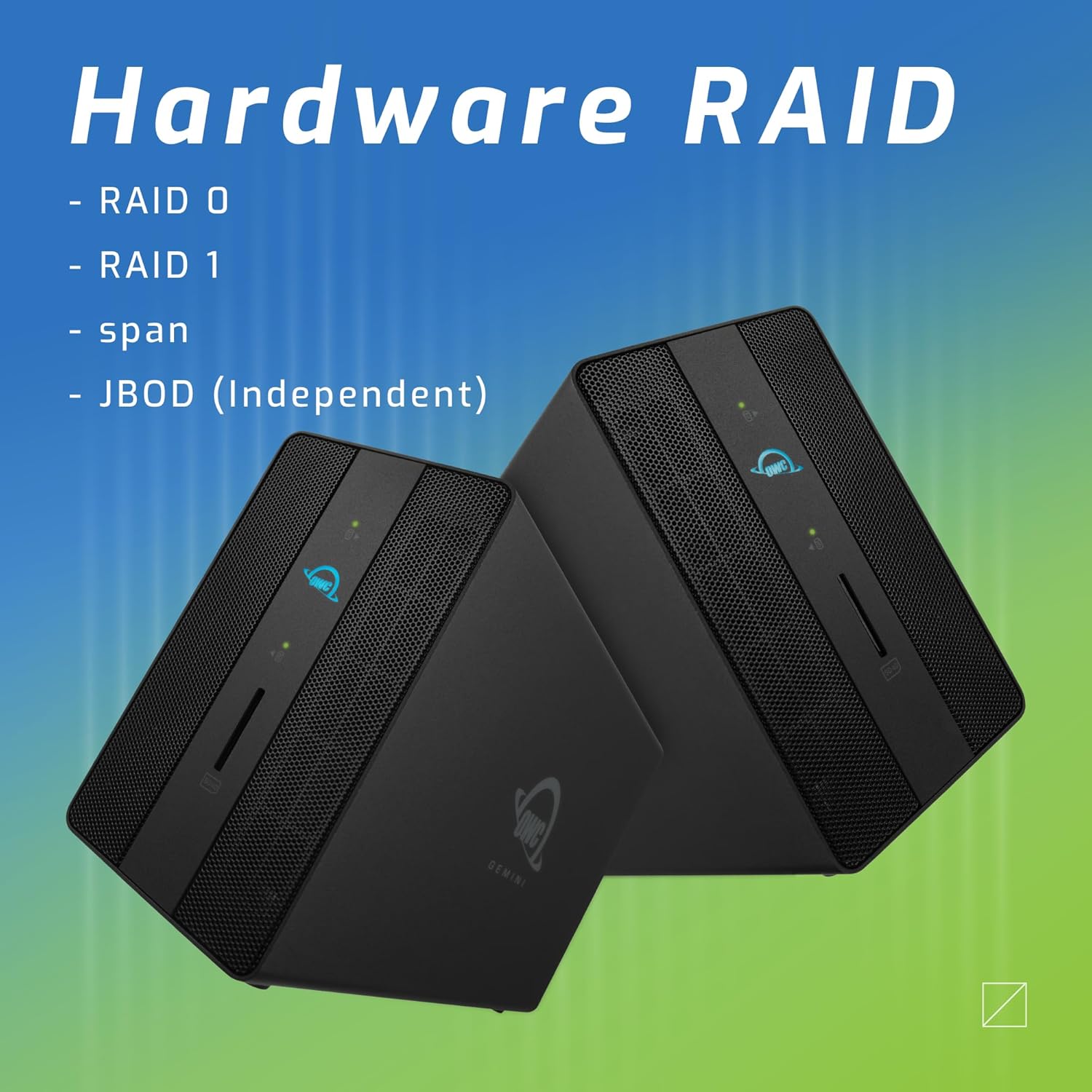
Image: Two OWC Gemini units, emphasizing the hardware RAID capabilities for configurations like RAID 0, RAID 1, SPAN, and JBOD.
RAID Levels Explained:
- RAID 0 (Stripowanie): Combines drives for maximum speed and capacity, but offers no data redundancy.
- RAID 1 (dublowanie): Duplicates data across drives for redundancy, sacrificing half the total capacity for data protection.
- SPAN (Concatenation): Combines drives into a single large volume without striping or mirroring.
- JBOD (tylko kilka dysków): Treats each drive as an independent volume.
3. Podłączanie do komputera
- Connect the power adapter to the DC 12V power input on the OWC Gemini and then to a power outlet.
- Connect one end of the Thunderbolt (USB-C) cable to the host port on the OWC Gemini.
- Connect the other end of the Thunderbolt (USB-C) cable to a Thunderbolt (USB-C) port on your computer.
- Urządzenie powinno włączyć się automatycznie.
4. Initializing Drives
After connecting, your operating system may prompt you to initialize and format the new drives. Follow the on-screen instructions. For macOS, use Disk Utility. For Windows, use Disk Management.
Instrukcja obsługi
Przesyłanie danych
Once the drives are initialized and formatted, they will appear as accessible volumes on your computer. You can drag and drop files to and from these volumes as you would with any other storage device.
Korzystanie z portów USB
Connect USB peripherals such as external drives, keyboards, or mice to the two USB 3.2 Gen 2 Type-A ports. These ports support data transfer speeds up to 10 Gb/s.
Podłączanie zewnętrznego wyświetlacza
Use the HDMI 2.1 port to connect an external monitor. The Gemini supports resolutions up to 8K @ 120Hz via HDMI.
Łączność sieciowa
Connect an Ethernet cable from your network router or switch to the 2.5 Gigabit Ethernet port on the Gemini for high-speed wired network access.
Using the SD Card Slot
Insert an SD 4.0/UHS-II compatible SD card into the front-facing slot for quick data transfer from cameras or other devices.
Daisy-Chaining and Power Delivery

Image: A close-up of the OWC Gemini's Thunderbolt ports, illustrating their use for daisy-chaining, connecting additional displays, and charging USB-C devices.
The second Thunderbolt 3 (USB-C) port allows you to:
- Wianuszek ze stokrotek additional Thunderbolt devices.
- Połącz additional display (up to 8K @ 60Hz or 4K @ 120Hz).
- Charge USB-C devices with up to 27 watts of power.
Konserwacja
- Czyszczenie: Do czyszczenia zewnętrznej części urządzenia należy używać miękkiej, suchej ściereczki. Nie należy używać płynnych środków czyszczących ani aerozoli.
- Wentylacja: Aby zapobiec przegrzaniu, należy upewnić się, że otwory wentylacyjne nie są zasłonięte.
- Aktualizacje oprogramowania układowego: Periodically check the OWC webwitryna z aktualizacjami oprogramowania sprzętowego, zapewniająca optymalną wydajność i kompatybilność.
- Bezpieczne wyrzucenie: Always safely eject the OWC Gemini from your operating system before disconnecting it or powering it off to prevent data corruption.
Rozwiązywanie problemów
Urządzenie nie zostało rozpoznane
- Ensure all cables are securely connected, especially the Thunderbolt cable to both the Gemini and your computer.
- Verify the power adapter is correctly connected and the device is receiving power.
- Try connecting the Gemini to a different Thunderbolt port on your computer.
- Uruchom ponownie komputer.
- Check your operating system's Disk Utility (macOS) or Disk Management (Windows) to see if the drives are detected but uninitialized or unformatted.
Niska prędkość przesyłania danych
- Ensure you are using a Thunderbolt 3 compatible cable and port.
- Check the RAID configuration. RAID 1 (mirroring) will have slower write speeds than RAID 0 (striping).
- Zamknij wszystkie niepotrzebne aplikacje, które mogą zużywać zasoby systemowe.
- Upewnij się, że sterowniki Twojego komputera są aktualne.
Problemy z wyświetlaniem
- Verify the HDMI cable is securely connected to both the Gemini and your monitor.
- Check your display settings in your operating system.
- Ensure your monitor supports the resolution and refresh rate you are attempting to use.
- Jeśli to możliwe, wypróbuj inny kabel HDMI lub monitor.
Problemy z połączeniem sieciowym
- Ensure the Ethernet cable is securely connected to both the Gemini and your network device.
- Sprawdź ustawienia sieciowe swojego komputera.
- Uruchom ponownie router/modem.
Specyfikacje
| Funkcja | Szczegół |
|---|---|
| Marka | OWC |
| Numer modelu | OWCTB3GM000H32 |
| Pojemność magazynowa | 32.0TB (as configured) |
| Zatoki napędowe | 2 (supports 2.5" and 3.5" SATA drives) |
| Poziomy RAID | SPAN, RAID 0, RAID 1, JBOD (Hardware RAID) |
| Interfejs hosta | Thunderbolt 3 (USB-C) |
| Szybkość przesyłu danych | Up to 40 Gb/s (Thunderbolt 3), Up to 10 Gb/s (USB 3.2 Gen 2) |
| Porty | (1) Thunderbolt 3 (USB-C) Host, (1) Thunderbolt 3 (USB-C) Downstream, (2) USB 3.2 Gen 2 Type-A, (1) HDMI 2.1, (1) 2.5 Gigabit Ethernet, (1) SD 4.0/UHS-II |
| Wsparcie wyświetlania | HDMI 2.1: Up to 8K @ 120Hz; Thunderbolt 3: Up to 8K @ 60Hz or 4K @ 120Hz |
| Dostarczanie mocy | Up to 27W via Thunderbolt 3 |
| Kompatybilne urządzenia | Desktop, Laptop, Tablet (with Thunderbolt/USB-C port) |
| Kolor | Czarny |
| Waga | 9.35 funtów (w przybliżeniu) |
| UPC | 810100983697 |
Gwarancja i wsparcie
Informacje o gwarancji
OWC products are covered by a limited warranty. Please refer to the official OWC webSzczegółowe warunki gwarancji można znaleźć na stronie internetowej lub w dokumentacji zakupu. Zachowaj dowód zakupu na wypadek roszczeń gwarancyjnych.
Wsparcie techniczne
For technical assistance, troubleshooting, or further inquiries, please visit the official OWC support webwitryny lub skontaktuj się z obsługą klienta.