
1. Wprowadzenie
This manual provides comprehensive instructions for the ACASIS 4K60fps Video Capture Card (Model VC-007PRO). This device is designed for capturing and streaming high-quality video and audio from various sources, including gaming consoles and cameras, to a computer for live broadcasting or recording. It supports 4K60fps video capture, VRR, and features ultra-low latency.
2. Zawartość opakowania
Sprawdź, czy w opakowaniu produktu znajdują się wszystkie elementy:
- ACASIS 4K60fps Video Capture Card (VC-007PRO)
- Kabel HDMI
- Kabel USB-C do USB-A
- Instrukcja instalacji (ten dokument)
3. Koniec produktuview
The ACASIS 4K60fps Video Capture Card is a compact device with multiple ports for connectivity. Understanding its layout is crucial for proper setup and operation.

Obraz: Przód view of the ACASIS 4K60fps Video Capture Card, showing the HDMI In and HDMI Out ports, and the USB-C port for connection to a computer.
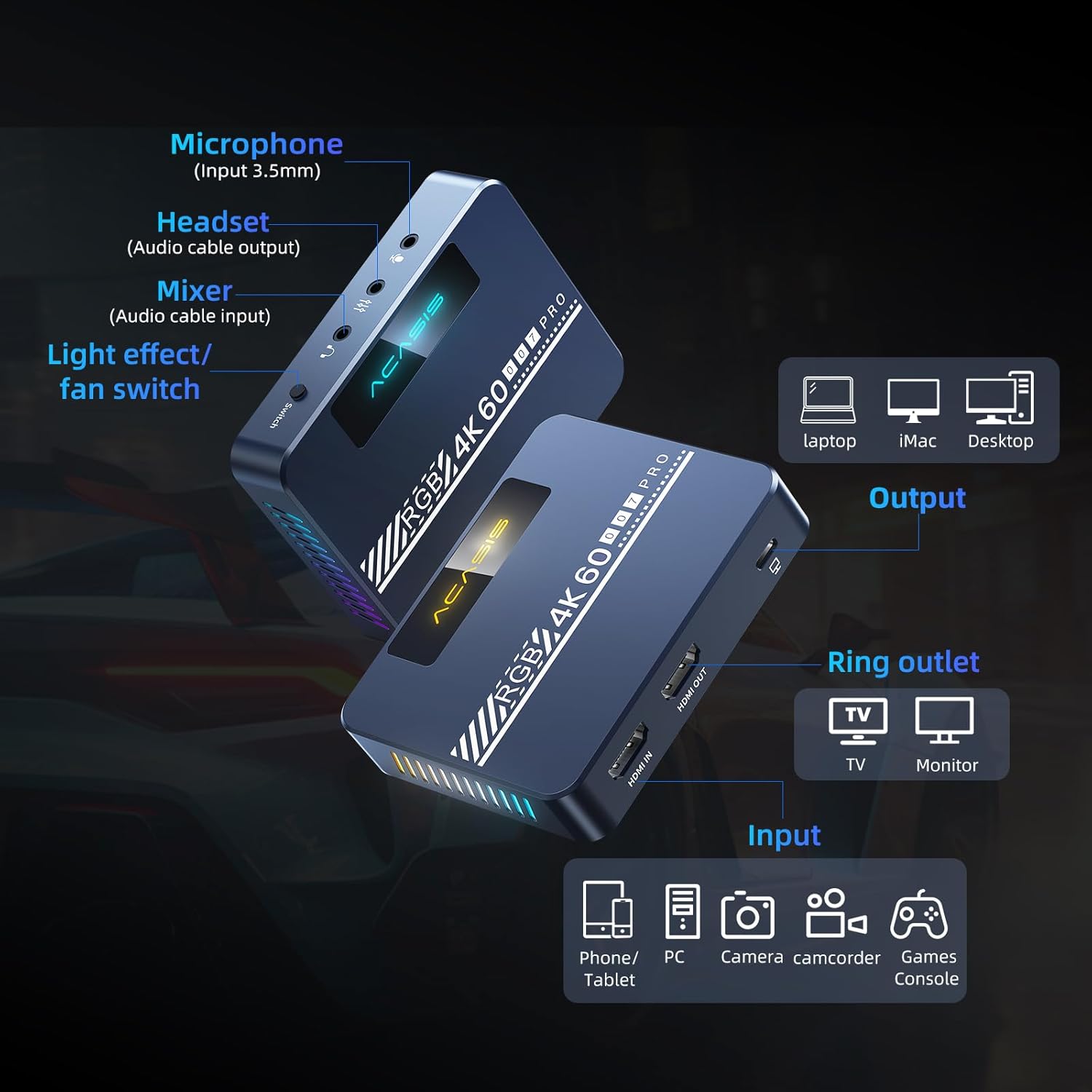
Image: Detailed diagram illustrating the various input and output ports on the capture card, including Microphone (Input 3.5mm), Headset (Audio cable output), Mixer (Audio cable input), Light effect/fan switch, HDMI IN, HDMI OUT, and USB-C output to PC/Mac.
Kluczowe komponenty:
- WEJŚCIE HDMI: Connects to the source device (e.g., game console, camera).
- WYJŚCIE HDMI: Connects to a display (e.g., TV, monitor) for pass-through viewing.
- Wyjście USB-C: Connects to your computer (PC/Mac) for data transfer and power.
- Wejście mikrofonowe (3.5 mm): Do podłączenia mikrofonu zewnętrznego.
- Headset Output (3.5mm): For connecting headphones or a headset for audio monitoring.
- Mixer Input (3.5mm): For connecting an audio mixer.
- Light Effect/Fan Switch: Controls the RGB lighting and cooling fan.
4. Przewodnik konfiguracji
Follow these steps to connect your ACASIS 4K60fps Video Capture Card to your devices.
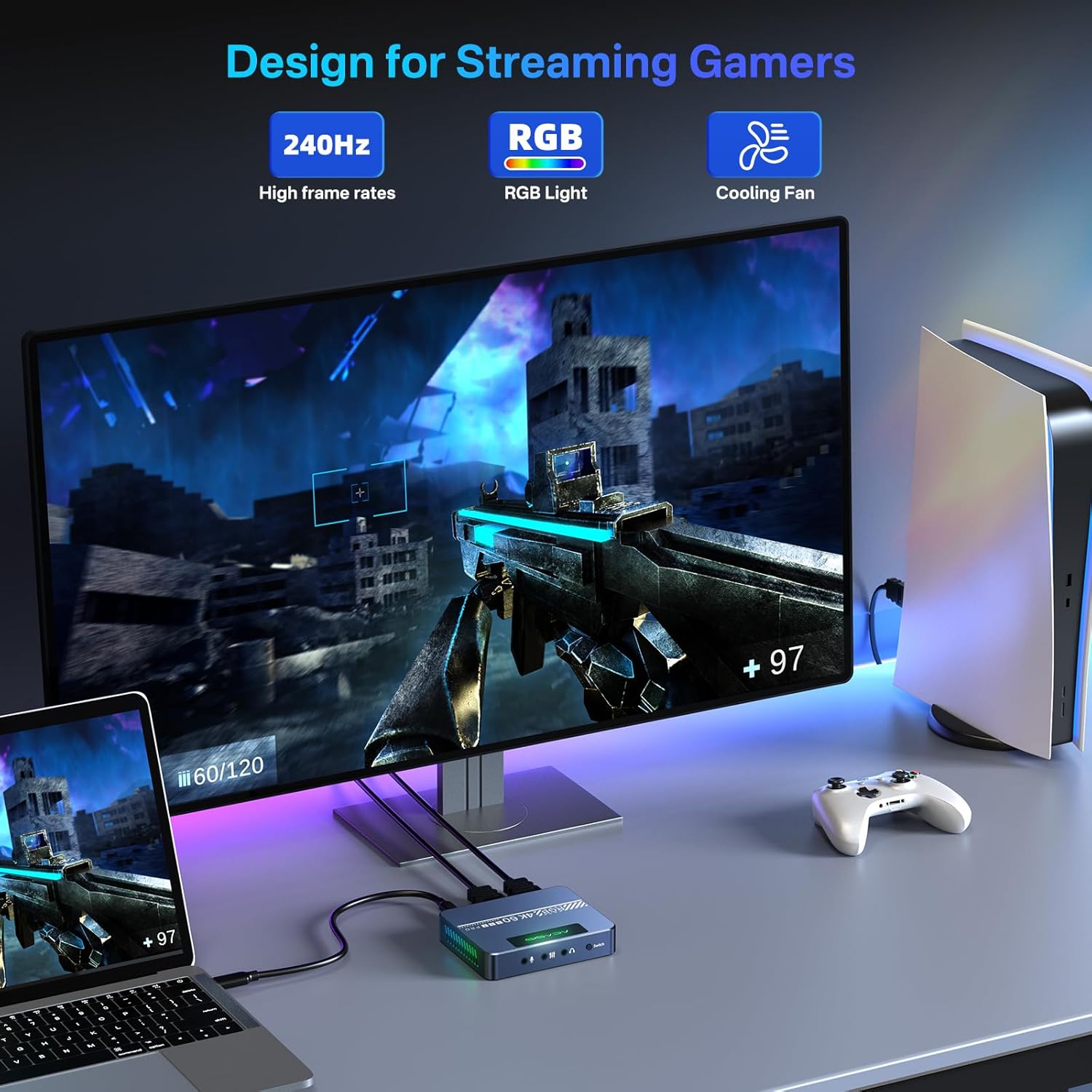
Image: A typical setup showing a game console (PS5) connected via HDMI to the capture card's HDMI IN, the capture card's HDMI OUT connected to a monitor, and the capture card's USB-C port connected to a laptop for streaming/recording.
Kroki połączenia:
- Podłącz urządzenie źródłowe: Use an HDMI cable to connect your source device (e.g., Xbox Series X/S, Xbox One, PS5, PS4/Pro, PC, camera) to the HDMI IN port na karcie przechwytującej.
- Podłącz wyświetlacz (opcjonalnie): Use another HDMI cable to connect your display (e.g., TV, monitor) to the Wyjście HDMI port on the capture card. This allows for pass-through viewing of your source device.
- Połącz z komputerem: Connect the provided USB-C to USB-A cable (or a USB-C to USB-C cable if your computer supports it) from the capture card's Wyjście USB-C port to an available USB port on your computer (PC/Mac). The device is plug-and-play and typically does not require driver installation.
- Podłącz urządzenia audio (opcjonalnie):
- For microphone input, connect your 3.5mm microphone to the Wejście mikrofonowe port.
- For audio monitoring, connect your 3.5mm headset or headphones to the Wyjście słuchawkowe port.
- For external audio mixing, connect your audio mixer to the Mixer Input port.
5. Instrukcja obsługi
This section details how to use the capture card with streaming and recording software, using OBS Studio as an example.
Software Setup (OBS Studio Example):
The ACASIS capture card is compatible with various platforms and applications, including OBS, Streamlabs, Vmix, Zoom, and Microsoft Teams. For streaming and recording, OBS Studio is a commonly used application.
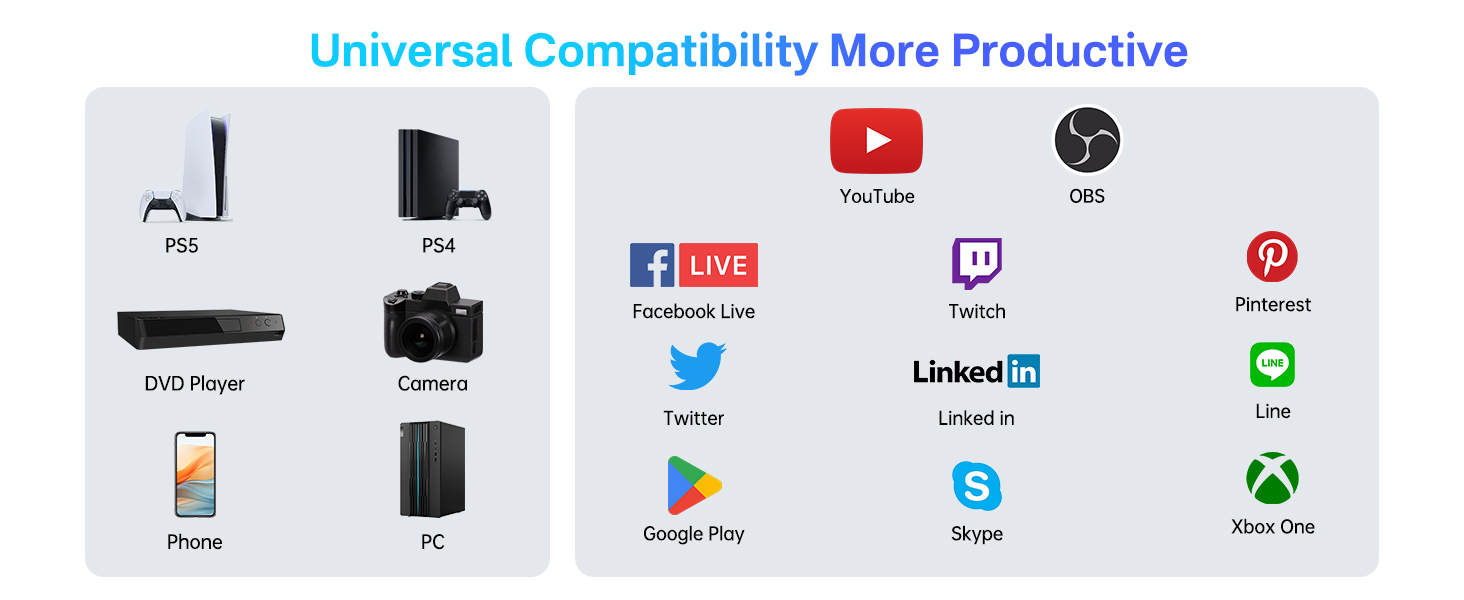
Image: A five-step guide for adding the video capture device in OBS Studio. Steps include opening OBS, clicking '+' in Sources, selecting 'Video Capture Device', creating a new source, and configuring properties.
- Open OBS Software: Launch OBS Studio on your computer.
- Dodaj źródło wideo: In the 'Sources' panel, click the '+' icon.
- Wybierz urządzenie do przechwytywania wideo: From the list, choose 'Urządzenie przechwytujące wideo'.
- Create/Select Source: You can create a new source or select an existing device name. Click 'OK'.
- Configure Properties: In the properties window for the video capture device, set the following:
- Rozdzielczość/typ FPS: Set to 'Zwyczaj'.
- Rezolucja: Wybierać '1920x1080' (or desired resolution up to 4K).
- FPS-y: Set to '60'.
- Format wideo: Wybierać 'YUY2'.
- Przestrzeń kolorów: Wybierać 'Rec. 709'.
- Gama kolorów: Wybierać 'Pełny'.
Recording and Streaming Settings (OBS Studio):
For optimal performance, adjust your OBS output settings. These settings are optional if you are not recording or streaming.

Image: A screenshot of OBS Studio's output settings for recording, highlighting video bitrate, encoder, audio bitrate, recording quality, and format.

Image: A screenshot of OBS Studio's output settings for streaming, showing where to enter the stream key and start streaming.
- Ustawienia dostępu: In OBS, go to 'Ustawienia' (usually in the bottom right corner).
- Output Settings (Recording): Przejdź do 'Wyjście' tab and then 'Nagranie'.
- Jakość nagrywania: Set to 'Indistinguishable Quality, Large File Rozmiar' for high-quality recordings.
- Format nagrywania: 'MP4' is generally recommended for compatibility.
- Koder: Use 'Hardware (NVENC)' if available for better performance, otherwise 'Software (x264)'.
- Szybkość transmisji wideo: Adjust based on desired quality and storage space (e.g., 8000 Kbps for 1080p).
- Szybkość transmisji dźwięku: Set to '128' or higher.
- Output Settings (Streaming): Przejdź do 'Wyjście' tab and then 'Transmisja strumieniowa'.
- Szybkość transmisji wideo: Adjust according to your internet upload speed and platform recommendations.
- Koder: Use 'Hardware (NVENC)' if available.
- Szybkość transmisji dźwięku: Set to '128' or higher.
- Ustawienia wideo: In the 'Wideo' tab, ensure 'Base (Canvas) Resolution' I 'Rozdzielczość wyjściowa (skalowana)' are set appropriately (e.g., 1920x1080). Set 'Typowe wartości FPS' to '60'.
6. VRR Support
The ACASIS capture card supports Variable Refresh Rate (VRR), which helps eliminate screen tearing and stuttering for a smoother visual experience, especially in gaming. Ensure your source device and display also support VRR for this feature to function.

Image: A side-by-side comparison demonstrating the visual difference between VRR Open (smooth image) and VRR Close (image with tearing artifacts) on a gaming display.
When VRR is active, the display's refresh rate dynamically adjusts to match the frame rate output by the source device, resulting in a more fluid and responsive experience.
7. Cooling Fan and RGB Lighting
The capture card features an upgraded cooling fan to prevent overheating during extended use, ensuring stable performance. It also includes customizable RGB lighting effects.

Obraz: Wnętrze view of the capture card highlighting the integrated cooling fan, designed to dissipate heat and maintain optimal operating temperatures.
Sterownica:
- TenLight Effect/Fan Switch' button on the device controls both the cooling fan and the RGB lighting.
- A single press typically toggles the fan on/off.
- Double-clicking the button may cycle through RGB lighting modes or turn the lighting on/off.
8. Zgodność
The ACASIS 4K60fps Video Capture Card offers broad compatibility with various hardware and software platforms.

Image: A chart illustrating the universal compatibility of the capture card with various input devices (PS5, PS4, DVD Player, Camera, Phone, PC) and output platforms/applications (YouTube, OBS, Facebook Live, Twitch, Pinterest, Twitter, LinkedIn, Line, Google Play, Skype, Xbox One).
Obsługiwany sprzęt:
- Gaming Consoles: Xbox Series X/S, Xbox One, PS5, PS4/Pro, Nintendo Switch
- Computers: PC (Windows), Mac (macOS)
- Cameras: DSLR, Camcorders, Action Cams
- Other HDMI Sources: DVD Players, Tablets, Phones (with appropriate adapters)
Supported Software/Platforms:
- Studio OBS
- Streamlabs OBS
- Mieszanka
- Brzęczenie
- Zespoły Microsoft
- YouTube
- Skurcz
- Facebook Gaming
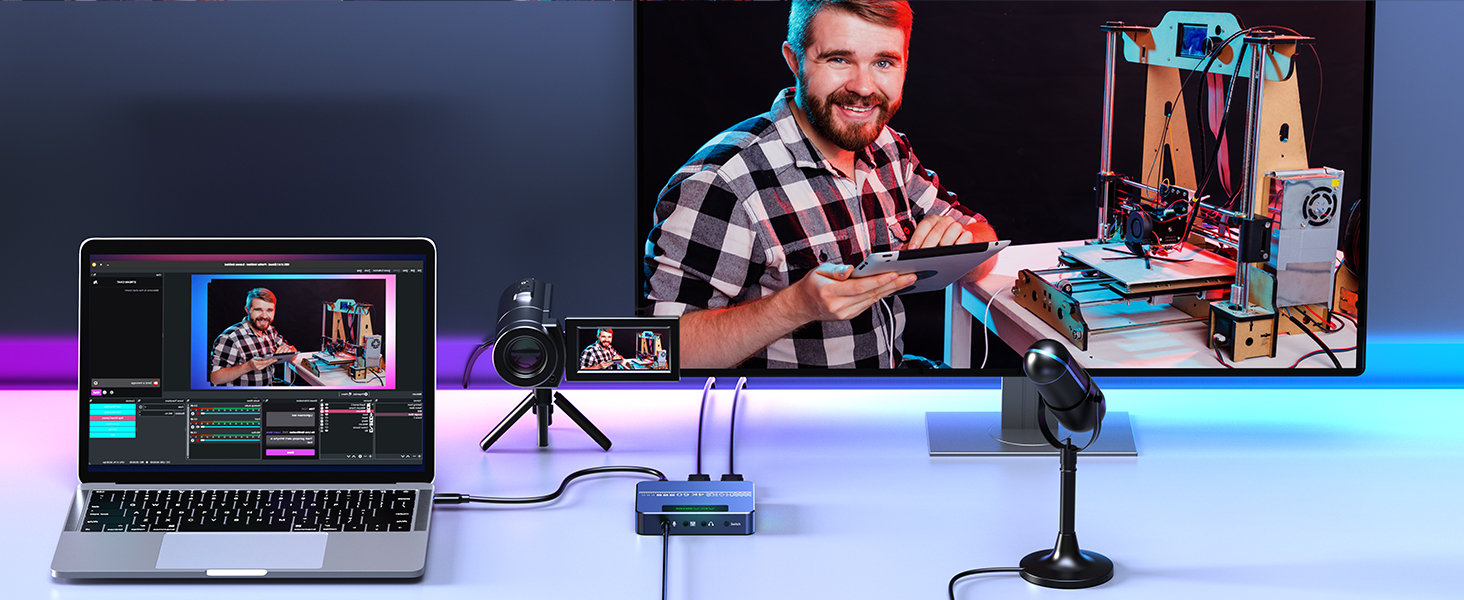
Image: A setup demonstrating the capture card's use in a video conferencing scenario, connecting a camera to a computer for enhanced video input.
9. Rozwiązywanie Problemów
W tej sekcji omówiono często spotykane problemy i zaproponowano możliwe rozwiązania.
Brak sygnału / Czarny ekran:
- Sprawdź połączenia: Sprawdź, czy wszystkie kable HDMI i USB są solidnie podłączone.
- Zawartość HDCP: To urządzenie DOES NOT SUPPORT HDCP. If your source device is outputting HDCP-protected content (e.g., certain streaming services, Blu-ray players), you will not get a signal. Disable HDCP on your source device if possible, or use a non-HDCP source.
- 4K Display Requirement: To achieve 4K resolution, ensure your display and source device are 4K compatible.
- Jakość kabla: Use high-quality HDMI cables that support 4K60fps transmission. Lower quality cables may cause signal issues or limit resolution/frame rate.
- Konfiguracja oprogramowania: Verify that the capture card is correctly selected as the video source in your streaming/recording software (e.g., OBS) and that resolution/FPS settings are appropriate.
Problemy z dźwiękiem:
- Check Audio Settings: In your computer's sound settings and streaming software, ensure the correct audio input (from the capture card) and output devices are selected.
- Microphone/Headset Connections: Confirm external audio devices are properly plugged into the capture card's 3.5mm ports.
Opóźnienie:
- Port USB: Ensure the capture card is connected to a USB 3.0 (or higher) port on your computer for optimal bandwidth. USB 2.0 ports may introduce higher latency.
- Wydajność komputera: Ensure your computer meets the minimum system requirements for streaming/recording at your desired resolution and frame rate. Close unnecessary applications.
- Ustawienia oprogramowania: Adjust buffer settings in your streaming software (e.g., OBS) if available.
4K Resolution Not Working:
- 4K Monitor/Device: As noted, 4K output requires a 4K compatible monitor or device.
- Ustawienia urządzenia źródłowego: Ensure your source device (e.g., console) is configured to output 4K resolution.
- OBS Settings: Double-check that the resolution in OBS is set to 4K (e.g., 3840x2160) if your system supports it.
10. Specyfikacje
Technical specifications for the ACASIS 4K60fps Video Capture Card (Model VC-007PRO).
| Funkcja | Specyfikacja |
|---|---|
| Marka | AKAZ |
| Numer modelu | VC-007PRO |
| Interfejs sprzętowy | USB typu C |
| Rozdzielczość przechwytywania wideo | 4K 60fps (Input/Pass-through), 4K 60fps (Recording) |
| Wsparcie systemu operacyjnego | Windows, macOS |
| Platforma sprzętowa | Xbox Series X/S, Xbox One, PS5, PS4/Pro, PC/Mac |
| Waga przedmiotu | 4.2 uncji |
| Wymiary opakowania | 6.14 x 4.57 x 2.44 cala |
| VRR Support | Tak |
| Wsparcie HDCP | NIE |
11. Konserwacja
To ensure the longevity and optimal performance of your ACASIS 4K60fps Video Capture Card, follow these maintenance guidelines:
- Czyszczenie: Do czyszczenia zewnętrznej części urządzenia należy używać miękkiej, suchej ściereczki. Unikaj stosowania płynnych środków czyszczących i materiałów ściernych.
- Wentylacja: Ensure the device's ventilation openings are not obstructed to allow proper airflow for the cooling fan.
- Składowanie: Store the capture card in a cool, dry place away from direct sunlight and extreme temperatures when not in use.
- Obsługiwanie: Handle the device with care to avoid physical damage to ports or the casing.
12. Gwarancja i wsparcie
For technical assistance, warranty information, or any inquiries regarding your ACASIS 4K60fps Video Capture Card, please contact ACASIS customer support.
- Wsparcie e-mailowe: wsparcie@acasis.com
- Usługa online: 7x24 hours online support is available.
Please refer to the official ACASIS webAby zapoznać się z najbardziej aktualnymi warunkami gwarancji, odwiedź witrynę lub dokumentację zakupu.