
1. Koniec produktuview
The Porodo Universal Wireless Remote & Mouse is a compact and versatile input device designed to combine the functionalities of a keyboard and a mouse. It offers convenient control for various devices, including Smart TVs, PCs, laptops, Android projectors, and more. This device features a full QWERTY keyboard, a multi-touch touchpad, and dedicated media control keys, all operating via 2.4GHz wireless technology or Bluetooth.
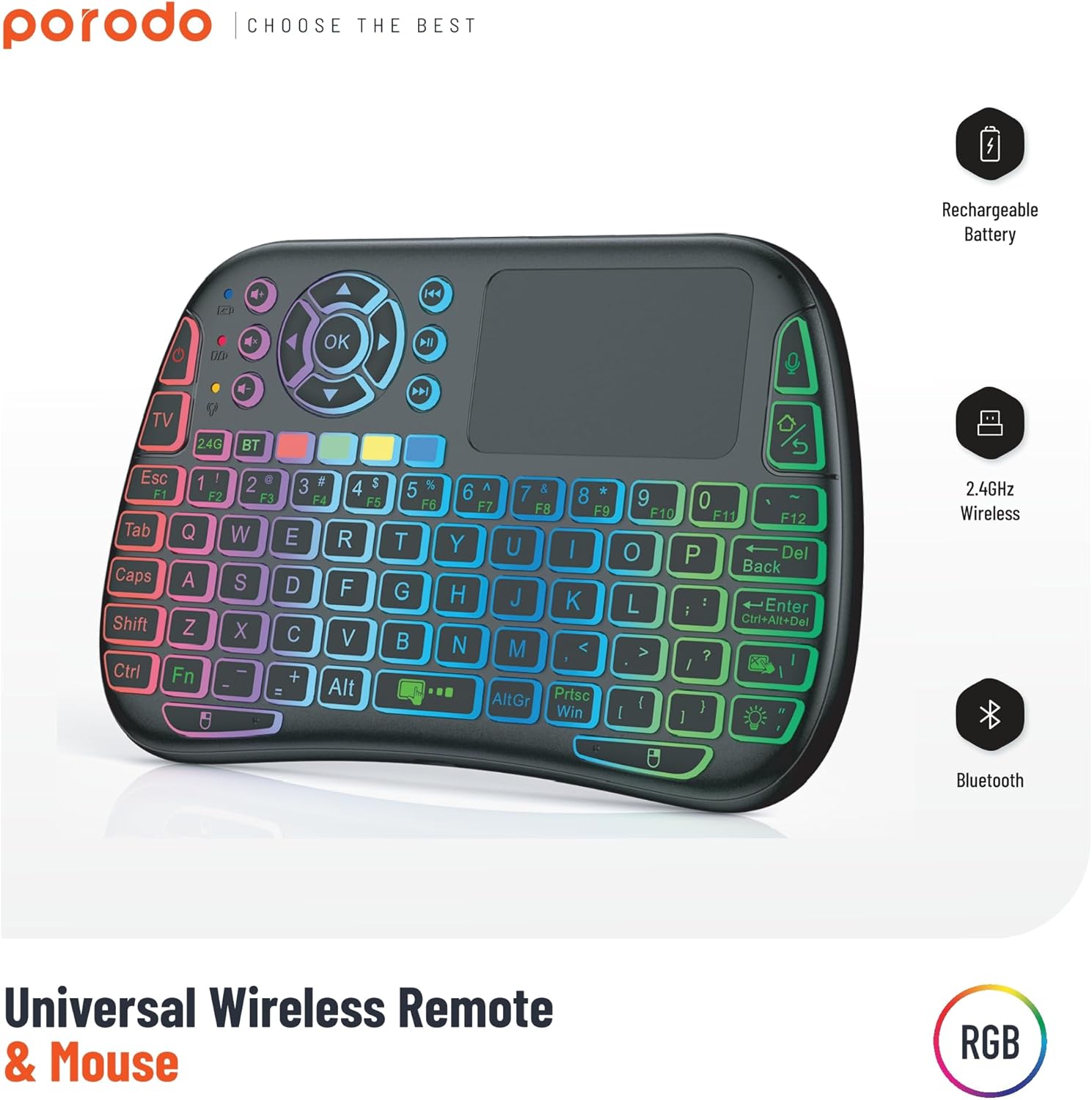
Image 1: The Porodo Universal Wireless Remote & Mouse, highlighting its RGB backlighting, rechargeable battery, 2.4GHz wireless, and Bluetooth connectivity.

Ilustracja 2: Przód i tył views of the remote and mouse, illustrating its compatibility with various devices such as All-in-one PCs, Computers, Android Projectors, Smart TVs, HTPCs, PADs (OTG), Phones (OTG), and TV Boxes.
2. Przewodnik konfiguracji
2.1 Zawartość opakowania
- Porodo Universal Wireless Remote & Mouse
- USB Receiver (typically stored in the battery compartment)
- Kabel ładujący
- Instrukcja obsługi
2.2 Ładowanie urządzenia
Before first use, ensure the device is fully charged. Connect the provided charging cable to the charging port on the remote and to a standard USB power source (e.g., computer USB port, USB wall adapter). The charging indicator light will illuminate during charging and turn off when fully charged.
2.3 Connecting the USB Receiver (2.4GHz Wireless Mode)
- Locate the USB receiver, usually found in the battery compartment of the remote.
- Insert the USB receiver into an available USB port on your target device (e.g., Smart TV, PC, Android box).
- Turn on the Porodo Remote & Mouse using the power switch. The device should automatically connect to the receiver.
- The device is plug-and-play; no additional drivers are typically required.
2.4 Connecting via Bluetooth (if applicable)
If your device supports Bluetooth connectivity, you can pair it directly without the USB receiver. Refer to your device's Bluetooth pairing instructions. On the Porodo Remote & Mouse, activate Bluetooth pairing mode (refer to specific key combinations in the operating section if available).

Image 3: The remote and mouse highlighting its dual connectivity options: 2.4 GHz wireless and Bluetooth.
3. Instrukcja obsługi
3.1 Funkcjonalność klawiatury
- Pisanie na maszynie: Use the QWERTY layout for text input.
- Klawisze funkcyjne (F1-F12): These keys often have secondary functions (e.g., media control, volume) accessible by pressing the 'Fn' key simultaneously.
- Podświetlenie: Some models feature RGB backlighting. Press the dedicated backlight key (often indicated by a light bulb icon) to cycle through colors or turn it on/off.
3.2 Funkcjonalność touchpada
- Stuknięcie jednym palcem: Działa jak lewy przycisk myszy.
- Stuknięcie dwoma palcami: Działa jak kliknięcie prawym przyciskiem myszy.
- Two-Finger Drag: For scrolling up/down or left/right.
- Przeciąganie jednym palcem: Przesuwa kursor na ekranie.
- Dedicated Left/Right Click Buttons: Located below the touchpad for traditional mouse clicks.
3.3 Media Control Keys
Dedicated buttons for volume up/down, mute, play/pause, next/previous track are typically located above the touchpad or integrated into the function keys.
3.4 Voice Control (if applicable)
Some models may include a microphone for voice input. Press the dedicated microphone button to activate voice commands or search functions on compatible devices.
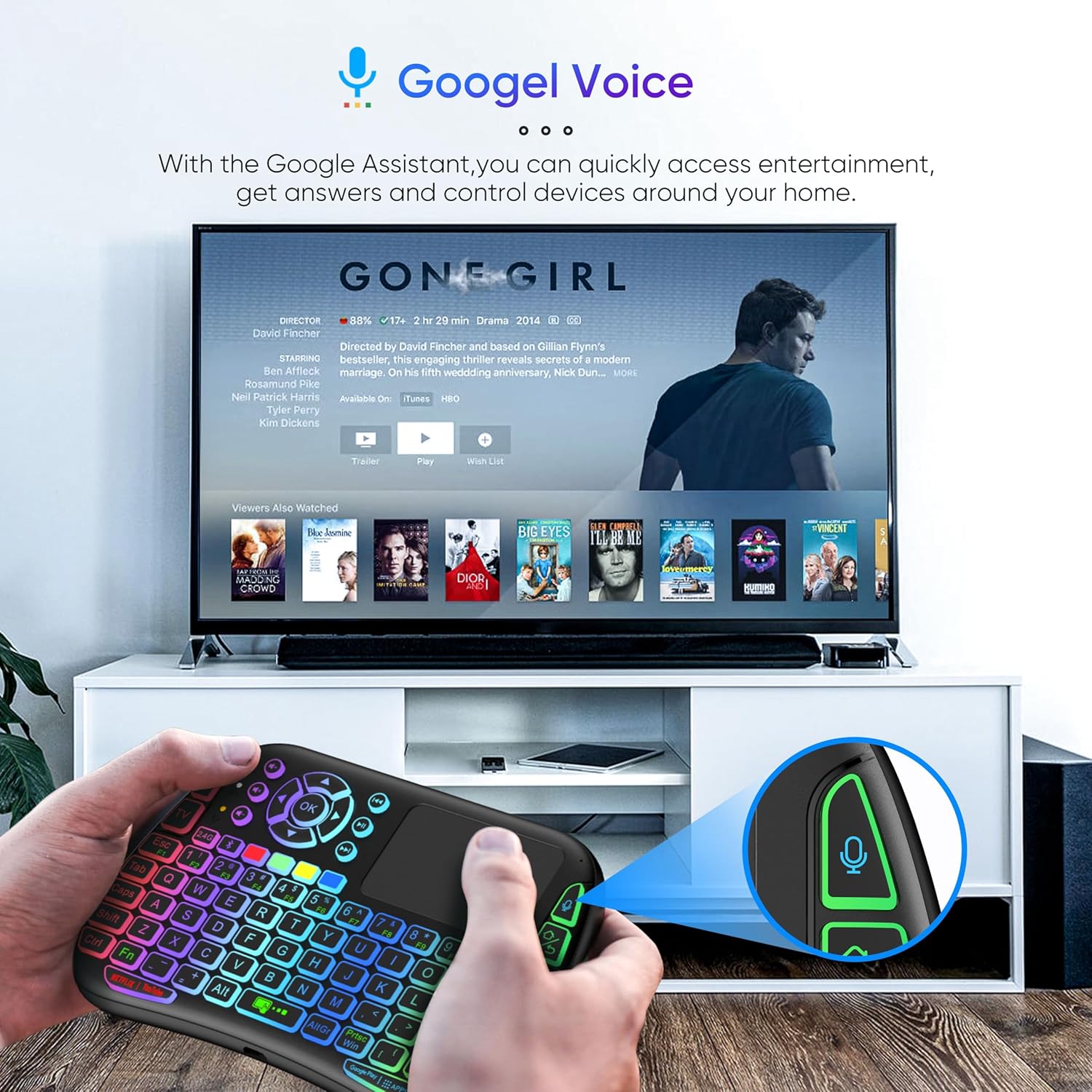
Image 4: The remote and mouse in use, demonstrating its Google Voice integration for controlling entertainment and accessing information on a connected TV.
3.5 Zasięg operacyjny
The device offers an extended operational range of up to 10 meters (approximately 33 feet), allowing flexible control from a comfortable distance.
Film 1: Film demonstracyjny produktuasing the features and ease of use of a similar wireless keyboard with touchpad. This video illustrates comfortable wireless control, long battery life, and plug-and-play connectivity.
4. Konserwacja
4.1 Czyszczenie
To clean the device, use a soft, dry cloth. For stubborn dirt, slightly dampen the cloth with water or a mild cleaning solution. Avoid using harsh chemicals, abrasives, or solvents, as these can damage the surface.
4.2 Pielęgnacja baterii
- Recharge the device when the battery indicator is low to ensure continuous operation.
- Aby przedłużyć żywotność akumulatora, należy unikać jego całkowitego rozładowywania.
- Jeśli przechowujesz urządzenie przez dłuższy czas, naładuj je do około 50% i przechowuj w chłodnym, suchym miejscu.
4.3 Przechowywanie
Store the device in a dry environment, away from extreme temperatures, direct sunlight, and high humidity. Keep it away from liquids and dust.
5. Rozwiązywanie Problemów
5.1 Urządzenie nie odpowiada
- Sprawdź baterię: Upewnij się, że urządzenie jest naładowane. Podłącz je do źródła zasilania i spróbuj ponownie.
- Przycisk zasilania: Verify that the power switch on the device is in the 'ON' position.
- Odbiornik USB: For 2.4GHz mode, ensure the USB receiver is securely plugged into the target device's USB port. Try a different USB port.
- Ponowne parowanie: If using Bluetooth, try re-pairing the device with your host system.
- Ingerencja: Move the device closer to the receiver/host device and away from other wireless devices that might cause interference.
5.2 Touchpad or Keys Unresponsive
- Czyszczenie powierzchni: Ensure the touchpad surface and keys are clean and free from debris.
- Uruchom ponownie: Wyłącz urządzenie i włącz je ponownie.
- Urządzenie hosta: Restart the host device (PC, Smart TV, etc.).
5.3 Krótki czas pracy baterii
- Pełne naładowanie: Upewnij się, że urządzenie jest w pełni naładowane przed użyciem.
- Użycie podświetlenia: If your model has a backlight, frequent or continuous use will consume more battery. Turn it off when not needed.
- Automatyczne uśpienie: The device is designed to enter sleep mode after a period of inactivity to save power. Waking it up should be quick.
6. Specyfikacje
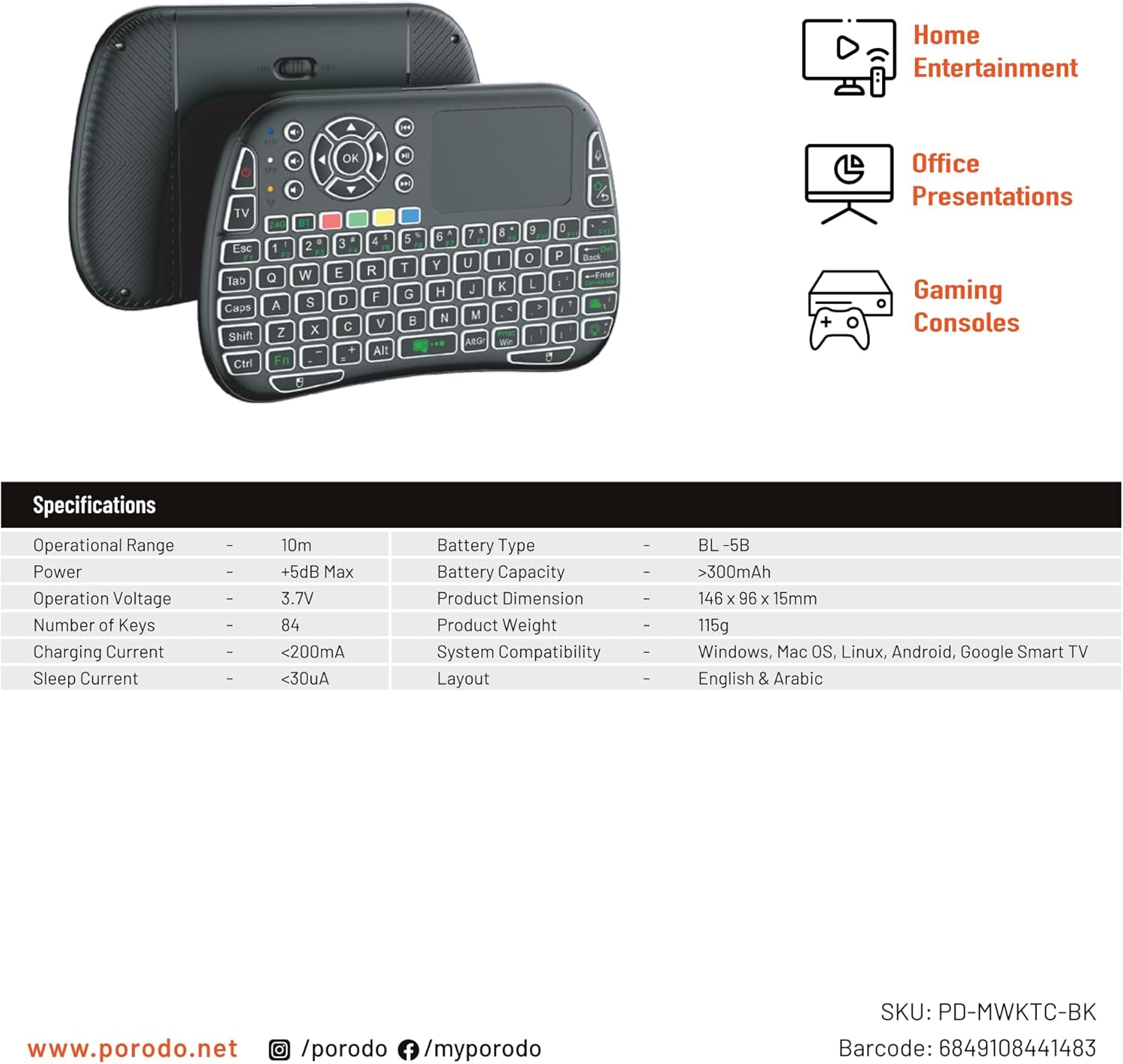
Image 5: The remote and mouse, illustrating its use for home entertainment, office presentations, and gaming consoles, alongside a table of detailed product specifications.
| Funkcja | Szczegół |
|---|---|
| Producent | Porodo |
| Numer modelu | PD-MWKTC-BK (68491084488) |
| Wymiary produktu | Wymiary 14.6 x 9.6 x 1.5 cm |
| Waga przedmiotu | 115 gramów |
| Kolor | Czarny |
| Technologia łączności | Radio Frequency (2.4GHz) / Bluetooth |
| Funkcja specjalna | Programmable Buttons, Touchpad, Backlight |
| Kompatybilne urządzenia | Laptop, PC, Smart TV, Android Box, Projector |
| Opis klawiatury | Internal (Integrated) |
| Technologia wykrywania ruchu | Optyczny |
| Źródło zasilania | Zasilanie bateryjne (ładowalne) |
| Pojemność baterii | > 300mAh |
| Zasięg operacyjny | 10m |
| Zgodność systemu | Windows, Mac OS, Linux, Android, Google Smart TV |
| Układ | English & Arabic |
7. Gwarancja i wsparcie
For warranty information, technical support, or further assistance, please refer to the official Porodo webOdwiedź stronę internetową lub skontaktuj się bezpośrednio z działem obsługi klienta. Zachowaj paragon jako dowód zakupu na wypadek ewentualnych roszczeń gwarancyjnych.