
Produkt ponadview
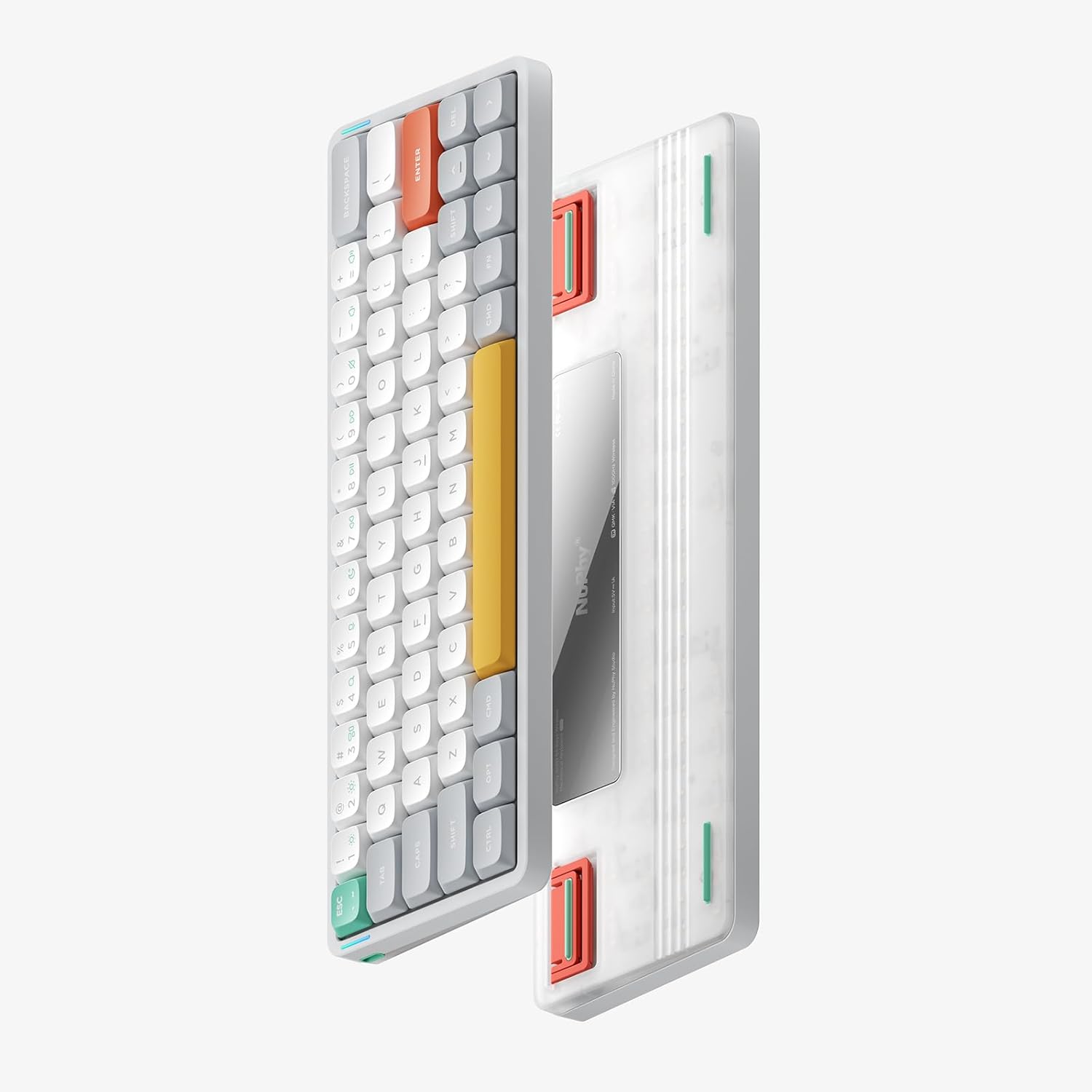
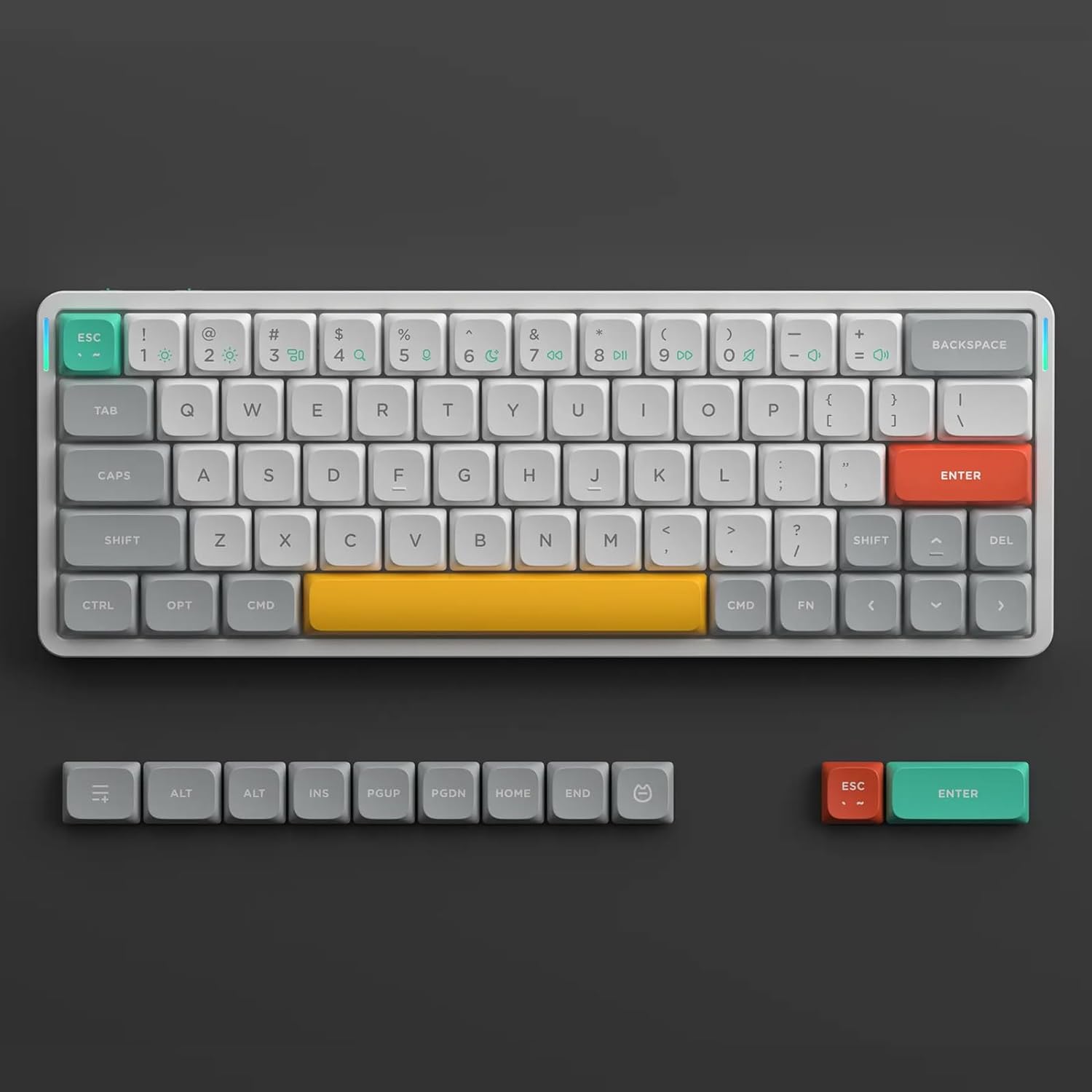
The NuPhy Air60 V2 is a 60% low-profile mechanical keyboard designed for versatility and performance. It features QMK/VIA compatibility for extensive customization, multiple connectivity options (Bluetooth 5.1, 2.4GHz wireless, and wired USB-C), and is compatible with both Windows and macOS operating systems. The keyboard is equipped with hot-swappable switches and durable double-shot PBT keycaps, providing a responsive and customizable typing experience.
Konfiguracja początkowa
Zawartość opakowania
- Klawiatura NuPhy Air60 V2
- Kabel USB-C do USB-A
- Odbiornik 2.4 GHz
- Ściągacz nasadek klawiszy
- Przełącznik ściągacza
- Additional Keycaps (optional)
- NuFolio V3 (optional)
Ładowanie klawiatury
Before first use, fully charge the keyboard. Connect the provided USB-C cable to the keyboard's USB-C port and the other end to a powered USB port on your computer or a compatible wall adapter. The charging indicator light will show the charging status and turn off when fully charged.
Tryby łączności
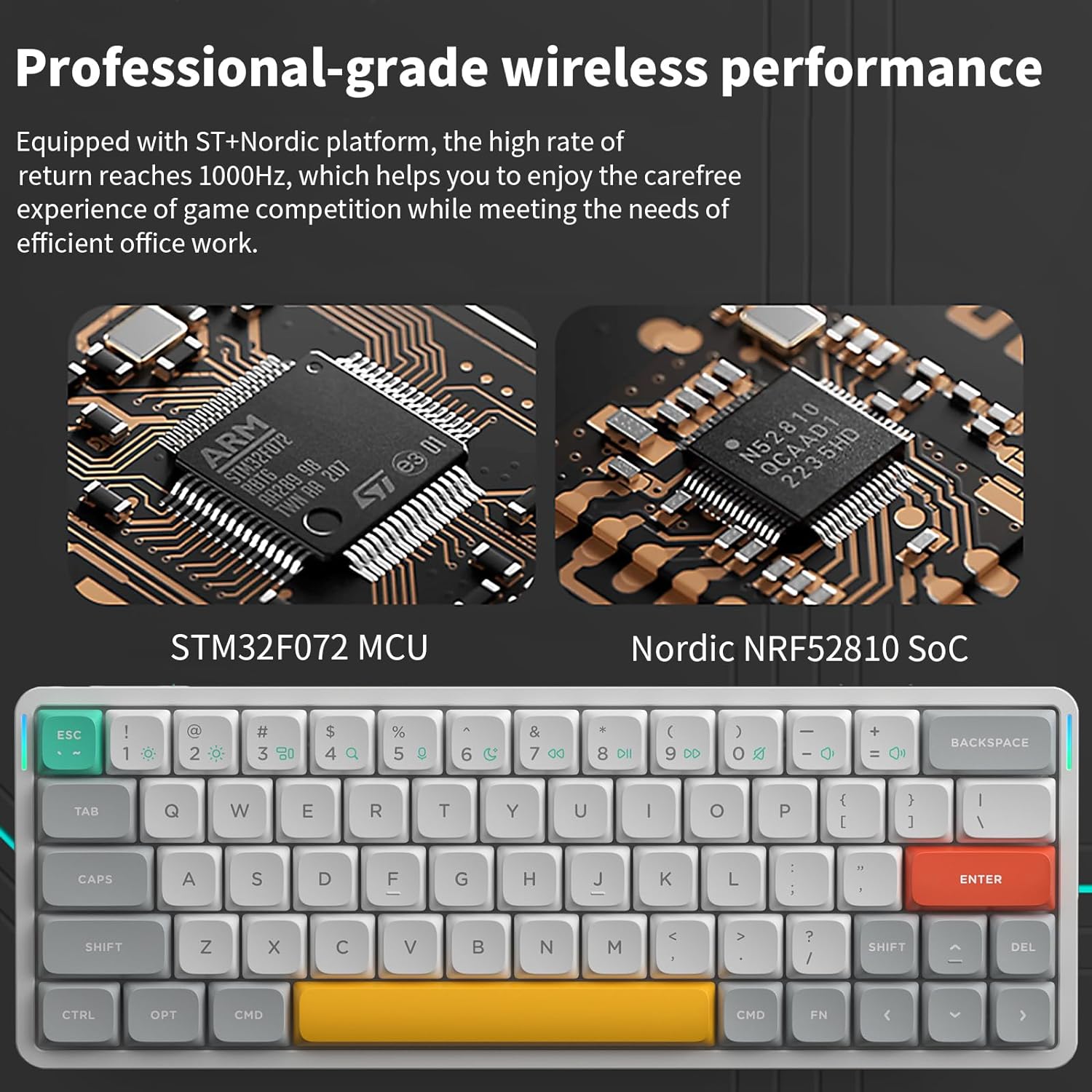
The Air60 V2 supports three connection modes: Bluetooth 5.1, 2.4GHz wireless, and wired USB-C. Use the mode switch located on the side of the keyboard to select your desired connection type.
Połączenie bezprzewodowe 2.4GHz
- Podłącz odbiornik 2.4 GHz do wolnego portu USB w komputerze.
- Switch the keyboard to 2.4GHz mode using the physical switch. The keyboard will automatically connect to the receiver.
Połączenie Bluetooth 5.1
- Przełącz klawiaturę w tryb Bluetooth za pomocą przełącznika fizycznego.
- On your device (computer, tablet, or smartphone), navigate to Bluetooth settings and search for new devices.
- Select "NuPhy Air60 V2" from the list of available devices to pair. The keyboard supports pairing with up to three Bluetooth devices, switchable via specific key combinations (refer to the operating section for details).
Wired USB-C Connection
Connect the keyboard directly to your computer using the provided USB-C cable. The keyboard will automatically operate in wired mode and charge simultaneously. This mode is recommended for firmware updates.

Działanie
Przełącznik zgodności systemu
The keyboard features a dedicated switch to toggle between Windows and macOS layouts. Ensure this switch is set to the correct operating system for proper key mapping and functionality.
Dostosowywanie QMK/VIA
The Air60 V2 is compatible with QMK/VIA firmware, offering extensive customization options. Download the VIA software from the official NuPhy webwitryna do:
- Przypisz poszczególne klawisze do różnych funkcji.
- Tworzenie i przypisywanie złożonych makr.
- Dostosuj efekty świetlne i kolory RGB.
- Manage multiple key layers for advanced functionality.
Efekty świetlne RGB
The keyboard features customizable RGB backlighting. Various lighting effects, colors, and brightness levels can be configured through the VIA software or by using onboard shortcut key combinations. Refer to the quick start guide or the NuPhy website for specific key commands to cycle through effects and adjust settings.
Konserwacja
Czyszczenie
To maintain optimal performance and appearance, regularly clean your keyboard. Use a soft brush or compressed air to remove dust and debris from between the keycaps. For surface cleaning, gently wipe the keyboard with a slightly damp, ściereczka niepozostawiająca włókien. Unikaj stosowania silnych środków chemicznych i materiałów ściernych.
Wymiana nasadek klawiszy
The Air60 V2 features durable double-shot PBT keycaps. To replace keycaps, use the provided keycap puller. Gently attach the puller to the keycap and pull straight up. When installing new keycaps, align them properly with the switch stem and press down firmly until they click into place. Avoid twisting or applying excessive force.
Wymiana przełącznika
This keyboard is hot-swappable, allowing you to change mechanical switches without soldering. To replace a switch:
- First, remove the keycap using the keycap puller.
- Use the provided switch puller to grasp the top and bottom clips of the switch.
- Delikatnie pociągnij przełącznik prosto do góry, aby wyjąć go z płytki PCB.
- To install a new switch, ensure its pins are straight and align them with the holes on the PCB. Press down firmly until the switch clicks into place. Ensure the switch is fully seated and functional before replacing the keycap.
Rozwiązywanie problemów
Problemy z łącznością
- Brak połączenia: Ensure the keyboard is charged and the mode switch is set correctly (Bluetooth, 2.4GHz, or Wired). For wireless modes, ensure the keyboard is within range of your device or the 2.4GHz receiver.
- 2.4GHz Disconnection: Try re-inserting the 2.4GHz receiver into a different USB port. Ensure there are no strong interferences from other wireless devices.
- Niepowodzenie parowania Bluetooth: Delete the keyboard from your device's Bluetooth list and attempt to re-pair. Ensure the keyboard is in pairing mode.
Klawisze nie reagują
- Individual Keys: If specific keys are not working, the switch might be faulty or improperly seated. As the keyboard is hot-swappable, try removing and re-inserting the switch, or replace it with a spare switch.
- Wszystkie klucze: Check the system compatibility switch (Windows/macOS) to ensure it matches your operating system. Try connecting the keyboard via USB-C cable to rule out wireless issues.
Problemy z oświetleniem
- Brak podświetlenia: Ensure the keyboard battery is sufficiently charged. Check if the backlight has been turned off via onboard shortcuts or VIA software.
- Incorrect Effects/Colors: Use the VIA software to reset or reconfigure your desired RGB lighting effects.
Aktualizacje oprogramowania układowego
Periodically check the official NuPhy website for firmware updates. Updating the firmware can resolve bugs, improve performance, and introduce new features. Always follow the instructions provided with the firmware update tool carefully to avoid damaging the device. Firmware updates are typically performed via a wired USB-C connection.
Specyfikacja produktu
| Funkcja | Szczegół |
|---|---|
| Marka | nuphy |
| Numer modelu | Air60 V2 |
| Nazwa modelu | QMK/VIA Wireless Custom Mechanical Keyboard |
| Kompatybilne urządzenia | Laptop, komputer stacjonarny, tablet |
| Technologia łączności | Bluetooth 5.1, 2.4GHz Wireless, Wired (USB-C) |
| Opis klawiatury | Mechaniczny |
| Zalecane zastosowania | Hazard |
| Funkcja specjalna | RGB Backlit, Hot-swappable Switches |
| Kolor | Biały |
| Wymiary (dł. x szer. x wys.) | 29.7 dł. x 10.7 szer. x 1.3 wys. cm |
| Typ przełącznika | Mechaniczny |
| Układ klawiatury | QWERTY |
| Liczba kluczy | 64 |
| Źródło zasilania | Zasilany bateryjnie |
| Zgodna rodzina systemów operacyjnych | macOS, Windows |
| Materiał wewnętrzny | Aluminium, Plastik |
| Materiał nasadek klawiszy | Podwójny PBT |

Gwarancja i wsparcie
Informacje o gwarancji
The NuPhy Air60 V2 keyboard comes with a standard manufacturer's warranty. Please refer to the warranty card included in your product packaging for detailed terms, conditions, and duration of coverage. Retain your proof of purchase for warranty claims.
Obsługa klienta
For technical assistance, troubleshooting, or any product-related inquiries, please visit the official NuPhy support page or contact their customer service team. When contacting support, please have your product serial number and purchase details readily available for efficient service.
Oficjalny NuPhy Webstrona: www.nuphy.com