
Wstęp
Thank you for choosing the Verilux Wireless Mouse M103. This manual provides detailed instructions for setting up, operating, and maintaining your new mouse. Please read this manual carefully before use to ensure optimal performance and longevity of your device.
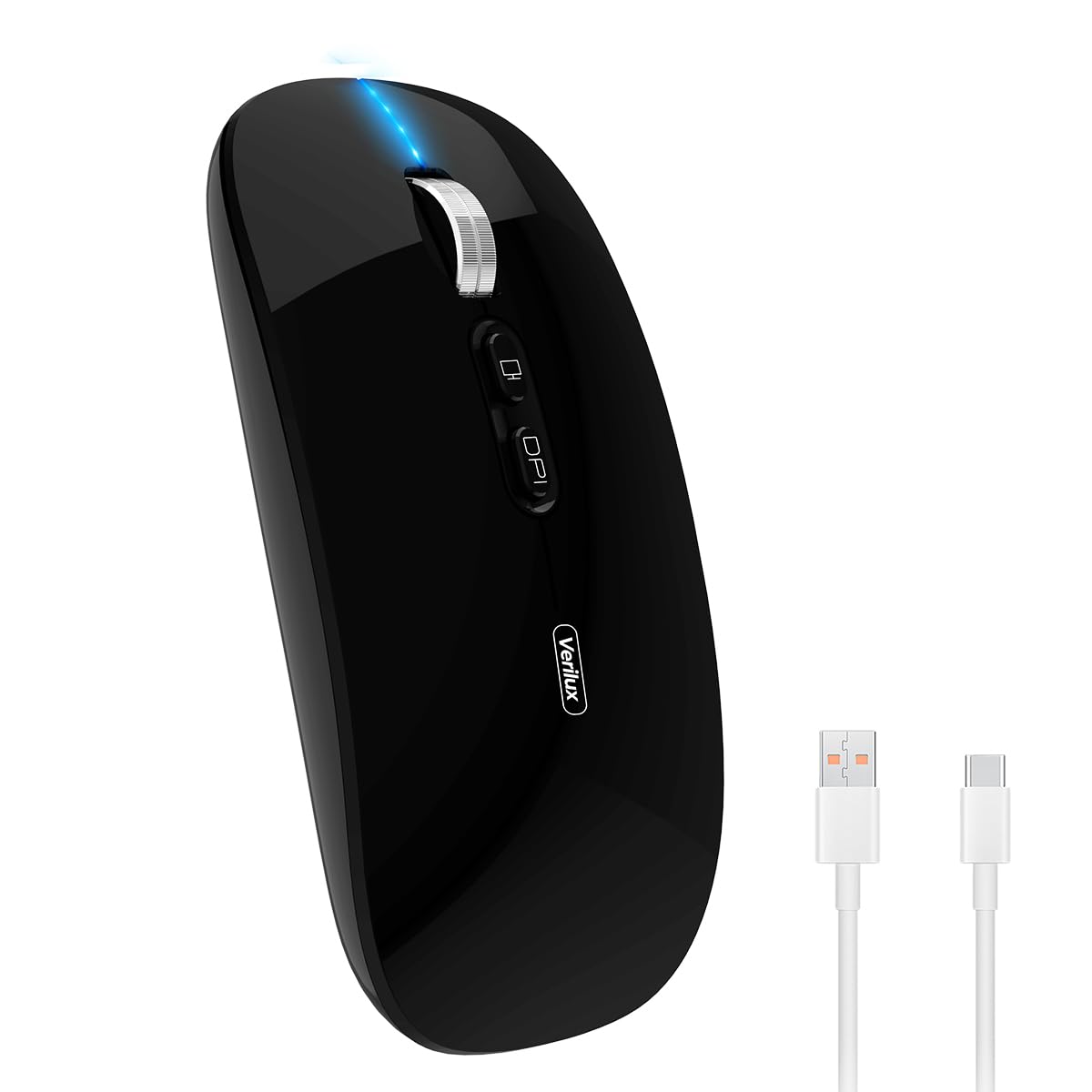
Image: Verilux Wireless Mouse M103 in black.
Produkt ponadview
The Verilux M103 is a versatile wireless mouse offering dual-mode connectivity (2.4G USB and Bluetooth 5.1), a rechargeable battery, and an ergonomic, silent design. It is compatible with a wide range of devices and operating systems.

Image: The Verilux M103 mouse demonstrating its dual Bluetooth connectivity with a laptop and tablet.
Główne cechy:
- Łączność w dwóch trybach: Seamlessly switch between 2.4G USB and Bluetooth 5.1.
- Akumulator: Built-in 500mAh battery with 4-level power indicator.
- Ergonomic & Silent Design: Comfortable grip with silent clicks for a quiet working environment.
- Uniwersalna kompatybilność: Supports Android, Windows, MacOS, iOS 12 and above, PC, laptops, and tablets.
- Regulowane DPI: Customize mouse sensitivity for precise control.
Organizować coś
1. 2.4G Mode Setup:
- Locate the USB receiver stored in the mouse's bottom compartment.
- Plug the USB receiver into an available USB port on your device (laptop, PC).
- Włącz mysz za pomocą przełącznika Wł./Wył. znajdującego się na spodzie.
- Mysz powinna automatycznie połączyć się z urządzeniem.
Video: Demonstrates unboxing, identifying the USB receiver, and connecting the mouse via 2.4G USB to a laptop.
2. Bluetooth Mode Setup:
The mouse supports two Bluetooth channels: Bluetooth 3.0 and Bluetooth 5.1.
- Włącz mysz za pomocą przełącznika Wł./Wył. znajdującego się na spodzie.
- Switch the mode selector on the bottom of the mouse to either BT3.0 (center blue light) or BT5.1 (right blue light).
- Activate Bluetooth on your device (laptop, PC, iPad, phone).
- Szukaj available Bluetooth devices and select 'BT5.1 Mouse' to connect.
- If the indicator light blinks and the connection is unsuccessful, restart both your device and the mouse, then try again.
Instrukcja obsługi
Przyciski myszy:
- Lewy przycisk myszy: Wybór standardowy.
- Kliknij prawym przyciskiem myszy: Menu kontekstowe.
- Scroll Wheel (Middle Button/Roller): Scroll up/down, click for middle-click functions.
- Przycisk DPI: Dostosowuje czułość myszy (DPI).
- One-Click Desktop Button: Szybko minimalizuje wszystkie otwarte okna, wyświetlając pulpit.

Image: Close-up of the Verilux M103 mouse, highlighting the scroll wheel, DPI button, and one-click desktop button.
Regulacja DPI:
Press the DPI button (located behind the scroll wheel) to cycle through different sensitivity levels (e.g., 800, 1200, 1600 DPI). Choose the setting that best suits your preference and task.
Ładowanie i bateria
The Verilux M103 mouse features a built-in 500mAh rechargeable battery. It is equipped with 4-level power indicator lights to show the remaining battery life.
Instrukcje ładowania:
- Connect the mouse to a power source using the provided USB-C charging cable. The charging port is located at the front of the mouse.
- A flashing light on the mouse indicates normal charging.
- Charge the mouse using a 5V 1A, 5V 2A, or an adapter with no more than 10W of power. It can also be charged by connecting it to a computer's USB port.
- Myszy można używać podczas ładowania.
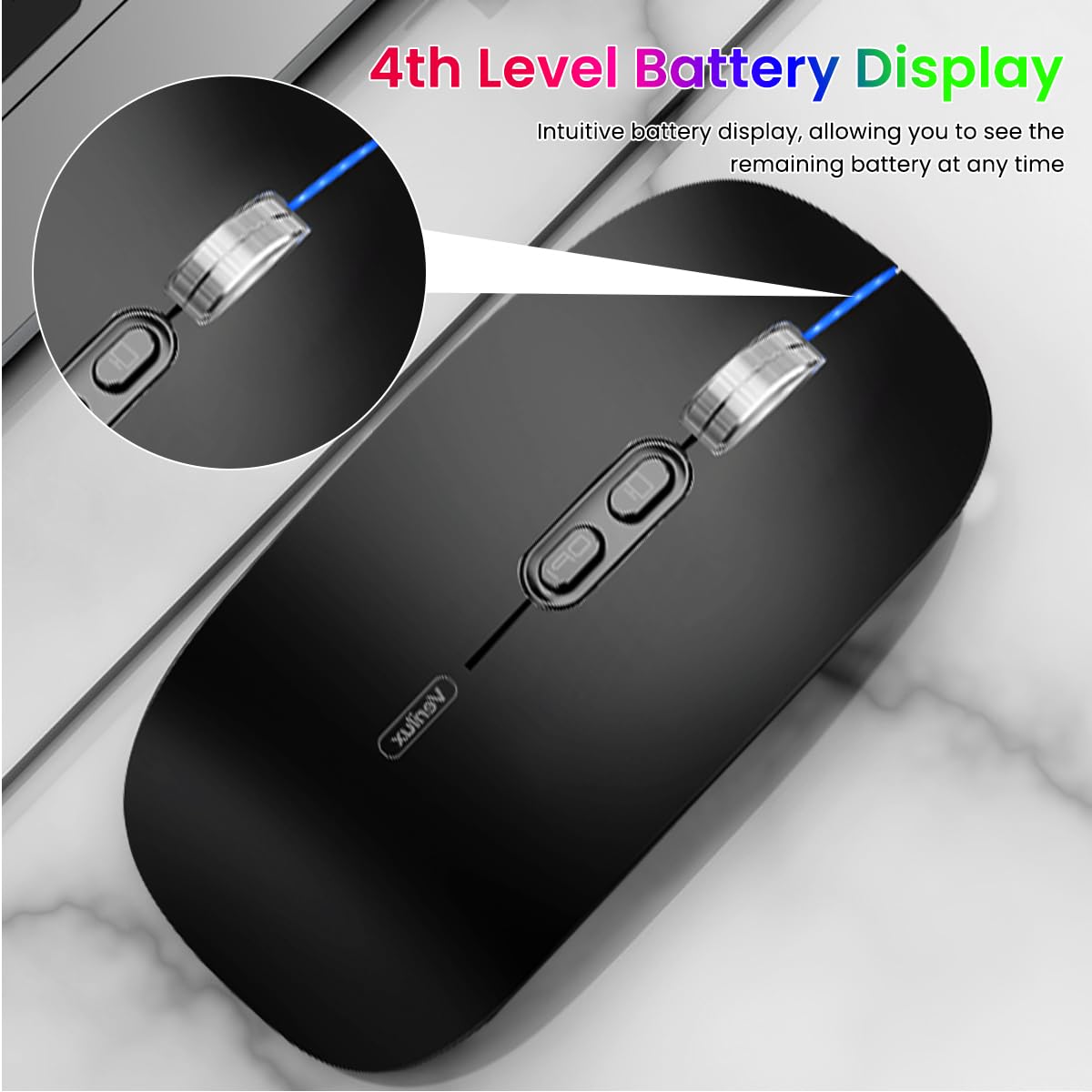
Image: The Verilux M103 mouse displaying its 4-level battery indicator lights.

Image: The Verilux M103 mouse connected to a laptop for charging via its USB-C port.
Zgodność
The Verilux M103 Wireless Mouse offers broad compatibility with various devices and operating systems:
- Systemy operacyjne: Android, Windows (7, XP, 8, 10), MacOS, iOS 12 and above, Linux.
- Urządzenia: Laptops, Personal Computers, Tablets, iPads, MacBooks.

Image: The Verilux M103 mouse shown with a laptop, desktop monitor, iPad, and smartphone, illustrating its wide compatibility.
Konserwacja
To ensure the longevity and optimal performance of your Verilux Wireless Mouse M103, follow these maintenance guidelines:
- Czyszczenie: Do czyszczenia myszy użyj miękkiej, suchej ściereczki. W przypadku uporczywych zabrudzeń delikatnie przetrzyj mysz.ampPrzetrzyj ściereczkę wodą lub delikatnym środkiem czyszczącym. Unikaj stosowania silnych środków chemicznych i materiałów ściernych.
- Składowanie: When not in use, especially during travel, store the USB receiver in its designated compartment at the bottom of the mouse to prevent loss.
- Pielęgnacja baterii: Avoid fully discharging the battery frequently. Charge the mouse when the power indicator shows low battery. Do not expose the mouse to extreme temperatures.
- Warunki środowiskowe: Keep the mouse away from excessive dust, moisture, and direct sunlight.
Rozwiązywanie problemów
If you encounter issues with your Verilux Wireless Mouse M103, please refer to the following common solutions:
| Problem | Rozwiązanie |
|---|---|
| Mouse not connecting (2.4G Mode) |
|
| Mouse not connecting (Bluetooth Mode) |
|
| Mouse cursor lagging or erratic movement |
|
| Mysz się nie ładuje |
|
Specyfikacje
| Funkcja | Szczegół |
|---|---|
| Marka | Weriluk |
| Numer modelu | M103 (AZEM4-0K5FZ5C) |
| Technologia łączności | Bluetooth (3.0 & 5.1), 2.4G Wireless |
| Technologia wykrywania ruchu | Optyczny |
| Ustawienia DPI | Do 1600 DPI (regulowana) |
| Bateria | Akumulator 500 mAh |
| Źródło zasilania | Zasilany bateryjnie (ładowanie przez USB-C) |
| Pikolak | 4 (Left, Right, Scroll Wheel/Middle, DPI, One-Click Desktop) |
| Orientacja dłoni | Oburęczny |
| Waga przedmiotu | 119 gram |
| Wymiary przedmiotu (dł. x szer.) | 12 cm długości x 7 cm szerokości |
| Kolor | Black (Standard Black variant) |
Gwarancja i wsparcie
For warranty information and customer support, please refer to the documentation included with your product packaging or visit the official Verilux webwitryny. Możesz również skontaktować się bezpośrednio ze sprzedawcą, aby uzyskać pomoc.
Producent: Verilux, Yiwu Kaiming Industrial Co., Ltd.
Importer/Pakowacz: Weriluk
For further information, you can visit the Verilux Store on Amazon.