
1. Koniec produktuview
The POLONO P31S is a compact and portable thermal label printer designed for various labeling needs in home, office, and school environments. It connects wirelessly via Bluetooth to your smartphone or tablet, allowing you to design and print labels using the dedicated mobile application. This device features a built-in cutter and operates without ink, utilizing thermal printing technology for clear, durable labels.
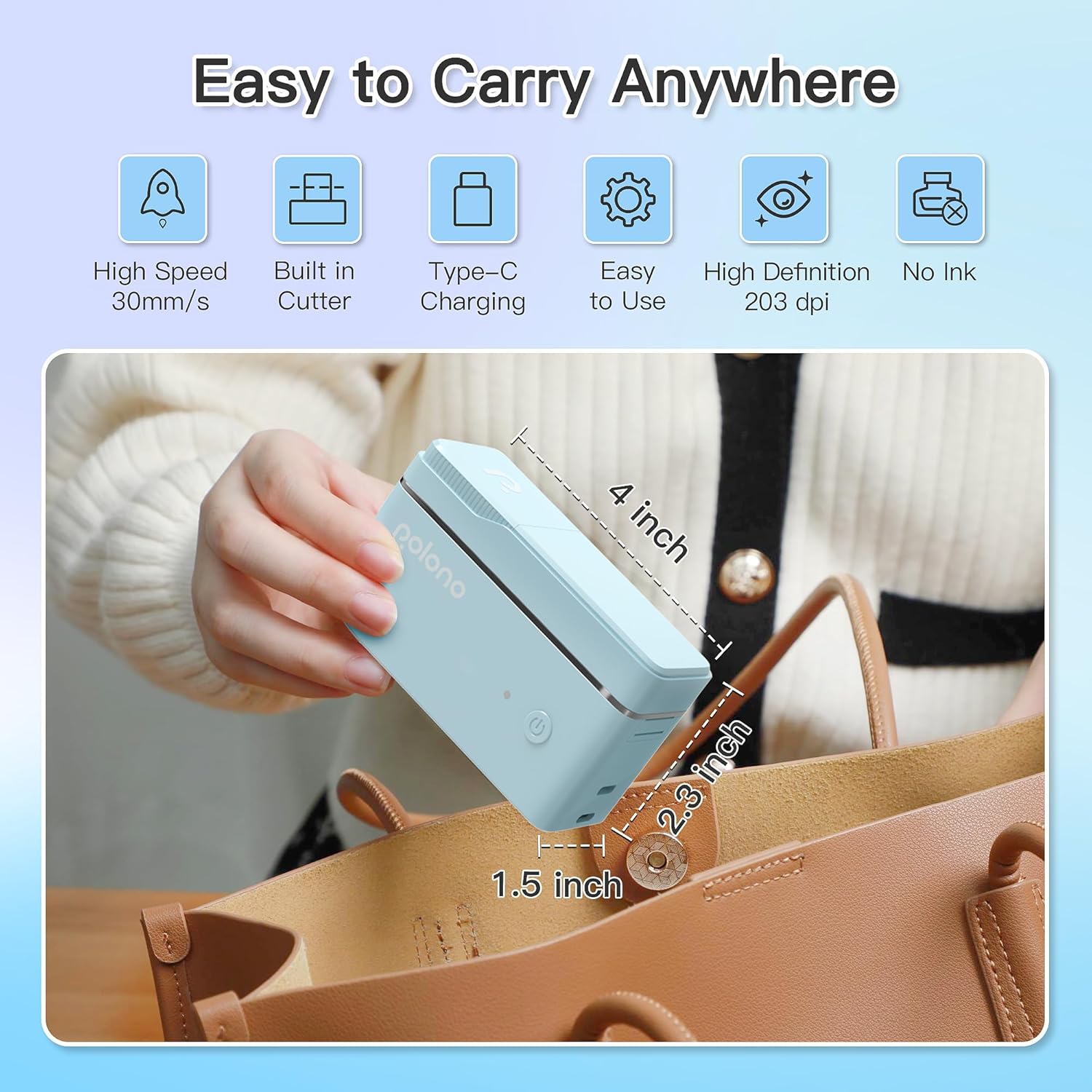
Rysunek 1: POLONO P31S Label Printer highlighting its compact design and dimensions (approximately 4 inches long, 2.3 inches high, 1.5 inches wide).
Główne cechy:
- Przenośna i lekka konstrukcja.
- Bluetooth connectivity for wireless printing.
- Thermal printing technology (no ink required).
- Built-in label cutter.
- Supports various label types including text, QR codes, barcodes, and images.
- Bateria do ponownego naładowania.
2. Informacje dotyczące bezpieczeństwa
Please read and understand all safety instructions before using the POLONO P31S label printer to prevent injury or damage to the device.
- Nie demontuj, nie naprawiaj ani nie modyfikuj urządzenia.
- Trzymaj urządzenie z dala od wody, wilgoci i ekstremalnych temperatur.
- Use only POLONO-approved label tapes to ensure optimal performance and prevent damage.
- Unikaj dotykania głowicy drukującej bezpośrednio po drukowaniu, gdyż może być gorąca.
- Przechowywać w miejscu niedostępnym dla dzieci.
- Use the provided charging cable or a certified equivalent.
3. Zawartość opakowania
Sprawdź, czy w opakowaniu znajdują się wszystkie elementy:
- POLONO P31S Label Printer
- Label Tape Roll (starter roll)
- Kabel ładujący USB
- Instrukcja obsługi (ten dokument)
4. Konfiguracja
4.1 Ładowanie urządzenia
Before first use, fully charge the label printer. Connect the provided USB charging cable to the printer's charging port and to a USB power adapter (not included) or a computer's USB port. The indicator light will show charging status.
4.2 Instalowanie taśmy etykietowej
- Otwórz pokrywę komory na etykiety.
- Insert the label tape roll with the printing surface facing up, ensuring it is properly seated.
- Pull a small portion of the label tape out, extending it past the cutter blade.
- Zamknij dokładnie pokrywę komory na etykiety.

Rysunek 2: Proper installation of POLONO P31S label tape. Ensure the green sticker on the tape is not removed or damaged, as it contains chip technology for optimal performance. Do not pull the label out directly; use the cutting blade.
4.3 Pobieranie aplikacji i połączenie Bluetooth
- Download the "Labelnize" app from the Apple App Store or Google Play Store.
- Turn on the POLONO P31S label printer by pressing and holding the power button.
- Włącz Bluetooth w smartfonie lub tablecie.
- Open the "Labelnize" app. The app will prompt you to allow Bluetooth access. Grant permission.
- Within the app, search for available devices and select "P31S" to connect.
- Once connected, the app will indicate a successful connection, and you are ready to create labels.
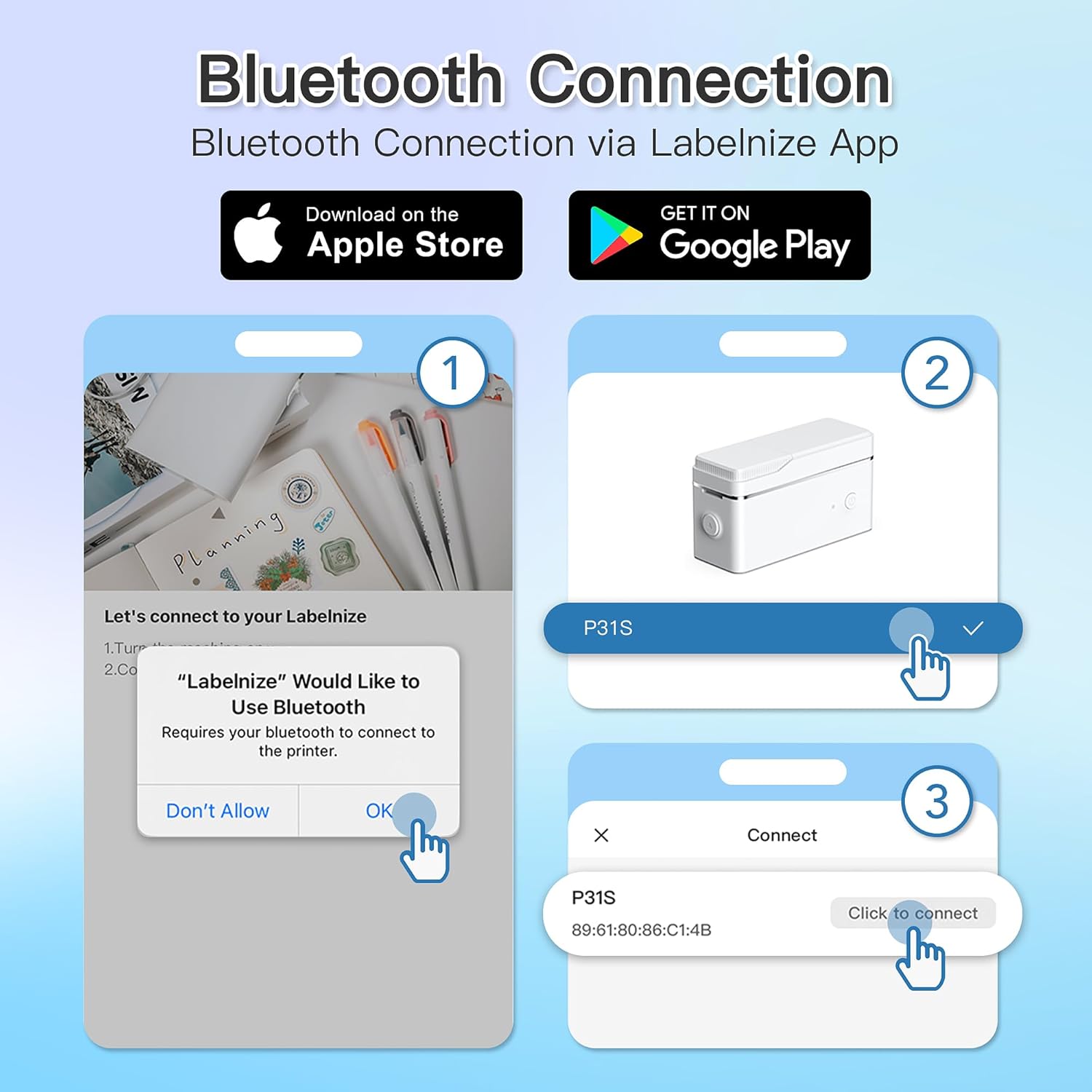
Rysunek 3: Steps for Bluetooth connection via the Labelnize App. Download the app, allow Bluetooth access, select "P31S" from the device list, and click "Connect".
5. Instrukcja obsługi
5.1 Creating Labels with the Labelnize App
The Labelnize app offers a variety of tools to design your labels:
- Tekst: Enter custom text, choose from over 90 fonts, adjust size, style (bold, italic), and alignment.
- Granice: Select from over 95 border designs to frame your labels.
- Icons/Graphics: Access a library of over 670 tab icons and other graphics to enhance your labels.
- QR Code/Barcode: Generate QR codes or barcodes for various applications.
- Zdjęcia: Wstaw obrazy z galerii swojego urządzenia.
- Szablony: Wykorzystaj gotowe szablony do typowych zadań etykietowania.

Rysunek 4: The Labelnize app interface for creating labels, offering extensive customization options including borders, fonts, and icons. The app supports multiple languages.
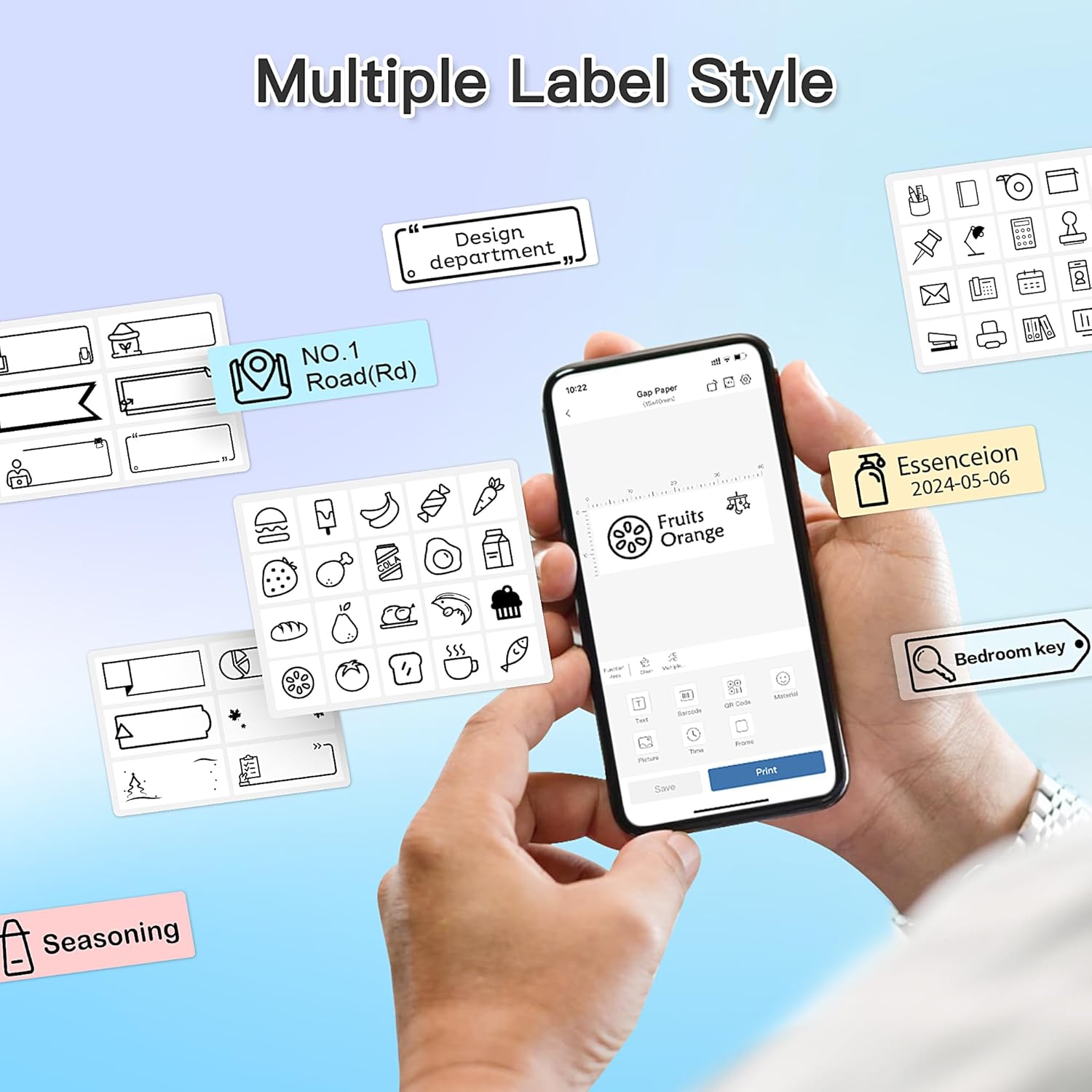
Rysunek 5: Examples of diverse label styles achievable with the POLONO P31S, demonstrating the flexibility in design for different organizational needs.
5.2 Drukowanie etykiet
After designing your label in the Labelnize app:
- Review projekt etykiety na ekranie aplikacji.
- Kliknij przycisk „Drukuj” w aplikacji.
- Confirm print settings (e.g., number of copies) if prompted.
- Drukarka automatycznie poda i wydrukuje etykietę.
5.3 Using the Built-in Cutter
The POLONO P31S features a built-in cutter for clean and precise label separation. After printing, gently press the cutter button or lever (depending on model variation) to cut the label. Do not pull the label manually to tear it, as this may damage the printer or result in uneven cuts.
6. Konserwacja
6.1 Czyszczenie głowicy drukującej
Aby zachować jakość wydruku, należy okresowo czyścić głowicę drukującą:
- Wyłącz drukarkę i odłącz kabel zasilający.
- Otwórz pokrywę komory na etykiety.
- Delikatnie przetrzyj głowicę drukującą wacikiem bawełnianym.ampnasączone alkoholem izopropylowym.
- Przed zamknięciem pokrywy i włączeniem drukarki należy odczekać, aż głowica drukująca całkowicie wyschnie.
6.2 Pielęgnacja baterii
- Charge the battery regularly, even if the printer is not used frequently, to prolong its lifespan.
- Unikaj całkowitego rozładowania akumulatora na dłuższy czas.
- Gdy nie używasz drukarki, przechowuj ją w chłodnym i suchym miejscu.
7. Rozwiązywanie Problemów
| Problem | Możliwa przyczyna | Rozwiązanie |
|---|---|---|
| Drukarka się nie włącza. | Niski poziom naładowania baterii lub brak zasilania. | Naładuj drukarkę za pomocą dołączonego kabla USB. |
| Nie można nawiązać połączenia przez Bluetooth. | Bluetooth is off, printer is off, or app issue. | Ensure printer is on, Bluetooth is enabled on your device, and restart the Labelnize app. Try re-pairing. |
| Niska jakość druku. | Dirty print head, incorrect label tape, or low battery. | Clean the print head (Section 6.1). Ensure you are using POLONO P31S compatible label tape. Charge the printer. |
| Zacięcie etykiety. | Improper tape installation or foreign object. | Turn off the printer, open the cover, carefully remove any jammed tape. Reinstall tape correctly. |
| Printer not responding. | Tymczasowy błąd oprogramowania. | Restart the printer and the Labelnize app. |
8. Specyfikacje
| Funkcja | Szczegół |
|---|---|
| Model | P31S |
| Technologia druku | Termiczny |
| Łączność | Bluetooth |
| Rozdzielczość wydruku | 203 x 203 DPI |
| Maksymalna prędkość drukowania (monochromatyczna) | 15 stron na milion |
| Maksymalny rozmiar nośnika | Label rolls (2 inches / 24 millimeters) |
| Kolor tuszu | Czarny (nadruk termiczny) |
| Źródło zasilania | 1 bateria litowo-polimerowa (w zestawie) |
| Wymiary produktu | 7.2 x 7.4 x 12.7 cm; 260 g |
| Zawarte komponenty | Etykiety |
9. Gwarancja i wsparcie
For warranty information and technical support, please refer to the official POLONO webOdwiedź witrynę lub skontaktuj się z działem obsługi klienta. Zachowaj paragon jako dowód zakupu na wypadek reklamacji.
Urzędnik Webstrona: www.polono.com (Uwaga: To jest symbol zastępczy URLproszę zweryfikować faktyczną wersję oficjalną website for POLONO products.)