
Wstęp
Welcome to the user manual for your Blackview Active 8 Pro Rugged Tablet. This device is engineered for durability and performance, designed to withstand challenging environments while providing a robust computing experience. Featuring a 10.36-inch display, a powerful MediaTek Helio G99 Octa-core processor, and a massive 22000mAh battery, the Active 8 Pro is built for extended use and demanding tasks. It is MIL-STD-810H certified and boasts IP68 & IP69K waterproof ratings, ensuring resilience against water, dust, and drops.
This manual provides essential information on setting up, operating, maintaining, and troubleshooting your tablet to ensure optimal performance and longevity.
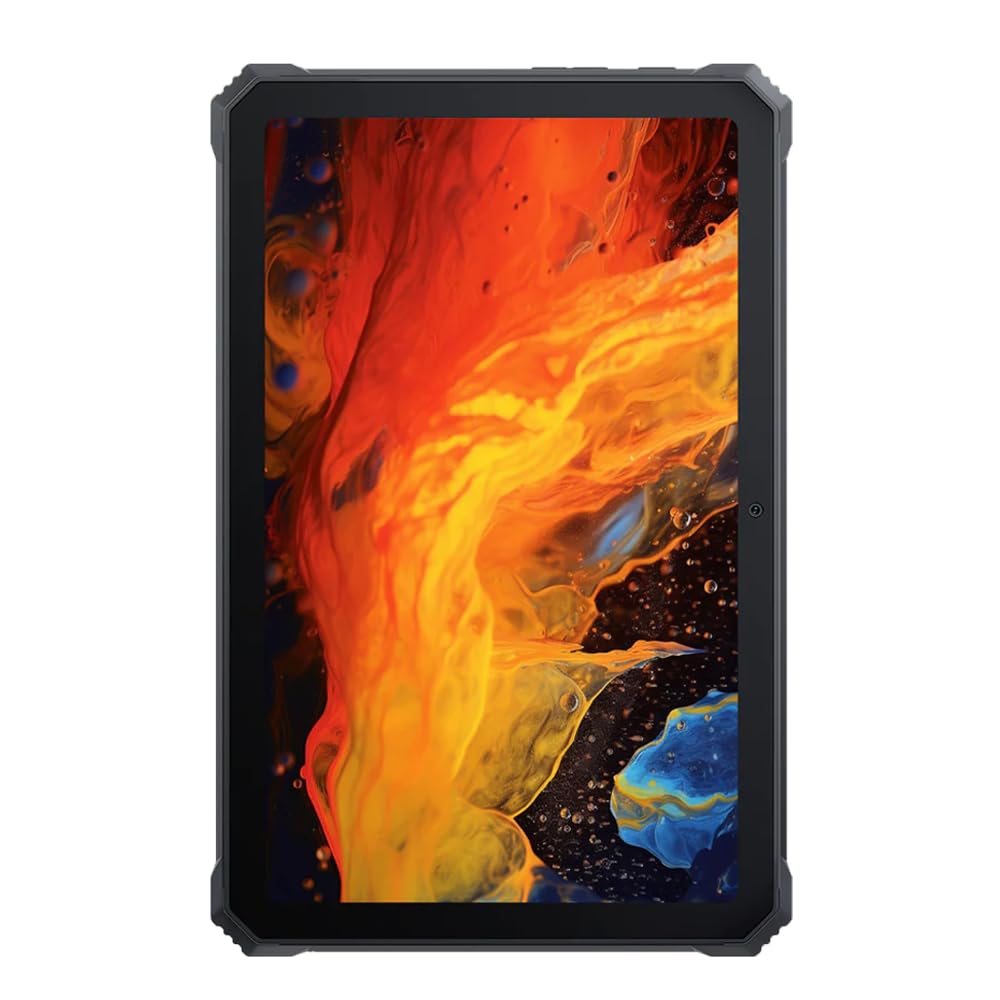
Obraz: Przód view Czarnegoview Active 8 Pro Rugged Tablet, showcasing its display and robust bezel.
Zawartość opakowania
Sprawdź, czy w opakowaniu produktu znajdują się wszystkie elementy:
- Czarnyview Tablet Active 8 Pro Rugged
- Padded Leather Strap
- Kabel ładujący
- Zasilacz
- Narzędzie do wyjmowania karty SIM (jeśli dotyczy)
- Szybki przewodnik
Układ urządzenia
Familiarize yourself with the physical components and ports of your Active 8 Pro tablet.

Obraz: Przód view Czarnegoview Active 8 Pro tablet, highlighting the display and front camera location.

Obraz: Tył view Czarnegoview Active 8 Pro tablet, showing the camera module, speaker grilles, and the attached padded leather strap for secure handling.

Obraz: Tył pod kątem view Czarnegoview Active 8 Pro tablet, providing a perspective of its ruggedized corners and the ergonomic padded leather strap.
Organizować coś
1. Ładowanie urządzenia
Before first use, fully charge your Active 8 Pro tablet. Connect the provided charging cable to the tablet's charging port and the power adapter to a wall outlet. The tablet supports 33W fast charging for quick power replenishment.
- Use only the original Blackview charger and cable to ensure optimal charging speed and safety.
- Na ekranie pojawi się wskaźnik ładowania.
2. Włączanie/wyłączanie zasilania
- Włączanie: Press and hold the Power button (typically located on the side) until the Blackview logo pojawia się na ekranie.
- Aby wyłączyć: Naciśnij i przytrzymaj przycisk zasilania, aż pojawi się menu zasilania. Z dostępnych opcji wybierz opcję „Wyłącz”.
- Zrestartować: Z menu zasilania wybierz opcję „Uruchom ponownie”.
3. Wstępna konfiguracja
Po pierwszym uruchomieniu tablet przeprowadzi Cię przez proces konfiguracji początkowej. Postępuj zgodnie z instrukcjami wyświetlanymi na ekranie, aby:
- Wybierz swój język.
- Połącz się z siecią Wi-Fi.
- Zaloguj się za pomocą konta Google lub utwórz nowe.
- Ustaw blokadę ekranu (PIN, wzór, hasło lub odcisk palca).
- Review i zaakceptuj regulamin.
Instrukcja obsługi
1. Podstawowa nawigacja
Your Active 8 Pro runs on Android 14, offering an intuitive user interface. Use standard touchscreen gestures:
- Uzyskiwać: Wybierz element lub otwórz aplikację.
- Dotknij i przytrzymaj: Uzyskaj dostęp do menu kontekstowych i przenieś ikony.
- Trzepnąć: Przewijaj strony i listy lub przełączaj się między ekranami głównymi.
- Powiększanie za pomocą szczypania: Powiększaj lub pomniejszaj obrazy i web stron.
2. Łączność
- Wi-Fi: Go to Settings > Network & internet > Wi-Fi to connect to available networks. The tablet supports 802.11ac, 802.11ax, 802.11g, and 802.11n standards.
- Bluetooth: Go to Settings > Connected devices > Connection preferences > Bluetooth to pair with Bluetooth accessories like headphones or speakers.
- Mobile Data (if applicable): Insert a SIM card into the designated slot to access mobile data services.
3. Korzystanie z aparatu
The tablet features a 48 MP rear camera. Open the Camera app to capture photos and videos. Tap on the screen to focus, and use the on-screen shutter button to take a picture.
4. Audio Enhancement
Experience enhanced audio quality with Sound By Harman AudioEFX. Adjust audio settings in the tablet's sound preferences to optimize your listening experience for music, movies, or calls.
5. Using the Padded Leather Strap
The included padded leather strap is designed to provide extra grip and comfort, reducing hand fatigue during extended use. Securely attach the strap to the designated points on the back of the tablet. Adjust for a snug fit that allows for comfortable one-handed or two-handed holding.
Konserwacja
1. Czyszczenie tabletu
- Do przecierania ekranu i obudowy tabletu należy używać miękkiej, niepozostawiającej włókien ściereczki.
- W przypadku uporczywych zabrudzeń, delikatnieampWyczyść ściereczkę wodą lub środkiem czyszczącym przeznaczonym do ekranów.
- Avoid using harsh chemicals, abrasive materials, or excessive moisture, especially near ports.
- Ensure all port covers are securely closed before cleaning if exposing to water.
2. Przechowywanie
When not in use for extended periods, store your tablet in a cool, dry place away from direct sunlight and extreme temperatures. Ensure the battery is charged to approximately 50% before long-term storage to preserve battery health.
3. Aktualizacje oprogramowania
Regularly check for and install software updates to ensure your tablet has the latest features, security patches, and performance improvements. Go to Settings > System > System update to check for available updates.
Rozwiązywanie problemów
W tej sekcji omówiono typowe problemy, które mogą wystąpić podczas korzystania z urządzenia Blackview Active 8 Pro tablet.
- Urządzenie nie włącza się:
Ensure the tablet is sufficiently charged. Connect it to the charger for at least 30 minutes before attempting to power it on again. If it still doesn't power on, try holding the power button for 10-15 seconds to force a restart.
- Screen Unresponsive or Display Issues:
If the screen becomes unresponsive, try restarting the device. If the display fails or shows abnormalities, ensure the tablet has not sustained severe physical damage. Contact customer support if the issue persists after a restart.
- Problemy z ładowaniem:
Verify that the charging cable and adapter are securely connected and undamaged. Try using a different compatible charger and cable if available. Ensure the charging port is free of debris.
- Problemy z łącznością Wi-Fi/Bluetooth:
Toggle Wi-Fi or Bluetooth off and on. Restart your tablet and the router/Bluetooth device. Ensure you are within range and have the correct password for Wi-Fi networks.
- Niska wydajność:
Close unnecessary background applications. Clear cache data for apps that are frequently used. Consider performing a factory reset as a last resort (back up your data first).
Specyfikacje
| Funkcja | Specyfikacja |
|---|---|
| Nazwa modelu | Active 8 Pro |
| Rozmiar wyświetlacza | 10.36 cali |
| Rozdzielczość ekranu | 1920 x 1080 pikseli |
| Edytor | MediaTek Helio G99 Octa-core (2.2 GHz) |
| BARAN | 8 GB (DDR4 SDRAM) |
| Pamięć wewnętrzna | 256 GB |
| System operacyjny | Android 14 |
| Pojemność baterii | 22000mAh |
| Szybkie ładowanie | 33W Support |
| Oceny trwałości | MIL-STD-810H Certified, IP68 & IP69K Waterproof |
| Ochrona ekranu | Szkło Corning Gorilla 5 |
| Kamera tylna | 48 MP |
| Łączność bezprzewodowa | 802.11ac, 802.11ax, 802.11g, 802.11n |
| Wymiary (dł. x szer. x wys.) | 10.09 x 6.53 x 0.66 cala |
| Waga przedmiotu | 3.34 funta |
Gwarancja i wsparcie
Twój czarnyview Active 8 Pro tablet comes with a limited warranty. Please refer to the warranty card included in your package for specific terms and conditions, including coverage duration and limitations. Keep your proof of purchase for warranty claims.
For technical support, service, or warranty inquiries, please visit the official Blackview wsparcie website or contact their customer service department. Contact information can typically be found on the Blackview webstronie internetowej lub w dokumentacji dołączonej do produktu.
Więcej informacji można znaleźć na stronie Czarnyview Sklep na Amazonie.