
Wstęp
Thank you for choosing the MoKo Bluetooth AZERTY Keyboard. This manual provides detailed instructions to help you set up, operate, and maintain your keyboard, ensuring optimal performance with your Microsoft Surface Pro device. Please read this manual thoroughly before use.
Zgodność
This keyboard is specifically designed for the following Microsoft Surface Pro models:
- Surface Pro 7 Plus (2021)
- Surface Pro 7 (2019)
- Powierzchnia Pro 6
- Surface Pro 5 (Pro 2017)
- Powierzchnia Pro 4
- Powierzchnia Pro 3
The keyboard dimensions are approximately 29.5 cm (11.6 inches) in length, 21.7 cm (8.54 inches) in width, and 0.6 cm (0.23 inches) in height, providing a similar typing experience to official Surface Pro keyboards.
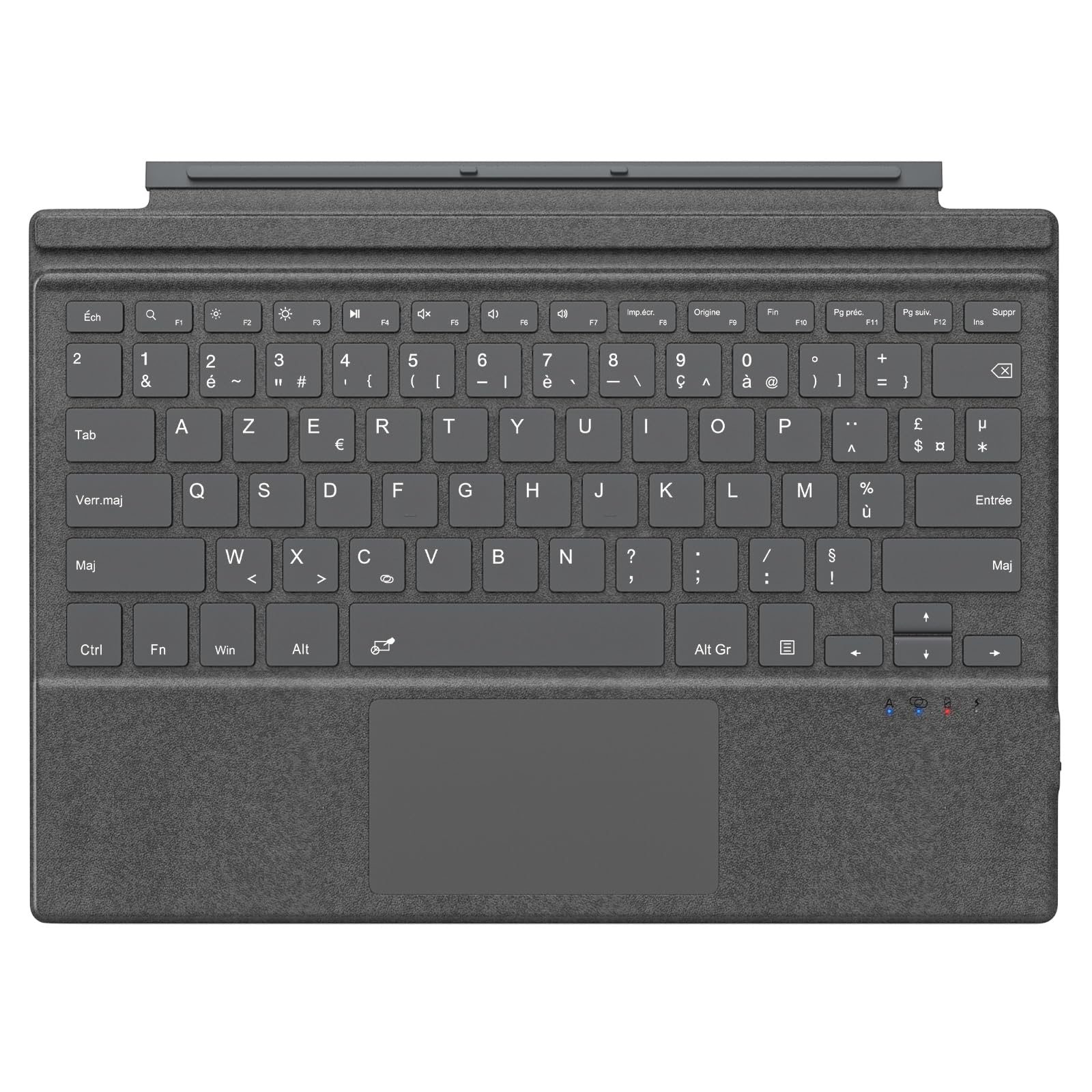
Image: The MoKo Bluetooth AZERTY Keyboard shown with several Microsoft Surface Pro models, illustrating compatibility.
Co jest w pudełku
Po rozpakowaniu upewnij się, że wszystkie przedmioty są obecne:
- MoKo Bluetooth AZERTY Keyboard
- Kabel ładujący USB
Organizować coś
1. Ładowanie klawiatury
The keyboard is equipped with a built-in 520mAh lithium battery. Before initial use, or when the battery is low, charge the keyboard using the provided USB cable.
- Podłącz mniejszy koniec kabla ładującego USB do portu ładowania w klawiaturze.
- Podłącz większy koniec kabla USB do źródła zasilania USB (np. komputera, zasilacza sieciowego).
- Zaświeci się kontrolka ładowania. Po pełnym naładowaniu kontrolka może zmienić kolor lub zgasnąć.
Pełne naładowanie umożliwia około 25 godzin ciągłego użytkowania.

Obraz: Zbliżenie view of the keyboard's charging port with a USB cable connected, indicating the charging process.
2. Parowanie Bluetooth
To connect your keyboard to your Surface Pro:
- Sprawdź, czy klawiatura jest naładowana i włączona.
- Na urządzeniu Surface Pro przejdź do Ustawienia > Urządzenia > Bluetooth i inne urządzenia.
- Włącz Bluetooth.
- Naciśnij Fn klucz i C key simultaneously on the keyboard to enter pairing mode. The Bluetooth indicator light on the keyboard will flash.
- On your Surface Pro, click Dodaj Bluetooth lub inne urządzenie > Bluetooth.
- Select "MoKo Keyboard" (or similar name) from the list of available devices.
- Follow any on-screen prompts to complete the pairing process. The Bluetooth indicator light on the keyboard will stop flashing once connected.
The keyboard can be used attached to your Surface Pro or detached for flexible positioning. The effective Bluetooth connection range is approximately 10 meters (33 feet).

Image: A Surface Pro tablet with the MoKo keyboard detached, illustrating the wireless Bluetooth connection capability.
Instrukcja obsługi
Układ klawiatury i klawisze
This keyboard features an AZERTY layout with 105 keys, providing a full-size typing experience. The keys utilize a scissor-switch mechanism for comfortable and responsive typing.

Obraz: szczegółowy view of the keyboard's AZERTY layout, highlighting the scissor-switch keys and integrated trackpad.
Funkcjonalność gładzika
The integrated trackpad allows for precise navigation and control of your Surface Pro. To activate or deactivate the trackpad, press the Fn klucz i Spacja jednocześnie.
Notatka: Please remove any protective film from the trackpad surface before use to ensure proper functionality.
Adjustable Typing Angles
The keyboard's design allows for two different typing angles, providing an ergonomic and comfortable experience whether you are working on a desk, lap, or other surface.

Image: A Surface Pro with the keyboard attached, demonstrating the two possible ergonomic typing angles.
Zarządzanie energią
Automatyczny tryb uśpienia
To conserve battery life, the keyboard will automatically enter sleep mode after 10 minutes of inactivity. The Bluetooth connection will automatically disconnect during this period.
Reconnecting After Sleep
To wake the keyboard and re-establish the Bluetooth connection, simply press any key. The keyboard will automatically attempt to reconnect to the last paired device.

Image: An illustration of the keyboard's power management, including automatic sleep mode and USB-C charging.
Konserwacja
To ensure the longevity and optimal performance of your MoKo keyboard, follow these maintenance guidelines:
- Czyszczenie: Do czyszczenia powierzchni klawiatury należy używać miękkiej, suchej i niepozostawiającej włókien ściereczki. W przypadku uporczywych zabrudzeń należy delikatnie przetrzeć powierzchnię klawiatury.ampPrzetrzyj ściereczkę wodą lub delikatnym środkiem czyszczącym. Unikaj nadmiernej wilgoci.
- Składowanie: Gdy nie używasz klawiatury, przechowuj ją w chłodnym, suchym miejscu, z dala od bezpośredniego światła słonecznego i ekstremalnych temperatur.
- Unikaj płynów: Do not expose the keyboard to liquids. It is not waterproof.
- Zachowaj ostrożność: Unikaj upuszczania klawiatury i narażania jej na silne uderzenia.
Rozwiązywanie problemów
Jeśli masz problemy z klawiaturą, zapoznaj się z poniższymi, typowymi rozwiązaniami:
| Problem | Rozwiązanie |
|---|---|
| Klawiatura nie włącza się | Ensure the keyboard is charged. Connect it to a power source using the USB cable. |
| Nie można sparować przez Bluetooth | 1. Ensure the keyboard is in pairing mode (Fn + C). 2. Make sure Bluetooth is enabled on your Surface Pro. 3. Delete any previous keyboard pairings on your Surface Pro and try again. 4. Ensure the keyboard is within the 10-meter range. |
| Klawiatura często się rozłącza | 1. Sprawdź, czy klawiatura jest naładowana. 2. Avoid placing obstacles between the keyboard and your Surface Pro. 3. Reconnect the Bluetooth connection manually if needed. |
| Gładzik nie odpowiada | 1. Ensure the trackpad is activated (Fn + Spacebar). 2. Remove any protective film from the trackpad surface. 3. Restart the keyboard and try again. |
| Klawisze nie reagują | 1. Ensure the keyboard is properly connected via Bluetooth. 2. Check battery level and charge if necessary. 3. Restart your Surface Pro and the keyboard. |
Specyfikacje
| Funkcja | Szczegół |
|---|---|
| Marka | MoKo |
| Nazwa modelu | Clavier Français |
| Numer modelu | B0CPLZXMFK |
| Technologia łączności | Bluetooth |
| Opis klawiatury | Zintegrowany |
| Funkcja specjalna | Ergonomic |
| Kolor | Szary |
| Układ klawiatury | AZERTY |
| Liczba kluczy | 105 |
| Typ przełącznika | Przełącznik nożycowy |
| Źródło zasilania | Battery Powered (520mAh Lithium) |
| Wymiary produktu (dł. x szer. x wys.) | 29.5 cm x 21.7 cm x 0.6 cm (11.6 x 8.54 x 0.23 cala) |
| Waga przedmiotu | 10.93 uncji |
| Tworzywo | ABS (akrylonitryl-butadien-styren) |
| Kompatybilny system operacyjny | Windows (Minimum Windows 10) |

Image: A technical diagram illustrating the precise dimensions of the MoKo Bluetooth AZERTY Keyboard.
Gwarancja i wsparcie
For warranty information or technical support, please refer to the documentation provided with your purchase or contact MoKo customer service directly through their official webwitrynę lub sprzedawcę, u którego zakupiono produkt.