
1. Koniec produktuview
The Codnida 3MP Security Camera is an advanced outdoor IP CCTV system designed for comprehensive surveillance. It offers high-definition 2K resolution, versatile night vision modes, and intelligent motion detection capabilities. This manual provides detailed instructions for installation, operation, and maintenance to ensure optimal performance of your security camera system.

Image: Two Codnida 3MP Security Cameras, illustrating the product design and dual antenna setup.
2. Zawartość opakowania
Przed rozpoczęciem instalacji sprawdź, czy w opakowaniu znajdują się wszystkie elementy:
- Codnida 3MP Security Camera (2 units for 2-pack)
- Zasilacz (przewodowy)
- Śruby montażowe i kołki ścienne
- Instrukcja obsługi
Note: An SD card (up to 128GB) is required for local storage and is not included in the package.
3. Przewodnik konfiguracji
3.1. Instalacja fizyczna
Kamera jest przeznaczona do montażu na ścianie. Wybierz miejsce zapewniające pożądany viewing angle and is within reach of a power outlet. Ensure the mounting surface is stable and can support the camera's weight.
- Mark the drilling points using the camera's mounting bracket as a template.
- Wywierć otwory w zaznaczonych miejscach.
- Włóż kołki rozporowe w wywiercone otwory.
- Align the camera bracket with the holes and secure it using the provided screws.
- Zamontuj kamerę stabilnie w uchwycie.

Image: A Codnida security camera securely mounted on an outdoor wall, demonstrating proper installation.
3.2. Podłączenie zasilania
Connect the camera to a power source using the provided corded electric adapter. The camera operates at 4 watts.

Image: The Codnida camera connected to its power adapter, ready for operation.
3.3. Instalacja aplikacji i połączenie Wi-Fi
The camera connects to the CloudEdge APP via a 2.4GHz Wi-Fi connection (5GHz is not supported).
- Download the 'CloudEdge' app from your mobile device's app store (iOS or Android).
- Zarejestruj nowe konto lub zaloguj się, jeśli już je posiadasz.
- Follow the in-app instructions to add your new device. This typically involves powering on the camera and scanning a QR code displayed on your phone screen with the camera's lens.

Image: A smartphone displaying the CloudEdge app icon, indicating the application used for camera control.

Image: A hand holding a smartphone displaying a QR code, which is being scanned by the camera lens for initial setup.
3.4. Instalacja karty SD
The camera supports local video and image storage on an SD card up to 128GB. The SD card slot is typically located under a protective cover on the camera body.
- Power off the camera before inserting or removing the SD card.
- Locate the SD card slot, usually covered by a rubber stopper or screw-on cap.
- Insert the SD card into the slot with the contacts facing the correct direction until it clicks into place.
- Załóż ponownie osłonę ochronną.
- Power on the camera. You may need to format the SD card via the CloudEdge app for first-time use.

Image: A close-up of the camera showing the SD card slot and a microSD card being inserted, with icons for local and cloud storage.
4. Instrukcja obsługi
4.1. Na żywo View i sterowanie PTZ
Access the live feed of your camera through the CloudEdge app. The camera features Pan-Tilt-Zoom (PTZ) functionality, allowing you to adjust the viewzdalnie pod kątem.
- Open the CloudEdge app and select your camera.
- Use the on-screen controls to pan horizontally up to 355° and tilt vertically up to 90°.

Image: A visual representation of the camera's 355-degree horizontal and 90-degree vertical PTZ capabilities, controlled via a smartphone app.
4.2. Dźwięk dwukierunkowy
The built-in two-way intercom allows for real-time communication through the camera.
- Z koncertu view in the CloudEdge app, tap the microphone icon to speak.
- Kliknij ikonę głośnika, aby słuchać dźwięku z kamery.

Image: A delivery person at a door, with a speech bubble indicating two-way audio communication via the security camera.
4.3. Rejestrowanie i przechowywanie
The camera supports 24/7 recording and offers flexible storage options.
- Pamięć karty SD: Videos and images are stored locally on the inserted SD card (up to 128GB).
- Przechowywanie w chmurze: A 7-day free trial of cloud storage is available. Subscription options may be available after the trial period.
- Uzyskaj dostęp do nagranego pliku footage via the 'History' or 'Cloud' sections within the CloudEdge app.

Image: A smartphone displaying the CloudEdge app interface with a video playback timeline, indicating 24/7 recording and options for cloud or TF card storage.
4.4. Wizja nocna
The camera provides both black and white infrared night vision and full-color night vision.
- Tryb czarno-biały: Utilizes 4 infrared LEDs for clear 2K images in low light conditions, with a night vision range of up to 10 meters.
- Tryb koloru: Activates the built-in floodlight to capture crisp, full-color video even in complete darkness.
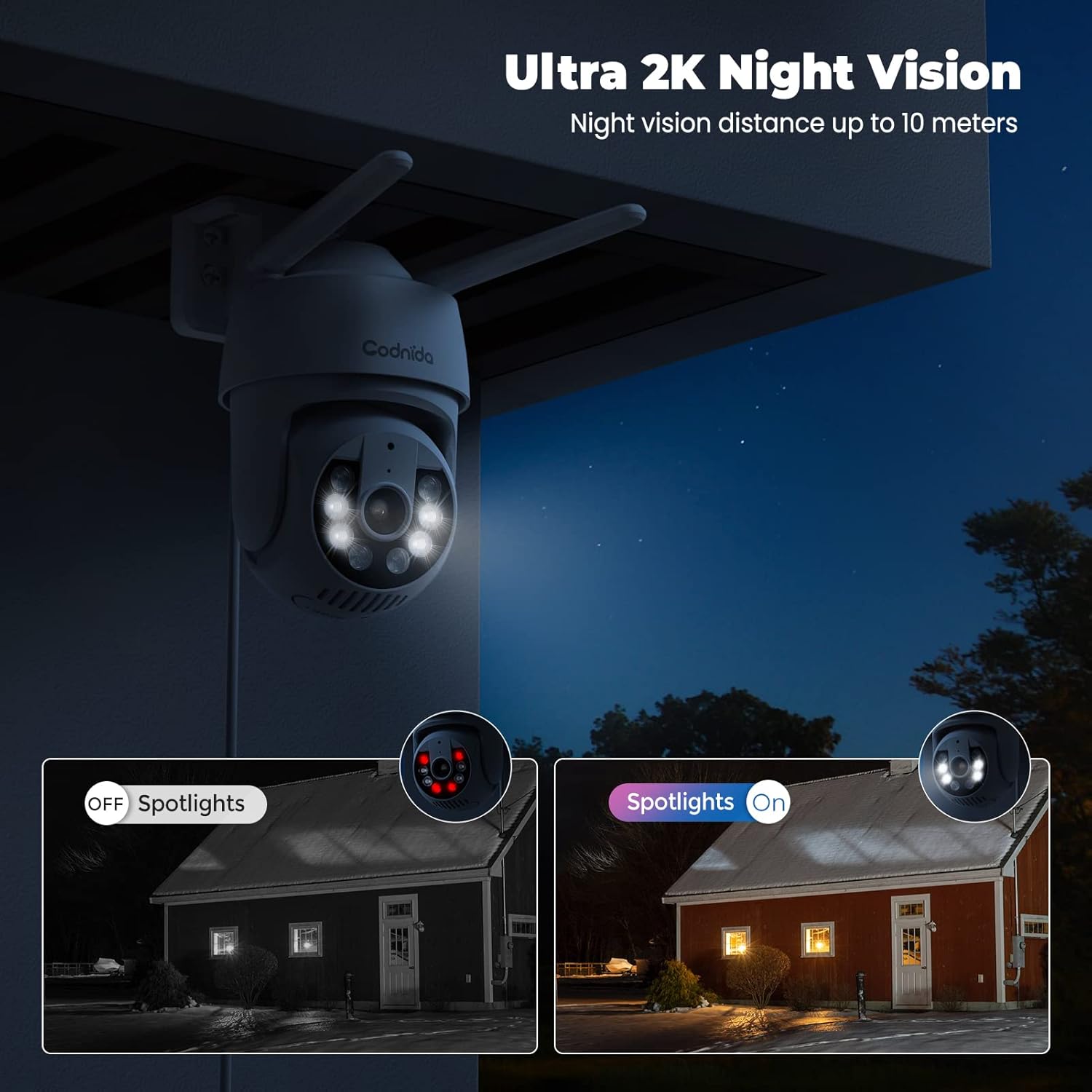
Image: A split image demonstrating the difference between spotlights off (infrared night vision) and spotlights on (color night vision) at night.
4.5. Smart Motion Detection and Alerts
The camera features a PIR human detection sensor to minimize false alarms and provide instant notifications.
- When human movement is detected, the camera will send an immediate notification to your phone.
- The camera can activate a sound alarm and/or light alarm to deter intruders.
- Customize detection areas within the app to focus on specific zones and reduce unnecessary alerts.
- The camera supports AI automatic tracking, following detected motion within its field of view.
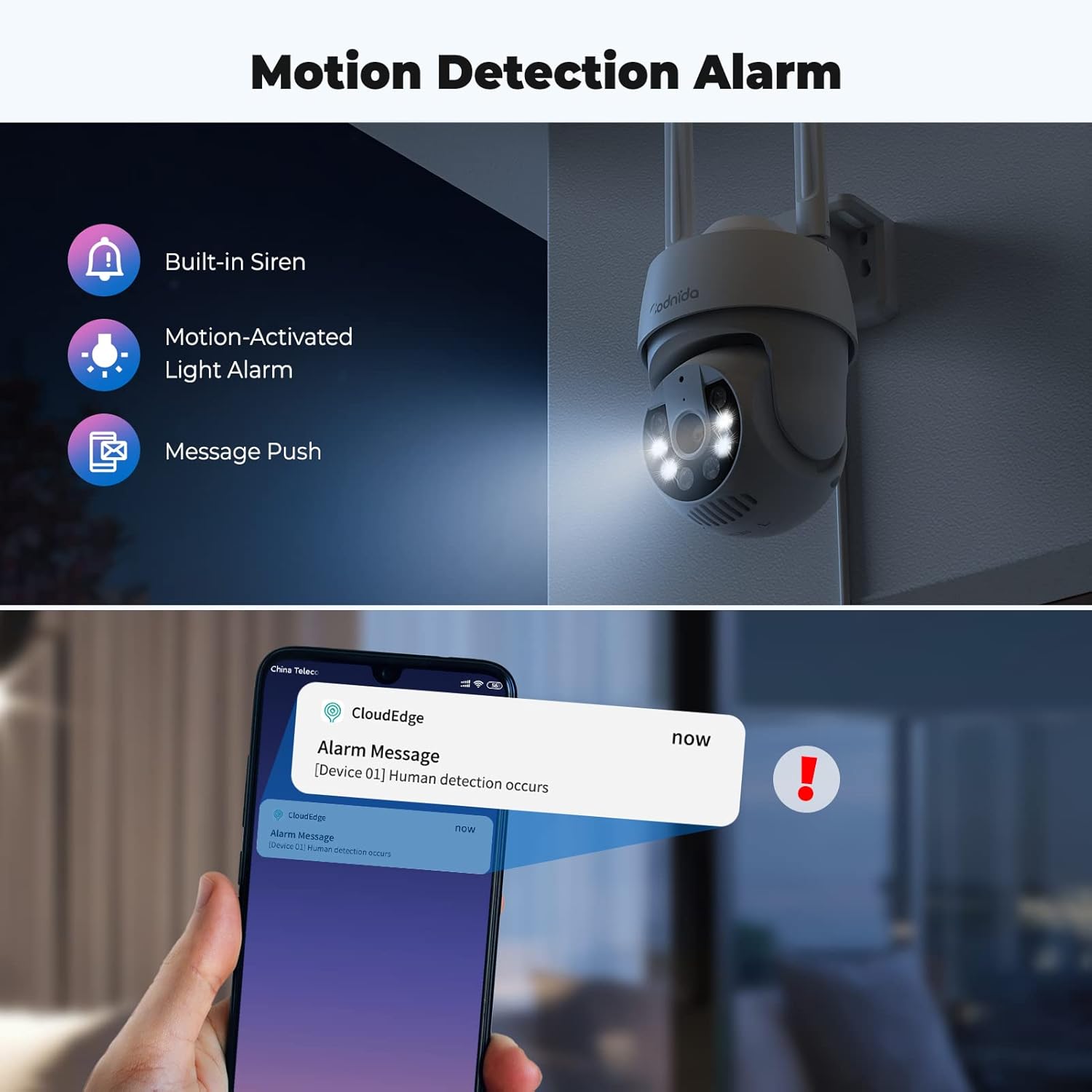
Image: An illustration showing the camera's motion detection alarm features, including a built-in siren, motion-activated light alarm, and push notifications to a smartphone.

Image: A visual demonstrating the AI automatic tracking feature, showing the camera following a child's movement across a yard.
4.6. Alexa Compatibility and Onvif Support
- The camera is compatible with Alexa, allowing for voice control and integration into your smart home system. Refer to the CloudEdge app or Alexa app for specific setup instructions.
- The camera supports Onvif, enabling integration with other Onvif-compliant network video recorders (NVRs) or surveillance systems.
5. Konserwacja
Regular maintenance ensures the longevity and optimal performance of your Codnida security camera.
- Czyszczenie: Okresowo przecieraj obiektyw i korpus aparatu miękką, miękką szmatką.amp Do usuwania kurzu i brudu należy używać ściereczki. Unikać stosowania środków czyszczących o działaniu ściernym i rozpuszczalników.
- Aktualizacje oprogramowania układowego: Check the CloudEdge app regularly for available firmware updates. Keeping the firmware updated ensures access to the latest features and security enhancements.
- Ochrona przed warunkami atmosferycznymi: The camera is IP66 weatherproof, designed to withstand rain, snow, and shine. However, ensure proper installation to prevent water accumulation around connections.
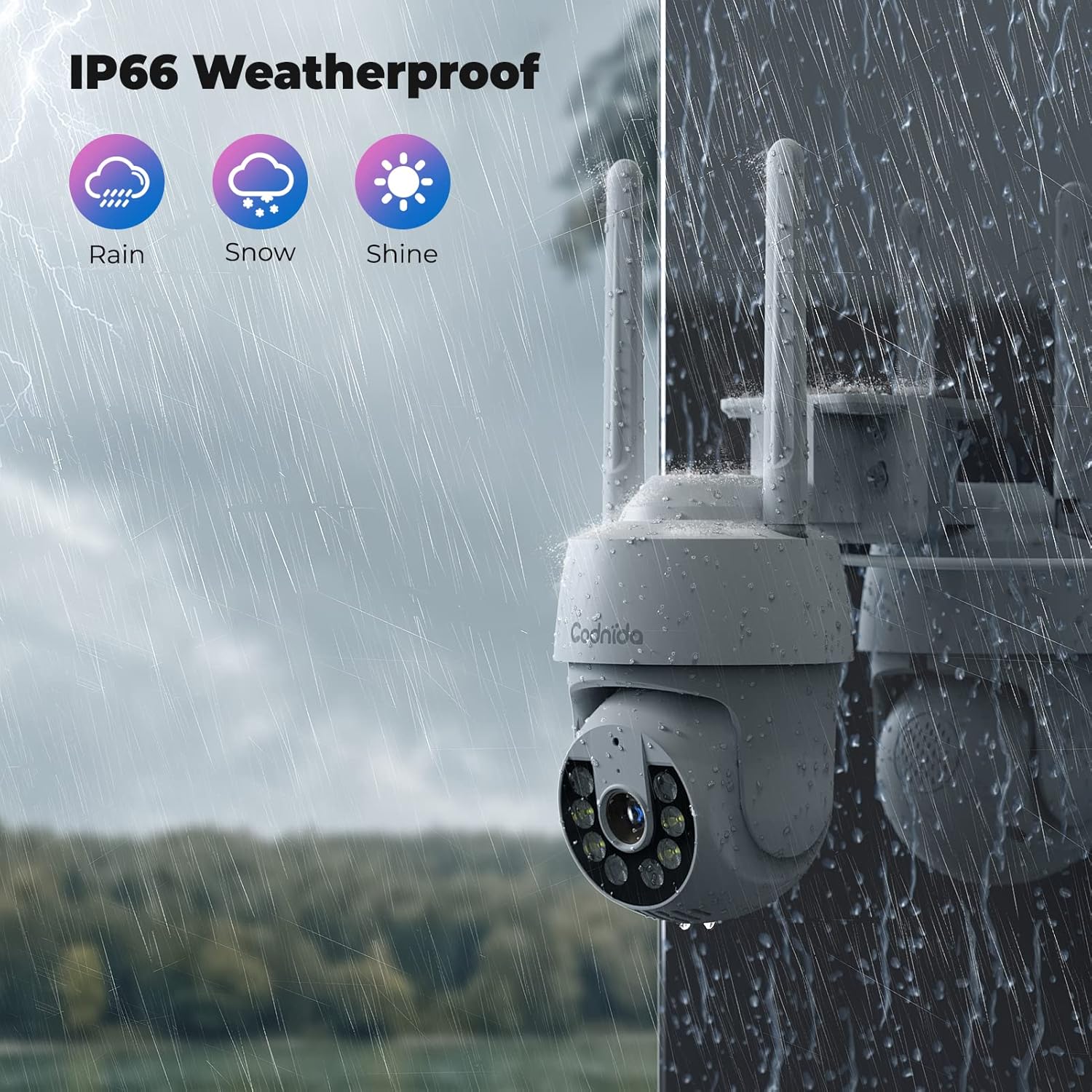
Image: A Codnida camera shown in a rainy environment, highlighting its IP66 weatherproof rating against rain, snow, and shine.
6. Rozwiązywanie Problemów
If you encounter issues with your Codnida security camera, refer to the following common problems and solutions:
| Problem | Możliwa przyczyna | Rozwiązanie |
|---|---|---|
| Kamera nie łączy się z siecią Wi-Fi | Incorrect Wi-Fi password; 5GHz network used; camera too far from router; network congestion. | Sprawdź, czy hasło Wi-Fi 2.4 GHz jest poprawne. Przybliż kamerę do routera. Uruchom ponownie router i kamerę. |
| Poor video quality or lag | Weak Wi-Fi signal; network bandwidth issues; camera lens dirty. | Improve Wi-Fi signal strength. Reduce network traffic. Clean the camera lens. |
| Detekcja ruchu nie działa lub występuje zbyt wiele fałszywych alarmów | Incorrect sensitivity settings; detection area not configured; environmental factors (e.g., swaying trees). | Adjust PIR sensitivity in the app. Customize detection zones to exclude irrelevant areas. |
| Two-way audio issues (poor sound pickup) | Microphone obstruction; environmental noise; software glitch. | Ensure microphone is clear. Test in a quieter environment. Restart camera. |
| Camera not responding to PTZ controls | Weak Wi-Fi signal; temporary app/camera glitch. | Check Wi-Fi connection. Restart the CloudEdge app and camera. |
| Karta SD nie nagrywa | SD card full; not formatted; faulty card; incorrect recording settings. | Check SD card capacity. Format the SD card via the app. Ensure recording settings are enabled. Replace faulty card if necessary. |
For further assistance, please refer to the CloudEdge app's help section or contact Codnida customer support.
7. Specyfikacje
| Funkcja | Szczegół |
|---|---|
| Nazwa modelu | Pytanie 30 |
| Zastosowanie wewnątrz/na zewnątrz | Na zewnątrz, Wewnątrz |
| Źródło zasilania | Elektryczny przewodowy |
| Protokół łączności | Wi-Fi (tylko 2.4 GHz) |
| Typ kontrolera | Aplikacja CloudEdge |
| Typ montażu | Montaż ścienny |
| Rozdzielczość przechwytywania wideo | 3 MP (2K) |
| Liczba kanałów | 2 (for 2-pack) |
| Współczynnik kształtu | Kopuła |
| Zasięg widzenia w nocy | 10 metrów |
| Tworzywo | Plastikowy |
| Cotage | 4 watów |
| Pozycja Wymiary (dł. x szer. x wys.) | 50 x 50 x 50 milimetrów |
| Poziom wodoodporności | Wodoodporny (IP66) |
| Cechy specjalne | 2 Way Audio, HD Resolution, Color Night Vision, PIR Human Detection, PTZ (355° Pan, 90° Tilt), Alexa Compatible, Onvif Support |
| Opcje przechowywania | Karta SD (do 128 GB), przechowywanie w chmurze |
| Waga przedmiotu | 1.15 kilogramów |
8. Gwarancja i wsparcie
For information regarding product warranty, please refer to the purchase documentation or contact Codnida directly through their official website or the seller from whom you purchased the product. Codnida is committed to providing high-quality security cameras and offers professional customer support to resolve any product issues.
For technical support or inquiries, please visit the Codnida official website or use the support features within the CloudEdge application.