
1. Wprowadzenie
The FIDECO Hard Drive Docking Station YPZ03SN is a versatile external storage solution designed for easy access to various types of hard drives and solid-state drives. It supports 2.5-inch and 3.5-inch SATA HDDs/SSDs, as well as M.2 NVMe and M.2 SATA SSDs. Featuring a built-in cooling fan, this docking station ensures optimal operating temperatures for your drives during data transfer.
This manual provides detailed instructions for setting up, operating, and maintaining your FIDECO docking station, along with troubleshooting tips and product specifications.

Image 1.1: FIDECO Hard Drive Docking Station with examples of supported drives (2.5" SATA, 3.5" SATA, M.2 NVMe/SATA SSDs).
2. Zawartość opakowania
Sprawdź, czy w przesyłce znajdują się wszystkie elementy:
- 1x FIDECO Hard Drive Docking Station (Model: YPZ03SN)
- 1x USB-C to USB-C Cable with USB-A Adapter
- 1x zasilacz (prąd stały 12 V)
- 1x Instrukcja obsługi (ten dokument)
3. Funkcje produktu
- Uniwersalna kompatybilność: Supports 2.5"/3.5" SATA HDDs/SSDs and M.2 NVMe/SATA SSDs.
- Szybki transfer danych: Up to 10Gbps for M.2 NVMe SSDs and 5Gbps for 2.5"/3.5" SATA drives.
- Wydajne chłodzenie: Integrated cooling fan with an independent switch to prevent overheating.
- Podłącz i graj: Driver-free installation for Windows, Mac OS, and Linux operating systems.
- Łatwa łączność: Includes a USB-C to USB-C cable with an attached USB-A adapter for broad device compatibility.
4. Instrukcje konfiguracji
4.1 Identyfikacja komponentów

Image 4.1: Top and rear view of the docking station highlighting key components and ports.
- Interfejs SATA: For 2.5-inch and 3.5-inch SATA HDDs/SSDs.
- M.2 SSD Interface: For M.2 NVMe and M.2 SATA SSDs.
- Światło LED: Indicates power and activity status.
- Wentylator chłodzący: Provides active cooling for inserted drives.
- Port typu C: Connects to your computer via the provided USB cable.
- Przycisk zasilania: Włącza lub wyłącza stację dokującą.
- Przełącznik wentylatora chłodzącego: Toggles the cooling fan on or off independently.
- Port DC 12 V: Podłączany do dołączonego zasilacza.
4.2 Podłączanie stacji dokującej
- Connect the provided power adapter to the DC 12V port on the docking station and then to a power outlet.
- Connect the USB-C end of the data cable to the Type-C port on the docking station.
- Connect the other end of the data cable (USB-C or USB-A, using the adapter if necessary) to an available USB port on your computer.
- Press the Power Button to turn on the docking station. The LED light will illuminate.
4.3 Inserting a Hard Drive/SSD
Important: Only one hard drive or SSD can be inserted and used at a time.
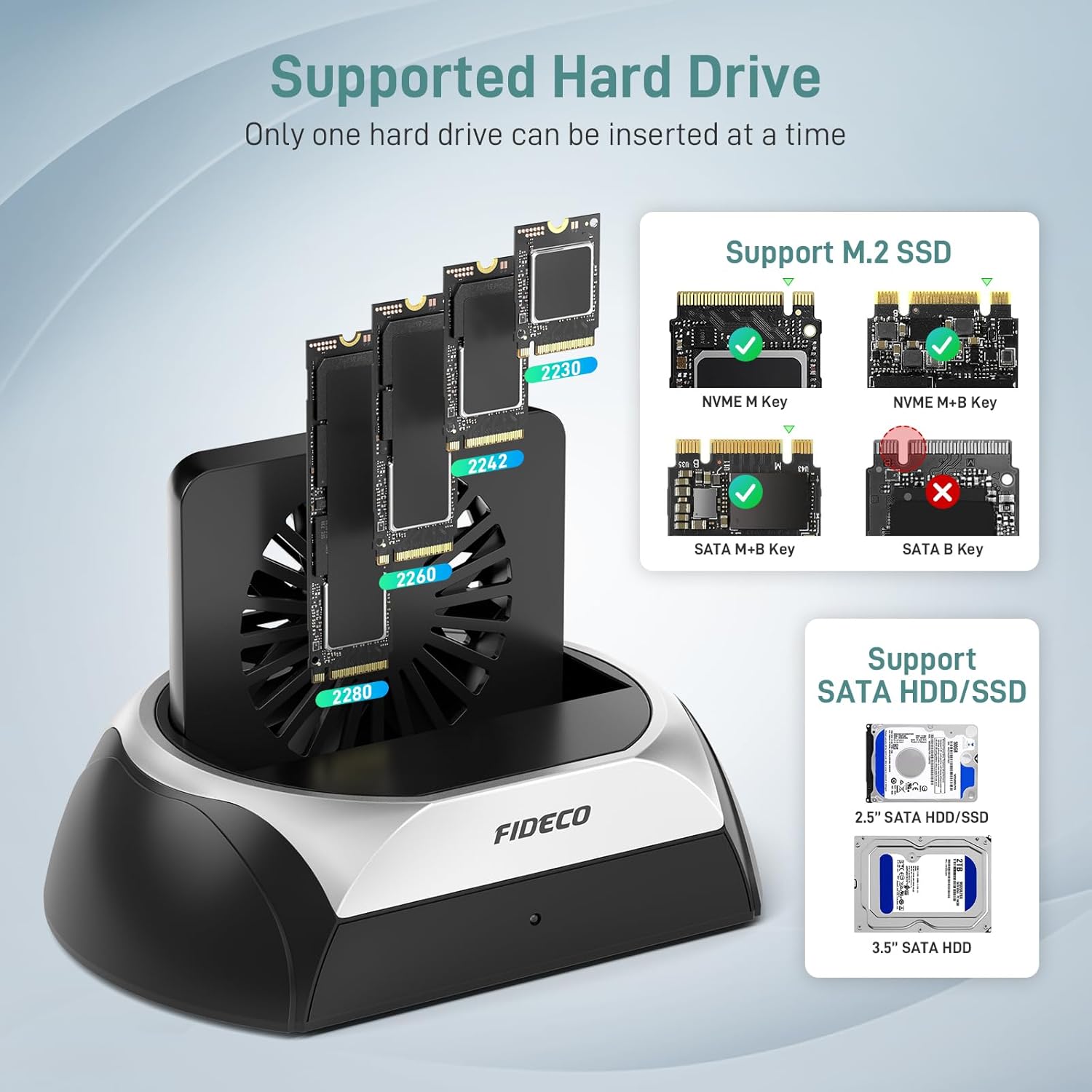
Image 4.2: Visual guide for compatible M.2 SSD and SATA HDD/SSD types.
- For 2.5"/3.5" SATA HDD/SSD: Gently slide the SATA drive into the SATA interface slot until it is firmly seated. Ensure the drive's connectors align with the docking station's connectors.
- For M.2 NVMe/SATA SSD: Insert the M.2 SSD into the M.2 SSD interface slot at an angle, then gently push down to secure it. Ensure the M.2 key type (M-Key or B+M Key for NVMe; B+M Key for SATA) matches the slot.
Note for New Drives: For new HDDs or SSDs, they must be initialized and formatted by your computer's operating system before they can be recognized and used. Refer to your operating system's disk management tools for this process.
5. Instrukcja obsługi
5.1 Przesyłanie danych
Once a drive is properly inserted and the docking station is connected and powered on, your computer should automatically detect the drive. You can then access, transfer, and manage files as you would with any internal or external drive.

Image 5.1: High-speed data transfer with an M.2 NVMe SSD, reaching up to 10Gbps.

Image 5.2: Data transfer with a 2.5"/3.5" SATA HDD/SSD, reaching up to 5Gbps.
5.2 Działanie wentylatora chłodzącego
The docking station features a cooling fan to maintain optimal drive temperatures, especially during extended use or large data transfers. The fan has an independent switch located at the rear of the unit.
- To turn the cooling fan on, slide the Cooling Fan Switch to the 'ON' position.
- To turn the cooling fan wyłączony, slide the Cooling Fan Switch to the 'OFF' position.
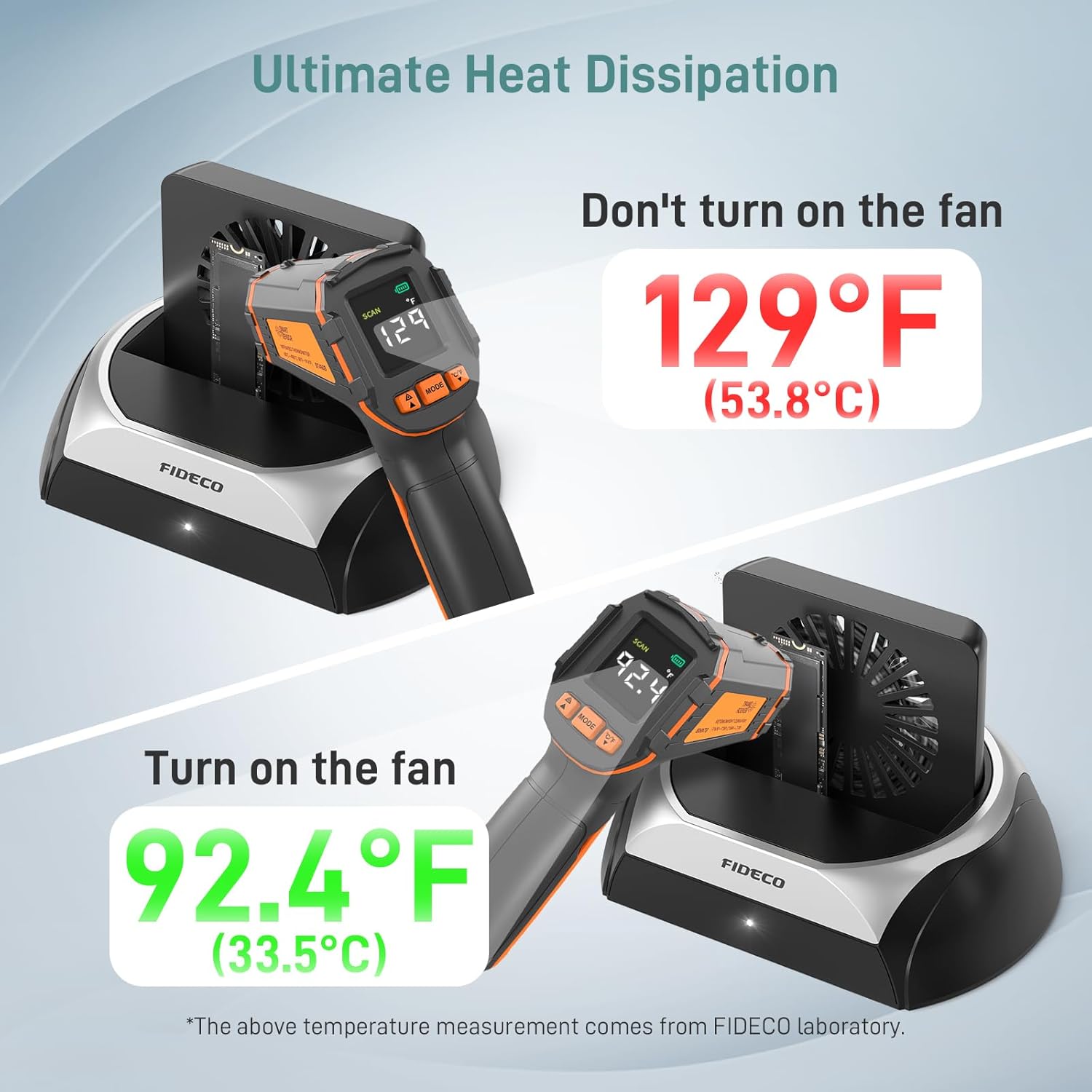
Image 5.3: Demonstrates the effectiveness of the cooling fan in reducing drive temperature.
5.3 Zgodność systemu
The FIDECO docking station is designed for broad compatibility and operates without the need for additional drivers on most modern operating systems.

Image 5.4: The docking station offers driver-free, plug-and-play functionality across Windows, Mac OS, and Linux.
6. Konserwacja
To ensure the longevity and optimal performance of your FIDECO Hard Drive Docking Station and the drives connected to it, consider the following maintenance guidelines:
- Zachowaj czystosc: Regularly clean the docking station and its ports with a soft, dry cloth to prevent dust accumulation, especially around the cooling fan vents.
- Prawidłowe postępowanie: Always handle hard drives and SSDs with care. Avoid dropping or subjecting them to physical shock.
- Cooling Fan Use: Utilize the cooling fan during prolonged data transfers or when accessing drives for extended periods to prevent overheating, which can impact drive performance and lifespan.
- Bezpieczne usuwanie: Always safely eject or unmount drives from your operating system before physically removing them from the docking station or disconnecting the docking station from your computer.
7. Rozwiązywanie Problemów
If you encounter issues with your FIDECO Hard Drive Docking Station, please refer to the following common solutions:
- Napęd nie został wykryty:
- Ensure the docking station is powered on and the LED indicator is lit.
- Verify that the drive is correctly and firmly seated in its slot.
- Spróbuj podłączyć stację dokującą do innego portu USB w komputerze.
- If it's a new drive, ensure it has been initialized and formatted in your operating system's Disk Management (Windows) or Disk Utility (Mac OS).
- Test with a different known-good drive to rule out a drive issue.
- Niska prędkość przesyłu danych:
- Ensure you are using a USB 3.0/3.1/3.2 port on your computer for optimal speeds. Connecting to a USB 2.0 port will result in slower speeds.
- Check the condition of your USB cable. Try a different cable if available.
- Ensure the cooling fan is active during large transfers to prevent thermal throttling.
- The actual speed may vary depending on the drive's performance and your computer's system configuration.
- Wentylator chłodzący nie działa:
- Ensure the Cooling Fan Switch is in the 'ON' position.
- Check if the docking station is receiving power.
If these steps do not resolve your issue, please contact FIDECO customer support.
8. Specyfikacje
| Funkcja | Szczegół |
|---|---|
| Numer modelu | YPZ03SN |
| Marka | FIDEKO |
| Kompatybilne urządzenia | Personal Computer, Laptops, OTG-enabled Phones/Tablets |
| Supported Hard Disk Form Factors | 2.5 Inches, 3.5 Inches (SATA HDD/SSD), M.2 (NVMe/SATA SSD) |
| Maksymalna liczba obsługiwanych urządzeń | 1 (one drive at a time) |
| Szybkość przesyłu danych | Up to 10 Gigabits Per Second (M.2 NVMe), Up to 5 Gigabits Per Second (SATA) |
| Interfejs sprzętowy | USB Docking Station (USB 3.2 Gen 2 Type-C) |
| Zgodność z systemem operacyjnym | Windows, Mac OS, Linux |
| Tworzywo | Akrylonitryl-butadien-styren (ABS) |
| Kolor | Czarny i srebrny |
| Wymiary produktu | 4.65 x 4.84 x 6.97 cala |
| Waga przedmiotu | 7.8 uncji (220 grama) |
9. Gwarancja i wsparcie
FIDECO is committed to providing quality products and customer satisfaction. For technical support, firmware updates, or warranty inquiries, please contact our support team.
- Wsparcie e-mailowe: wsparcie@fideco.cn
- Informacje o gwarancji: Please refer to the product packaging or contact FIDECO customer support for specific warranty terms and conditions.