
DUODUOGO T30
Instrukcja obsługi tabletu DUODUOGO 10.1 cala z systemem Android
Model: T30
1. Wprowadzenie
Welcome to the user manual for your new DUODUOGO 10.1 inch Android Tablet. This device is designed to provide a seamless and powerful experience for all your digital needs, from entertainment to productivity. Please read this manual carefully to ensure proper use and to maximize the performance and longevity of your tablet.

Figure 1.1: DUODUOGO 10.1 inch Android Tablet and accessories.
2. Co znajduje się w pudełku
Po otwarciu opakowania należy sprawdzić, czy zawiera ono wszystkie poniższe elementy:
- 1 x DUODUOGO 10.1 inch Android Tablet
- 1 x etui na tablet
- 1 x kabel USB typu C
- 1 x ładowarka
- 1 x Instrukcja obsługi
3. Koniec produktuview
The DUODUOGO T30 tablet is engineered for high performance and user convenience. Below are key features and components:
3.1. Wydajność i przechowywanie
Equipped with a powerful octa-core processor and 8GB RAM (4GB physical + 4GB virtual memory), the tablet ensures smooth multitasking and fast application loading. The 64GB internal storage is expandable up to 1TB via a TF card, providing ampprzestrzeń dla wszystkich Twoich files.

Figure 3.1: Performance and Storage Capabilities.

Figure 3.2: Octa-Core Processor for Enhanced Performance.
3.2. Display and Audiovisual
Experience vibrant visuals on the 10.1-inch IPS HD display with a resolution of 1920x1200 pixels. The tablet features dual speakers for an immersive audio experience and supports Widevine L1 DRM for high-quality streaming content.
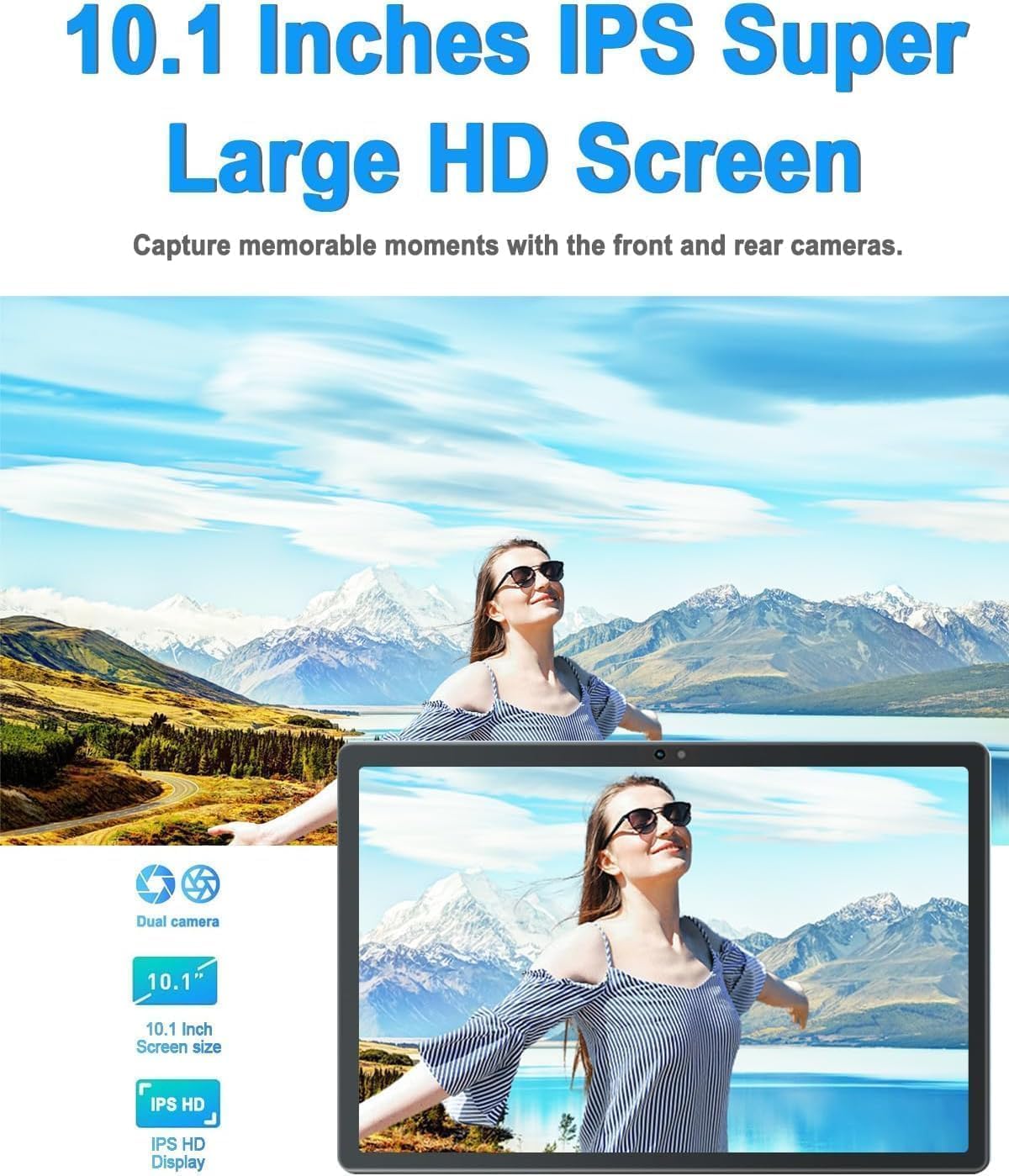
Figure 3.3: 10.1-inch IPS HD Display and Dual Cameras.

Figure 3.4: Immersive Audiovisual Experience.
3.3. Cameras and Connectivity
Capture moments with the 8MP rear camera and 5MP front camera. The tablet supports stable Wi-Fi (802.11ac) and Bluetooth 4.3 for seamless connectivity. It also includes GPS navigation capabilities.

Figure 3.5: Key Features and Connectivity Options.
3.4. Software and Battery
The tablet runs on the latest Android system and is GMS certified, ensuring full access to the Google Play Store and all its applications. A 6000 mAh battery provides extended usage time for various activities.

Figure 3.6: Google GMS Certification and App Access.
Wideo 3.1: Ponadview of the 10.1 inch Android Tablet's features and capabilities.
4. Przewodnik konfiguracji
4.1. Ładowanie początkowe
Before first use, fully charge your tablet. Connect the Type-C USB cable to the tablet's charging port and the other end to the provided charger. Plug the charger into a power outlet. The battery indicator on the screen will show charging progress.
4.2. Włączanie/wyłączanie zasilania
- Włączanie: Press and hold the Power button (usually located on the side or top edge) until the DUODUOGO logo appears.
- Aby wyłączyć: Naciśnij i przytrzymaj przycisk zasilania, aż pojawi się menu opcji zasilania. Wybierz opcję „Wyłącz” i potwierdź.
4.3. Kreator konfiguracji początkowej
The first time you power on the tablet, you will be guided through a setup wizard. Follow the on-screen prompts to:
- Wybierz swój język.
- Połącz się z siecią Wi-Fi.
- Zaloguj się za pomocą konta Google lub utwórz nowe.
- Ustaw blokadę ekranu (PIN, wzór, hasło).
- Review i zaakceptuj regulamin.
5. Instrukcja obsługi
5.1. Nawigacja w interfejsie
- Dotykać: Kliknij ikonę lub opcję, aby ją wybrać.
- Dotknij i przytrzymaj: Naciśnij i przytrzymaj element, aby uzyskać dostęp do większej liczby opcji.
- Trzepnąć: Przesuwaj palcem po ekranie, aby przewijać lub nawigować między ekranami.
- Szczypta: Użyj dwóch palców, aby powiększyć lub pomniejszyć zdjęcia i web stron.
5.2. Funkcje podstawowe
- Ekran główny: Tap the Home button (circle icon) to return to the main screen.
- Ostatnie aplikacje: Kliknij przycisk Ostatnie aplikacje (ikona kwadratowa), aby view i przełączać się między ostatnio używanymi aplikacjami.
- Z powrotem: Tap the Back button (triangle icon) to go back to the previous screen.
- Powiadomienia: Przesuń palcem od góry ekranu w dół, aby uzyskać dostęp do panelu powiadomień i szybkich ustawień.
- Regulacja głośności: Use the physical Volume Up/Down buttons on the side of the tablet.
5.3. Łączenie z Wi-Fi
- Idź do Ustawienia > Sieć i internet > Wi-Fi.
- Przełącz Wi-Fi On.
- Wybierz interesującą Cię sieć z listy.
- Wprowadź hasło, jeśli zostaniesz o to poproszony i dotknij Łączyć.
5.4. Korzystanie z kamer
Open the Camera app from your home screen or app drawer. You can switch between the front and rear cameras using the camera switch icon. Tap the shutter button to take a photo or start/stop video recording.

Figure 5.1: HD Large Screen Display for optimal viewing.
6. Konserwacja i pielęgnacja
To ensure the longevity and optimal performance of your DUODUOGO tablet, follow these maintenance guidelines:
- Czyszczenie: Use a soft, lint-free cloth to clean the screen and body. For stubborn smudges, slightly dampPrzetrzyj ściereczkę wodą lub płynem do czyszczenia ekranów. Unikaj silnych środków chemicznych.
- Temperatura: Do not expose the tablet to extreme temperatures (hot or cold) or direct sunlight for prolonged periods.
- Narażenie na działanie wody: This tablet is not waterproof. Avoid contact with liquids.
- Składowanie: Jeśli tablet nie będzie używany przez dłuższy czas, należy go przechowywać w chłodnym i suchym miejscu.
- Aktualizacje oprogramowania: Regularnie sprawdzaj dostępność aktualizacji systemu i instaluj je, aby mieć pewność, że Twój tablet ma najnowsze funkcje i poprawki zabezpieczeń. Przejdź do Ustawienia > System > Aktualizacja systemu.
7. Rozwiązywanie Problemów
Jeśli masz problemy z tabletem, zapoznaj się z poniższymi typowymi problemami i ich rozwiązaniami:
- Tablet nie włącza się:
- Ensure the battery is charged. Connect the charger and wait a few minutes before attempting to power on.
- Press and hold the Power button for at least 10-15 seconds to force a restart. - Ekran nie reaguje:
- Uruchom ponownie tablet.
- Ensure your hands are clean and dry. - Problemy z połączeniem Wi-Fi:
- Ensure Wi-Fi is enabled in Settings.
- Restart your Wi-Fi router.
- Forget the network in tablet settings and reconnect.
- Upewnij się, że znajdujesz się w zasięgu sygnału Wi-Fi. - Aplikacje ulegają awarii lub zawieszają się:
- Zamknij i ponownie otwórz aplikację.
- Clear the app's cache (Settings > Apps > [App Name] > Storage & cache > Clear cache).
- Update the app from Google Play Store.
- Uninstall and reinstall the app. - Niska wydajność:
- Zamknij nieużywane aplikacje działające w tle.
- Clear cache and temporary files.
- Upewnij się, że dostępna jest wystarczająca ilość miejsca do przechowywania.
- Restart the tablet regularly. - Bateria szybko się rozładowuje:
- Zmniejsz jasność ekranu.
- Turn off Wi-Fi, Bluetooth, and GPS when not in use.
- Close background apps.
- Limit notifications.
- Check battery usage in Settings to identify power-hungry apps.
If the problem persists, please contact DUODUOGO customer support for further assistance.
8. Specyfikacje
| Funkcja | Specyfikacja |
|---|---|
| Marka | DUODUOGO |
| Numer modelu | T30 |
| System operacyjny | Android |
| Rozmiar ekranu | 10.1 cali |
| Rozdzielczość ekranu | 1920 x 1200 pixels IPS |
| Edytor | Ośmiordzeniowy, 2 GHz (MediaTek) |
| BARAN | 8 GB (4 GB + 4 GB wirtualne) |
| Pamięć wewnętrzna | 64 GB |
| Możliwość rozbudowy pamięci masowej | Do 1TB (karta TF) |
| Kamera tylna | 8 MP |
| Przednia kamera | 5 MP |
| Pojemność baterii | 6000 mAh |
| Typ bezprzewodowy | 802.11ac Wi-Fi |
| Bluetooth | Bluetooth 4.3 |
| Łączność | Type-C USB, 3.5mm Headphone Jack |
| Waga przedmiotu | 1.04 funta |
| Wymiary produktu | 9.6 x 6.4 x 0.32 cala |
9. Gwarancja i wsparcie
Your DUODUOGO tablet comes with a standard manufacturer's warranty. Please refer to the warranty card included in your product packaging for specific terms and conditions, including warranty period and coverage details.
For technical support, troubleshooting assistance, or warranty claims, please contact DUODUOGO customer service through the contact information provided on the product packaging or the official DUODUOGO webstrona.
Prosimy zachować dowód zakupu w celach gwarancyjnych.
Ask a question about this manual
Ask about setup, troubleshooting, compatibility, parts, safety, or missing instructions. Manuals+ will review the question and use this page’s manual context to help answer it.