
GOOJODOQ M06 Bluetooth Keyboard and Mouse
Instrukcja obsługi
Wstęp
Thank you for choosing the GOOJODOQ M06 Bluetooth Keyboard and Mouse. This 3-in-1 device is designed to enhance your productivity across multiple platforms. This manual provides detailed instructions on how to set up, operate, and maintain your new device. Please read this manual carefully before use and keep it for future reference.
Zawartość opakowania
- Klawiatura 1 x Bluetooth
- 1 x mysz Bluetooth
- 1 x kabel ładujący (USB typu C)
- 1 x Instrukcja obsługi
Produkt ponadview
The GOOJODOQ M06 is a versatile input solution featuring a 10-inch keyboard and a compact mouse, both utilizing Bluetooth connectivity. The keyboard supports simultaneous connection to up to three devices and is compatible with Android, iOS, and Windows operating systems. It features silent scissor-switch keys for a comfortable typing experience.
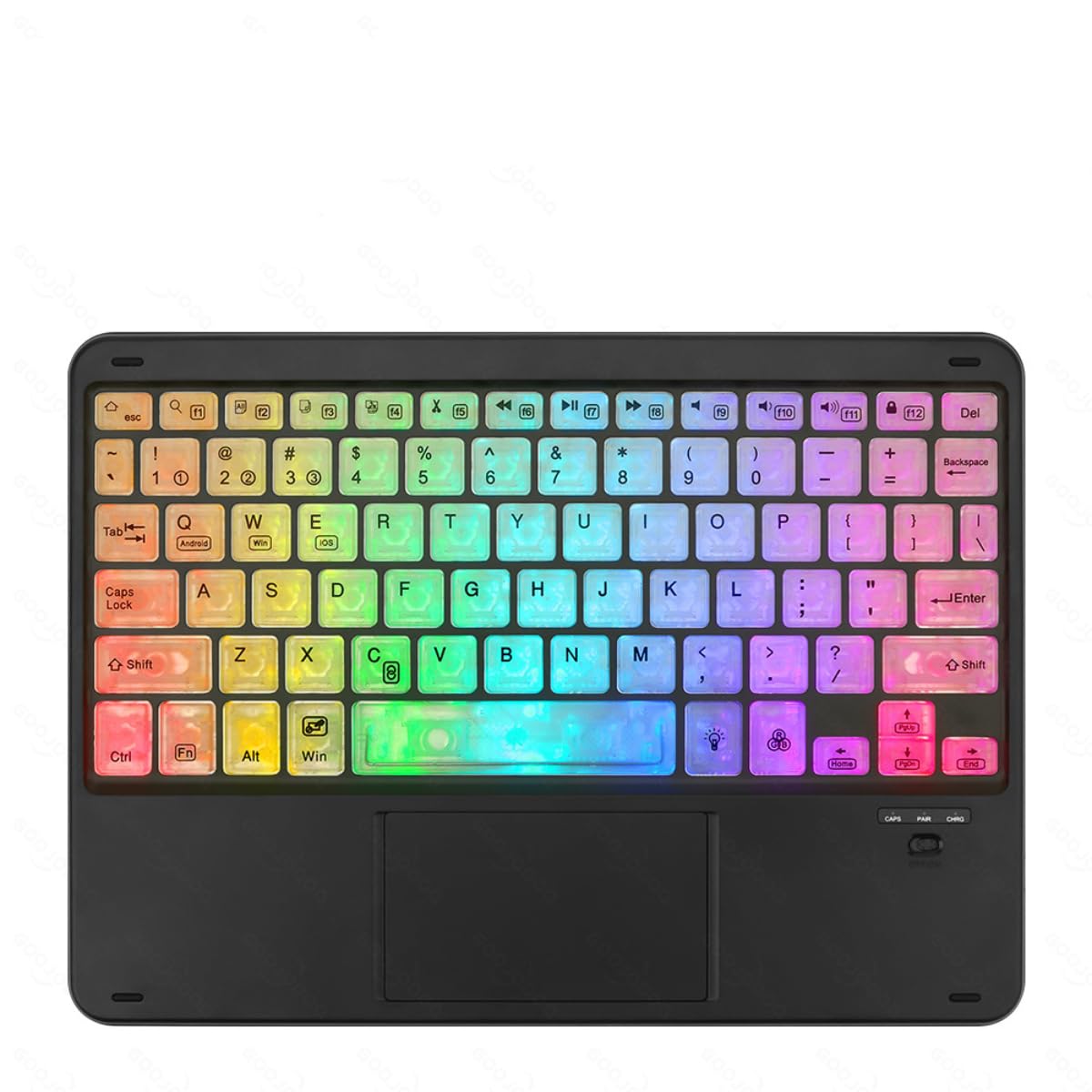
Image showing the GOOJODOQ M06 Bluetooth Keyboard and the accompanying mouse, both in black.
Setup: Bluetooth Connection
Follow these steps to connect your GOOJODOQ M06 Keyboard and Mouse via Bluetooth:
- Włączanie: Turn on the power switch located on the keyboard and mouse. The Bluetooth indicator light on the keyboard will illuminate.
- Wejdź w tryb parowania:
- For the first device, press FN + 1. The Bluetooth light will blink, indicating it's ready for pairing.
- For the second device, press FN + 2.
- For the third device, press FN + 3.
- Połącz na swoim urządzeniu: On your device (e.g., tablet, smartphone, computer), go to Bluetooth settings and search for available devices. Select "Bluetooth Keyboard" from the list to connect.
- Select Operating System: After successful connection, press the corresponding key combination to select your device's operating system:
- For Android devices, press FN + P.
- For Windows devices, press FN+W.
- For iOS devices, press FN + E.
- Automatyczne ponowne połączenie: Once successfully paired, the keyboard will automatically reconnect to the last used device when powered on.
Instrukcja obsługi
Przełączanie między podłączonymi urządzeniami
If you have paired the keyboard with multiple devices, you can easily switch between them by pressing the corresponding FN key combination:
- Naciskać FN + 1 to switch to the first paired device.
- Naciskać FN + 2 to switch to the second paired device.
- Naciskać FN + 3 to switch to the third paired device.
Ensure the target device's Bluetooth is enabled and within range for a successful switch.
Ogólne zastosowanie
The keyboard features a standard QWERTY layout. The mouse operates like a conventional Bluetooth mouse. Ensure both devices are charged for optimal performance.
Konserwacja
- Czyszczenie: Do czyszczenia powierzchni klawiatury i myszy użyj miękkiej, suchej ściereczki. W przypadku uporczywych zabrudzeń, delikatnie przetrzyj powierzchnię.amp Można używać ściereczki zwilżonej łagodnym mydłem, upewniając się, że do wnętrza urządzenia nie dostanie się żaden płyn.
- Składowanie: Przechowywać urządzenie w chłodnym i suchym miejscu, z dala od bezpośredniego światła słonecznego i ekstremalnych temperatur.
- Ładowanie: Charge the devices using the provided USB Type-C cable. Avoid using damaged cables or chargers.
- Unikaj płynów: Do not expose the keyboard or mouse to water or other liquids.
Rozwiązywanie problemów
- Urządzenie nie łączy się:
- Sprawdź, czy klawiatura i mysz są włączone i całkowicie naładowane.
- Upewnij się, że Bluetooth jest włączony na urządzeniu hosta.
- Try re-entering pairing mode (FN + 1/2/3) and re-pairing with your device.
- Ensure the correct operating system mode is selected (FN + Q/W/E).
- Move the devices closer to each other to ensure they are within Bluetooth range.
- Klawisze nie reagują:
- Check if the keyboard is connected to the correct device (FN + 1/2/3).
- Naładuj klawiaturę.
- Uruchom ponownie urządzenie hosta.
- Mysz nie odpowiada:
- Recharge the mouse.
- Upewnij się, że mysz jest włączona.
- Re-pair the mouse with your device if necessary.
Specyfikacje
- Model: M06
- Tworzywo: ABS + Metal
- Kolor: Czarny
- Rozmiar: 10 inches (Keyboard)
- Port ładowania: USB typu C
- Łączność: Bluetooth (supports 3 devices simultaneously)
- Zgodność: Android, iOS, Windows
- Funkcje klawiatury: Scissor-switch keys, Silent operation
Gwarancja i wsparcie
GOOJODOQ products are designed for reliability and performance. For warranty information, please refer to the warranty card included with your purchase or visit the official GOOJODOQ website. For technical support or further assistance, please contact GOOJODOQ customer service through the contact information provided on our webwitrynę lub platformę zakupową.