
1. Wprowadzenie
The PhoFuta M832 is an ultra-portable wireless thermal printer designed for convenience and efficiency. Weighing approximately 1.5 pounds and compact in size, it is ideal for use in various settings including business trips, vehicles, offices, homes, and schools. This printer utilizes thermal technology, eliminating the need for ink cartridges and simplifying your printing experience.

2. Informacje dotyczące bezpieczeństwa
Przed użyciem urządzenia należy uważnie przeczytać wszystkie instrukcje bezpieczeństwa, aby zapewnić bezpieczną i prawidłową obsługę.
- Nie wystawiaj drukarki na działanie ekstremalnych temperatur, bezpośredniego światła słonecznego i wysokiej wilgotności.
- Keep the printer away from water or other liquids to prevent electric shock or damage.
- Należy używać wyłącznie dołączonego kabla ładującego i adaptera.
- Nie próbuj samodzielnie demontować ani naprawiać drukarki. Skontaktuj się z obsługą klienta, aby uzyskać pomoc.
- Podczas ładowania urządzenia należy zapewnić odpowiednią wentylację.
3. Co znajduje się w pudełku
Sprawdź, czy w opakowaniu znajdują się wszystkie komponenty:
- 1 x PhoFuta M832 Portable A4 Printer
- 1 x USB Cable and Type-C Converter
- 1 x A4 Thermal Paper Roll
- 1 x Instrukcja obsługi
4. Konfiguracja
4.1 Ładowanie urządzenia
Before first use, fully charge the printer. Connect the provided USB-C cable to the printer's charging port and the other end to a compatible power source (e.g., wall adapter, computer USB port). The indicator light will show charging status.

4.2 Ładowanie papieru termicznego
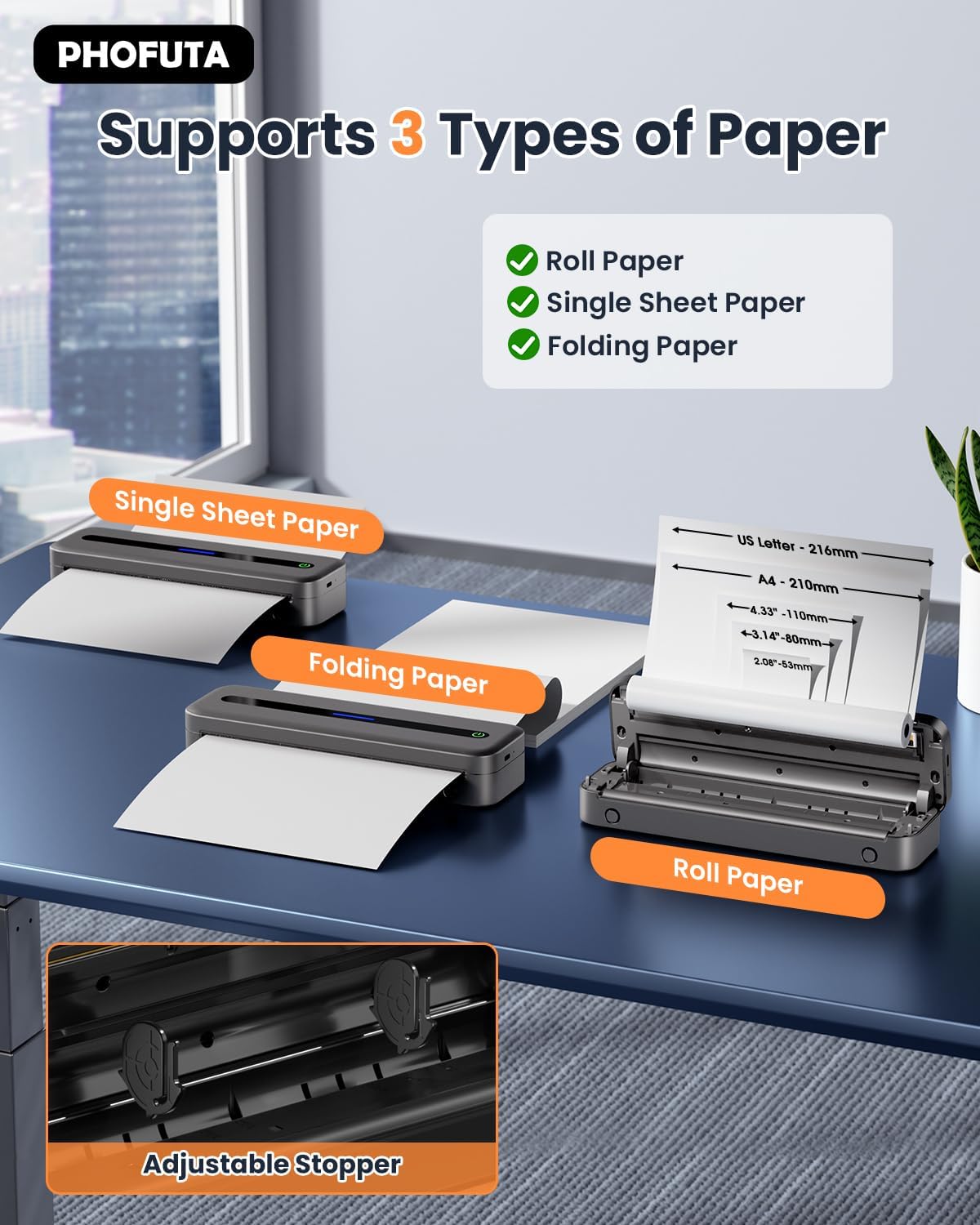
The PhoFuta M832 supports various thermal paper types, including roll paper, single sheets, and folding paper. Open the paper compartment cover, insert the thermal paper according to the diagram, ensuring the printable side faces the print head. Close the cover securely.
4.3 Łączenie się z urządzeniem
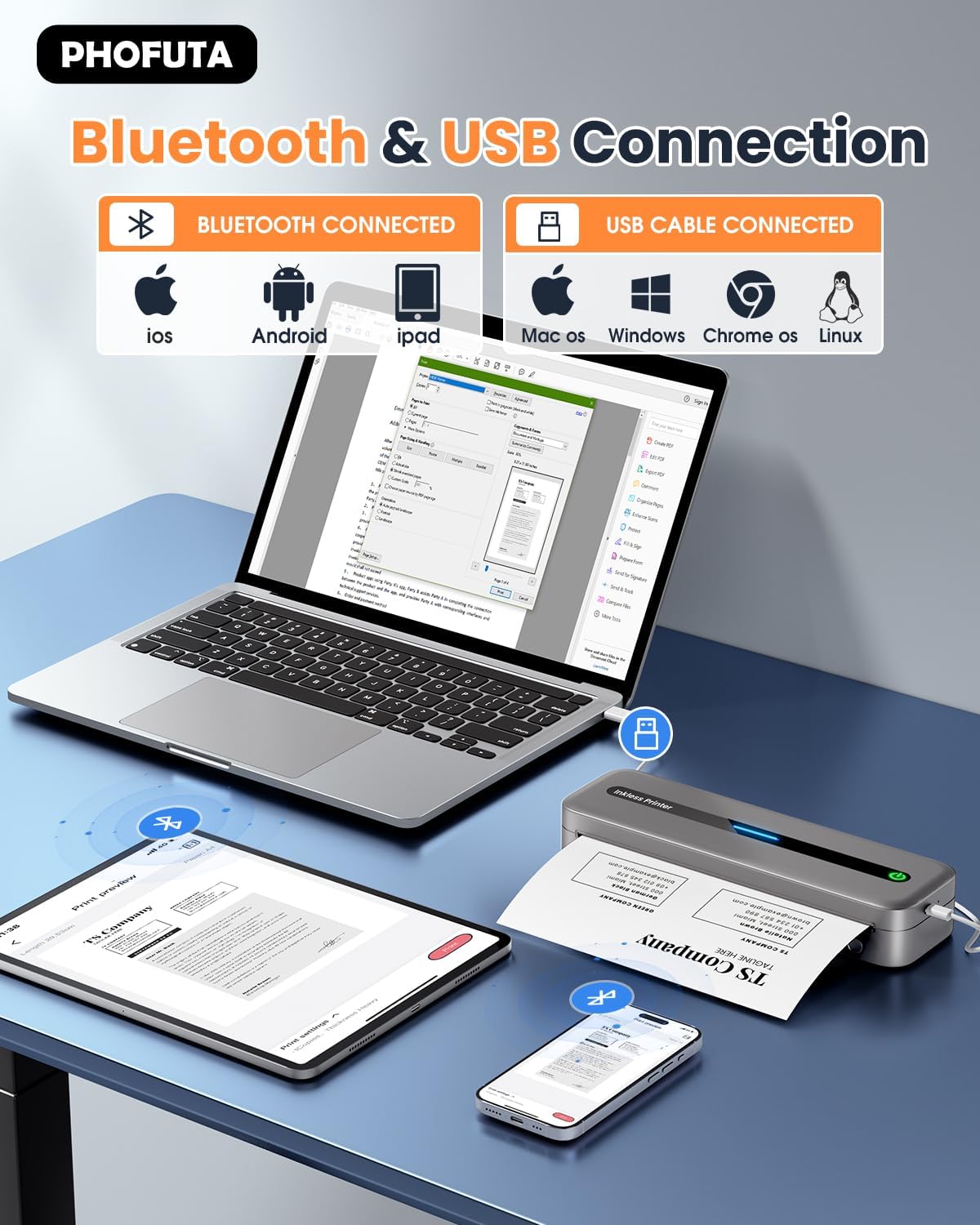
The printer offers both Bluetooth and USB connectivity options.
- Połączenie Bluetooth: Turn on the printer and enable Bluetooth on your smartphone or tablet. Download the Phomemo app (available for iOS and Android). Open the app, search for the printer, and pair.
- Połączenie USB: Connect the printer to your laptop or computer using the provided USB-C cable. Install the necessary drivers (usually available from the PhoFuta website or included on a small disk/QR code).
5. Instrukcja obsługi
5.1 Podstawowe drukowanie
Once connected, open the document or image you wish to print from your device. Select the PhoFuta M832 as your printer. Adjust print settings as needed (e.g., paper size, orientation) and initiate the print command. The printer will feed the thermal paper and produce the printout.
5.2 Jakość druku
The PhoFuta M832 offers a maximum print resolution of 300 DPI (dots per inch) for black and white prints, ensuring clear and legible documents.

5.3 Obsługiwane rozmiary papieru
The printer supports various paper sizes, including US Letter, A4, and smaller sizes like 4-inch, 3-inch, and 2-inch (216mm, 210mm, 110mm, 80mm, 53mm respectively). Ensure you use thermal paper compatible with these dimensions.
6. Konserwacja
6.1 Czyszczenie drukarki
Regularly clean the printer to maintain optimal performance. Use a soft, dry, lint-free cloth to wipe the exterior. For the print head, use a cotton swab lightly dampened with isopropyl alcohol, wiping gently. Ensure the printer is off and disconnected from power before cleaning.
6.2 Thermal Paper Considerations
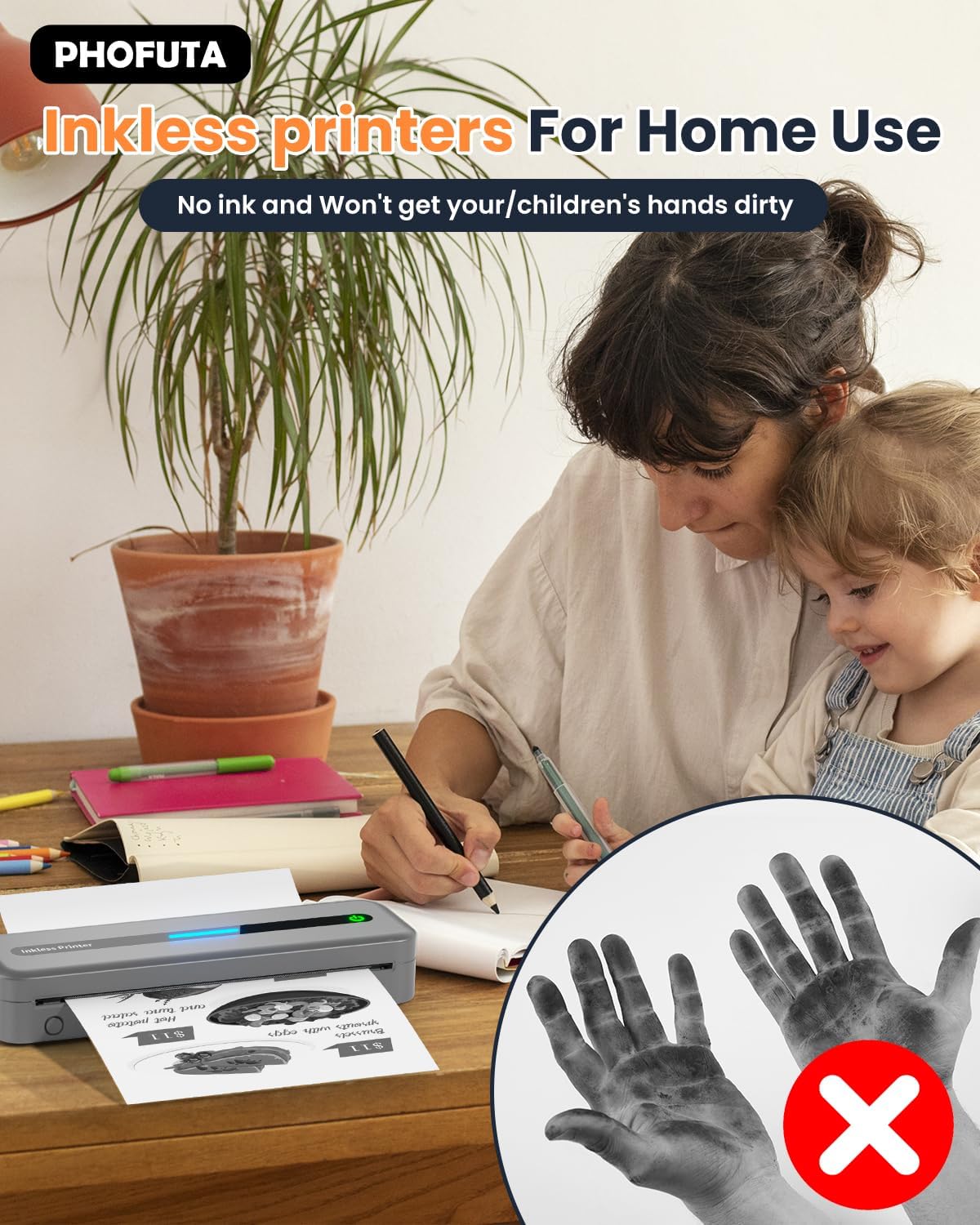
The PhoFuta M832 is an inkless printer, meaning it uses thermal paper that reacts to heat to create images. This eliminates the need for ink cartridges, preventing messy hands and reducing ongoing costs. However, it is crucial to use only thermal paper, as regular paper will not work. Thermal prints may fade over time if exposed to heat, light, or certain chemicals, so store important documents appropriately.

7. Rozwiązywanie Problemów
If you encounter issues with your PhoFuta M832 printer, refer to the following common problems and solutions:
- Drukarka się nie włącza: Upewnij się, że bateria jest naładowana. Podłącz drukarkę do źródła zasilania i spróbuj ponownie.
- Nie można połączyć się przez Bluetooth: Make sure Bluetooth is enabled on both devices. Restart the printer and your device. Ensure the Phomemo app is installed and updated.
- Słaba jakość wydruku: Check if you are using thermal paper. Ensure the paper is loaded correctly. Clean the print head if smudges or lines appear.
- Zakleszczenie papieru: Turn off the printer, open the paper compartment, and carefully remove any jammed paper. Ensure paper is loaded straight and not wrinkled.
- Drukarka nie odpowiada: Try restarting the printer. If the issue persists, perform a factory reset (refer to the Phomemo app or detailed user manual for instructions).
8. Specyfikacje
| Funkcja | Specyfikacja |
|---|---|
| Marka | PhoFuta |
| Model | M832 |
| Numer produktu | PH-M832-GY |
| Kolor | Szary |
| Technologia druku | Termiczny |
| Wyjście drukarki | Monochromia |
| Maksymalna rozdzielczość wydruku (czarno-biała) | 300 DPI |
| Maksymalna prędkość drukowania (monochromatyczna) | 5 stron na minutę |
| Maksymalna pojemność arkuszy wejściowych | 300 arkuszy |
| Obsługiwany typ nośnika | Plain Paper (Thermal Paper) |
| Rozmiar arkusza | US Letter/A4/4"/3"/2" (216mm/210mm/110mm/80mm/53mm) |
| Drukowanie dwustronne | NIE |
| Technologia łączności | Bluetooth |
| Interfejs sprzętowy | USB-C |
| Kompatybilne urządzenia | Smartphones, Tablets, Laptops, Computers |
| Typ skanera | Przenośny |
| Rozdzielczość skanera | 203 x 203 DPI |
| Wymiary produktu | Wymiary 31 x 11.4 x 9.2 cm |
| Waga produktu | 992 gramów |
| Bateria | 1 litowo-jonowy (w zestawie) |
| Skład baterii | Lit |
| Gwarantowane aktualizacje oprogramowania do | Nieznany |
9. Gwarancja i wsparcie
9.1 Informacje o gwarancji
The PhoFuta M832 Portable Thermal Printer comes with a Dożywotnia gwarancja. This warranty covers manufacturing defects and ensures the long-term reliability of your device. Please retain your proof of purchase for warranty claims.
9.2 Obsługa klienta
For technical assistance, troubleshooting, or warranty inquiries, please contact PhoFuta customer support. Refer to the official PhoFuta webAby uzyskać najaktualniejsze informacje o kanałach pomocy, odwiedź witrynę lub skorzystaj z danych kontaktowych podanych przy zakupie.