Instrukcja obsługi routera ZTE T3000
Model: S9131037
Wstęp
This manual provides comprehensive instructions for the ZTE T3000 Router, designed to offer reliable and high-speed network connectivity for home and professional environments. It covers essential information regarding product features, setup procedures, operational guidelines, maintenance tips, and troubleshooting solutions to ensure optimal performance and user experience.
Informacje dotyczące bezpieczeństwa
- Zasilanie: Use only the power adapter provided with the device. Using an incompatible power adapter may damage the router and void the warranty.
- Wentylacja: Ensure adequate ventilation around the router. Do not block ventilation openings. Avoid placing the device in enclosed spaces or near heat sources.
- Woda i wilgoć: Keep the router away from water, moisture, and high humidity environments. Do not operate the device with wet hands.
- Czyszczenie: Przed czyszczeniem odłącz zasilanie. Użyj miękkiej, suchej ściereczki. Nie używaj środków czyszczących w płynie ani aerozolu.
- Umieszczenie: Place the router on a stable, flat surface. Avoid placing it in direct sunlight or areas with extreme temperatures.
- Serwisowanie: Do not attempt to disassemble or repair the router yourself. Refer all servicing to qualified personnel.
Zawartość opakowania
Sprawdź, czy w przesyłce znajdują się wszystkie elementy:
- ZTE T3000 Router
- Zasilacz
- Kabel Ethernet
- Szybki przewodnik (jeśli dotyczy)
Produkt ponadview
Familiarize yourself with the components of your ZTE T3000 Router.
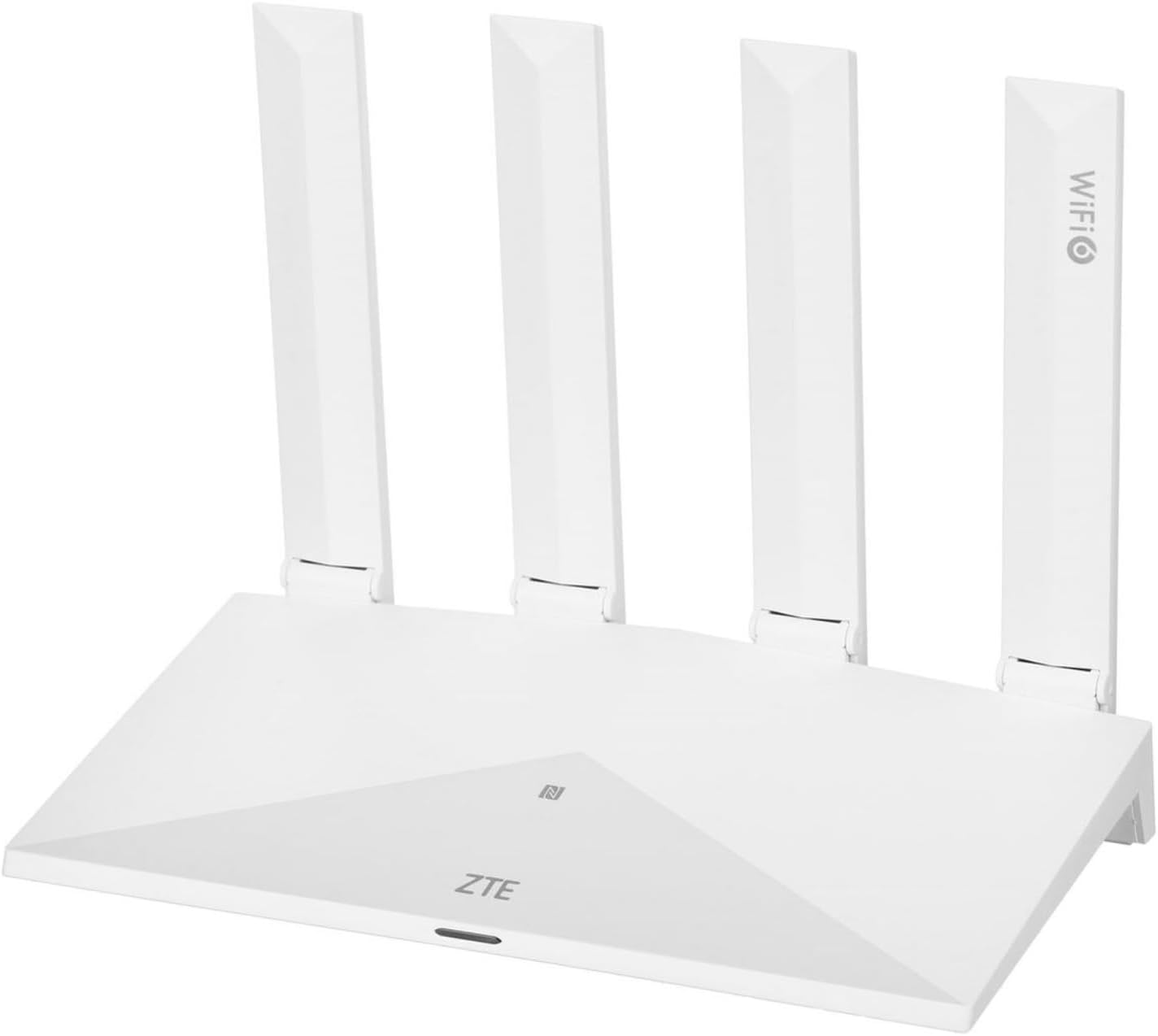
Rysunek 1: Przód view of the ZTE T3000 Router. The router is white with four external antennas. The ZTE logo is visible on the front panel, along with an LED indicator and a Wi-Fi 6 logo on one of the antennas.
Wskaźniki LED
| Wskaźnik | Status | Opis |
|---|---|---|
| Moc | Jednolity zielony | Urządzenie jest włączone i działa normalnie. |
| Moc | Wyłączony | Urządzenie jest wyłączone. |
| Internet | Jednolity zielony | Połączony z internetem. |
| Internet | Migające zielone | Nawiązywanie połączenia z Internetem lub przesyłanie danych. |
| Internet | Jednolity czerwony | Brak połączenia internetowego. |
| Wi-Fi | Jednolity zielony | Wi-Fi jest włączone. |
| Wi-Fi | Migające zielone | Wi-Fi Protected Setup (WPS) in progress. |
| Wi-Fi | Wyłączony | Wi-Fi jest wyłączone. |
Porty i przyciski
- Port zasilania: Łączy się z zasilaczem.
- Port WAN: Łączy się z modemem lub siecią dostawcy usług internetowych (ISP).
- LAN Ports (RJ-45): Łączy się z urządzeniami przewodowymi, takimi jak komputery, konsole do gier i telewizory Smart TV.
- Przycisk resetowania: Służy do przywracania ustawień fabrycznych routera. Naciśnij i przytrzymaj przez 5–10 sekund, gdy router jest włączony.
- Przycisk WPS/Wi-Fi: Press to activate WPS for easy Wi-Fi connection, or press and hold to toggle Wi-Fi on/off.
Organizować coś
Krok 1: Podłącz sprzęt
- Place the router in a central location to maximize Wi-Fi coverage, away from obstructions and electronic devices that may cause interference.
- Connect one end of the provided Ethernet cable to the WAN port on your ZTE T3000 Router.
- Connect the other end of the Ethernet cable to your modem's LAN port or the Ethernet wall jack provided by your ISP.
- Connect the power adapter to the router's power port and then plug the adapter into a power outlet.
- Wait for the router to power on. The Power LED should turn solid green. The Internet LED may flash or turn solid green once a connection is established.
Krok 2: Połącz się z siecią
You can connect to the router's network via Wi-Fi or a wired connection.
Połączenie Wi-Fi:
- Locate the Wi-Fi network name (SSID) and password printed on the label at the bottom or back of your router.
- Na komputerze lub urządzeniu mobilnym wyszukaj dostępne sieci Wi-Fi.
- Select your router's SSID from the list and enter the Wi-Fi password when prompted.
Połączenie przewodowe:
- Connect one end of an Ethernet cable to a LAN port on your router.
- Podłącz drugi koniec kabla Ethernet do portu Ethernet w komputerze lub innym urządzeniu przewodowym.
Instrukcja obsługi
Dostęp do Web Interfejs zarządzania
- Otwórz web przeglądarki (np. Chrome, Firefox, Edge) na urządzeniu podłączonym do routera.
- W pasku adresu wpisz domyślny adres IP routera (zwykle
192.168.1.1or192.168.0.1) i naciśnij Enter. Dokładny adres IP znajdziesz na etykiecie routera. - Wprowadź domyślną nazwę użytkownika i hasło, gdy pojawi się monit. Zazwyczaj są to
adminfor both, or found on the router's label. - Po pomyślnym zalogowaniu uzyskasz dostęp do routera web interfejs zarządzania, w którym można skonfigurować różne ustawienia.
Basic Wi-Fi Configuration
Z web management interface, navigate to the Wi-Fi settings section (often labeled "Wireless" or "WLAN").
- Zmień SSID: You can change the network name (SSID) to something more memorable.
- Zmień hasło: It is highly recommended to change the default Wi-Fi password to a strong, unique password for security.
- Tryb bezpieczeństwa: Ensure the security mode is set to WPA2-PSK or WPA3-PSK for optimal security.
- Sieć gości: If available, consider enabling a guest network for visitors to keep your main network secure.
Tryb punktu dostępu
The ZTE T3000 Router supports Access Point (AP) mode, allowing it to extend an existing wired network's Wi-Fi coverage. To enable AP mode:
- Connect the router's LAN port to a LAN port on your existing main router. Do not use the WAN port.
- Uzyskaj dostęp do web interfejs zarządzania.
- Navigate to the operating mode settings (often under "Operation Mode" or "System Settings").
- Select "Access Point" mode and save the settings. The router will restart.
- Ensure the router's IP address is on the same subnet as your main router but outside its DHCP range to avoid conflicts.
Konserwacja
- Zwykłe ponowne uruchomienie: Periodically restart your router (e.g., once a month) by unplugging it for 10 seconds and plugging it back in. This can resolve minor performance issues.
- Aktualizacje oprogramowania układowego: Check the ZTE official website for firmware updates. Keeping your router's firmware up-to-date ensures optimal performance, security, and new features.
- Czyszczenie fizyczne: Keep the router free from dust. Use a soft, dry cloth to wipe the exterior. Ensure ventilation holes are not blocked.
- Zarządzanie hasłami: Regularly change your Wi-Fi and router login passwords to strong, unique combinations.
Rozwiązywanie problemów
| Problem | Możliwa przyczyna | Rozwiązanie |
|---|---|---|
| Brak dostępu do Internetu | Incorrect cable connection; ISP issue; Router/modem malfunction. | Check all cable connections. Restart the modem and router. Contact your ISP if the issue persists. |
| Sygnał Wi-Fi jest słaby lub często zanika | Router placement; Interference from other devices; Too many connected devices. | Relocate the router to a central, open area. Avoid placing near microwaves, cordless phones. Reduce the number of active devices. |
| Nie można uzyskać dostępu do strony zarządzania routerem | Incorrect IP address; Device not connected to router; Browser issue. | Ensure your device is connected to the router (wired or Wi-Fi). Verify the correct IP address (e.g., 192.168.1.1). Try a different web przeglądarka. |
| Zapomniałeś hasła Wi-Fi lub hasła logowania? | Zapomniałeś hasła. | Perform a factory reset by pressing the Reset button for 5-10 seconds. This will revert all settings to default, including passwords. |
Specyfikacje
| Funkcja | Szczegół |
|---|---|
| Marka | ZTE |
| Numer modelu | S9131037 |
| Kolor | Biały |
| System operacyjny | RouterOS |
| Technologia łączności | Wi-Fi, Ethernet |
| Funkcja specjalna | Tryb punktu dostępu |
| Kompatybilne urządzenia | Komputer osobisty |
| Klasa pasma częstotliwości | Dwuzakresowy |
| Standard komunikacji bezprzewodowej | 802.11n |
| Zalecane zastosowania | Dom, Profesjonalny |
Gwarancja i wsparcie
ZTE products typically come with a limited warranty. Please refer to the warranty card included in your product package or visit the official ZTE webAby zapoznać się ze szczegółowymi warunkami gwarancji obowiązującymi w Twoim regionie, odwiedź naszą witrynę.
For technical support, troubleshooting assistance, or to inquire about repairs, please contact ZTE customer support through their official website or the contact information provided in your product documentation. Ensure you have your model number (S9131037) and purchase details ready when contacting support.
Zasoby internetowe: