
WOLFANG WD01
Instrukcja obsługi kamery samochodowej WOLFANG 4K z przodu i z tyłu
Marka: WOLFANG | Modelka: WD01
1. Wprowadzenie
Thank you for choosing the WOLFANG WD01 4K Dash Cam. This manual provides detailed instructions for the installation, operation, and maintenance of your new dash camera system. Designed for optimal road safety, the WD01 offers high-resolution recording, advanced features, and user-friendly controls to ensure a reliable and comprehensive driving record.
The WOLFANG WD01 is a dual-camera system capable of simultaneously recording 4K video from the front camera and 1080P video from the rear camera. It features a responsive 3-inch IPS touch screen, built-in GPS for route tracking, and WiFi connectivity for easy access via a smartphone app. Enhanced night vision, G-sensor, loop recording, and 24-hour parking monitoring provide comprehensive protection for your vehicle.

Figure 1.1: WOLFANG WD01 4K Dash Cam system overview, showing the main unit, rear camera, and smartphone app integration.
2. Zawartość opakowania
Please check the package carefully to ensure all items are present and in good condition. If any items are missing or damaged, please contact WOLFANG customer support.
- 1 x WOLFANG WD01 4K Dash Cam (Front Camera)
- 1 x tylna kamera 1080P
- 1 x kabel kamery tylnej
- 1 x Car Charger (with built-in GPS module)
- 1 x Przyssawka
- 1 x kabel zasilający typu C
- 1 x narzędzie do przycinania przewodów samochodowych
- 1 x Instrukcja obsługi
- Spare 3M type stickers (for rear camera and GPS unit, if applicable)

Figure 2.1: All components included in the WOLFANG WD01 Dash Cam package.
3. Specyfikacje
| Funkcja | Opis |
|---|---|
| Nazwa modelu | WD01 |
| Rozdzielczość przechwytywania wideo | Front 4K UHD (3840x2160P) and Rear 1080P FHD (1920x1080P) |
| Wyświetlacz | 3-calowy ekran dotykowy IPS |
| Pole View | Przód 170 stopni, tył 140 stopni |
| Łączność | Built-in WiFi, GPS, Type-C USB |
| Wizja nocna | SONY STARVIS Sensor, F1.8 Aperture, WDR & HDR |
| Cechy specjalne | Auto Recording, Loop Recording, G-Sensor, 24/7 Parking Monitoring (G-Sensor, Time-lapse), Automatic and Manual Emergency Recording |
| Składowanie | Obsługuje karty TF do 256 GB (brak w zestawie) |
| Źródło zasilania | Ładowarka samochodowa (12 V) |
| Dimensions (Front Cam) | 1.52 x 3.6 x 2.2 cala |
| Waga przedmiotu | 1.23 funta |
| Baterie | Wymagana 1 bateria litowo-jonowa (wbudowana) |
| Producent | WOLFANG |
| Kraj pochodzenia | Chiny |
4. Konfiguracja i instalacja
Follow these steps for proper installation of your WOLFANG WD01 Dash Cam system.
4.1 Przygotowanie do instalacji
- Formatowanie karty Micro SD: Before first use, insert a high-speed (Class 10 or higher) TF card (up to 256GB, not included) into the dash cam and format it via the camera's settings menu. This ensures optimal performance and prevents recording errors.
- Wybierz miejsce montażu: Wybierz miejsce na przedniej szybie, które nie będzie Ci przeszkadzać. view of the road. The ideal spot is usually behind the rearview mirror. For the rear camera, choose a central location on the rear windshield.
4.2 Instalacja przedniej kamery
- Clean the chosen area on your windshield thoroughly to ensure strong adhesion of the suction cup mount.
- Przymocuj uchwyt z przyssawką do kamery samochodowej.
- Press the suction cup firmly against the windshield and lock it into place.
- Dostosuj kąt ustawienia przedniej kamery, aby mieć pewność, że wyraźnie uchwyci ona drogę przed pojazdem.
4.3 Instalacja kamery tylnej
- Clean the chosen area on your rear windshield.
- Zamocuj tylną kamerę za pomocą podkładki samoprzylepnej.
- Connect the rear camera cable to the rear camera and route it neatly to the front dash cam. Use the included trim tool to tuck the cable along the vehicle's headliner and A-pillars for a clean installation.
- Plug the rear camera cable into the AV-IN port on the main dash cam unit.
4.4 Połączenie zasilania
- Podłącz ładowarkę samochodową do gniazda zapalniczki w pojeździe.
- Connect the Type-C end of the power cable to the Type-C port on the dash cam.
- Route the power cable neatly, tucking it along the dashboard and console using the trim tool.
- Kamera samochodowa włączy się automatycznie i rozpocznie nagrywanie po włączeniu zapłonu pojazdu.

Figure 4.1: Wiring diagram for the WOLFANG WD01 Dash Cam system.
5. Działanie
5.1 Podstawowe nagrywanie
Once powered on, the dash cam will automatically start recording. The front camera records in 4K UHD, and the rear camera records in 1080P FHD simultaneously. Recordings are saved to the inserted TF card.

Figure 5.1: Visual representation of 4K front and 1080P rear recording quality.
- Nagrywanie w pętli: The dash cam records video in continuous loops (e.g., 1, 3, or 5-minute segments). When the TF card is full, the oldest unlocked video files zostaną automatycznie nadpisane.
- Nagrywanie awaryjne (czujnik G): W przypadku nagłego uderzenia lub kolizji wbudowany czujnik G automatycznie wykryje zdarzenie i zablokuje bieżące nagranie wideo file, zapobiegając nadpisaniu przez nagrywanie w pętli. Te filesą przechowywane w osobnym folderze „Wydarzenia”.
- Ręczne nagrywanie awaryjne: You can manually lock the current recording by pressing the designated button on the dash cam (refer to the on-screen interface or physical buttons).
5.2 3-inch IPS Touch Screen
The responsive 3-inch IPS touch screen allows for easy navigation of menus, settings, and video playback. Simply tap the icons on the screen to access various functions.
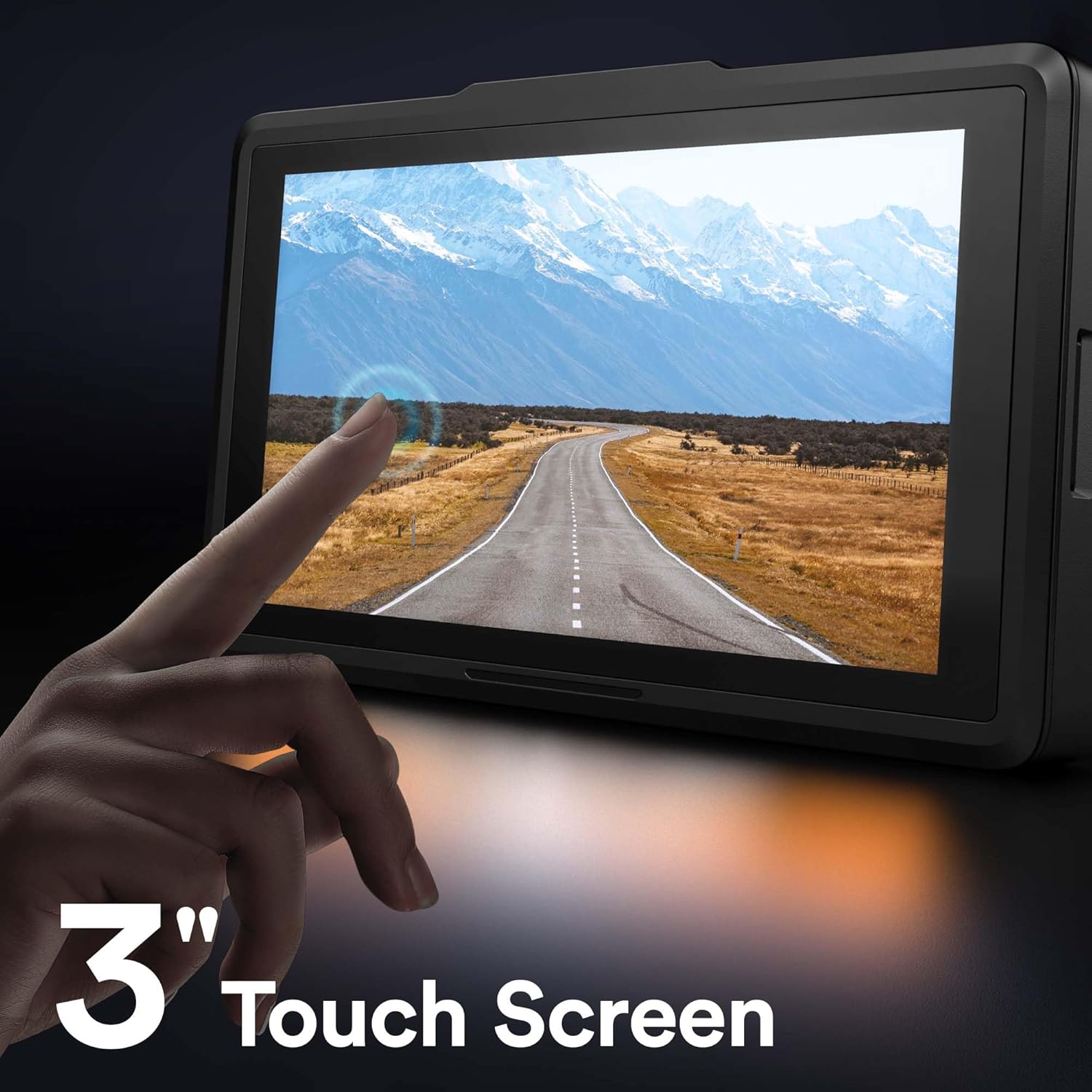
Figure 5.2: The 3-inch IPS touch screen interface.
5.3 Funkcjonalność GPS
The built-in GPS module (integrated into the car charger cable) records your driving route, speed, and other location data. This information can be viewed using a dedicated GPS player software on your Windows or Mac computer, providing crucial evidence in case of an incident. Please contact WOLFANG support to obtain the GPS player software.

Figure 5.3: GPS data access via computer and WiFi connectivity for smartphone.
5.4 Wbudowane Wi-Fi i sterowanie aplikacją
The WOLFANG WD01 features built-in WiFi, allowing you to connect your smartphone (iOS or Android) to the dash cam via the "LuckyCam" app. This app provides convenient access to:
- Na żywo przedview nagrań.
- Playback of recorded videos.
- Adjustment of camera settings.
- Direct download of recorded videos to your smartphone.
- Easy sharing of footage on social media.
Download the "LuckyCam" app from your smartphone's app store. Follow the in-app instructions to connect to your dash cam's WiFi network.

Figure 5.4: Easy access and control via the LuckyCam smartphone application.
5.5 Widzenie nocne
Equipped with an advanced SONY STARVIS sensor, F1.8 large aperture, and TRUE WDR (Wide Dynamic Range) technology, the WD01 dash cam provides enhanced low-light sensitivity, ensuring clear and detailed video recordings even in challenging night-time conditions.
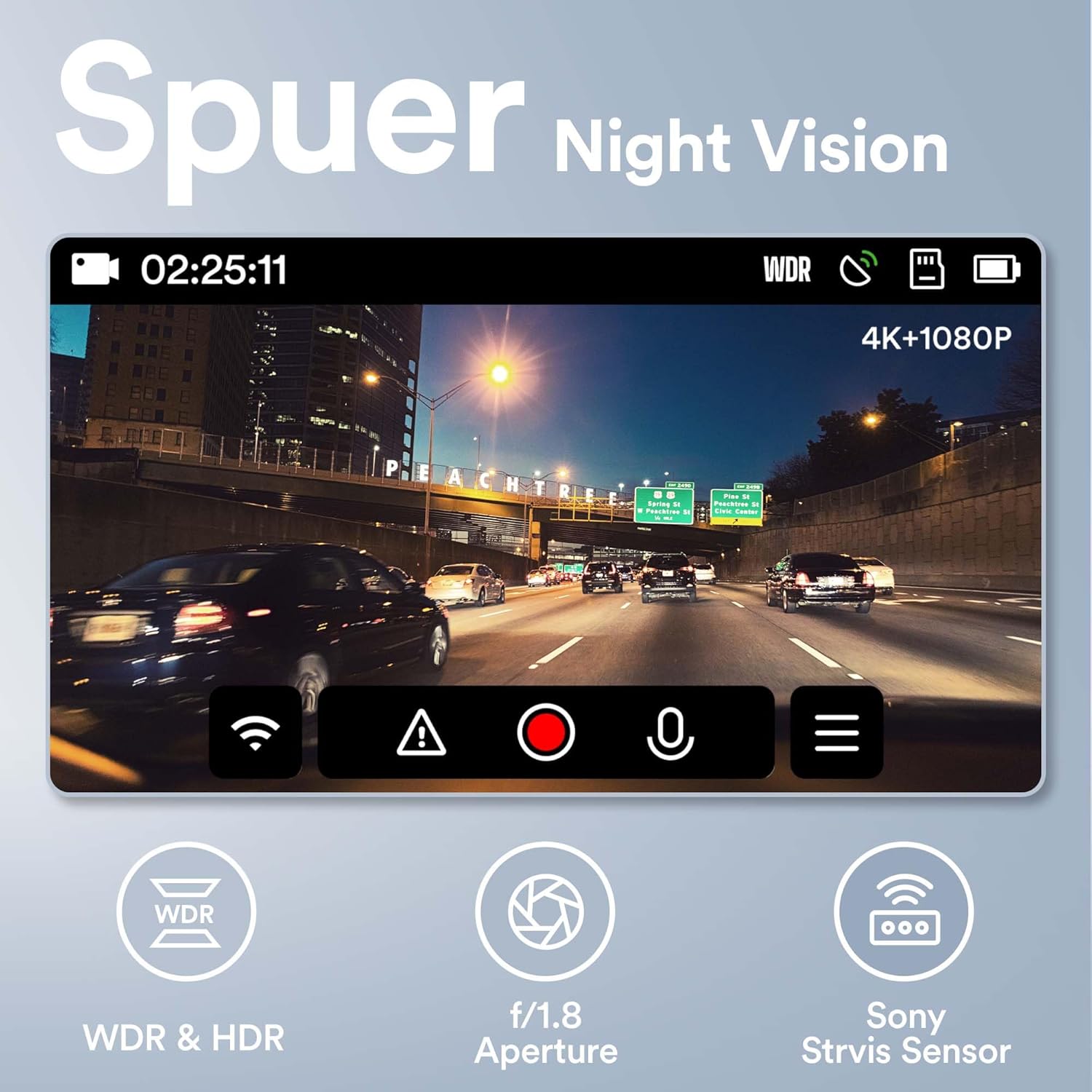
Figure 5.5: Super Night Vision capabilities of the WOLFANG WD01.
5.6 Całodobowy monitoring parkingu
The 24-hour parking monitoring feature provides continuous protection for your vehicle even when parked. This mode can be activated through the camera settings and typically includes:
- Tryb czujnika G: If an impact is detected while parked, the dash cam will automatically power on and record a short video, then power off.
- Monitor poklatkowy: Records continuous video at a low frame rate (e.g., 1 frame per second) to save storage space, then plays back at a normal speed, allowing you to review long periods of parking activity quickly.
Note: For continuous 24-hour parking monitoring, a hardwire kit (sold separately) is usually required to provide constant power to the dash cam without draining the car battery.

Rysunek 5.6: Koniecview of 24-hour parking monitoring features.
6. Konserwacja
- Czyszczenie: Do czyszczenia obiektywu i ekranu aparatu używaj miękkiej, suchej ściereczki. Nie używaj środków czyszczących o właściwościach ściernych ani rozpuszczalników.
- Konserwacja karty TF: It is recommended to format the TF card once a month to maintain optimal performance and prevent data corruption. Back up any important videos before formatting.
- Temperatura: Avoid exposing the dash cam to extreme temperatures (hot or cold) for extended periods, as this can affect battery life and component integrity.
- Aktualizacje oprogramowania układowego: Periodically check the WOLFANG official website for any available firmware updates. Updating the firmware can improve performance and add new features.
7. Rozwiązywanie Problemów
| Problem | Możliwe rozwiązanie |
|---|---|
| Kamera samochodowa nie włącza się. |
|
| Camera stops recording or shows "Card Error". |
|
| Wideotage jest niewyraźne lub niejasne. |
|
| GPS signal is not found or inaccurate. |
|
| Problemy z połączeniem WiFi w aplikacji. |
|
8. Gwarancja i wsparcie
WOLFANG is committed to providing high-quality products and excellent customer service.
- Gwarancja: The WOLFANG WD01 Dash Cam comes with a one-year warranty from the date of purchase, covering manufacturing defects. Additionally, WOLFANG offers a 3-year quality guarantee.
- Zwroty: You are eligible for a 365-day return policy. Please refer to your purchase platform's return guidelines for specific details.
- Obsługa klienta: For any questions, technical assistance, or warranty claims, please contact our professional after-sales team. We offer 24-hour after-sales service.
Adres e-mail kontaktowy: support.vc@wolfang.co
Please provide your product model (WD01) and purchase details when contacting support for faster service.
Ask a question about this manual
Ask about setup, troubleshooting, compatibility, parts, safety, or missing instructions. Manuals+ will review the question and use this page’s manual context to help answer it.