
1. Wprowadzenie
This manual provides detailed instructions for the setup, operation, and maintenance of your CHESONA Rugged Keyboard Case for iPad 10.2-inch. Please read this manual thoroughly before using the product to ensure proper functionality and longevity.

Image 1.1: The CHESONA Rugged Keyboard Case with an iPad in landscape orientation, featuring the integrated keyboard and trackpad.
2. Zgodność
The CHESONA Rugged Keyboard Case is designed for specific iPad 10.2-inch models. Verify your iPad's model number on the back of the device to ensure compatibility.
- iPad 9th Generation (2021): Model Numbers A2602, A2603, A2604, A2605
- iPad 8th Generation (2020): Model Numbers A2430, A2270, A2428, A2429
- iPad 7th Generation (2019): Model Numbers A2197, A2198, A2200
This product does not include the iPad tablet or Apple Pencil.
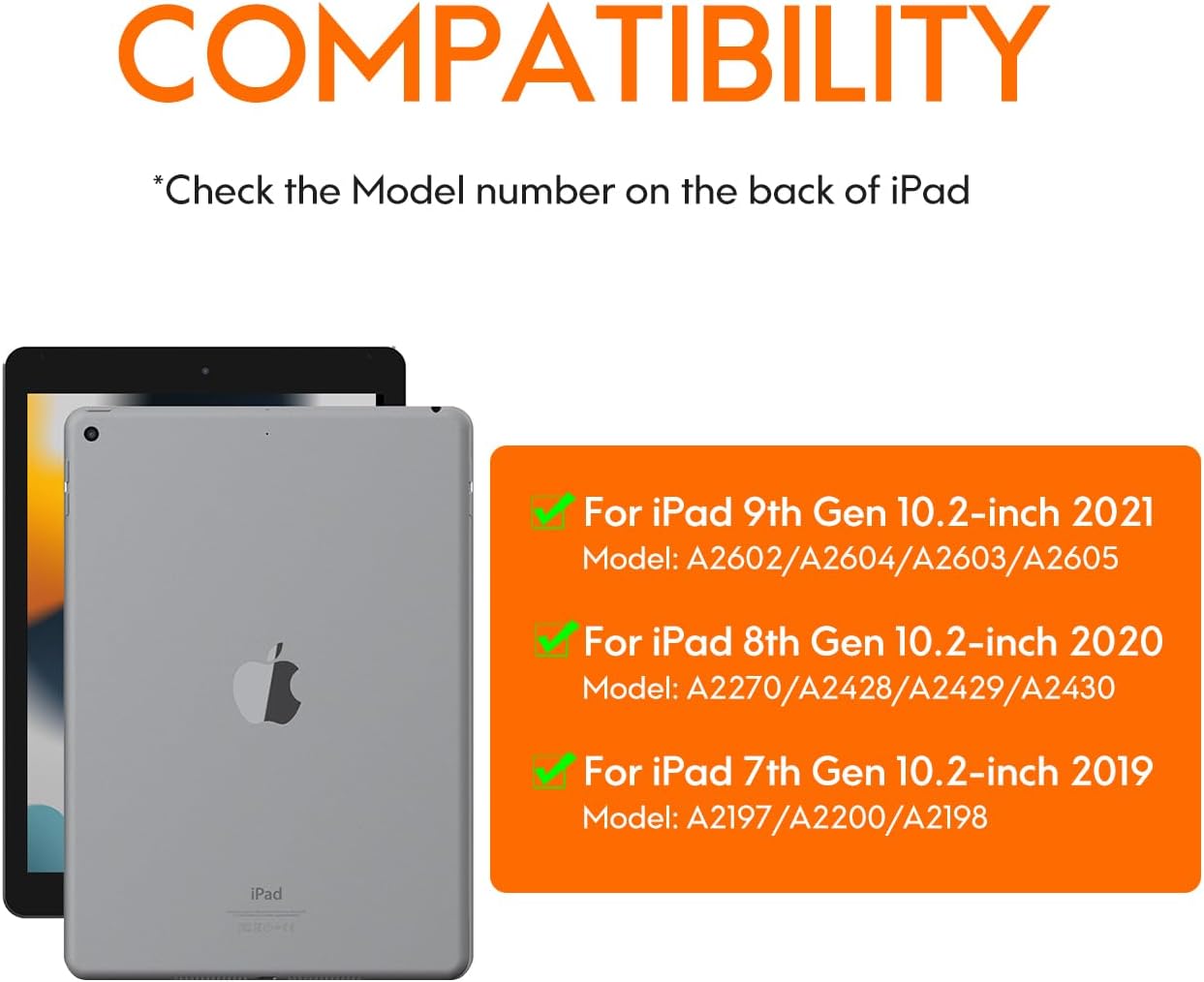
Image 2.1: Visual guide for identifying compatible iPad models and their corresponding model numbers.
3. Zawartość opakowania
Proszę sprawdzić, czy w paczce znajdują się następujące elementy:
- CHESONA Rugged Keyboard Case
- Kabel ładujący USB-C
- Instrukcja obsługi (ten dokument)
4. Koniec produktuview
The CHESONA Rugged Keyboard Case features a magnetic detachable design, integrated trackpad, and backlit keyboard to enhance your iPad experience.

Image 4.1: The keyboard case with an iPad magnetically attached, illustrating the detachable design.

Image 4.2: An exploded diagram showing the multi-layered construction of the rugged keyboard case, emphasizing its protective features.
5. Konfiguracja
5.1 Attaching the iPad
- Align your iPad with the protective back case.
- Gently press the iPad into the case until it is securely seated. Ensure all edges are properly covered.
- The keyboard component attaches magnetically to the back case. Position the keyboard so it aligns with the magnetic points.
The case features a dedicated slot for the Apple Pencil. For optimal stability in landscape or portrait mode, ensure the Apple Pencil slot is positioned at the top or right side.
5.2 Connecting the Keyboard (Bluetooth Pairing)
- Ensure the keyboard is charged (refer to section 5.3).
- Włącz klawiaturę, przesuwając włącznik zasilania. Kontrolka zacznie migać.
- Na iPadzie przejdź do Ustawienia > Bluetooth.
- Włącz Bluetooth. Twój iPad wyszuka dostępne urządzenia.
- Select "CHESONA Keyboard" (or similar name) from the list of devices.
- Jeśli pojawi się monit, wprowadź kod parowania wyświetlony na iPadzie za pomocą klawiatury i naciśnij Wchodzić.
- Po sparowaniu kontrolka na klawiaturze zgaśnie, a na iPadzie pojawi się komunikat „Połączono”.
5.3 Ładowanie klawiatury
Connect the included USB-C charging cable to the charging port on the keyboard and the other end to a USB power adapter (not included). The charging indicator light will illuminate during charging and turn off when fully charged. A full charge typically takes 3-4 hours.
The keyboard is powered by a Lithium Polymer battery (included).
6. Instrukcja obsługi
6.1 Funkcje klawiatury
The keyboard provides a full suite of iOS shortcuts for enhanced productivity.

Image 6.1: Illustration of the keyboard layout highlighting dedicated iOS shortcut keys for quick access to functions like home, search, media control, and volume.
Regulacja podświetlenia
The keyboard features adjustable backlighting with 7 colors and 3 brightness levels.
- Aby dostosować jasność: Naciśnij Fn + Zmiana (up arrow key).
- To switch backlight colors (7 available): Press Fn + Powrót (right arrow key).

Image 6.2: Instructions for adjusting keyboard backlight brightness and changing colors using function key combinations.
6.2 Trackpad Functions
The integrated multi-gesture trackpad allows for precise navigation and interaction with your iPad. Ensure the trackpad is enabled in your iPad's settings if it is not responsive.

Image 6.3: Detail of the trackpad, indicating support for iOS shortcuts, multi-touch gestures, and manual on/off control.
6.3 Regulowany stojak
The case features a fully adjustable stand, allowing you to set your iPad at angles from 15° to 180° for comfortable viewpisania i pisania.
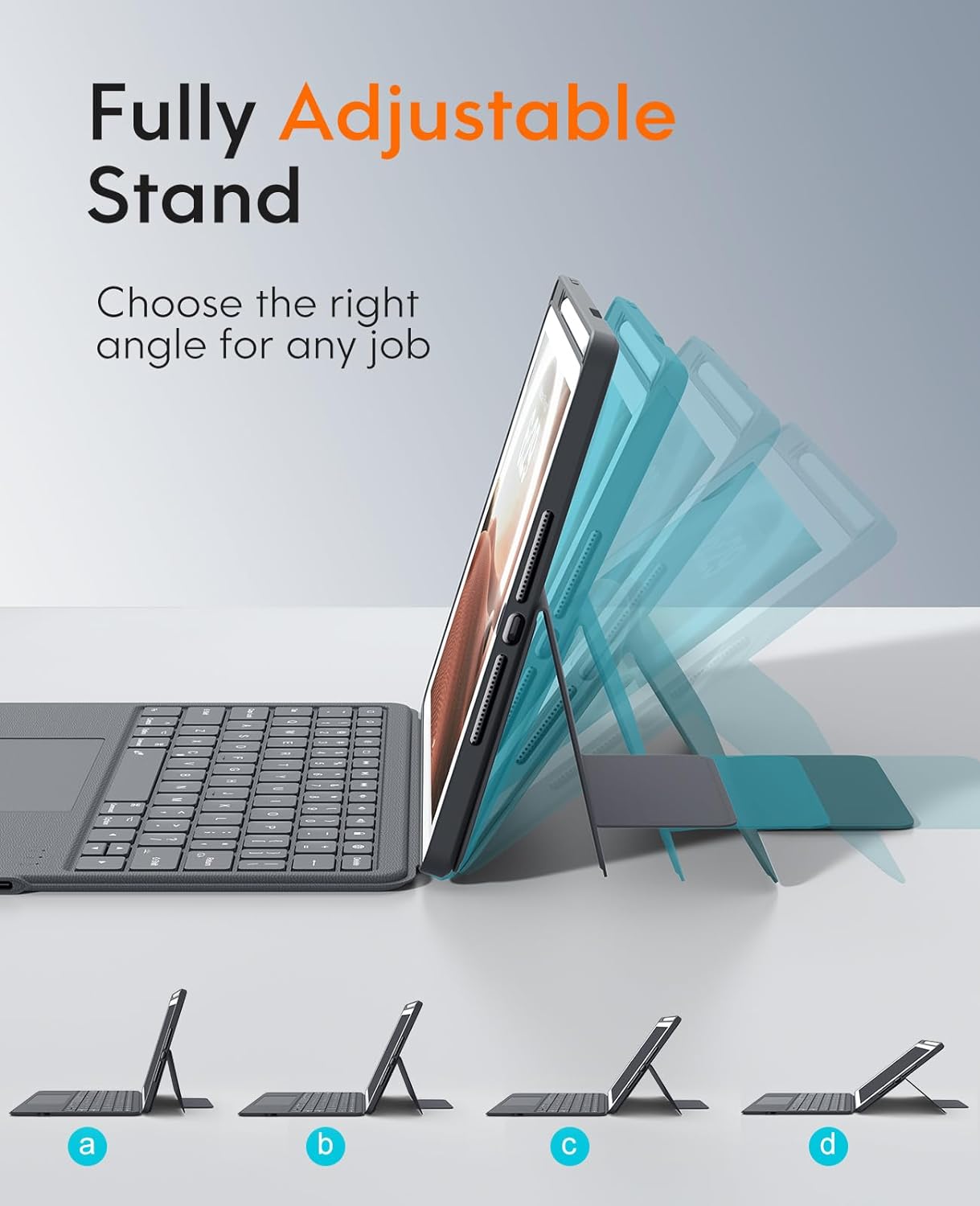
Image 6.4: Visual representation of the adjustable stand, demonstrating its flexibility to achieve different viewkąty.
6.4 Multi-Scene Modes
The versatile design supports multiple usage modes:
- Tryb poziomy: Ideal for typing, watching videos, or general use.
- Tryb portretowy: Suitable for reading documents or browsing vertically.
- Carry-on Mode: Detach the keyboard for a lighter, tablet-only experience.
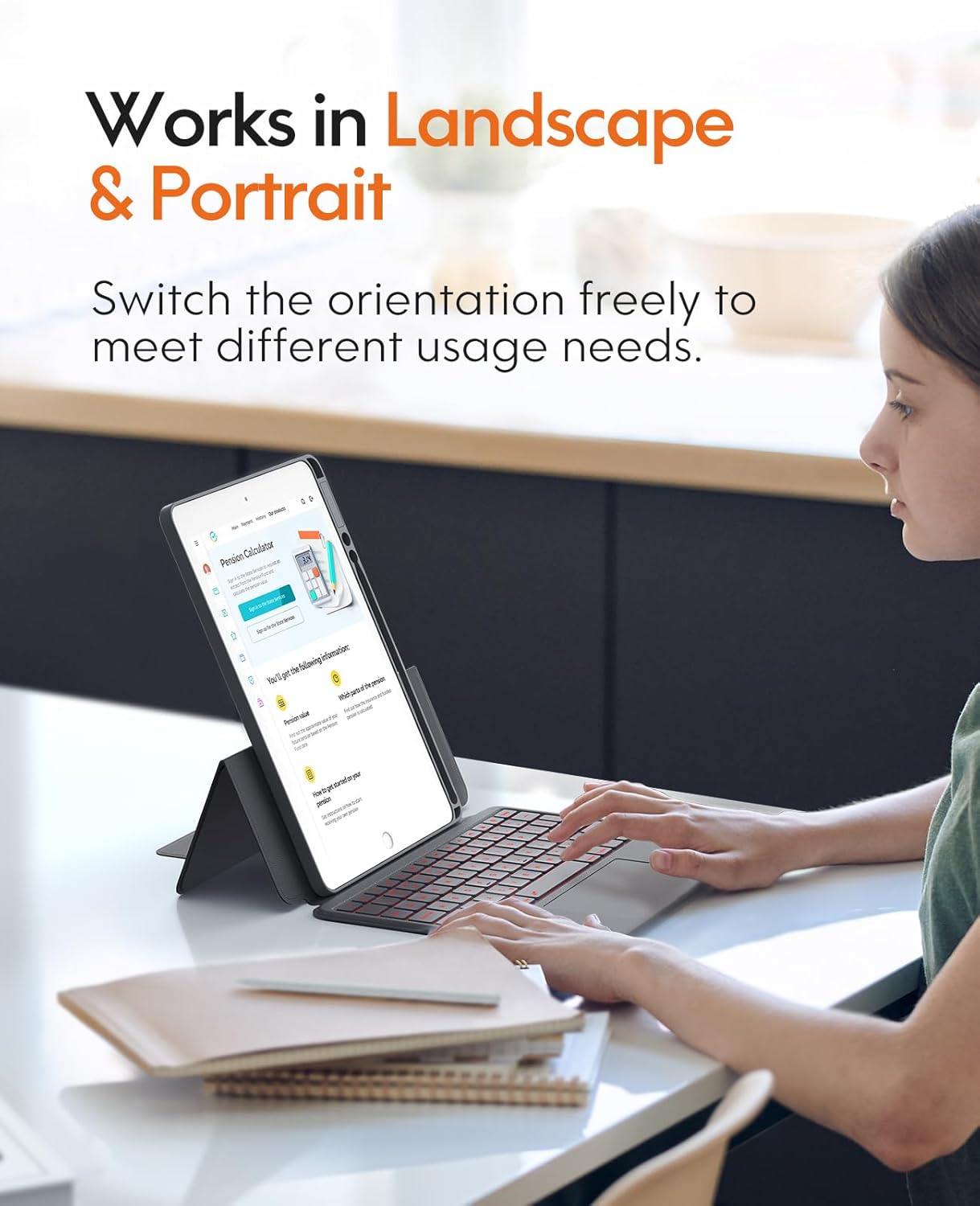
Image 6.5: The keyboard case supporting both landscape and portrait orientations for varied user needs.
7. Konserwacja
Aby zapewnić długą żywotność i optymalną wydajność obudowy klawiatury, należy przestrzegać poniższych wskazówek dotyczących konserwacji:
- Czyszczenie: Użyj miękkiego, damp cloth to wipe the exterior of the case and keyboard. Avoid harsh chemicals or abrasive cleaners. For keyboard keys, a soft brush or compressed air can remove debris.
- Składowanie: When not in use for extended periods, store the case in a cool, dry place.
- Pielęgnacja baterii: Unikaj częstego całkowitego rozładowywania baterii. Regularnie ładuj klawiaturę, aby utrzymać baterię w dobrym stanie.

Rysunek 7.1: Szczegółowy view of the keyboard keys, illustrating areas that may require cleaning to remove dust or debris.
8. Rozwiązywanie Problemów
| Problem | Możliwa przyczyna | Rozwiązanie |
|---|---|---|
| Klawiatura nie łączy się przez Bluetooth. | Keyboard battery is low or off. Bluetooth on iPad is off. Keyboard not in pairing mode. | Charge the keyboard. Ensure keyboard is powered on. Turn on iPad Bluetooth. Put keyboard in pairing mode and re-attempt pairing (refer to section 5.2). |
| Klawisze nie reagują. | Low battery. Connection issue. Software glitch. | Charge the keyboard. Reconnect Bluetooth. Restart your iPad. |
| Gładzik nie działa. | Trackpad disabled. Connection issue. | Ensure trackpad is enabled in iPad settings. Reconnect Bluetooth. |
| Backlight not working or changing. | Low battery. Incorrect key combination. | Charge the keyboard. Refer to section 6.1 for correct key combinations. |
9. Specyfikacje
| Funkcja | Szczegół |
|---|---|
| Model | CHESONA Rugged Keyboard Case for iPad 10.2-inch |
| Zgodność | iPad 9th/8th/7th Generation (10.2-inch) |
| Łączność | Bezprzewodowy (Bluetooth) |
| Typ klawiatury | Backlit with Trackpad |
| Kolory podświetlenia | 7 kolorów, 3 poziomy jasności |
| Regulacja stojaka | 15° - 180° |
| Tworzywo | Skóra PU |
| Źródło zasilania | Akumulator litowo-polimerowy do ponownego ładowania |
| Port ładowania | USB-C |
| Zawarte komponenty | Kabel USB |
| Waga przedmiotu | 1.83 funta (ok. 0.83 kg) |
| Wymiary (pakiet) | 11.18 x 7.91 x 1.06 cala (ok. 28.4 x 20.1 x 2.7 cm) |
10. Gwarancja i wsparcie
CHESONA products are designed for reliability and performance. For warranty information, technical support, or customer service inquiries, please refer to the contact information provided with your purchase or visit the official CHESONA webstrona.
Możesz również odwiedzić CHESONA Store on Amazon Aby uzyskać więcej informacji o produkcie i zasobach pomocy.


