
1. Wprowadzenie
The Grandstream GWN7002 is a multi-WAN Gigabit VPN router designed to provide robust and secure network solutions for businesses. It features a built-in firewall and supports comprehensive wired, wireless, and VPN networks across single or multiple locations. This manual provides essential information for setting up, operating, and maintaining your GWN7002 router.
2. Koniec produktuview
The GWN7002 router offers a versatile set of ports and features to meet diverse networking requirements.
2.1 Panel przedni
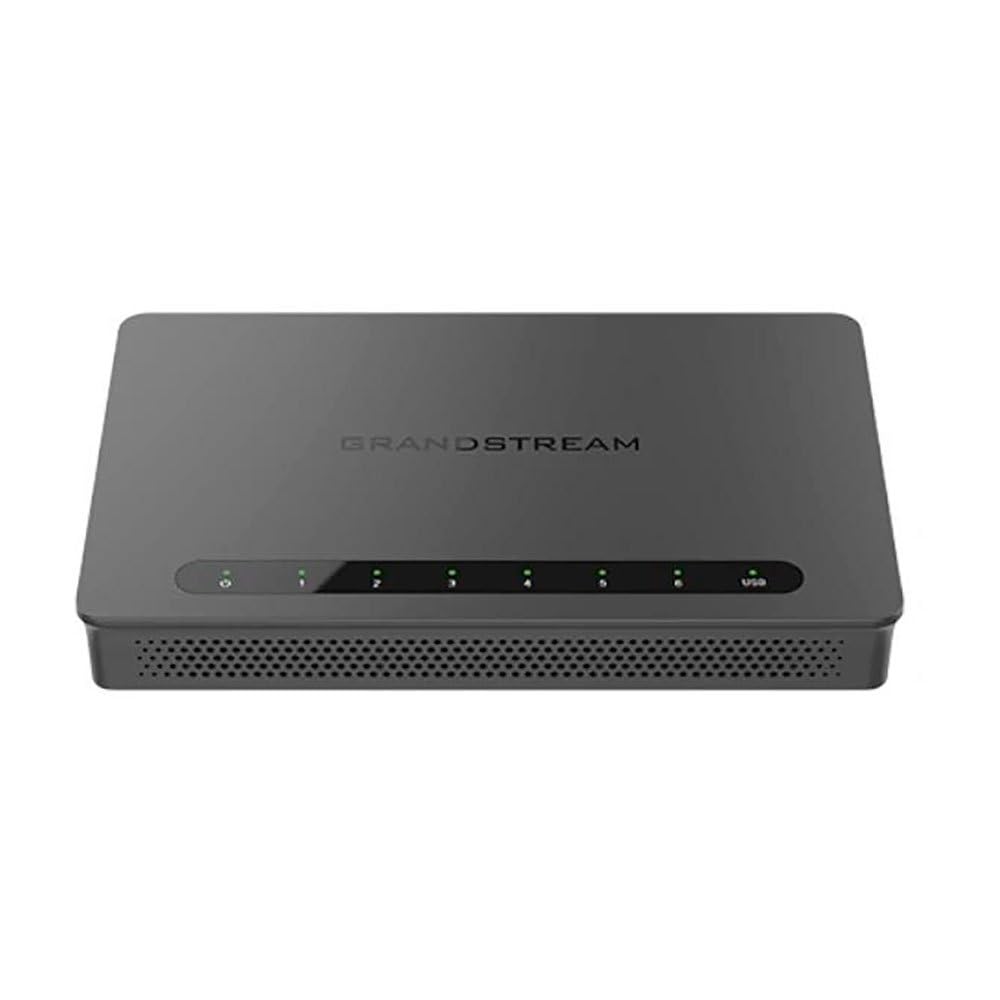
The front panel of the GWN7002 features LED indicators for power, system status, and port activity, providing a quick visual status of the device's operation.
2.2 Panel tylny i porty
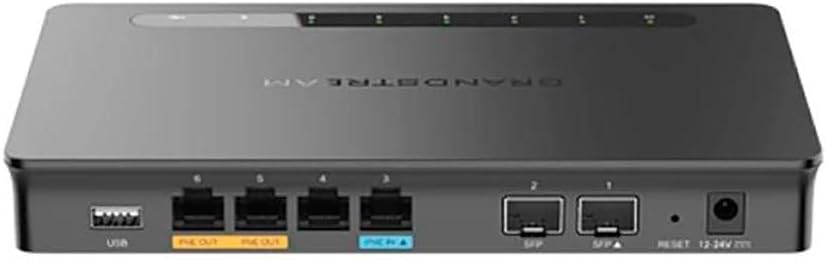
Na tylnym panelu znajdują się różne porty umożliwiające łączność:
- Porty WAN/LAN: Multiple Gigabit RJ45 ports for flexible WAN/LAN configuration.
- Wejście PoE: One GbE RJ45 port with IEEE 802.3af/at PoE Input, allowing the router to be powered via Ethernet.
- Wyjście PoE: Two GbE RJ45 ports with 48V Passive PoE output or IEEE 802.3af, capable of powering compatible devices.
- Porty SFP: Gigabit SFP ports for fiber optic connectivity.
- Port USB: Do podłączania pamięci zewnętrznej lub innych urządzeń USB.
- Przycisk resetowania: Służy do przywracania ustawień fabrycznych urządzenia.
- Pobór mocy: DC power input (12-24V) for standard power adapter connection.
3. Konfiguracja
Follow these steps for initial setup of your Grandstream GWN7002 router.
3.1 Zawartość opakowania
Sprawdź, czy w przesyłce znajdują się następujące elementy:
- GWN7002 Router Unit
- Zasilacz
- Szybki przewodnik (lub podobna dokumentacja)
3.2 Instalacja sprzętu
- Podłącz zasilanie: Connect the provided power adapter to the router's DC power input. Alternatively, if using PoE, connect an Ethernet cable from a PoE switch or injector to the PoE Input port.
- Połącz WAN: Connect your internet service provider's modem or main network line to one of the configurable WAN ports using an Ethernet cable.
- Podłącz urządzenia LAN: Connect your local network devices (computers, switches, access points) to the LAN ports using Ethernet cables.
- Włączanie: Ensure all connections are secure, then power on the router. Wait for the system LED indicators to stabilize.
3.3 Konfiguracja początkowa
Uzyskaj dostęp do routera web-based configuration interface for initial setup:
- Połącz się z siecią LAN: Ensure your computer is connected to a LAN port of the GWN7002.
- Dostęp Web Interfejs użytkownika: Otwórz web przeglądarkę i wprowadź domyślny adres IP (zwykle
192.168.1.1or check the Quick Start Guide) in the address bar. - Login: Enter the default username and password (typically 'admin' for both, or as specified in the guide).
- Obserwuj kreatora: The router may present an initial setup wizard. Follow the on-screen prompts to configure basic network settings, including WAN connection type, LAN IP address, and Wi-Fi settings (if applicable).
4. Obsługa
This section covers key operational aspects of the GWN7002 router.
4.1 Ustawienia sieciowe
- Serwer DHCP: Configure the DHCP server to automatically assign IP addresses to devices on your local network.
- Stałe IP: Assign static IP addresses to specific devices if needed.
- Sieci VLAN: Create and manage Virtual Local Area Networks (VLANs) for network segmentation and improved security.
4.2 Konfiguracja wielu sieci WAN
The GWN7002 supports multiple WAN connections for enhanced reliability and bandwidth.
- Równoważenie obciążenia: Distribute internet traffic across multiple WAN links to optimize bandwidth utilization.
- przełączanie awaryjne: Configure a backup WAN connection to automatically take over if the primary connection fails, ensuring continuous internet access.
4.3 Obsługa VPN
Utilize the built-in VPN capabilities for secure remote access and site-to-site connections.
- Serwer VPN: Set up the router as a VPN server to allow remote users to securely connect to your local network.
- Klient VPN: Configure the router to connect to an external VPN server.
- Obsługiwane protokoły: The router supports various VPN protocols, including IPsec, L2TP, and OpenVPN.
4.4 Zapora sieciowa i zabezpieczenia
- Packet Filtering: Configure rules to filter incoming and outgoing network packets based on various criteria.
- Kontrola dostępu: Manage network access for specific devices or users.
- QoS (Jakość usług): Prioritize network traffic for critical applications to ensure optimal performance.
5. Konserwacja
Regular maintenance ensures the optimal performance and security of your router.
5.1 Aktualizacja oprogramowania
Keep your router's firmware updated to benefit from the latest features, security patches, and performance improvements. Download the latest firmware from the Grandstream website and follow the instructions in the web UI to perform the upgrade.
5.2 Konfiguracja kopii zapasowej i przywracania
Regularly back up your router's configuration settings. This allows you to quickly restore your settings in case of a factory reset or device replacement.
5.3 Przywracanie ustawień fabrycznych
To restore the router to its factory default settings, press and hold the Reset button on the rear panel for approximately 10 seconds while the device is powered on. Release the button when the system LEDs begin to flash. The router will reboot with default settings.
6. Rozwiązywanie Problemów
This section addresses common issues you might encounter with your GWN7002 router.
6.1 Brak połączenia internetowego
- Sprawdź, czy modem działa prawidłowo i czy ma aktywne połączenie z Internetem.
- Check the Ethernet cable connection between the modem and the router's WAN port.
- Sprawdź ustawienia sieci WAN w routerze web UI are correctly configured (e.g., DHCP, Static IP, PPPoE).
6.2 Niska prędkość sieci
- Sprawdź prędkość łącza swojego dostawcy Internetu.
- Ensure all Ethernet cables are Cat5e or higher for Gigabit speeds.
- Monitor network traffic in the router's web UI to identify any bandwidth-intensive applications or devices.
- Adjust QoS settings to prioritize critical traffic.
6.3 Problemy z połączeniem VPN
- Verify VPN server/client settings, including IP addresses, authentication methods, and encryption.
- Check firewall rules to ensure VPN traffic is not being blocked.
- Ensure the remote network is reachable.
7. Specyfikacje
| Wymiary produktu | 9.25 x 9.84 x 2.17 cala |
| Waga przedmiotu | 1.11 funta |
| Numer modelu przedmiotu | GWN7002 |
| Producent | Wielki strumień |
| Technologia łączności | Wi-Fi (Note: This is a wired router, Wi-Fi connectivity refers to its ability to manage Wi-Fi access points) |
| Funkcja specjalna | Jakość usług |
| Porty | Multiple Gigabit RJ45 ports (1x PoE Input, 2x PoE Output), Gigabit SFP ports, USB port |
| Obsługa VPN | Built-in VPN support for secure access |
| Wiele sieci WAN | Supports multiple WAN connections for load balancing and failover |
| Kolor | Czarny |
8. Informacje dotyczące bezpieczeństwa
Aby zapobiec uszkodzeniu urządzenia lub obrażeniom ciała, należy przestrzegać następujących środków ostrożności:
- Nie narażaj urządzenia na działanie wody i wilgoci.
- Nie umieszczaj urządzenia w pobliżu źródeł ciepła lub w bezpośrednim świetle słonecznym.
- Używaj wyłącznie zasilacza dostarczonego z urządzeniem.
- Zapewnij odpowiednią wentylację wokół urządzenia, aby zapobiec przegrzaniu.
- Nie próbuj samodzielnie otwierać ani naprawiać urządzenia. Skontaktuj się z wykwalifikowanym personelem serwisowym.
9. Gwarancja i wsparcie
For warranty information and technical support, please refer to the documentation included with your product or visit the official Grandstream webstrona. Zachowaj dowód zakupu na potrzeby roszczeń gwarancyjnych.