
BOXPUT X88 PRO 13
Instrukcja obsługi dekodera Smart TV Box BOXPUT X88 PRO 13
Model: X88 PRO 13
1. Wprowadzenie
This manual provides detailed instructions for the setup, operation, and maintenance of your BOXPUT X88 PRO 13 Smart TV Box. Please read this manual thoroughly before using the device to ensure proper functionality and to maximize your user experience. Keep this manual for future reference.
2. Zawartość opakowania
Verify that all items listed below are included in your product package. If any items are missing or damaged, please contact your retailer.
- BOXPUT X88 PRO 13 Smart TV Box
- Zdalne sterowanie
- Kabel HDMI
- Zasilacz (DC 5 V/2 A)
- Instrukcja obsługi
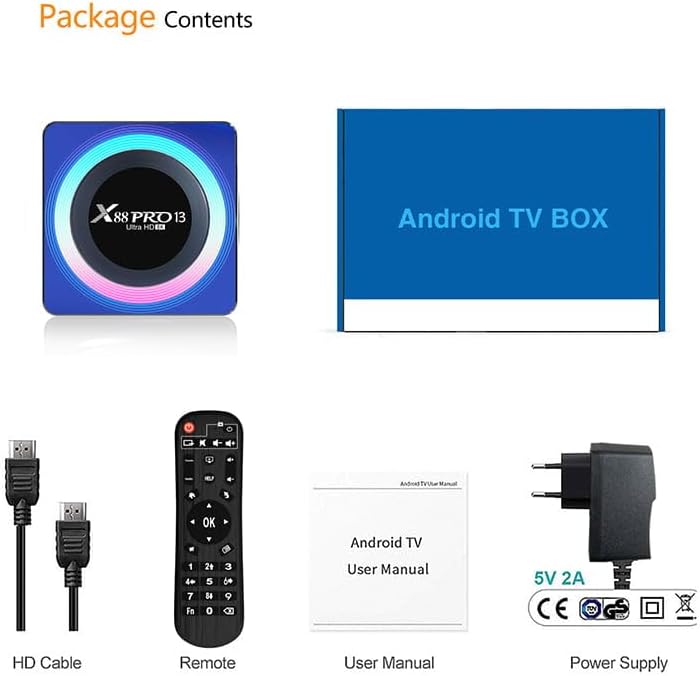
Image: Contents of the product package, including the TV box, HDMI cable, remote control, user manual, and power adapter.
3. Koniec produktuview
The BOXPUT X88 PRO 13 is a high-performance Smart TV Box designed to deliver an enhanced media experience. It features the Android 13.0 operating system and a powerful RK3528 Quad-Core processor.

Image: The BOXPUT X88 PRO 13 Smart TV Box and its accompanying remote control.
Główne cechy
- System operacyjny Android 13.0
- RK3528 Quad-Core 64bit Cortex-A53 Chipset
- Mali 450 MP2 GPU
- Support for 8K HD Video Decoding
- Dual-band Wi-Fi (2.4G/5G) with Wi-Fi 6
- Bluetooth V5.0
- Screen Cast Functionality

Image: Visual representation of key features including Android 13.0, 8K video support, RK3528 processor, WiFi 6, and Screen Cast.
4. Przewodnik konfiguracji
Follow these steps to set up your BOXPUT X88 PRO 13 Smart TV Box.
- Połącz z telewizorem: Podłącz jeden koniec kabla HDMI do portu HDMI w TV Boxie, a drugi koniec do dostępnego wejścia HDMI w telewizorze.
- Podłącz zasilanie: Plug the power adapter into the DC 5V/2A port on the TV Box, then plug the adapter into a wall outlet.
- Włączanie: The device should power on automatically or can be turned on using the power button on the remote control.
- Wybierz wejście: On your television, select the correct HDMI input source using your TV's remote control.
- Początkowe ustawienia: Follow the on-screen instructions to complete the initial setup, including language selection and network configuration.
5. Instrukcja obsługi
5.1 Podstawowa nawigacja
Use the provided remote control to navigate the Android interface. The directional buttons (up, down, left, right) are used to move the cursor, and the 'OK' button confirms selections. The 'Back' button returns to the previous screen, and the 'Home' button returns to the main menu.
5.2 Łączność sieciowa
The TV Box supports both wired and wireless network connections.
- Połączenie przewodowe (Ethernet): Connect an Ethernet cable from your router to the LAN port on the TV Box.
- Połączenie bezprzewodowe (Wi-Fi): Idź do Ustawienia > Sieć i Internet > Wi-Fi, select your network, and enter the password. The device supports 2.4GHz and 5GHz dual-band Wi-Fi 6 for faster and more stable connections.

Image: An illustration demonstrating the improved speed and stability offered by WiFi 6 technology.
5.3 Łączność Bluetooth
The TV Box features Bluetooth V5.0, allowing connection to various external devices.
- Idź do Settings > Connected Devices > Pair new device.
- Put your Bluetooth device (e.g., speaker, headphones, game controller) into pairing mode.
- Select the device from the list on your TV screen to pair.

Image: The TV box demonstrating Bluetooth 5.0 connectivity with a speaker, headphones, and a game controller.
5.4 Odtwarzanie multimediów
The BOXPUT X88 PRO 13 supports advanced media formats, including 8K H.265 ultra-high-definition content and 3D video playback.
- Dekodowanie wideo 8K: Enjoy crystal-clear visuals with support for 8K resolution.
- Obsługa 3D: Experience immersive 3D content when connected to a compatible 3D television.

Obraz: Pokaz na ekranie telewizoraasing a high-resolution winter scene, illustrating the 8K video decoding capability of the device.
5.5 Interakcja na wielu ekranach
The device supports various multi-screen interaction protocols, allowing you to cast content from your mobile devices to your TV.
- Emisja: Dla urządzeń Apple.
- DLNA: For compatible devices across various platforms.
- Miracast: Dla urządzeń z systemem Android.
To use these features, ensure your mobile device and the TV Box are connected to the same Wi-Fi network. Activate the casting feature on your mobile device and select the TV Box from the available devices.

Image: A television screen displaying a racing car, demonstrating multi-screen interaction capabilities such as Airplay, DLNA, and Miracast.
6. Konserwacja
To ensure the longevity and optimal performance of your TV Box, follow these maintenance guidelines:
- Czyszczenie: Do czyszczenia urządzenia należy używać miękkiej, suchej ściereczki. Nie należy używać płynów czyszczących ani aerozoli.
- Wentylacja: Upewnij się, że urządzenie znajduje się w dobrze wentylowanym miejscu, aby zapobiec przegrzaniu. Nie blokuj otworów wentylacyjnych.
- Aktualizacje oprogramowania: Okresowo sprawdzaj dostępność aktualizacji systemu za pomocą Settings > About > System update aby mieć pewność, że posiadasz najnowsze funkcje i poprawki zabezpieczeń.
- Składowanie: Avoid placing heavy objects on the device. Store in a cool, dry place away from direct sunlight and extreme temperatures.
7. Rozwiązywanie Problemów
If you encounter issues with your BOXPUT X88 PRO 13, refer to the following common problems and solutions:
- Brak zasilania:
- Sprawdź, czy zasilacz jest prawidłowo podłączony do urządzenia i do działającego gniazdka elektrycznego.
- Sprawdź, czy gniazdko elektryczne jest sprawne.
- Brak sygnału w telewizji:
- Check that the HDMI cable is properly connected to both the TV Box and the TV.
- Sprawdź, czy w telewizorze wybrane jest właściwe źródło sygnału HDMI.
- Spróbuj użyć innego kabla HDMI lub portu HDMI w telewizorze.
- Brak połączenia Wi-Fi:
- Confirm your Wi-Fi router is powered on and functioning.
- Check Wi-Fi settings on the TV Box (Ustawienia > Sieć i Internet > Wi-Fi) and ensure the correct network is selected and password entered.
- Uruchom ponownie TV Box i router Wi-Fi.
- Pilot nie odpowiada:
- Wymień baterie w pilocie.
- Upewnij się, że między pilotem a dekoderem TV nie ma żadnych przeszkód.
- Aplikacje ulegają awarii lub zawieszają się:
- Zamknij i uruchom ponownie aplikację.
- Clear the cache of the problematic application via Ustawienia > Aplikacje > [Nazwa aplikacji] > Pamięć i pamięć podręczna > Wyczyść pamięć podręczną.
- Upewnij się, że urządzenie ma wystarczającą ilość wolnego miejsca.
- Perform a system update if available.
8. Specyfikacje
| Funkcja | Specyfikacja |
|---|---|
| Model | X88 PRO 13 |
| System operacyjny | Android 13.0 |
| Zestaw układów scalonych | RK3528 Quad-Core 64bit Cortex-A53 |
| Procesor graficzny | Mali 450 MP2 |
| BARAN | 4 GB |
| ROM (pamięć wewnętrzna) | 64 GB pamięci EMMC |
| Host USB | 1*USB 3.0; 1*USB 2.0 |
| Sieć lokalna/Ethernet | 10/100M Standard RJ-45 |
| Wireless/Wi-Fi | 2.4G / 5G Dual-band Wi-Fi 802.11 a/b/g/n/ac/ax (Wi-Fi 6) |
| Bluetooth | V5.0 |
| Zasilacz | Prąd stały 5 V/2 A |
| Dekodowanie wideo | 8K H.265, 3D Support |
| Wymiary produktu | Wymiary: 107 x 107 x 21 mm |
9. Gwarancja i wsparcie
Aby uzyskać informacje o gwarancji i pomocy technicznej, zapoznaj się z dokumentacją dołączoną do zakupu lub skontaktuj się ze sprzedawcą. Zachowaj dowód zakupu na wypadek roszczeń gwarancyjnych.
Ask a question about this manual
Ask about setup, troubleshooting, compatibility, parts, safety, or missing instructions. Manuals+ will review the question and use this page’s manual context to help answer it.