
Jeecoo M40
Jeecoo M40 Bluetooth Computer Speakers Instruction Manual
Model: M40 | Brand: Jeecoo
Wstęp
Thank you for choosing the Jeecoo M40 Bluetooth Computer Speakers. This manual provides essential information for the proper setup, operation, and maintenance of your speakers. Please read it thoroughly before use to ensure optimal performance and longevity of your product.
Co jest w pudełku
- Jeecoo M40 Speakers (2 units)
- Control Unit (wired)
- Instrukcja obsługi (ten dokument)
Instrukcje konfiguracji
Follow these steps to set up your Jeecoo M40 speakers:
- Umieszczenie: Position the two speaker units on either side of your monitor or laptop for optimal stereo sound. Ensure the control unit is within easy reach.
- Connect Speakers to Control Unit: Connect the cables from each speaker unit to the corresponding ports on the control unit.
- Podłączenie zasilania: Connect the USB power cable from the control unit to a USB port on your computer, laptop, or a 5V/1A~2A USB power adapter (not included).
- Połączenie audio: Choose your preferred audio connection method:
- Wejście AUX 3.5 mm: Connect the 3.5mm AUX cable from the control unit to the headphone jack of your device (computer, laptop, tablet, smartphone, gaming console).
- Bluetooth: Ensure the speakers are powered on. Switch the mode to Bluetooth using the control unit. On your device, search for "Jeecoo M40" in the Bluetooth settings and pair.
- Włączanie: Press and hold the power button on the control unit for 3 seconds to turn on the speakers.
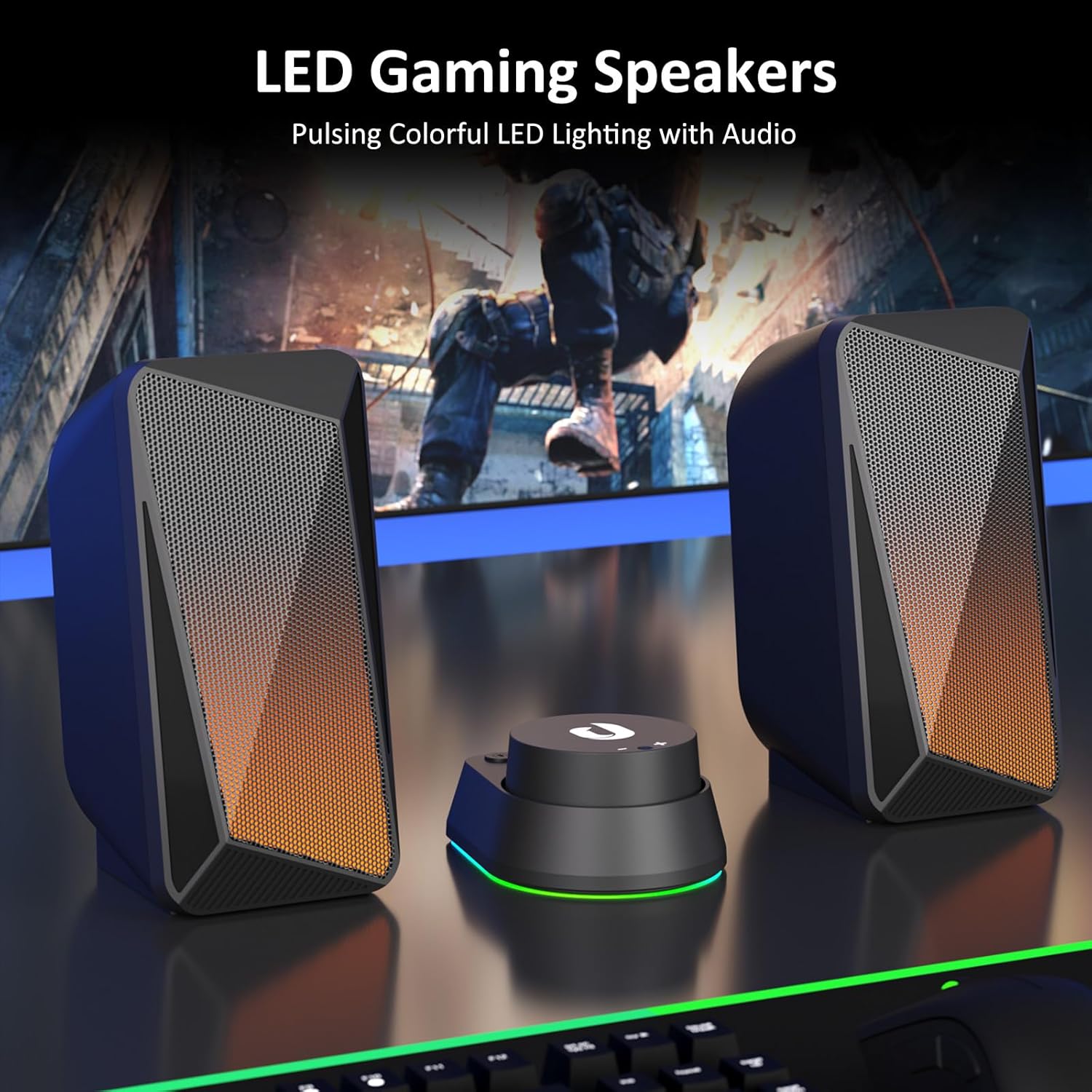
Image: Jeecoo M40 speakers and control unit connected to a laptop, illustrating the setup.

Image: Diagram showing 3.5mm AUX connection for Nintendo, Laptop, PC, and Bluetooth connection for Mobile, Laptop, iPad.
Instrukcja obsługi
The convenient in-line control unit allows for easy management of your speaker functions:
- Włączanie/wyłączanie zasilania: Naciśnij i przytrzymaj WŁ./WYŁ. button (labeled with a power symbol) for 3 seconds.
- Regulacja głośności: Rotate the large dial on the control unit to adjust the volume. Turn clockwise for volume up (+), and counter-clockwise for volume down (-).
- Switch Audio Input Mode: Naciśnij TRYB button (labeled with "O/M") to switch between Bluetooth and 3.5mm AUX input modes.
- Change LED Lighting Mode: Naciśnij ŚWIATŁO button (labeled with a light bulb symbol) to cycle through the three available lighting modes: Pulsing, LED Flame, and Lights Off.
- Reset Bluetooth Connection: When in Bluetooth mode, press and hold the ŚWIATŁO button for 3 seconds to wipe off the current Bluetooth connection and reset.

Obraz: Szczegółowy view of the control unit, highlighting the volume dial, mode switch, and LED lighting control.
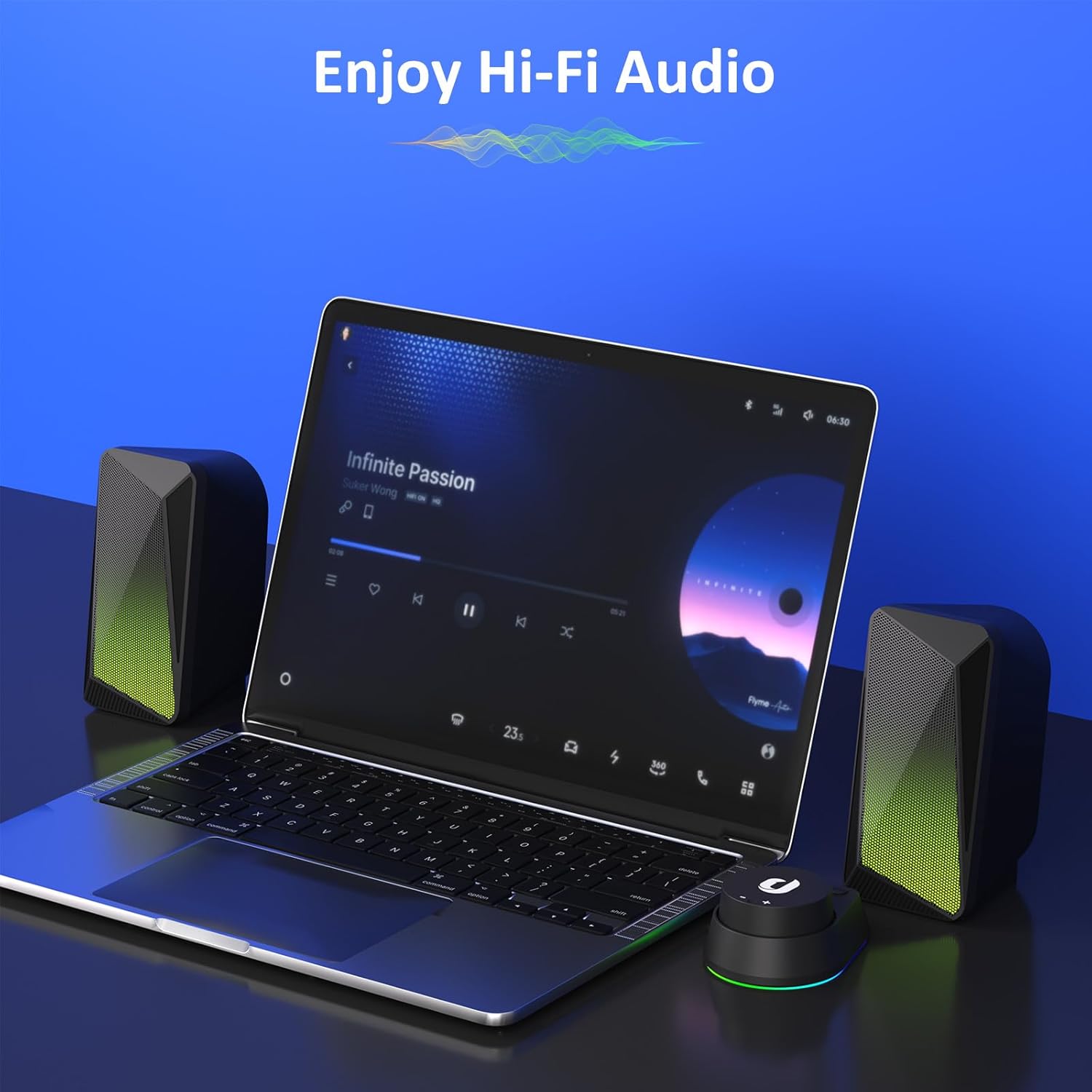
Image: Speakers in use with a laptop, demonstrating the audio experience.
Tryby oświetlenia LED
The Jeecoo M40 speakers feature three distinct LED lighting modes to enhance your audio experience:
- Pulsing Mode: The LED lights change colors and pulse in sync with the beat of your audio, creating a dynamic visual effect.
- LED Flame Mode: The lights display a warm, flickering flame-like effect, ideal for a relaxed or gaming atmosphere.
- Zgaszone światła: For a distraction-free listening experience, the LED lights can be turned off completely.
Aby przełączać się między tymi trybami, naciśnij przycisk ŚWIATŁO button on the control unit.

Zdjęcie: Pokaz głośnikówasing the LED flame lighting in a typical PC gaming environment.
Funkcje audio
The Jeecoo M40 speakers are designed to deliver a balanced and clear audio experience:
- Enhanced 2.0 Channel Stereo Sound: Equipped with custom-tuned 2-inch driver units, these speakers provide clear and crisp stereo audio.
- Balanced Audio Profile: Enjoy well-balanced highs and mids, complemented by a noticeable bass response for a full sound.

Image: Illustration of the speaker's internal driver unit and sound projection for enhanced stereo audio.
Konserwacja
Aby zapewnić długowieczność i optymalną wydajność głośników, należy przestrzegać poniższych wskazówek dotyczących konserwacji:
- Czyszczenie: Use a soft, dry cloth to wipe down the speaker surfaces. Avoid using abrasive cleaners or solvents.
- Składowanie: Jeśli głośniki nie będą używane przez dłuższy czas, należy je przechowywać w chłodnym, suchym miejscu, z dala od bezpośredniego światła słonecznego i ekstremalnych temperatur.
- Zarządzanie kablami: Aby zapobiec uszkodzeniom, należy unikać ostrego zginania i nadmiernego ciągnięcia kabli.
- Unikaj płynów: Do not expose the speakers to water or other liquids, as they are not waterproof.
Rozwiązywanie problemów
If you encounter any issues with your Jeecoo M40 speakers, refer to the following common solutions:
| Problem | Rozwiązanie |
|---|---|
| Brak dźwięku z głośników. |
|
| Problemy z połączeniem Bluetooth. |
|
| LED lights are not working or stuck. |
|
| Sound cuts out intermittently. |
|
Specyfikacje
| Funkcja | Szczegół |
|---|---|
| Marka | Jeeco |
| Numer modelu | M40 |
| Maksymalna moc wyjściowa głośnika | 12 watów |
| Odpowiedź częstotliwościowa | 18000 Hz |
| Technologia łączności | Pomocniczy, Bluetooth |
| Tryb wyjścia audio | Stereo (2.0-kanałowy) |
| Rozmiar głośnika | 2 Inches (Driver Units) |
| Źródło zasilania | USB-powered (5 Volts Input Voltage) |
| Zasięg Bluetooth | 10 metrów |
| Wymiary przedmiotu (gł. x szer. x wys.) | 3.5"D x 3.1"W x 6.5"H (9.0*7.8*16.5cm) per speaker |
| Cable Length (3.5mm Aux) | 4.9 stopy (150 cm) |
| Cable Length (between L/R units) | 3.9 stopy (120 cm) |
| Metoda kontroli | Przycisk, pokrętło |
| Dodatkowe funkcje | Unique Pulsing & LED Flame Lighting |
| Kompatybilne urządzenia | PC Desktop Computers; Macbook Air/Pro, iMac, laptops; iPad, Tablet, Smartphones; PS4/PS5 Nintendo Switch Game Consoles (Not for Xbox) |

Image: Visual representation of speaker dimensions and key product specifications.
Gwarancja i wsparcie
The Jeecoo M40 speakers come with a 6-miesięczna gwarancja od daty zakupu. Niniejsza gwarancja obejmuje wady produkcyjne i zapewnia niezawodne działanie produktu.
For warranty claims, technical support, or any inquiries, please contact Jeecoo customer service through the retailer where you purchased the product or visit the official Jeecoo webwitryna do informacji kontaktowych.
Zachowaj dowód zakupu w celu potwierdzenia gwarancji.
Ask a question about this manual
Ask about setup, troubleshooting, compatibility, parts, safety, or missing instructions. Manuals+ will review the question and use this page’s manual context to help answer it.