
1. Koniec produktuview
The VIGORWORK 1531C is a single DIN car radio featuring a 10.4-inch vertical HD touchscreen. It offers a comprehensive multimedia experience with support for Apple CarPlay, Android Auto, Bluetooth connectivity, and various audio/video formats. The rotatable screen design allows for flexible viewkąty.
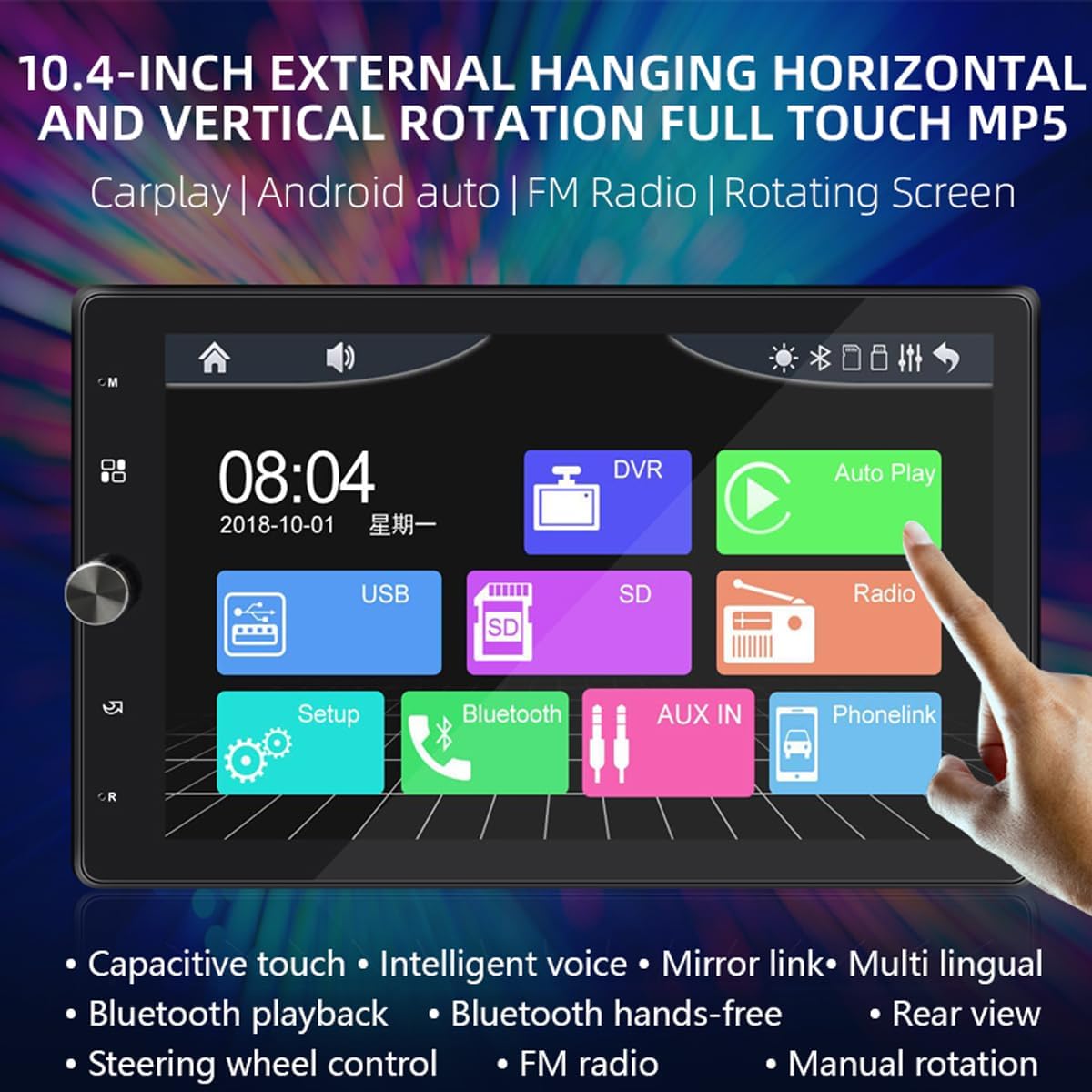
Figure 1: Main interface of the VIGORWORK 1531C Car Radio, showing icons for USB, SD, Radio, Setup, Bluetooth, AUX IN, and Phonelink.
2. Konfiguracja i instalacja
This section provides general guidelines for installing your VIGORWORK 1531C car radio. Professional installation is recommended.
2.1 Połączenie zasilania
- Przed rozpoczęciem instalacji należy upewnić się, że zapłon pojazdu jest wyłączony.
- Connect the yellow wire to the constant 12V power supply.
- Connect the red wire to the accessory 12V power supply (switched with ignition).
- Connect the black wire to a good chassis ground.
2.2 Połączenia głośników
Connect your vehicle's speakers to the corresponding output wires from the radio. Ensure correct polarity for optimal sound quality.
2.3 Antenna and External Devices
- Connect the FM antenna to the radio's antenna input.
- If using a rear view camera (purchased separately), connect its video input to the designated camera input on the radio.
- Connect any external USB devices or AUX sources as needed.
2.4 Regulacja ekranu
The 10.4-inch screen supports manual rotation between horizontal and vertical orientations. Gently adjust the screen's edge to achieve the desired viewing angle. The interface will adapt to the screen's orientation.

Figure 2: Illustration of the manual screen rotation capability, allowing adjustment for both horizontal and vertical viewtryby.
3. Instrukcja obsługi
3.1 Podstawowa obsługa
- Włączanie/wyłączanie: Naciśnij przycisk zasilania, aby włączyć lub wyłączyć urządzenie.
- Regulacja głośności: Do regulacji głośności użyj pokrętła obrotowego lub elementów sterujących na ekranie dotykowym.
- Menu główne: Tap the home icon on the screen to return to the main application menu.
3.2 Apple CarPlay i Android Auto
Connect your smartphone via USB to enable Apple CarPlay or Android Auto. This allows you to access navigation, make calls, send messages, and play music directly from your phone's interface on the car radio screen.

Figure 3: Display of the Apple CarPlay interface on the car radio screen, showing common applications like Phone, Music, Maps, and Messages.

Figure 4: Display of the Android Auto interface on the car radio screen, featuring applications such as Google Maps, YouTube Music, and Spotify.
3.3 Kopiowanie ekranu
The unit supports screen mirroring for both Android and iOS devices. Connect your phone to display its content directly on the car radio's HD screen.
3.4 Funkcjonalność Bluetooth
Pair your smartphone with the car radio via Bluetooth for hands-free calling and wireless audio streaming. Access your phone's contacts and call history directly from the radio interface.

Figure 5: Diagram highlighting the built-in Bluetooth 5.1 chip, indicating support for high-definition noise reduction, bidirectional voice calls, and mobile app navigation broadcasts.
3.5 Radio FM
Access the FM radio function to listen to your favorite stations. The unit supports automatic and semi-automatic station searching, as well as manual fine-tuning. Frequencies range from 87.5-108MHz.
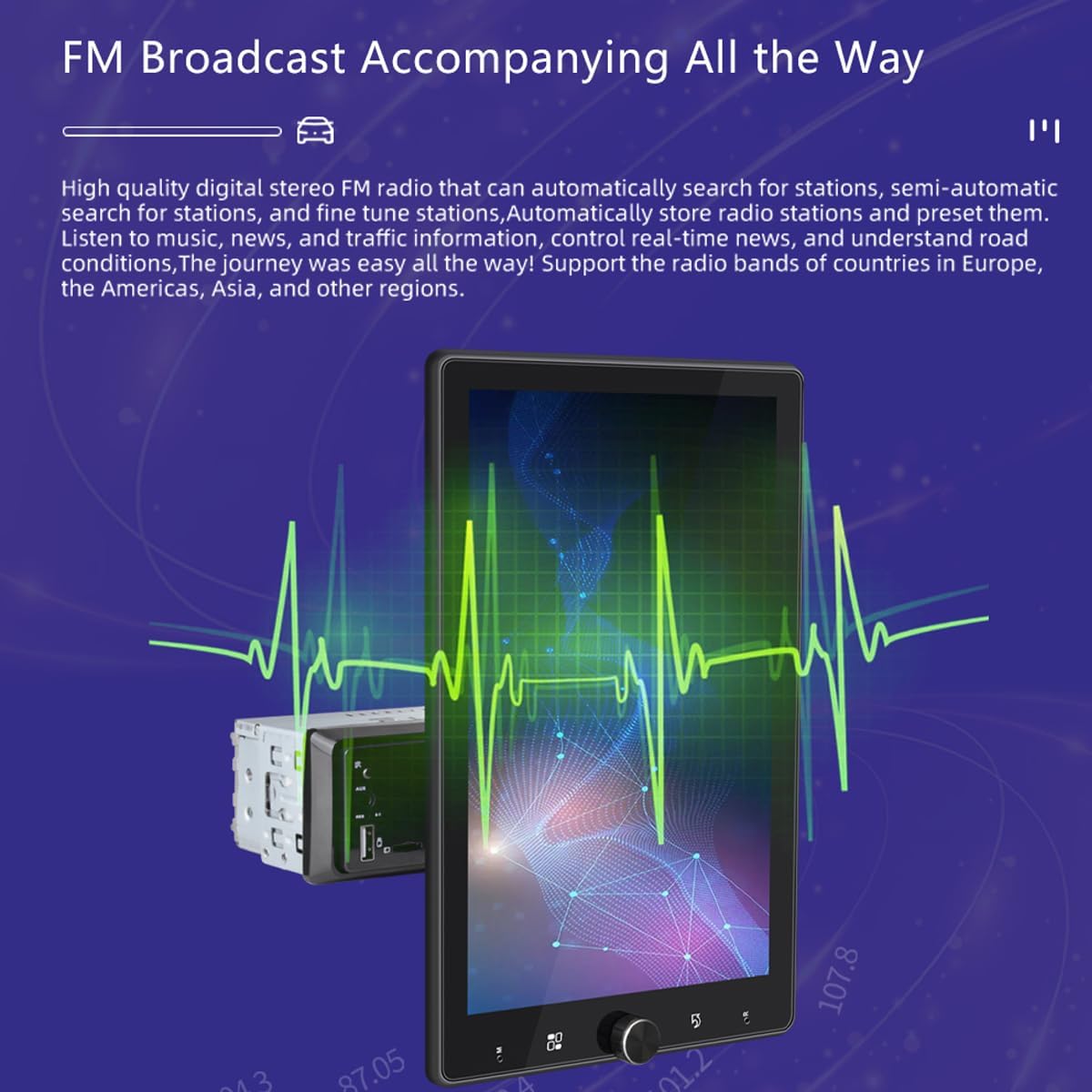
Figure 6: Visual representation of the FM radio function, showing a waveform graphic and radio frequencies, indicating high-quality digital stereo FM radio capabilities.
3.6 Odtwarzanie multimediów
The car radio supports playback from USB disks and TF cards. It is compatible with a wide range of video, audio, and picture formats:
- Formaty wideo: RMVB, RM, FLV, 3GP, DIVX, XVID, DAT, VOB, AVI, MP4
- Formaty audio: MP3, WMA, OGG, APE, AAC, FLAC, WAV
- Formaty obrazu: Pliki JPG, PNG, BMP
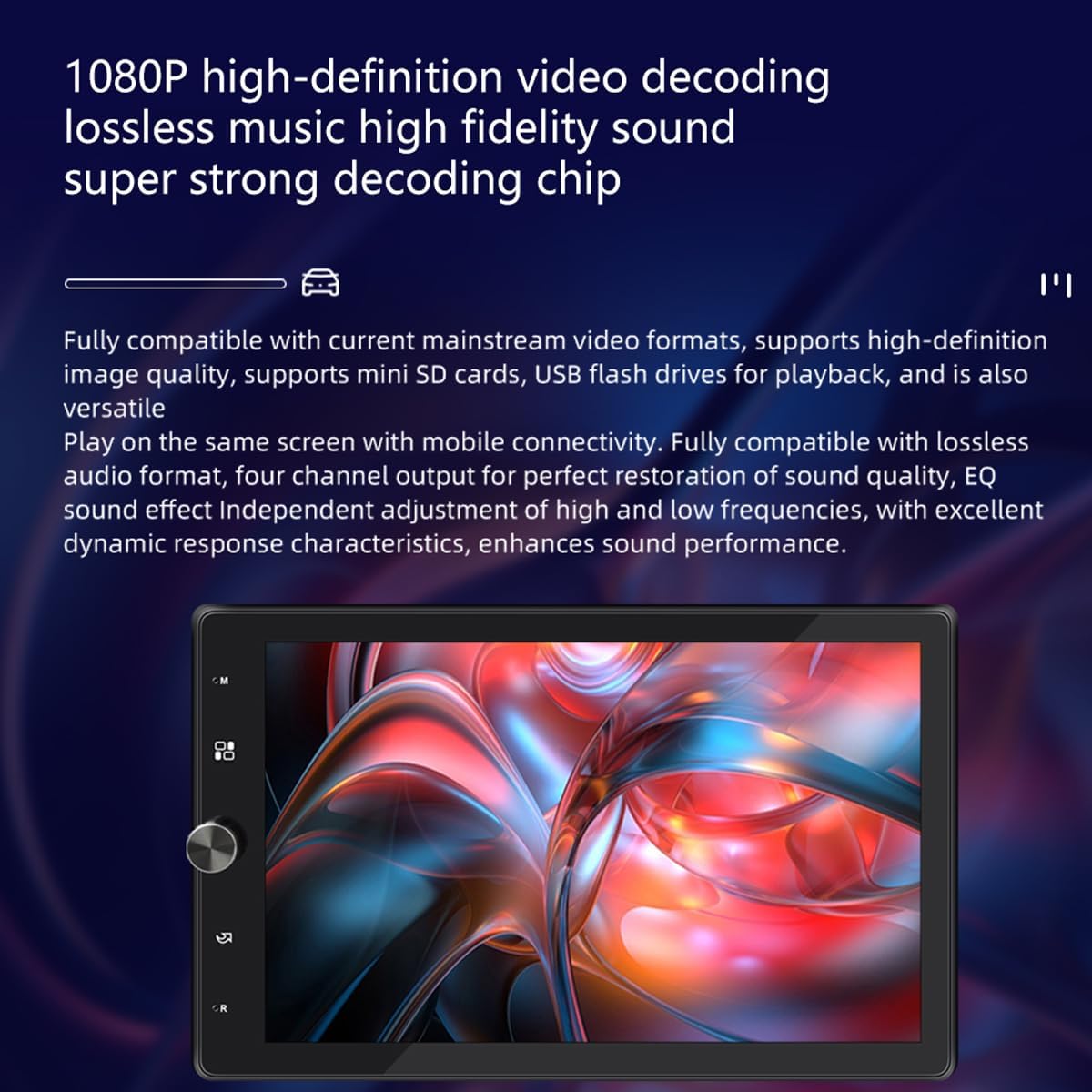
Figure 7: Image illustrating the 1080P high-definition video decoding and lossless music high-fidelity sound capabilities of the car radio.
3.7 Sterowanie z kierownicy (SWC)
If your vehicle supports it, you can connect the steering wheel control wires to the radio to operate functions like volume, track change, and mode switching directly from your steering wheel.
3.8 Tył View Kamera
Gdy kompatybilny tył view camera is connected, the radio will automatically display the camera feed when the vehicle is shifted into reverse.
3.9 Wybór języka
The unit supports multinational language selection. Navigate to the settings menu to choose your preferred language.
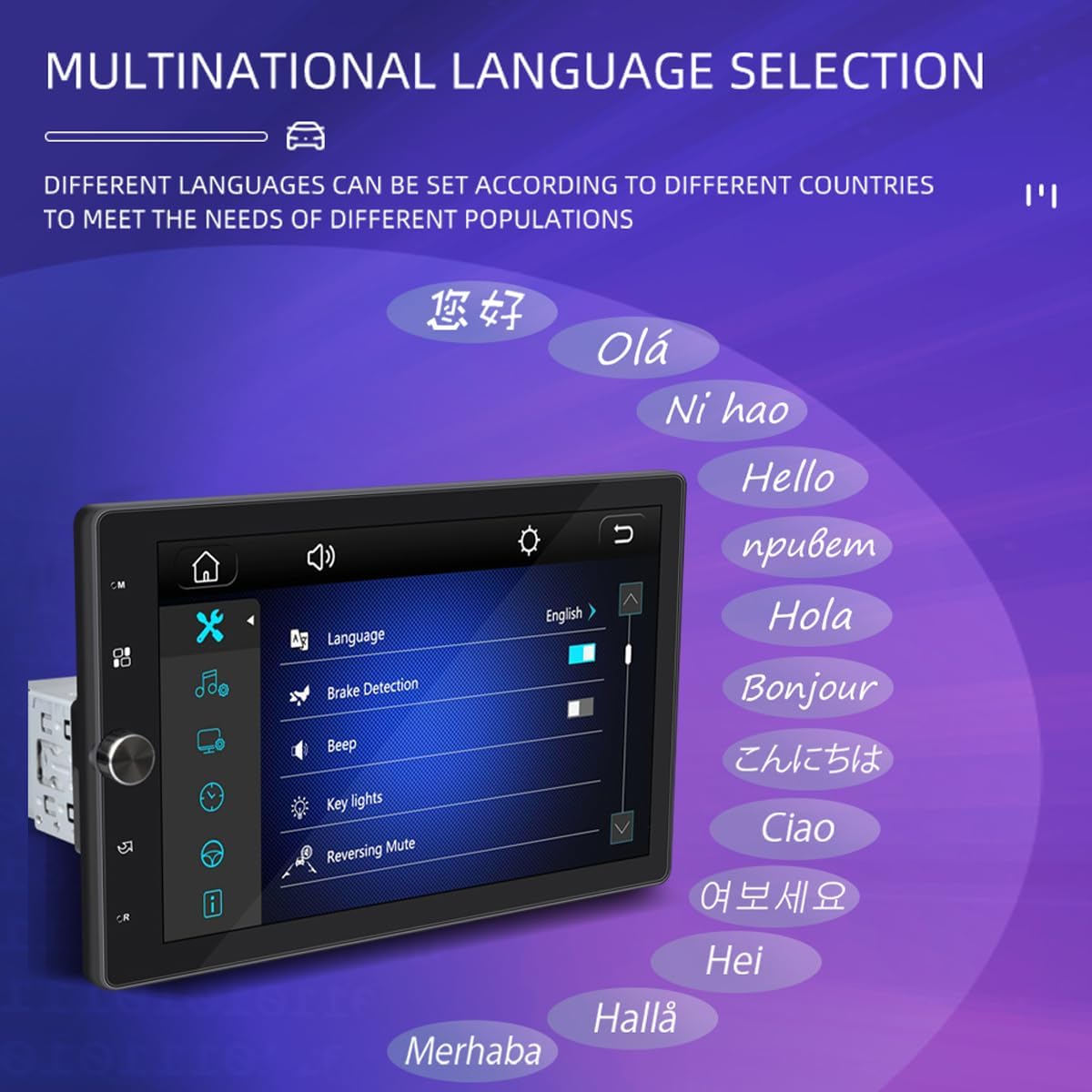
Figure 8: Screenshot of the car radio's settings menu, showing the 'Language' option and a list of various languages available for selection.
4. Konserwacja
To ensure the longevity and optimal performance of your VIGORWORK 1531C car radio, follow these maintenance guidelines:
- Czyszczenie: Do czyszczenia ekranu i obudowy używaj miękkiej, suchej ściereczki. Unikaj środków czyszczących o działaniu ściernym i rozpuszczalników.
- Temperatura: Nie wystawiaj urządzenia na działanie ekstremalnych temperatur ani bezpośredniego światła słonecznego przez dłuższy czas.
- Wilgoć: Przechowywać urządzenie w miejscu suchym i chronionym przed wilgocią.
- Aktualizacje oprogramowania: Sprawdź producenta webokresowo odwiedzaj witrynę w celu sprawdzenia dostępności aktualizacji oprogramowania.
5. Rozwiązywanie Problemów
Jeśli masz problemy z radiem samochodowym, zapoznaj się z poniższymi typowymi problemami i ich rozwiązaniami:
| Problem | Możliwa przyczyna | Rozwiązanie |
|---|---|---|
| Brak zasilania | Nieprawidłowe okablowanie, przepalony bezpiecznik, problem z akumulatorem pojazdu | Sprawdź połączenia zasilania (żółty, czerwony, czarny przewód). Sprawdź bezpieczniki pojazdu. Upewnij się, że akumulator jest naładowany. |
| Brak dźwięku | Incorrect speaker wiring, volume too low, mute activated | Verify speaker connections and polarity. Increase volume. Check if mute function is active. |
| Bluetooth nie łączy się | Bluetooth off on phone/radio, pairing mode not active | Ensure Bluetooth is enabled on both devices. Put radio in pairing mode. Delete previous pairings and try again. |
| CarPlay/Android Auto nie działa | Faulty USB cable, phone software issue, incorrect settings | Use a high-quality USB cable. Ensure phone software is updated. Check radio settings for CarPlay/Android Auto. |
| Ekran nie reaguje | Tymczasowy błąd oprogramowania, brudny ekran | Restart the unit. Clean the touchscreen with a soft cloth. |
Jeśli po wypróbowaniu tych rozwiązań problem nadal występuje, skontaktuj się z obsługą klienta.
6. Specyfikacje
| Funkcja | Specyfikacja |
|---|---|
| Numer modelu | 1531C |
| Rozmiar ekranu | 10.4 inch HD Touchscreen (Rotatable) |
| Łączność | Bluetooth 5.1, USB, karta TF, AUX |
| Integracja ze smartfonem | Apple CarPlay, Android Auto, Mirror Link (iOS/Android) |
| Zakres częstotliwości FM | 87.5-108MHz |
| Obsługiwane formaty wideo | RMVB, RM, FLV, 3GP, DIVX, XVID, DAT, VOB, AVI, MP4 |
| Obsługiwane formaty audio | MP3, WMA, OGG, APE, AAC, FLAC, WAV |
| Obsługiwane formaty obrazu | Pliki JPG, PNG, BMP |
| Maksymalna pamięć zewnętrzna | >64GB (USB disk, TF card) |
| Moc wyjściowa | 7388 high power output |
| Wejście Voltage | Prąd stały 12 V |
| Cechy specjalne | 24-hour digital clock, date, automatic colorful lights, remote control support, rear view support, USB DVR support, steering wheel remote control support |
7. Gwarancja i wsparcie
Aby uzyskać informacje o gwarancji i obsłudze klienta, zapoznaj się z dokumentacją dołączoną do zakupu lub skontaktuj się ze sprzedawcą. Zachowaj dowód zakupu na wypadek roszczeń gwarancyjnych.
For technical assistance or further inquiries, please visit the VIGORWORK official webstronie lub skontaktuj się z działem obsługi klienta.