
1. Wprowadzenie
The AUSDOM Airkey84 is a compact 75% mechanical keyboard designed for versatility and comfort. It features an 84-key layout, retaining essential arrow and function keys while saving desktop space. This keyboard offers triple connectivity modes: USB-C wired, Bluetooth 3.0/5.0, and 2.4GHz wireless, allowing connection to up to four devices. Equipped with low-profile brown switches, it provides a tactile typing experience suitable for both office work and gaming. The keyboard also includes 14 white LED backlight modes and is compatible with both Mac OS and Windows operating systems.
2. Co znajduje się w pudełku
- 1 x Niski profile Klawiatura mechaniczna
- 1 x kabel USB
- 1 x odbiornik USB
- 1 x Instrukcja obsługi
- 3 x Extra Keycaps for Windows
3. Konfiguracja
3.1 Tryby łączności
The AUSDOM Airkey84 supports three connection methods: Bluetooth, 2.4GHz wireless, and USB-C wired. It can connect to up to four devices simultaneously and switch between them.

Image: The keyboard supports 2.4G, Bluetooth, and Wired connections, enabling multi-device pairing.
3.1.1 Bluetooth Connection Mode
- Turn the power button on the keyboard to ON.
- Naciśnij i przytrzymaj Fn + BT1 keycaps for 3-5 seconds. The keyboard will enter pairing mode, and the keys' backlight indicator will flash rapidly.
- On your device (e.g., computer, tablet, smartphone), turn on its Bluetooth function. Szukaj and select "AUSDOM Airkey84" to pair.
- Repeat steps 2 and 3 for BT2 and BT3 to connect up to three Bluetooth devices.
3.1.2 2.4GHz USB Connection Mode
- Turn the power button on the keyboard to ON.
- Naciśnij Fn + 4 key once to switch to 2.4GHz USB connection mode.
- Plug the USB receiver into your device's USB port. The keyboard should connect automatically.
3.1.3 Tryb przewodowy USB-C
- Turn the power button on the keyboard to WYŁĄCZONY.
- Connect the keyboard to your device using the provided USB-C cable. The keyboard will automatically switch to wired mode.

Image: The keyboard connected via USB-C cable, also showing its rechargeable capability.
3.2 Zgodność
The keyboard is compatible with both Mac OS and Windows operating systems. Three extra keycaps are provided for Windows users to customize their layout.
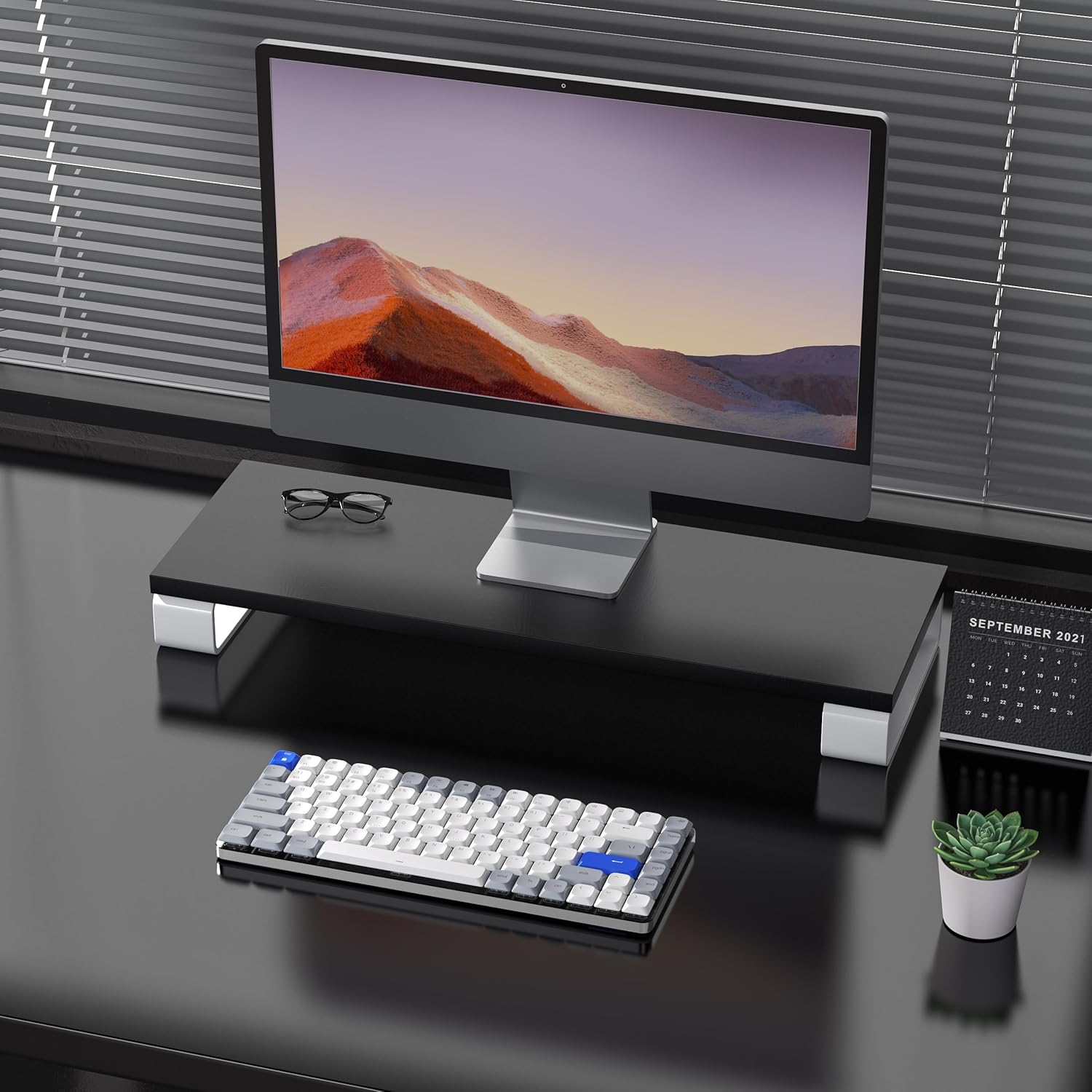
Image: The keyboard is compatible with both Mac and Windows systems, and includes extra keycaps for Windows users.
4. Instrukcja obsługi
Sterowanie podświetleniem 4.1
The keyboard features 14 different white LED backlight modes. To cycle through these modes, press the dedicated lightbulb button located in the top right corner of the keyboard. The keycaps are laser-engraved to ensure clear visibility of characters with the backlight on.

Image: The keyboard displaying its white backlight with 14 different lighting options.
4.2 regulowanych stojaków
The keyboard is equipped with two adjustable stands on the back. These stands allow you to set the keyboard at a comfortable typing angle (e.g., 3 or 6 degrees) to reduce wrist strain during extended use.

Image: The keyboard's ultra-slim aluminum frame and ergonomic design with adjustable feet.
4.3 Niskoprofile Brown Switches
The keyboard utilizes low-profile brown switches, which offer a tactile bump without a loud click. This design provides a comfortable and responsive typing experience, ideal for both fast typing and gaming.

Image: A close-up of the low-profile brown switches, highlighting their design for comfortable and effortless typing.
5. Konserwacja
5.1 Czyszczenie
- To clean the keyboard, power it off and disconnect any cables.
- Użyj miękkiej, niestrzępiącej się ściereczki, lekko wyczyśćampPrzetrzyj klawisze i powierzchnię wodą lub łagodnym środkiem czyszczącym.
- Do usuwania kurzu i zanieczyszczeń spomiędzy klawiszy należy użyć sprężonego powietrza.
- Unikaj stosowania silnych środków chemicznych i materiałów ściernych, ponieważ mogą one uszkodzić wykończenie klawiatury lub oznaczenia klawiszy.
5.2 Pielęgnacja baterii
- The keyboard has a built-in 2000 mAh rechargeable battery.
- Naładuj klawiaturę za pomocą dołączonego kabla USB-C.
- Aby przedłużyć żywotność baterii, należy unikać częstego całkowitego rozładowywania baterii.
- Jeśli klawiatura będzie przechowywana przez dłuższy czas, przed schowaniem należy naładować ją do około 50%.
6. Rozwiązywanie Problemów
6.1 Problemy z połączeniem
- Klawiatura nie łączy się przez Bluetooth: Ensure the keyboard is in Bluetooth pairing mode (flashing backlight). Check your device's Bluetooth settings and ensure it's discoverable. Try forgetting the device and re-pairing.
- 2.4GHz wireless not working: Ensure the USB receiver is securely plugged into a working USB port. Confirm the keyboard is switched to 2.4GHz mode (Fn + 4). Try a different USB port.
- Wired connection issues: Ensure the USB-C cable is fully inserted into both the keyboard and the device. Try a different USB-C cable or port. Ensure the keyboard's power switch is in the OFF position for wired mode.
6.2 Podświetlenie nie działa
- Sprawdź, czy bateria klawiatury jest odpowiednio naładowana.
- Press the backlight control button (lightbulb icon) to cycle through modes or turn the backlight on/off.
6.3 Klawisze nie reagują
- Check the connection mode and ensure it's properly established.
- Jeśli bateria jest słaba, naładuj klawiaturę.
- Try connecting the keyboard via USB-C wired mode to rule out wireless interference or battery issues.
- If specific keys are not responding, gently remove the keycap and check for any obstructions or debris around the switch.
7. Specyfikacje
| Funkcja | Szczegół |
|---|---|
| Numer modelu | Airkey84 |
| Wymiary produktu | 12.13 x 183070.97 x 0.94 cala |
| Waga przedmiotu | 1.03 funta |
| Producent | AUSDOM |
| Baterie | Wymagana 1 bateria litowo-polimerowa (w zestawie) |
| Kompatybilne urządzenia | Laptop, PC, smartfon, tablet |
| Technologia łączności | Bluetooth, bezprzewodowy 2.4 GHz, przewodowy USB-C |
| Opis klawiatury | Mechaniczny, niskoprofesjonalnyfile, 75% Layout |
| Funkcja specjalna | Backlit, Low-Profile Klucz, ładowalny |
| Podświetlenie klawiatury | White LED, Single Color, 14 Modes |
| Tworzywo | Acrylonitrile Butadiene Styrene, Aluminum, Silicone |
8. Gwarancja i wsparcie
For warranty information, technical support, or any product-related inquiries, please contact AUSDOM customer service through the official AUSDOM store or the platform where the product was purchased. Please refer to your purchase documentation for specific warranty terms and conditions.
You can visit the official AUSDOM store for more information: AUSDOM Store


