
Wstęp
This manual provides comprehensive instructions for the LAFVIN 10.1 inch IPS LCD Touch Screen Display. It covers product features, setup procedures, operating guidelines, maintenance tips, troubleshooting, and technical specifications. Please read this manual thoroughly before using the product to ensure proper operation and longevity.
Cechy produktu
- 1024x600 HD IPS Full View Ekran: Oferuje szeroki viewing angle of up to 178 degrees for clear visuals.
- Szeroka kompatybilność: Supports mainstream development boards including Raspberry Pi, Banana Pi, EAIDK, Jetson Nano, BB Black, and other popular development boards.
- Plug and Play Touch Functionality: When used with Raspberry Pi (Raspbian, Kali Linux, Ubuntu) and other mainstream systems, touch support is plug and play, requiring no additional drivers.
- Regulowane podświetlenie: Features an integrated backlight adjustment button for customizable brightness levels.
- Zintegrowane podwójne głośniki: Equipped with a dual speaker system and an integrated audio cavity, offering adjustable volume.
Interfejsy i sterowanie
Familiarize yourself with the various interfaces and controls on your LAFVIN 10.1 inch display.
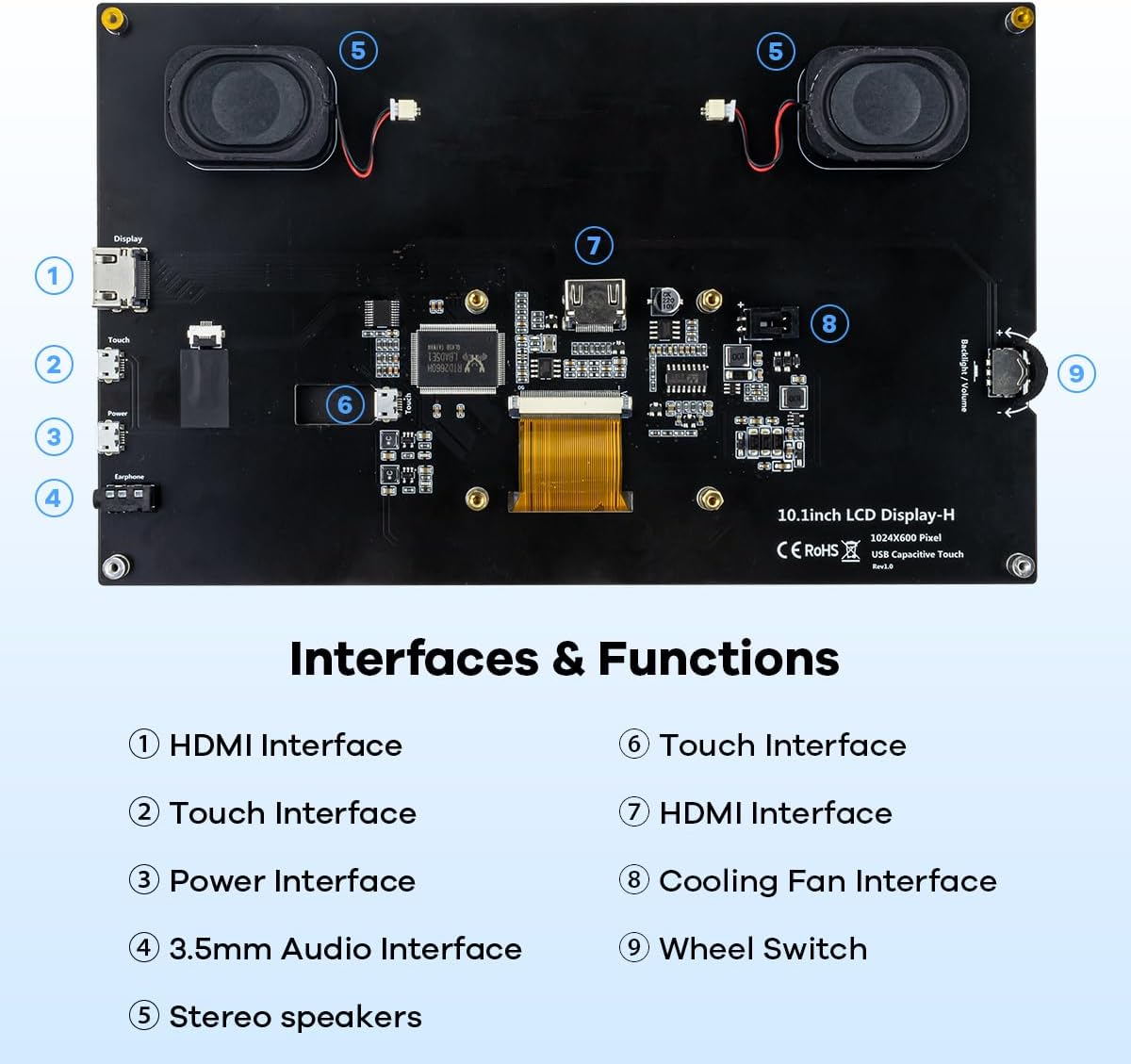
Obraz: Detailed diagram illustrating the various ports and controls on the back of the LAFVIN 10.1 inch display. Numbered labels indicate: (1) HDMI Interface, (2) Touch Interface, (3) Power Interface, (4) 3.5mm Audio Interface, (5) Stereo speakers, (6) Touch Interface (internal connection), (7) HDMI Interface (internal connection), (8) Cooling Fan Interface, (9) Wheel Switch for adjustments.
- Interfejs HDMI: For video input.
- Touch Interface (USB): For touch data transmission.
- Power Interface (Micro USB): For power supply to the display.
- Interfejs audio 3.5 mm: Do zewnętrznego wyjścia audio.
- Głośniki stereo: Zintegrowane wyjście audio.
- Interfejs wentylatora chłodzącego: For connecting an optional cooling fan.
- Wheel Switch: Used to adjust backlight brightness and speaker volume.
Przewodnik po konfiguracji
Zawartość opakowania
Sprawdź, czy w przesyłce znajdują się wszystkie elementy:
- LAFVIN 10.1 inch IPS LCD Touch Screen Display
- Kabel HDMI
- Micro USB Cable (for power and touch)
- Mounting hardware/stand (may vary)
- HDMI Adapter for Raspberry Pi 3B/4B (as shown in images)
Łączenie się z urządzeniami
The display is compatible with various devices, including Raspberry Pi, PCs, TV boxes, and game consoles.

Obraz: Visual guide demonstrating how to connect the display to a Computer, TV Box, Raspberry Pi, and a Games Player, highlighting the HDMI and USB connections.
- Połączenie wideo: Connect the display to your device (e.g., Raspberry Pi, PC) using the provided HDMI cable. Ensure the HDMI cable is securely connected to the HDMI input on the display and the HDMI output on your device.
- Touch Connection: For touch functionality, connect the Micro USB cable from the display's Touch Interface to a USB port on your device.
- Podłączenie zasilania: Connect the Micro USB power cable from the display's Power Interface to a 5V/2A power adapter (not always included) or a powered USB port on your device.
- Wyjście audio: If using external speakers or headphones, connect them to the 3.5mm Audio Interface. The integrated speakers will function automatically if no external audio device is connected.
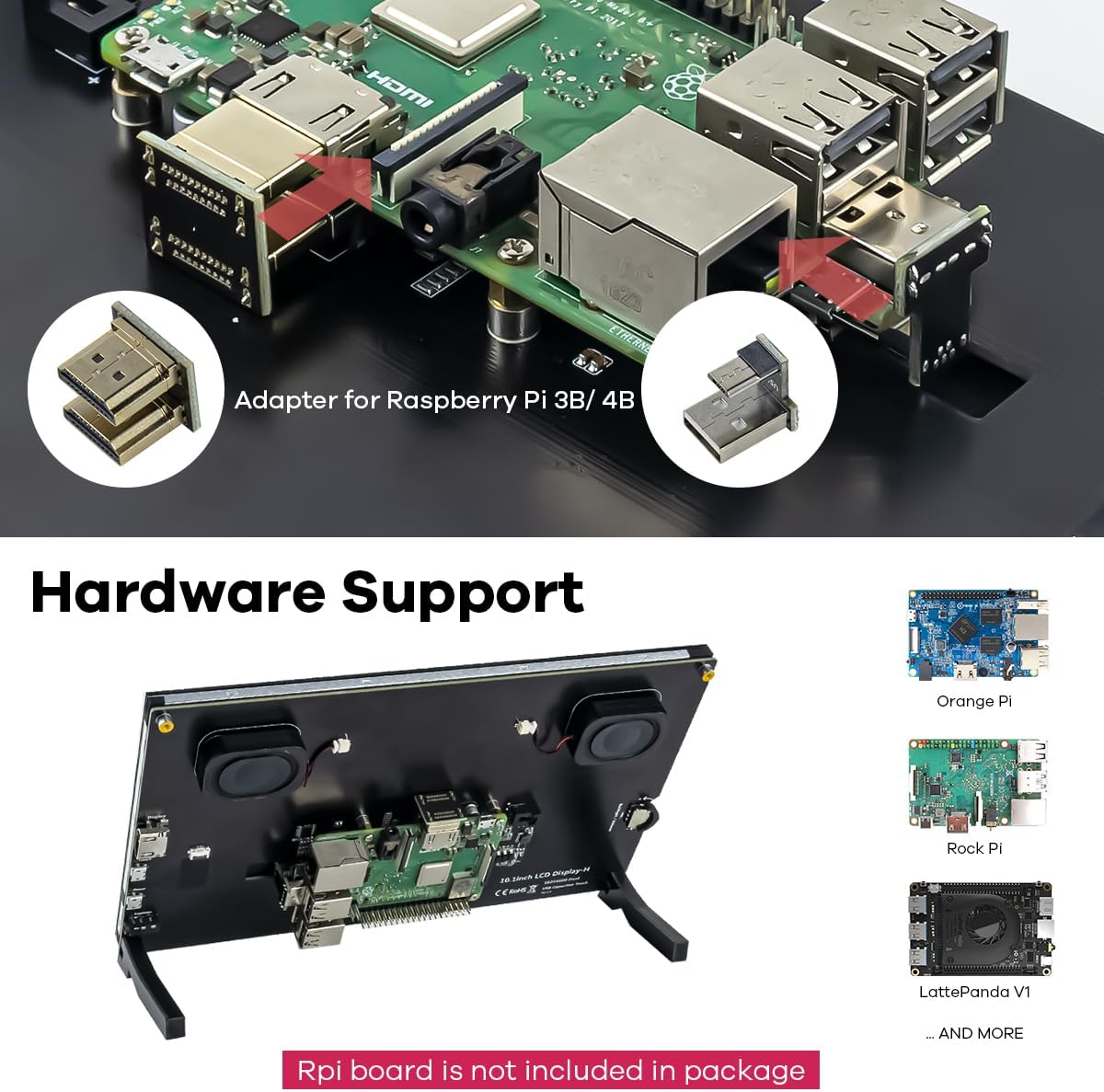
Obraz: The back of the LAFVIN 10.1 inch display, illustrating how a Raspberry Pi board can be mounted directly. Also shown are adapters for Raspberry Pi 3B/4B and examples of other supported development boards like Orange Pi, Rock Pi, and LattePanda V1.
Notatka: For Raspberry Pi 3B/4B, use the included HDMI adapter for proper connection. The Raspberry Pi board is not included with the display.
Instrukcja obsługi
Włączanie/wyłączanie zasilania
Once all connections are made and power is supplied, the display should automatically power on. There is no dedicated power button; power is controlled by the Micro USB power input.
Funkcjonalność dotykowa
The display supports 5-point capacitive touch. For most compatible operating systems (e.g., Raspbian, Windows), touch is plug and play.

Obraz: A visual guide illustrating common 5-point touch gestures supported by the display, including Tap, Press, Zoom Out (pinch), Zoom In (spread), and Mouse Click (long press or single tap depending on context). Note: Mac OS only supports display, not touch.
- Uzyskiwać: Wybór za pomocą jednego dotknięcia.
- Naciskać: Hold touch for context menus or drag actions.
- Powiększ/pomniejsz: Use two fingers to pinch or spread for zooming.
- Mouse Click: Functions similarly to a mouse click in supported operating systems.
Ważny: Mac OS only supports display output, not touch input, with this device.
Regulacja jasności i głośności
The wheel switch located on the back of the display (item 9 in the Interfaces and Controls diagram) controls both backlight brightness and speaker volume.
- Rotate the wheel to adjust the backlight brightness.
- Press the wheel to switch between brightness and volume control modes.
- Rotate the wheel again to adjust the volume when in volume control mode.

Obraz: Zbliżenie view of the integrated tiny dual-speakers located on the back of the LAFVIN 10.1 inch display, designed to deliver clear sound.
Zgodność
The LAFVIN 10.1 inch display is designed for broad compatibility with various systems and devices:
- Development Boards: Raspberry Pi (all models), Banana Pi, EAIDK, Jetson Nano, BB Black.
- Operating Systems (with touch support): Raspbian, Kali Linux, Ubuntu, Windows 10/8/7.
- Operating Systems (display only): System operacyjny Mac OS.
- Inne urządzenia: PCs, Laptops, Game Consoles (e.g., XBOX, PS4), TV Boxes, Cameras.
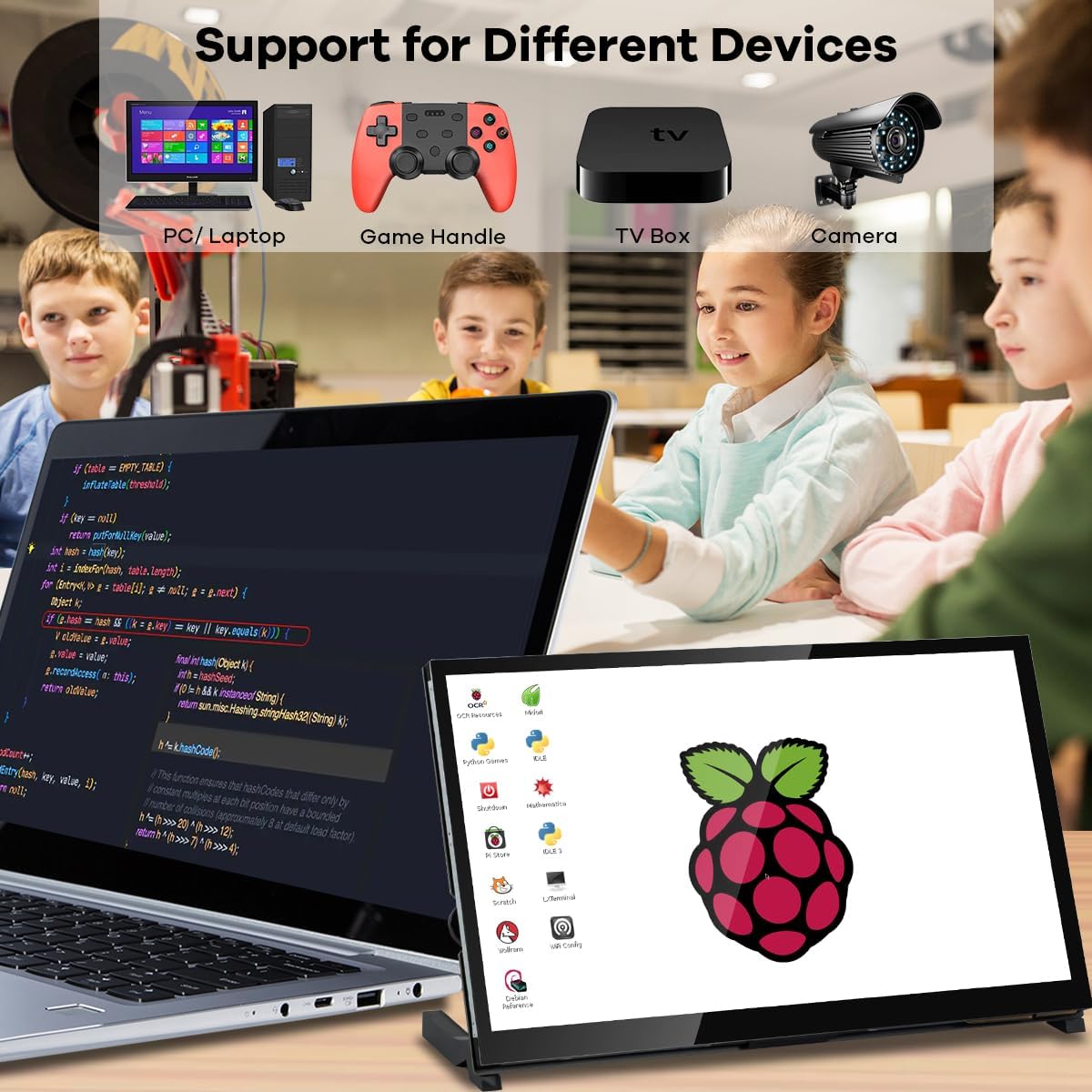
Obraz: The LAFVIN 10.1 inch display in use with a variety of devices, including a PC/Laptop, a game controller, a TV box, and a camera, demonstrating its versatile compatibility.
Konserwacja
Aby zapewnić długowieczność i optymalną wydajność wyświetlacza, należy przestrzegać poniższych wskazówek dotyczących konserwacji:
- Czyszczenie: Delikatnie przetrzyj ekran miękką, niepozostawiającą włókien ściereczką. W przypadku uporczywych zabrudzeń delikatnie przetrzyjampen the cloth with water or a screen-safe cleaning solution. Avoid harsh chemicals, abrasive materials, or direct spraying onto the screen.
- Składowanie: Store the display in a cool, dry place away from direct sunlight and extreme temperatures.
- Obsługiwanie: Avoid dropping or subjecting the display to strong impacts. Do not apply excessive pressure to the screen.
- Wentylacja: Ensure proper airflow around the display, especially if a Raspberry Pi or other development board is mounted on the back, to prevent overheating.
Rozwiązywanie problemów
Jeśli masz problemy z wyświetlaczem, zapoznaj się z poniższymi typowymi problemami i ich rozwiązaniami:
- Brak obrazu/czarny ekran:
- Ensure the HDMI cable is securely connected to both the display and the source device.
- Verify that the display is receiving power via the Micro USB power input.
- Check if the source device (e.g., Raspberry Pi, PC) is powered on and outputting video.
- Jeśli to możliwe, wypróbuj inny kabel HDMI lub port.
- Touch Functionality Not Working:
- Ensure the Micro USB cable for touch is securely connected from the display to a USB port on your source device.
- Verify that your operating system supports touch input for this display (e.g., Mac OS does not support touch).
- For Raspberry Pi, ensure your OS (e.g., Raspbian) is up-to-date and configured for touch.
- Try connecting the touch USB cable to a different USB port on your device.
- Brak dźwięku z głośników:
- Check the volume level using the wheel switch on the back of the display.
- Ensure no external audio device is connected to the 3.5mm audio jack, which would disable the internal speakers.
- Verify audio output settings on your source device.
- Screen Flickering/Unstable Image:
- Ensure the display is receiving sufficient power. Use a reliable 5V/2A power adapter.
- Check the HDMI cable for damage or loose connections.
- Reduce the resolution or refresh rate on your source device if it's set too high.
- Marka: Łafwin
- Numer modelu: 9e70fb53-1aab-49f2-879f-c185915f12d9
- Typ ekranu: Ekran LCD IPS
- Rozmiar ekranu: 10.1 cali
- Rezolucja: 1024x600
- Interfejs sprzętowy: HDMI
- Liczba portów HDMI: 1
- Typ złącza: HDMI
- Zgodność urządzenia: Raspberry Pi, Banana Pi, EAIDK, Jetson Nano, BB Black, Windows, etc.
- Wymiary przedmiotu (dł. x szer. x wys.): Wymiary 23.5 x 14.5 x 1.6 cm
- Cechy szczególne: Touch screen, integrated speakers
- Proporcje obrazu: 1.63:1
- Opis powierzchni ekranu: Matowy
- Współczynnik kontrastu obrazu: 2000:1
- Częstotliwość odświeżania: 60 Hz
- Kolor: Czarny
Specyfikacje
Gwarancja i wsparcie
LAFVIN products are designed for reliability and performance. For specific warranty information, please refer to the documentation provided at the time of purchase or contact your retailer. For technical support, please reach out to the LAFVIN customer service team through the contact information provided on the official LAFVIN webwitrynę lub platformę zakupową.