
1. Wprowadzenie
Witamy w Czarnymview Tab 16 user manual. This guide provides essential information for setting up, operating, maintaining, and troubleshooting your new Blackview Tab 16 Android tablet. Please read this manual carefully to ensure optimal performance and longevity of your device.

Obraz: Czarnyview Tab 16 tablet, showcasinze względu na jego elegancki wygląd.
2. Co znajduje się w pudełku
Sprawdź, czy wszystkie elementy znajdują się w Twoim czarnymview Tab 16 package:
- Czarnyview Tab 16 Tablet (x1)
- Instrukcja obsługi (x1)
- Zasilacz (x1)
- Kabel USB (x1)
- Rysik (x1)
- TPU Protective Case (x1)
3. Koniec produktuview
3.1 Projekt fizyczny
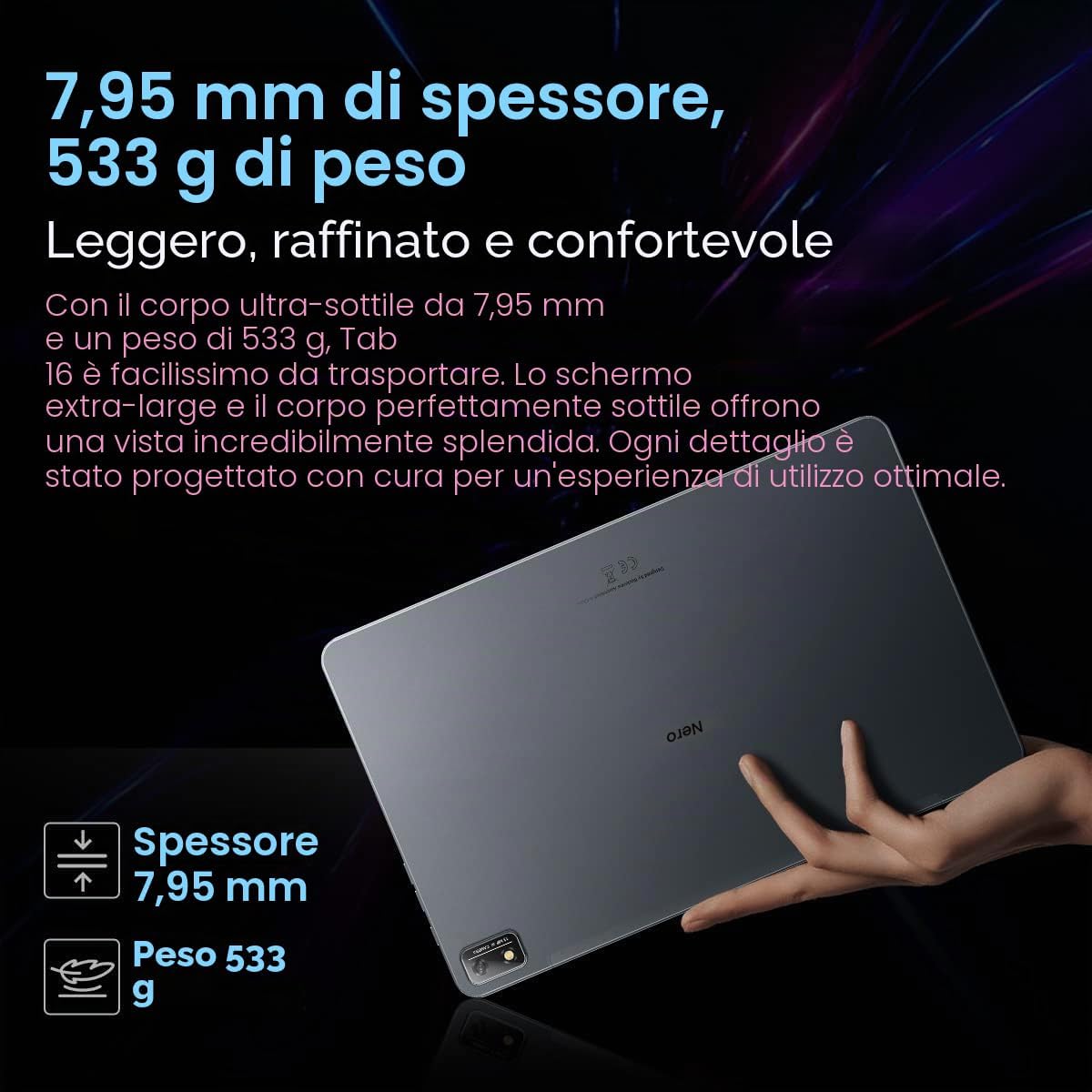
Czarnyview Tab 16 features a slim and lightweight design, making it highly portable for daily use.

Obraz: Czarnyview Tab 16, demonstrating its ultra-thin 7.95mm profile and light 533g weight.
3.2 Wyświetlacz
Experience immersive visuals on the 11-inch 2K Full View IPS display, offering vibrant colors and wide viewkąty.

Image: Visual representation of the 11-inch 2K Full View display, emphasizing its large screen for an enhanced viewzdobywania doświadczenia.
Dźwięk 3.3
The tablet is equipped with Quad-box Smart-K stereo speakers, providing rich and clear audio for all your multimedia needs.

Obraz: Czarnyview Tab 16 showcasing its Quad-box Smart-K speakers, designed for an immersive audio experience.
3.4 Wydajność
Powered by an Octa-core Unisoc T616 processor, the Tab 16 ensures smooth operation and efficient multitasking.

Image: A visual representation of the Unisoc T616 Octa-core processor, highlighting its speed and efficiency.
3.5 Kamera
Capture moments with the 13MP AI rear camera and 8MP AI front camera. The integrated Google Smart Lens offers advanced scanning, detection, and translation features.

Obraz: Czarnyview Tab 16's camera system, featuring a 13MP AI camera and Google Smart Lens capabilities.
3.6 Bateria
The 7680mAh battery provides extended usage, supported by 18W fast charging for quick power-ups.

Obraz: Ilustracja Czarnegoview Tab 16's 7680mAh battery and 18W fast charging capability.
4. Konfiguracja
4.1 Ładowanie urządzenia
Przed pierwszym użyciem należy w pełni naładować urządzenie Blackview Tab 16 using the provided power adapter and USB cable. Connect the USB cable to the tablet's Type-C port and the adapter to a power outlet. The charging indicator will show the charging status.
4.2 Włączanie/wyłączanie
- Włączanie: Naciśnij i przytrzymaj przycisk zasilania, aż pojawi się czarnyview logo pojawia się na ekranie.
- Aby wyłączyć: Naciśnij i przytrzymaj przycisk zasilania, aż pojawi się menu. Wybierz opcję „Wyłącz” i potwierdź.
- Zrestartować: Naciśnij i przytrzymaj przycisk zasilania, aż pojawi się menu. Wybierz „Uruchom ponownie” i potwierdź.
4.3 Konfiguracja początkowa
Upon first power-on, follow the on-screen instructions to configure your tablet:
- Wybierz preferowany język.
- Połącz się z siecią Wi-Fi.
- Zaloguj się za pomocą konta Google lub utwórz nowe.
- Ustaw blokadę ekranu (PIN, wzór, hasło lub rozpoznawanie twarzy).
- Review i zaakceptuj regulamin.
4.4 Instalacja karty SIM i SD
Czarnyview Tab 16 supports Dual SIM and an SD card for expanded storage up to 1TB.
- Znajdź tackę na kartę SIM/SD znajdującą się z boku tabletu.
- Otwórz tackę za pomocą dołączonego narzędzia do wyjmowania karty SIM.
- Carefully place your Nano-SIM cards and/or microSD card into the designated slots. Ensure correct orientation.
- Delikatnie wsuń tackę z powrotem do tabletu, aż zatrzaśnie się na swoim miejscu.
5. Instrukcja obsługi
5.1 Podstawowa nawigacja
Czarnyview Tab 16 uses a touchscreen interface. Common gestures include:
- Uzyskiwać: Wybierz element lub otwórz aplikację.
- Trzepnąć: Przewiń strony lub treść.
- Szczypta: Powiększaj lub pomniejszaj obrazy i web stron.
- Długie naciśnięcie: Uzyskaj dostęp do menu kontekstowych i przenieś ikony.
5.2 Łączność
- Wi-Fi: Przejdź do Ustawienia > Sieć i internet > Wi-Fi, aby połączyć się z dostępnymi sieciami.
- Dane mobilne (4G/LTE): Ensure your SIM card is installed and mobile data is enabled in Settings > Network & internet > Mobile network.
- Bluetooth: Sparuj z urządzeniami Bluetooth (słuchawkami, głośnikami) poprzez Ustawienia > Podłączone urządzenia > Bluetooth.
5.3 Korzystanie z kamery
Open the Camera app to take photos or record videos. Utilize the Google Smart Lens feature for advanced functions:
- Skandować: Digitize documents or QR codes.
- Wykryć: Identify objects, plants, or animals.
- Tłumaczyć: Tłumaczenie tekstu w czasie rzeczywistym.
5.4 Multimedia i rozrywka
Enjoy movies, music, and games on your Tab 16. The 11-inch 2K display and Quad-box speakers provide an engaging experience. The tablet supports Widevine L1 for high-definition streaming.
5.5 Produktywność
Czarnyview Tab 16 is suitable for office work and online learning. It supports external accessories like keyboards and mice for a PC-like experience.
Obraz: Czarnyview Tab 16 paired with a keyboard and mouse, demonstrating its capability for a PC-like productivity experience.
5.6 Tryby czytania
To reduce eye strain, the Tab 16 offers three eye protection modes, including a TÜV Rheinland Low Blue Light certified mode and a Dark Mode with 3 levels of darkness. Access these settings in the display options.
6. Konserwacja
6.1 Czyszczenie urządzenia
Do czyszczenia ekranu i obudowy tabletu używaj miękkiej, niepozostawiającej włókien ściereczki. Unikaj stosowania silnych środków chemicznych i materiałów ściernych, które mogłyby uszkodzić powierzchnię.
6.2 Pielęgnacja baterii
Aby przedłużyć żywotność baterii:
- Unikaj ekstremalnych temperatur.
- Nie należy dopuszczać do całkowitego rozładowania akumulatora.
- Używaj oryginalnej ładowarki i kabla.
6.3 Aktualizacje oprogramowania
Regularly check for system updates to ensure your tablet has the latest features and security patches. Go to Settings > System > System update.
6.4 Zarządzanie magazynem
Manage your 256GB internal storage and any installed microSD card by regularly deleting unnecessary files and uninstalling unused applications. Go to Settings > Storage.
7. Rozwiązywanie Problemów
Jeśli masz problemy z urządzeniem Blackview Tab 16, refer to the following common solutions:
| Problem | Możliwe rozwiązanie |
|---|---|
| Urządzenie nie włącza się | Upewnij się, że bateria jest naładowana. Naciśnij i przytrzymaj przycisk zasilania przez co najmniej 10–15 sekund. |
| Tablet nie ładuje się | Check the charging cable and adapter for damage. Try a different power outlet. Ensure the charging port is clean. |
| Problemy z połączeniem Wi-Fi | Restart the tablet and your Wi-Fi router. Forget the network and reconnect. Ensure you are within range. |
| Aplikacje ulegają awarii lub zawieszają się | Close and reopen the app. Clear the app's cache (Settings > Apps > [App Name] > Storage & cache). Restart the tablet. |
| Niska wydajność | Zamknij aplikacje działające w tle. Wyczyść pamięć podręczną. Zwolnij miejsce w pamięci. Uruchom ponownie tablet. |
If problems persist, consider performing a factory reset (Settings > System > Reset options > Erase all data), but back up your data first as this will delete all personal information.
8. Specyfikacje
Kluczowe dane techniczne dla Blackview Zakładka 16:
- Nazwa modelu: Karta 16
- System operacyjny: Android 12
- Edytor: Unisoc T616 ośmiordzeniowy (2 GHz)
- BARAN: 8 GB
- Pamięć wewnętrzna: 256 GB
- Możliwość rozbudowy pamięci masowej: microSD do 1 TB
- Wyświetlacz: 11-inch IPS 2K (2000 x 1200), 60 Hz, 16:10 aspect ratio
- Kamera tylna: 13 MP
- Przednia kamera: 8 MP
- Bateria: 7680 mAh (26 hours average duration)
- Ładowanie: Szybkie ładowanie 18 W
- Łączność: Wi-Fi, Bluetooth, 4G/LTE (Dual SIM), GPS
- Porty: USB typu C
- Wymiary: 26 dł. x 16.5 szer. x 0.8 wys. cm
- Waga: 533 gramów
- Cechy szczególne: Google Smart Lens, Widevine L1 1080P Support, 3 Reading Modes
9. Gwarancja i wsparcie
Twój czarnyview Tab 16 is covered by a manufacturer's warranty. Please refer to the warranty card included in your package for specific terms and conditions. For technical support or service inquiries, please visit the official Blackview webOdwiedź witrynę lub skontaktuj się z działem obsługi klienta. Zachowaj paragon jako dowód zakupu na wypadek reklamacji.
Więcej informacji można znaleźć na stronie Czarnyview Sklep na Amazonie.