
1. Koniec produktuview
The HOU Slim Bluetooth Keyboard Case is designed to enhance the functionality and protection of your iPad. It features a minimalist, ultra-thin, and lightweight design, making it ideal for portability. The case is constructed from silicon-containing tech leather, offering wear-resistant and stain-resistant properties. Its magnetic stand provides two ergonomic tilt angles for comfortable typing and viewing.

Image 1.1: HOU Slim Bluetooth Keyboard Case with iPad in open position, showcasing klawiatura i ekran.
Główne cechy:
- Ultra-Slim & Lightweight: Weighing approximately 434 grams and 0.6 cm thin, designed for easy transport.
- Trwały materiał: Made from PU (with silicon) + synthetic leather for enhanced durability and easy cleaning.
- Stojak magnetyczny: Offers 115° for typing and 125° for viewing, providing stable support.
- Magnetic Separation: Keyboard and iPad can be easily separated due to dual magnetic points.
- Bateria o długiej żywotności: Zapewnia dłuższy czas użytkowania.
- Precyzyjne dopasowanie: Specifically designed for iPad 10th and 11th Generation models.
2. Co znajduje się w pudełku
Proszę sprawdzić zawartość przesyłki po jej otrzymaniu:
- HOU Slim Bluetooth Keyboard Case
- Magnetyczny kabel ładujący
- Instrukcja obsługi (ten dokument)
3. Zgodność
This HOU Slim Bluetooth Keyboard Case is compatible with the following iPad models:
- iPad 10th Generation 10.9 inch (2022 models: A2696/A2757/A2777/A3162)
- iPad 11th Generation 11 inch A16 (2025 models: A3354/A3355/A3356)

Image 3.1: Diagram illustrating the compatible iPad models for the HOU keyboard case.
4. Instrukcje konfiguracji
4.1 Mocowanie iPada do etui
- Align your compatible iPad with the backplate of the keyboard case.
- The iPad will securely attach to the case via strong magnets. No force or snapping is required.

Image 4.1: A user attaching an iPad to the HOU keyboard case using magnetic attraction.
4.2 parowanie Bluetooth
- Ensure your iPad's Bluetooth is turned on.
- Turn on the HOU keyboard case. The Bluetooth indicator light on the keyboard will begin to flash.
- Na iPadzie przejdź do Ustawienia > Bluetooth.
- Select the HOU keyboard from the list of available devices.
- Once paired, the indicator light will stop flashing, and your iPad will show the keyboard as connected.

Image 4.2: An iPad screen displaying the Bluetooth connection status and battery level of the connected keyboard.
4.3 Ładowanie klawiatury
Use the provided magnetic charging cable to charge the keyboard. Connect the magnetic end to the keyboard's charging port and the other end to a USB power source. The iPad can display the keyboard's battery level in real-time.

Obraz 4.3: Zbliżenie view of the magnetic charging port on the HOU keyboard case.
5. Instrukcja obsługi
5.1 Regulacja Viewing kąt
The magnetic stand allows for two primary ergonomic tilt angles:
- Kąt 115°: Suitable for typing and productivity tasks.
- Kąt 125°: Ideal for media consumption, such as watching videos or reading.

Image 5.1: Illustration of the two adjustable viewing angles (115° and 125°) provided by the magnetic stand.
5.2 Using Shortcut Keys
The keyboard features dedicated shortcut keys for quick access to various iPad functions, including:
- Regulacja głośności
- Regulacja jasności
- Funkcja wyszukiwania
- Dostęp do ekranu głównego
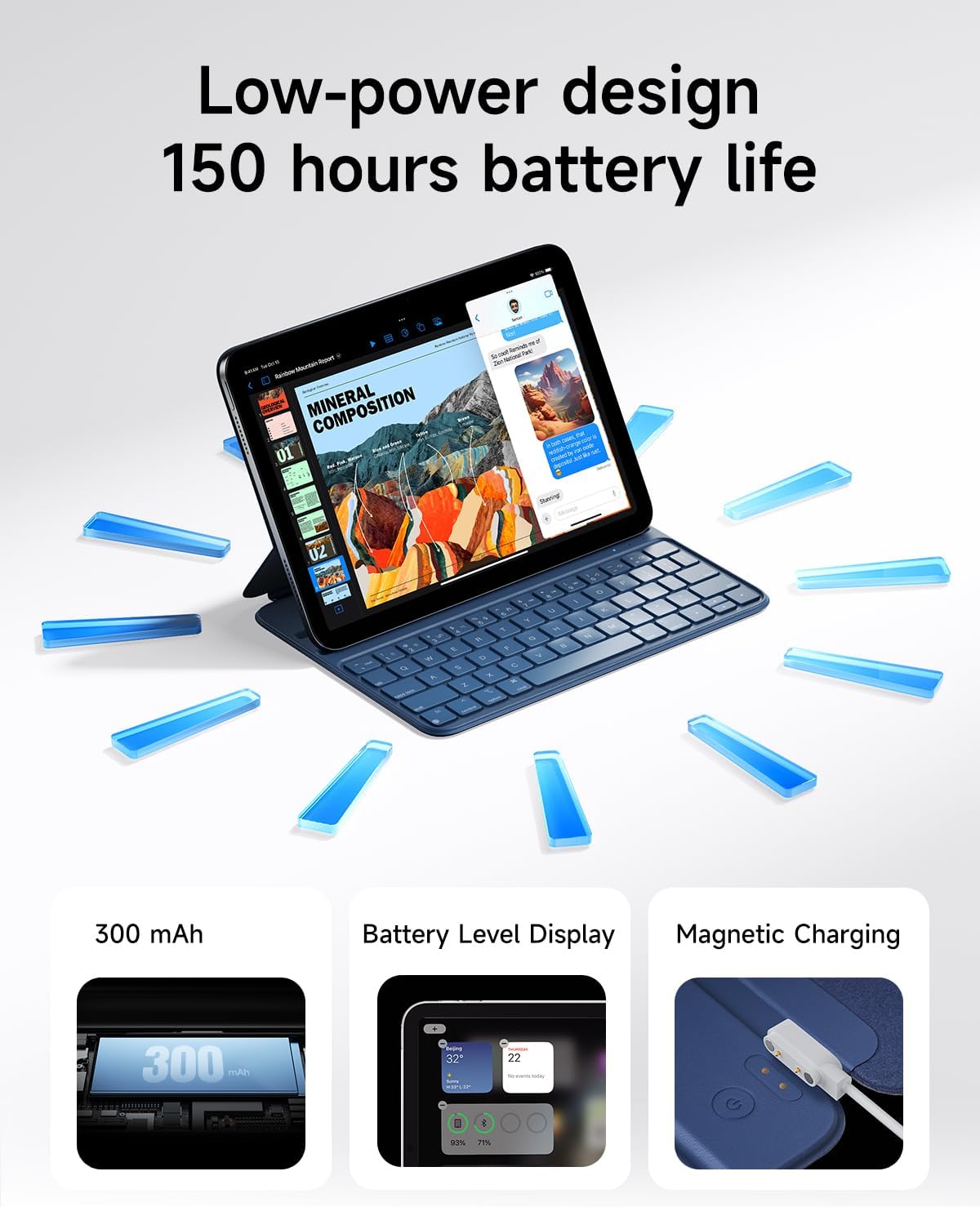
Image 5.2: A close-up of the HOU keyboard highlighting the layout and various shortcut keys.
5.3 Doświadczenie pisania
The keyboard is designed with flat keycaps and a scissor-switch structure to provide smooth input, quiet operation, and responsive feedback, reducing fatigue during extended typing sessions.
Video 5.3: This video demonstrates the HOU Keyboard Case for iPad, showing its magnetic attachment, comfortable typing experience, and shortcut key functionality.
6. Konserwacja
6.1 Czyszczenie obudowy
The silicon-containing tech leather material is designed to be wear-resistant and stain-resistant. To clean, gently wipe the surface with a soft, damp cloth. For stubborn stains like coffee or ink, a mild soap solution can be used, followed by wiping with a clean, damp szmatką i suszenie na powietrzu.
6.2 Pielęgnacja baterii
Aby przedłużyć żywotność baterii, unikaj częstego całkowitego rozładowywania klawiatury. Regularnie ładuj klawiaturę, zwłaszcza jeśli będzie przechowywana przez dłuższy czas.
7. Rozwiązywanie Problemów
Klawiatura 7.1 nie łączy się przez Bluetooth
- Sprawdź moc: Sprawdź, czy klawiatura jest włączona i czy bateria jest wystarczająco naładowana.
- Ponowna parowanie urządzenia: On your iPad, forget the device in Bluetooth settings and attempt to pair again.
- Uruchom ponownie urządzenia: Turn off and restart both your iPad and the keyboard.
- Bliskość: Ensure the keyboard and iPad are within close range during pairing.
7.2 Typing Delay or Unresponsive Keys
- Połączenie Bluetooth: Verify a stable Bluetooth connection. Disconnect and reconnect if necessary.
- Poziom naładowania baterii: A low battery can affect performance. Charge the keyboard fully.
- Ingerencja: Odsuń się od innych urządzeń bezprzewodowych, które mogą powodować zakłócenia.
8. Specyfikacje
| Funkcja | Szczegół |
|---|---|
| Wymiary produktu | 9.8 x 3.3 x 0.3 cala |
| Waga przedmiotu | 1.59 funta (około 721 gramów) |
| Producent | DOM |
| Numer modelu przedmiotu | A2696/A2777/A2757 |
| Baterie | 1 bateria litowo-polimerowa (w zestawie) |
| Kompatybilne urządzenia | iPad 10th Generation 10.9 inch 2022 & iPad 11th Generation 11 inch A16 2025 |
| Technologia łączności | Bluetooth |
| Cechy specjalne | Ergonomic, Hotkeys and Media Keys, Lightweight, PU+ABS, Rechargeable |
| Kolor | Niebieski |
| Tworzywo | Akrylonitryl-butadien-styren (ABS) |
9. Gwarancja i wsparcie
HOU provides a 12-month extended after-sales service for this product. For any inquiries or support needs, please contact HOU Store Customer Service. 24/7 online support is available.

Image 9.1: HOU Customer Service information, highlighting 24/7 online support and a 12-month extended after-sales service.
Additionally, a 30-day refund/replacement return policy is available through the retailer.