
HOCO HB29 - Metal Grey
Hoco HB29 Multi-Function Hub Converter User Manual
Model: HB29 - Metal Grey
Wstęp
Thank you for choosing the Hoco HB29 Multi-Function Hub Converter. This device is designed to expand the connectivity of your Type-C enabled notebooks, allowing you to connect to HDMI and VGA displays simultaneously. Please read this manual carefully to ensure proper use and optimal performance of your device.

Image: The Hoco HB29 Multi-Function Hub Converter, showcasing its compact design and Type-C cable, HDMI port, and VGA port.
Cechy produktu
- Tworzywo: Constructed from durable aluminum alloy and ABS for longevity.
- Kompaktowy rozmiar: Dimensions of 109*28.8*11.6mm with a wire length of 150±5mm, weighing only 40g, making it highly portable.
- Interfejs: Features a Type-C male connector for input, and HDTV (HDMI) plus VGA ports for output.
- Wyjście HDMI: Supports 4K resolution at 30Hz, providing synchronized audio and video.
- Wyjście VGA: Supports 1080P resolution. Please note that VGA does not support audio output.
- Jednoczesne wyjście: When both HDMI and VGA ports are used simultaneously, the output resolution is 1080P.
- Szeroka kompatybilność: Designed for Type-C notebooks and compatible with most operating systems, including Windows and Mac OS, for connection to projectors, TVs, and monitors.
Instrukcje konfiguracji
- Podłącz Hub do swojego urządzenia: Insert the Type-C male connector of the Hoco HB29 into the Type-C port of your notebook, laptop, or compatible smartphone.
- Podłącz do wyświetlacza (HDMI): For HDMI connection, use a standard HDMI cable (not included) to connect the HDMI port on the Hoco HB29 to the HDMI input on your TV, monitor, or projector. Ensure the display device is powered on and set to the correct HDMI input source.
- Connect to Display (VGA): For VGA connection, use a standard VGA cable (not included) to connect the VGA port on the Hoco HB29 to the VGA input on your monitor or projector. Ensure the display device is powered on and set to the correct VGA input source.
- Jednoczesne połączenie: You can connect both an HDMI and a VGA display simultaneously. The output resolution will be 1080P for both displays.
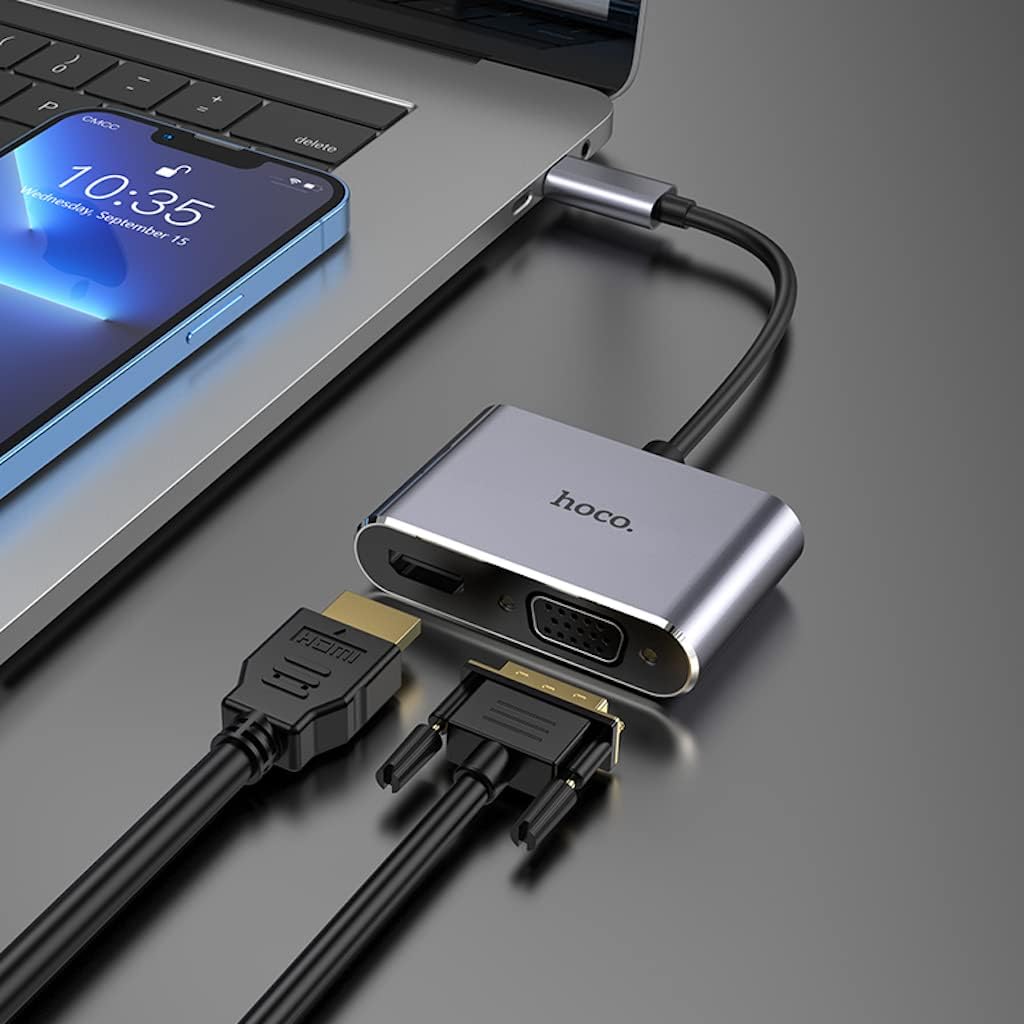
Image: The Hoco HB29 converter connected to a laptop, demonstrating how to plug in both HDMI and VGA cables for dual display output.
Instrukcja obsługi
Once connected, your operating system should automatically detect the external display(s). You may need to adjust display settings within your operating system.
- System operacyjny Windows:
- Right-click on your desktop and select "Display settings" or "Screen resolution".
- You can choose to "Duplicate these displays" (mirror your primary screen), "Extend these displays" (use the external display as an extension of your desktop), or "Show only on 1/2" (use only one display).
- Dostosuj rozdzielczość i orientację według potrzeb.
- System operacyjny Mac:
- Przejdź do „Preferencji systemowych” > „Wyświetlacze”.
- In the "Arrangement" tab, you can arrange your displays, mirror them, or extend your desktop.
- In the "Display" tab, you can adjust resolution and refresh rate.

Image: A laptop connected via the Hoco HB29 converter to two external monitors, demonstrating an extended desktop setup for increased productivity.
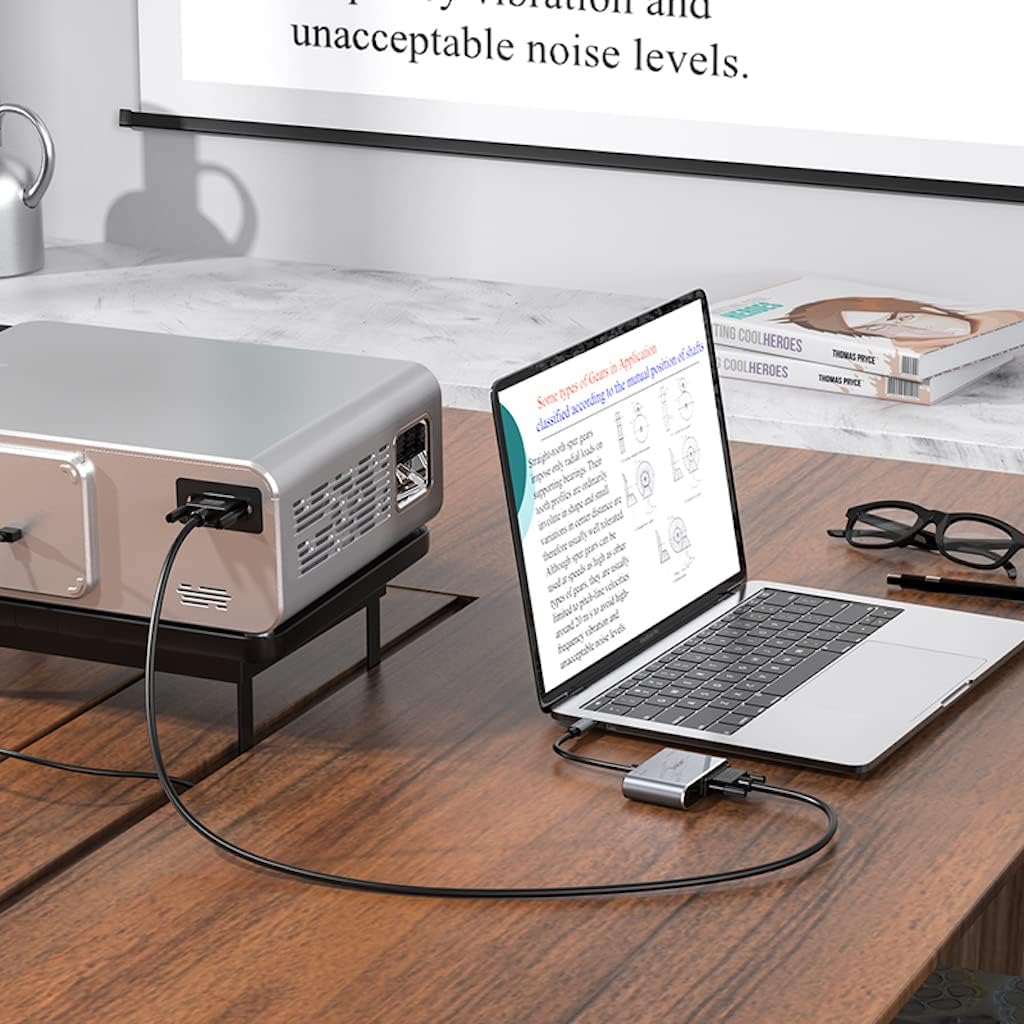
Image: The Hoco HB29 converter facilitating a connection between a laptop and a projector, ideal for presentations or larger screen viewing.
Konserwacja i pielęgnacja
- Czyszczenie: Use a soft, dry cloth to clean the surface of the converter. Avoid using liquid cleaners or aerosols.
- Składowanie: Przechowywać urządzenie w chłodnym i suchym miejscu, z dala od bezpośredniego światła słonecznego i ekstremalnych temperatur.
- Obsługiwanie: Avoid dropping the converter or subjecting it to strong impacts. Do not bend the cable excessively.
- Łączność: Zawsze należy ostrożnie wkładać i wyjmować kable, aby zapobiec uszkodzeniu portów.
Rozwiązywanie problemów
| Problem | Możliwa przyczyna / rozwiązanie |
|---|---|
| Brak wyjścia wyświetlacza. |
|
| No audio from HDMI. |
|
| VGA output has no audio. | VGA is a video-only interface and does not transmit audio. Audio must be routed separately from your source device. |
| Resolution is not 4K (HDMI) or 1080P (VGA). |
|
Specyfikacje
| Funkcja | Szczegół |
|---|---|
| Numer modelu | HB29 - Metal Grey |
| Tworzywo | Stop aluminium + ABS |
| Wymiary (dł. x szer. x wys.) | Wymiary 10.9 x 2.88 x 1.16 cm |
| Długość przewodu | 150 ± 5 mm |
| Waga | 40 gramów |
| Interfejs wejściowy | Mężczyzna typu C |
| Interfejsy wyjściowe | HDTV (HDMI), VGA |
| HDMI Resolution Support | Up to 4K @ 30Hz (Audio and Video Sync) |
| VGA Resolution Support | Up to 1080P (Video Only, No Audio) |
| Simultaneous Output Resolution | 1080P for both HDMI and VGA |
| Kompatybilne systemy operacyjne | Windows, Mac OS, and other Type-C enabled systems |
| Producent | Hoco |
| Data pierwszej dostępności | 18 maja 2023 |
Gwarancja i wsparcie
Aby uzyskać informacje dotyczące gwarancji i pomocy technicznej, zapoznaj się z oficjalną stroną HOCO webOdwiedź witrynę lub skontaktuj się ze sprzedawcą. Zachowaj paragon zakupu na wypadek reklamacji.
Aby uzyskać dalszą pomoc, możesz odwiedzić stronę HOCO official webstrona.
Ask a question about this manual
Ask about setup, troubleshooting, compatibility, parts, safety, or missing instructions. Manuals+ will review the question and use this page’s manual context to help answer it.