
1. Wprowadzenie
Thank you for choosing the OMOTON KB515 Bluetooth Keyboard. This full-size wireless keyboard is specifically designed for Mac OS devices, offering a comfortable typing experience with multi-device connectivity. Please read this manual carefully to ensure proper setup and operation.

The OMOTON KB515 Bluetooth Keyboard integrated into a multi-device Mac OS workspace.
2. Zawartość opakowania
- Klawiatura Bluetooth OMOTON KB515
- Ściągacz nasadek klawiszy
- Instrukcja obsługi
Uwaga: Do działania urządzenia wymagane są 2 baterie AAA, które nie są dołączone do zestawu.
3. Konfiguracja i parowanie
3.1 Instalacja baterii
- Locate the battery compartment on the back of the keyboard.
- Otwórz pokrywę komory baterii.
- Włóż dwie (2) baterie AAA, zwracając uwagę na prawidłową biegunowość (+/-).
- Zamknij pokrywę komory baterii.
3.2 Włączanie/wyłączanie zasilania
Slide the power switch, located on the top edge of the keyboard, to the "ON" position to power on the keyboard. Slide it to "OFF" to power off.
3.3 Instrukcje parowania Bluetooth
The OMOTON KB515 keyboard supports connection to up to three devices simultaneously via Bluetooth. Ensure Bluetooth is enabled on your Mac OS device before proceeding.
- Włącz klawiaturę za pomocą przełącznika ON/OFF.
- Naciśnij i przytrzymaj Fn klawisz i jeden z klawiszy kanału Bluetooth (BT1, BT2, Lub BT3) for 3-5 seconds until the corresponding LED indicator (blue light) blinks. This activates pairing mode for the selected channel.
- On your Mac OS device, go to Ustawienia systemowe (Lub Preferencje systemowe) > Bluetooth.
- In the list of available devices, select "Klawiatura OMOTON".
- Follow any on-screen prompts to complete the pairing process. The blue indicator light will turn off once successfully connected.
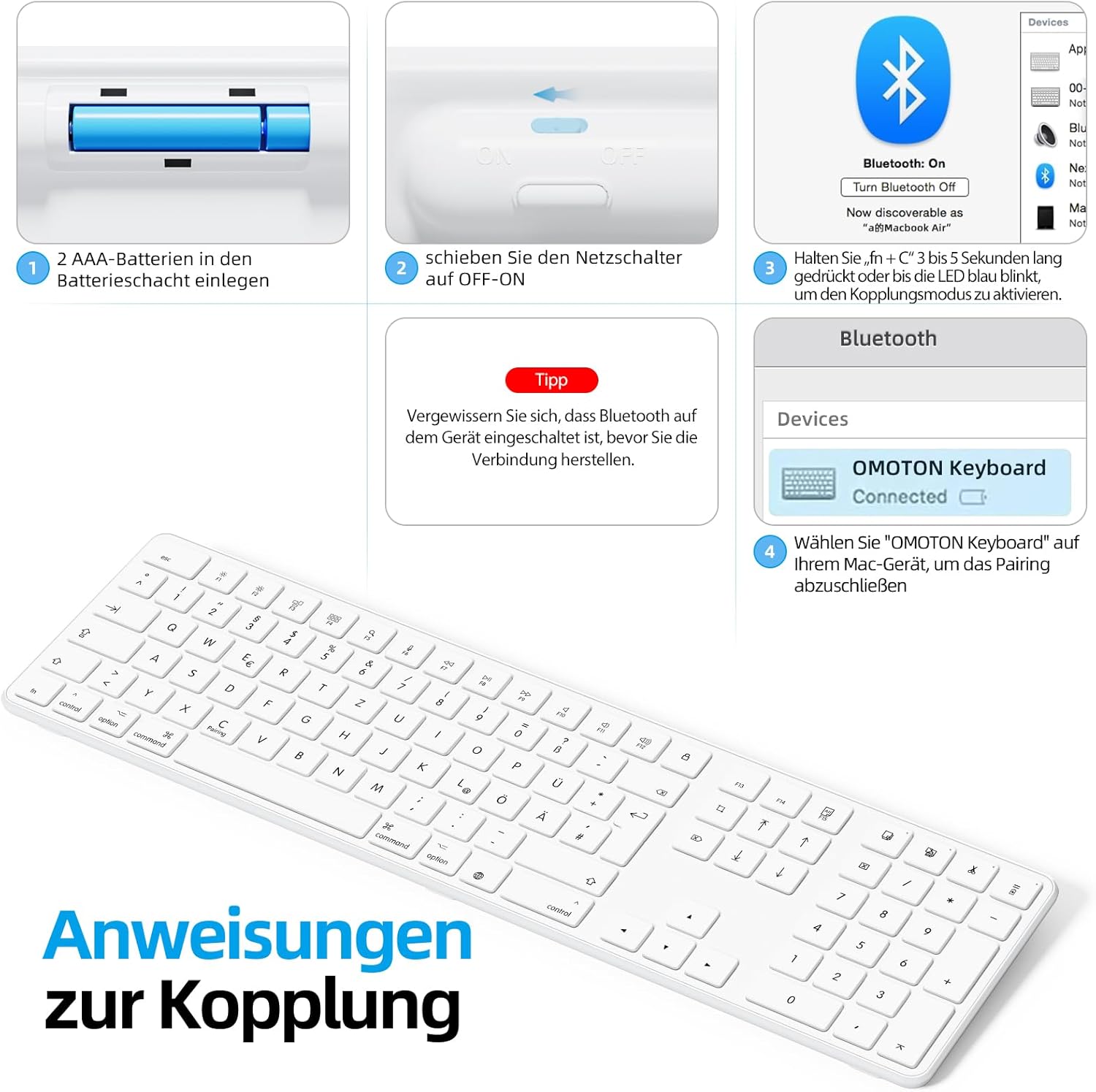
Visual guide for battery insertion and Bluetooth pairing steps.
Wskazówka: To pair with additional devices, repeat step 2 using a different Bluetooth channel (BT2 or BT3).
4. Obsługa klawiatury
4.1 Przełączanie między sparowanymi urządzeniami
Aby przełączać się między sparowanymi urządzeniami, wystarczy nacisnąć Fn klawisz wraz z odpowiadającym mu klawiszem kanału Bluetooth (BT1, BT2, Lub BT3) that your desired device is paired to. A short press is sufficient for switching.
4.2 Klawisze multimedialne i funkcyjne
The OMOTON KB515 keyboard features 12 dedicated multimedia shortcut keys optimized for Mac OS, providing quick access to various functions.

The keyboard layout highlighting the optimized multimedia keys for Mac OS.
- F1-F2: Regulacja jasności ekranu
- F3: Kontrola misji
- F4: Platforma startowa
- F7-F9: Sterowanie odtwarzaniem multimediów (Poprzedni, Odtwórz/Pauza, Następny)
- F10-F12: Volume Controls (Mute, Volume Down, Volume Up)
4.3 Tryb oszczędzania energii
To conserve battery life, the keyboard will automatically enter sleep mode after 10 minutes of inactivity. To wake it up, simply press any key. The keyboard will reconnect to the last active device.
5. Konserwacja
- Utrzymuj klawiaturę w czystości, przecierając ją miękką, suchą szmatką.
- Unikaj narażania klawiatury na działanie płynów i nadmiernej wilgoci.
- Do not disassemble the keyboard, as this will void the warranty.
- When not in use for extended periods, turn off the keyboard to save battery life.
- Use the included keycap puller to carefully remove and clean individual keycaps if necessary.
6. Rozwiązywanie Problemów
6.1 Klawiatura nie łączy się/nie paruje
- Ensure the keyboard is powered on and has fresh batteries.
- Make sure Bluetooth is enabled on your Mac OS device.
- Verify that the keyboard is in pairing mode (blue LED blinking) for the selected channel.
- Spróbuj rozłączyć i ponownie sparować klawiaturę w ustawieniach Bluetooth swojego urządzenia.
- Restart your Mac OS device and try pairing again.
- Upewnij się, że klawiatura znajduje się w zasięgu Bluetooth (zwykle do 10 metrów).
6.2 Klawisze nie reagują
- Sprawdź poziom naładowania baterii i w razie potrzeby wymień.
- Ensure the keyboard is properly connected to your device. Try switching Bluetooth channels.
- Wyczyść wszelkie zanieczyszczenia, które mogą gromadzić się pod klawiszami.
6.3 Opóźnienia lub rozłączenia
- Move the keyboard closer to your Mac OS device to reduce interference.
- Ensure there are no other strong wireless signals or devices interfering with the Bluetooth connection.
- Check for any available software updates for your Mac OS.
7. Specyfikacje
| Numer modelu | KB515 |
| Marka | OMOTON |
| Technologia łączności | Bluetooth |
| Źródło zasilania | Baterie 2 x AAA (brak w zestawie) |
| Układ klawiatury | QWERTZ (niemiecki) |
| Zgodność | Mac OS X 10.10 and above (MacBook Air, MacBook Pro, iMac, iPad, etc.) |
| Cechy specjalne | Wireless Connection, Numeric Keypad, Multimedia Keys, Ergonomic Design |
| Tworzywo | Rubber (keypad cushioning) |
| Kolor | Biały |

Keyboard dimensions and key features like ON/OFF switch and battery slot.
8. Gwarancja i wsparcie
For warranty information or technical support, please refer to the documentation provided with your purchase or contact OMOTON customer service directly through their official website or the retailer where you purchased the product. Please have your model number (KB515) and proof of purchase ready.