
1. Wprowadzenie
BuzzTV B5 to zaawansowany dekoder TV z systemem Android 11, zaprojektowany z myślą o zapewnieniu doskonałych wrażeń podczas streamingu w rozdzielczości 4K UHD. Urządzenie to umożliwia dostęp do szerokiej gamy materiałów rozrywkowych, w tym filmów, programów telewizyjnych i aplikacji, bezpośrednio na telewizorze. Niniejsza instrukcja zawiera podstawowe informacje dotyczące prawidłowej konfiguracji, obsługi, konserwacji i rozwiązywania problemów z BuzzTV B5.
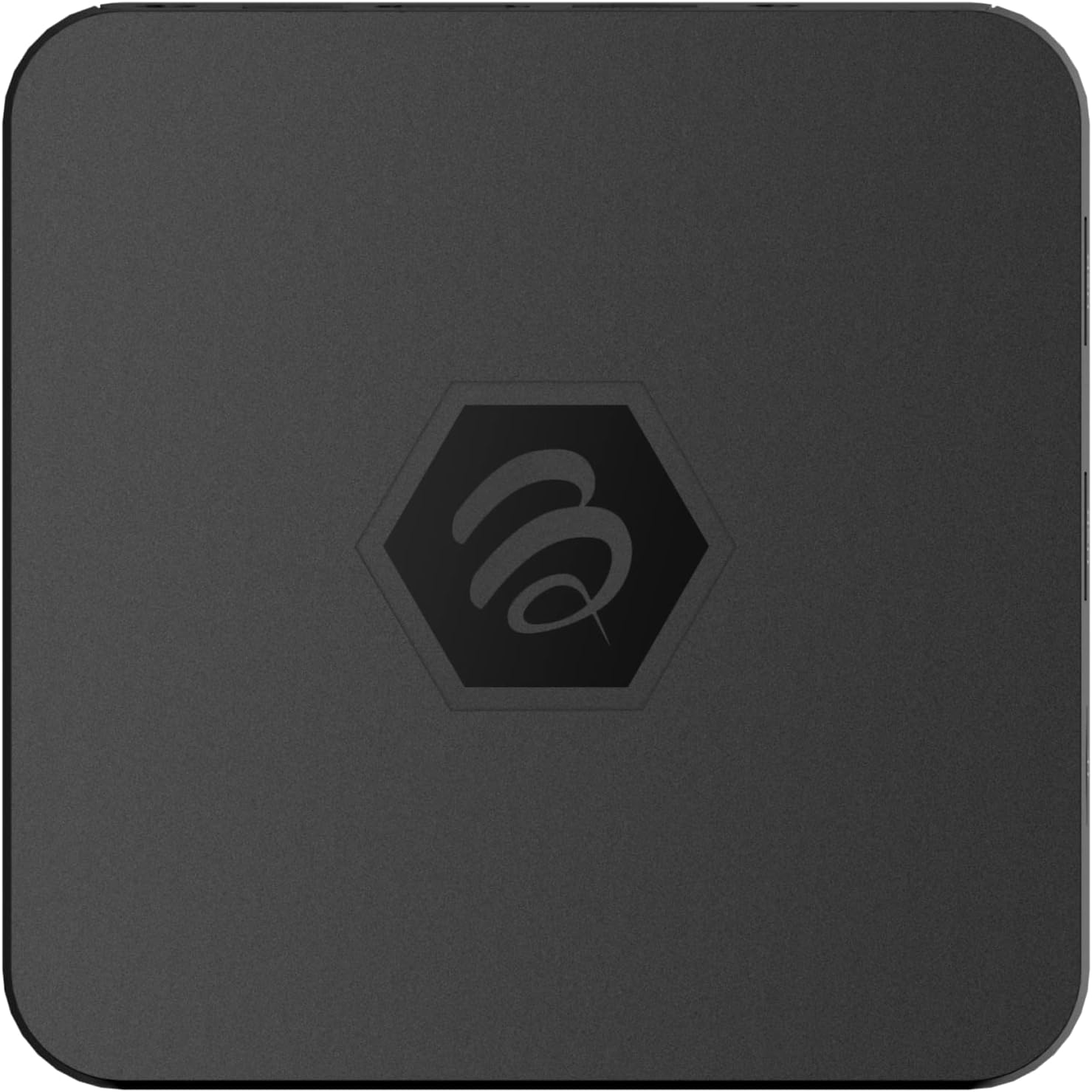
Obraz 1.1: Góra view dekodera BuzzTV B5 Android 11 TV Box.
2. Zawartość opakowania
Sprawdź, czy wszystkie elementy wymienione poniżej znajdują się w pakiecie BuzzTV B5:
- Dekoder BuzzTV B5
- Pilot zdalnego sterowania IR-100
- Zasilacz sieciowy
- 2 baterie AAA (do pilota)
- Kabel HDMI
- Instrukcja obsługi (ten dokument)

Ilustracja 2.1: Zawartość zestawu detalicznego BuzzTV B5.
3. Przewodnik konfiguracji
Aby skonfigurować dekoder BuzzTV B5, wykonaj następujące czynności:
- Połącz z telewizorem: Podłącz jeden koniec dołączonego kabla HDMI do portu HDMI w urządzeniu BuzzTV B5, a drugi koniec do dostępnego wejścia HDMI w telewizorze.
- Podłącz zasilanie: Podłącz zasilacz do portu DC 5 V w BuzzTV B5, a następnie podłącz zasilacz do gniazdka ściennego. Urządzenie powinno włączyć się automatycznie lub można je włączyć za pomocą pilota.
- Włóż baterie do pilota: Otwórz komorę baterii znajdującą się z tyłu pilota IR-100 i włóż dwie baterie AAA, zwracając uwagę na prawidłową biegunowość (+/-).
- Połączenie internetowe: Po uruchomieniu urządzenia postępuj zgodnie z instrukcjami wyświetlanymi na ekranie, aby połączyć się z siecią. Możesz wybrać połączenie Wi-Fi (bezprzewodowe) lub Ethernet (przewodowe). Aby połączyć się przewodowo, podłącz kabel Ethernet z routera do portu Ethernet w BuzzTV B5.
- Początkowe ustawienia: Ukończ proces początkowej konfiguracji systemu Android, który może obejmować wybór języka, logowanie do konta Google i ustawienie strefy czasowej.

Ilustracja 3.1: Porty z tyłu BuzzTV B5 umożliwiające łączność.
4. Instrukcja obsługi
BuzzTV B5 działa w oparciu o system Android 11, zapewniając przyjazny użytkownikowi interfejs do nawigacji i dostępu do treści.
4.1 Funkcje zdalnego sterowania
Pilot zdalnego sterowania IR-100 to podstawowy interfejs użytkownika BuzzTV B5. Jego najważniejsze funkcje obejmują:
- Przycisk zasilania: Włącza lub wyłącza urządzenie.
- Panel nawigacyjny (góra/dół/lewo/prawo/OK): Służy do poruszania się po menu i wybierania elementów.
- Przycisk Wstecz: Powrót do poprzedniego ekranu lub menu.
- Przycisk Home: Powrót do głównego ekranu głównego systemu Android.
- Przyciski głośności: Dostosowuje głośność dźwięku.
- Przyciski aplikacji/menu: Umożliwia dostęp do określonych aplikacji lub menu kontekstowych.

Ilustracja 4.1: Budowa pilota IR-100.
4.2 Dostęp do aplikacji
Z ekranu głównego możesz uzyskać dostęp do preinstalowanych aplikacji, takich jak Netflix i YouTube, lub pobrać nowe aplikacje ze sklepu Google Play. Użyj panelu nawigacyjnego na pilocie, aby wybierać i uruchamiać aplikacje.
4.3 Przesyłanie strumieniowe 4K UHD
BuzzTV B5 obsługuje rozdzielczość 4K UHD. Upewnij się, że Twój telewizor jest kompatybilny z 4K i używasz szybkiego kabla HDMI, aby uzyskać optymalną jakość obrazu. Jakość przesyłania strumieniowego zależy również od szybkości połączenia internetowego i źródła treści.
5. Konserwacja
Aby zapewnić długowieczność i optymalną wydajność urządzenia BuzzTV B5, należy przestrzegać następujących wskazówek dotyczących konserwacji:
- Czyszczenie: Do czyszczenia zewnętrznej części urządzenia używaj miękkiej, suchej ściereczki. Unikaj płynnych środków czyszczących i materiałów ściernych.
- Wentylacja: Upewnij się, że urządzenie znajduje się w dobrze wentylowanym miejscu, aby zapobiec przegrzaniu. Nie zakrywaj otworów wentylacyjnych.
- Aktualizacje oprogramowania: Regularnie sprawdzaj dostępność aktualizacji systemu i instaluj je, aby korzystać z nowych funkcji, ulepszeń wydajności i poprawek zabezpieczeń. Zazwyczaj można je znaleźć w menu ustawień urządzenia.
- Cykl zasilania: Jeżeli urządzenie przestanie reagować, odłącz zasilacz, odczekaj 10 sekund, a następnie podłącz go ponownie i wyłącz.
6. Rozwiązywanie Problemów
Jeśli masz problemy z urządzeniem BuzzTV B5, zapoznaj się z poniższymi typowymi problemami i ich rozwiązaniami:
| Problem | Możliwa przyczyna | Rozwiązanie |
|---|---|---|
| Brak zasilania | Zasilacz nie jest podłączony; gniazdko nie działa. | Upewnij się, że zasilacz jest prawidłowo podłączony do urządzenia i działa. Spróbuj użyć innego gniazdka. |
| Brak sygnału w telewizji | Wybrano niewłaściwe wejście HDMI; uszkodzony kabel HDMI. | Wybierz odpowiednie wejście HDMI w telewizorze. Sprawdź połączenia kabli HDMI lub wypróbuj inny kabel HDMI. |
| Pilot nie odpowiada | Rozładowane baterie; pilot nie jest sparowany (jeśli dotyczy); przeszkoda. | Wymień baterie AAA. Upewnij się, że między pilotem a urządzeniem nie ma żadnych przeszkód. |
| Problemy z połączeniem sieciowym | Nieprawidłowe hasło Wi-Fi, problemy z routerem, słaby sygnał. | Zweryfikuj hasło Wi-Fi. Uruchom ponownie router. Przenieś urządzenie bliżej routera lub użyj kabla Ethernet. |
| Aplikacje ulegają awarii/zawieszają się | Za mało pamięci, nieaktualna aplikacja, błąd oprogramowania. | Zamknij aplikacje działające w tle. Zaktualizuj aplikację lub oprogramowanie układowe urządzenia. Wyczyść pamięć podręczną/dane aplikacji w ustawieniach. |
7. Specyfikacje
Szczegółowe dane techniczne dekodera BuzzTV B5 Android 11 TV Box:
- System operacyjny: System operacyjny Android 11
- Procesor: Amlogic S905W2 Quad-Core A-35
- Procesor graficzny: Mali-G31 MP2
- BARAN: 2GB DDR
- Składowanie: 16 GB eMMC
- Wi-Fi: Dwuzakresowy AC
- LAN: 10 / 100 Mbps Ethernet
- Bluetooth: 4.2
- Porty USB: 2x USB 2.0
- Gniazdo kart microSD: 1
- Interfejs zasilania: Prąd stały 5 V
- Wyjście HDMI: 1
- Optyczne wyjście audio: 1
- Rozdzielczość wyjściowa: 4K (32 kl./s)
- Wymiary: 9.06 x 5.63 x 2.32 cala
- Waga przedmiotu: 1.01 funta

Ilustracja 7.1: BuzzTV B5 z podsumowaniem jego specyfikacji technicznych.
8. Informacje o gwarancji
Aby uzyskać szczegółowe informacje dotyczące gwarancji na BuzzTV B5, zapoznaj się z kartą gwarancyjną dołączoną do opakowania produktu lub odwiedź oficjalną stronę BuzzTV webWarunki gwarancji mogą się różnić w zależności od regionu i sprzedawcy.
9. Wsparcie
Jeśli potrzebujesz dalszej pomocy lub masz pytania, na które nie ma odpowiedzi w tej instrukcji, skontaktuj się z obsługą klienta BuzzTV lub odwiedź ich oficjalną stronę internetową webStrona zawierająca odpowiedzi na często zadawane pytania, pliki do pobrania i dodatkowe zasoby.
Oficjalny BuzzTV Webstrona: www.buzztv.com