
1. Koniec produktuview
The TP-Link ER707-M2 is an Omada Multi-Gigabit VPN Router designed for high-performance networking environments. It features dual 2.5 Gigabit WAN ports, a Gigabit SFP WAN/LAN port, and multiple Gigabit RJ45 WAN/LAN ports, providing flexible connectivity and high-bandwidth aggregation. This router integrates seamlessly with the Omada SDN Controller for centralized management and offers robust security features including an SPI Firewall and various VPN protocols.
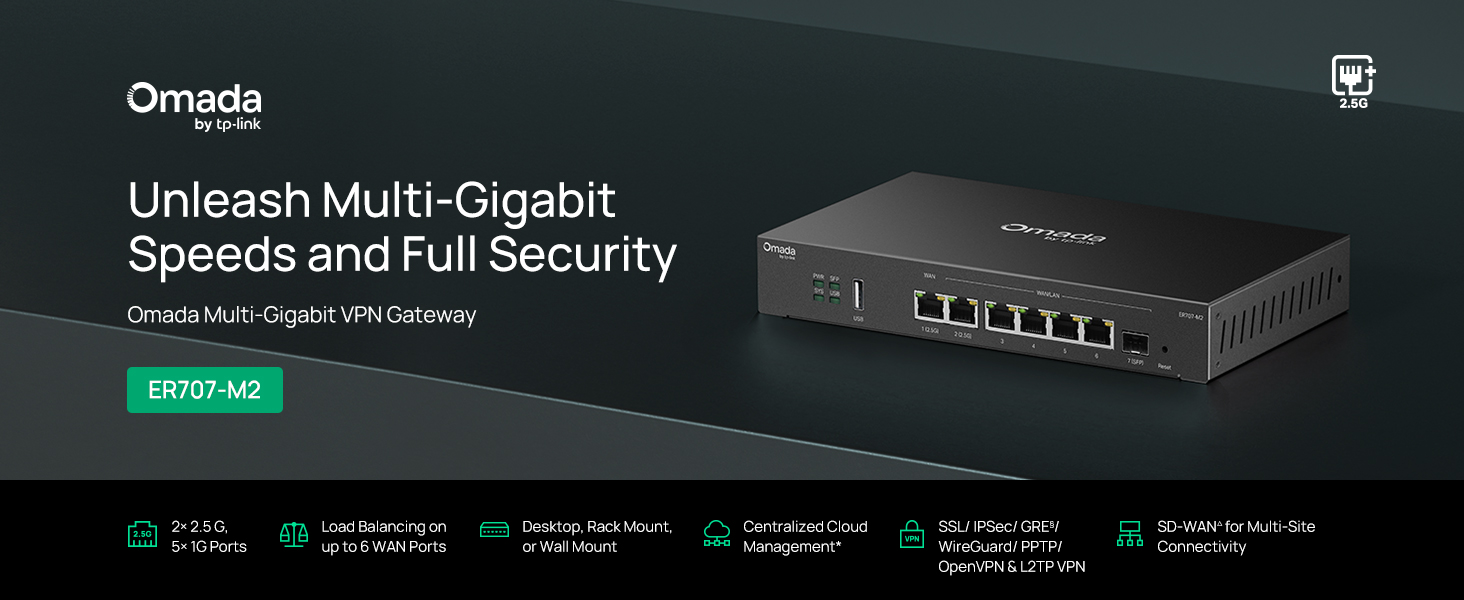
Rycina 1: Przód view of the ER707-M2 router, highlighting its ports and indicators.
Główne cechy:
- Elastyczna konfiguracja portu: Includes 1x 2.5Gigabit WAN Port, 1x 2.5Gigabit WAN/LAN Port, 4x Gigabit WAN/LAN Ports, 1x Gigabit SFP WAN/LAN Port, and 1x USB 2.0 Port.
- High-Performance Network Capacity: Supports up to 500,000 concurrent sessions and over 1000 clients.
- Dostęp do chmury: Centralized cloud management via Omada app and web interfejs.
- Highly Secure VPN: Supports up to 100 LAN-to-LAN IPsec, 66 OpenVPN, 60 L2TP, and 60 PPTP VPN connections.
- Zaawansowane zabezpieczenia: Features SPI Firewall, Policy-based Firewall, Static Routing, Policy Routing, Multi-net DHCP, Guest Portal, and VLAN support.
- Load Balance & Link Backup: Optimizes multi-line broadband efficiency and reliability.
- Port USB 2.0: Supports USB storage and LTE backup with a compatible LTE dongle.
2. Zawartość opakowania
Sprawdź, czy w przesyłce znajdują się następujące elementy:
- TP-Link ER707-M2 Omada Multi-Gigabit VPN Router
- Zasilacz
- Szybki przewodnik instalacji
If any item is missing or damaged, please contact your reseller or TP-Link support.
3. Konfiguracja
3.1 Instalacja sprzętu
- Podłączenie zasilania: Connect the provided power adapter to the router's power input and then to a power outlet.
- Połączenie WAN: Connect your modem or internet service provider's device to one of the WAN ports (e.g., WAN1 2.5G or WAN/LAN2 2.5G) using an Ethernet cable. For fiber connections, use the SFP port with a compatible SFP module.
- Połączenie LAN: Connect your local network devices (e.g., computers, switches, Omada Access Points) to the LAN ports (WAN/LAN2-6) using Ethernet cables.
- Urządzenie USB (opcjonalnie): If using a USB storage device or an LTE dongle for backup, insert it into the USB 2.0 port.
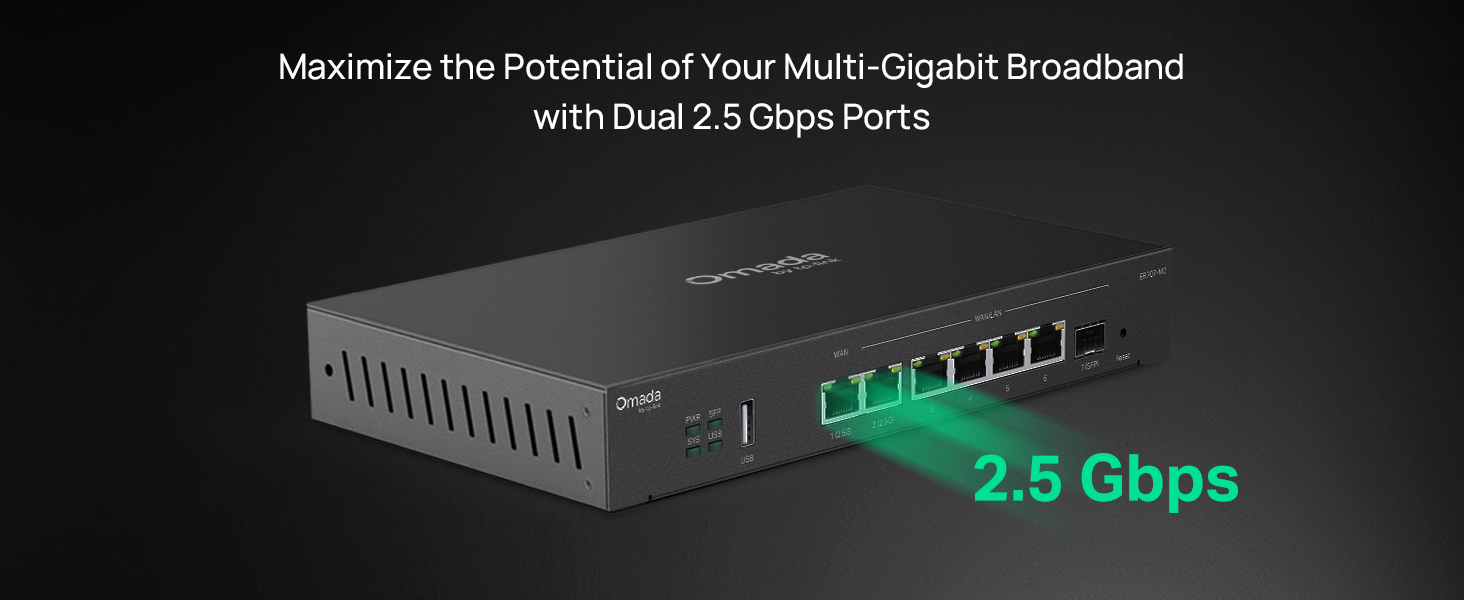
Figure 2: Illustration of the router's 2.5 Gbps ports for high-speed connectivity.
3.2 Konfiguracja początkowa
The ER707-M2 can be managed via the Omada SDN Controller or through its local web interfejs.
- Połącz się z routerem: Upewnij się, że komputer jest podłączony do jednego z portów LAN routera.
- Dostęp Web Interfejs: Otwórz web przeglądarkę i wprowadź domyślny adres IP (zwykle
192.168.0.1or192.168.1.1) w pasku adresu. Dokładny domyślny adres IP i dane logowania znajdziesz w Przewodniku szybkiej instalacji. - Postępuj zgodnie z instrukcjami kreatora konfiguracji: The first time you log in, a setup wizard will guide you through basic internet connection settings, changing the default password, and configuring Wi-Fi (if applicable).
- Omada SDN Integration (Optional): For centralized management, adopt the router into your Omada SDN Controller. This allows for remote management and unified control of your network devices.
4. Instrukcja obsługi
4.1 Konfiguracja sieci
The router offers extensive configuration options for your network:
- Ustawienia WAN: Configure WAN ports for different connection types (Dynamic IP, Static IP, PPPoE).
- Ustawienia sieci LAN: Manage IP addresses, DHCP server, and VLANs for your local network segments.
- Multi-WAN Load Balancing: Distribute internet traffic across multiple WAN connections to optimize bandwidth and provide redundancy.
- Link Backup: Configure a secondary WAN connection (e.g., via LTE dongle) to automatically take over if the primary connection fails.
4.2 VPN Functionality
The ER707-M2 supports various VPN protocols for secure remote access and site-to-site connectivity.
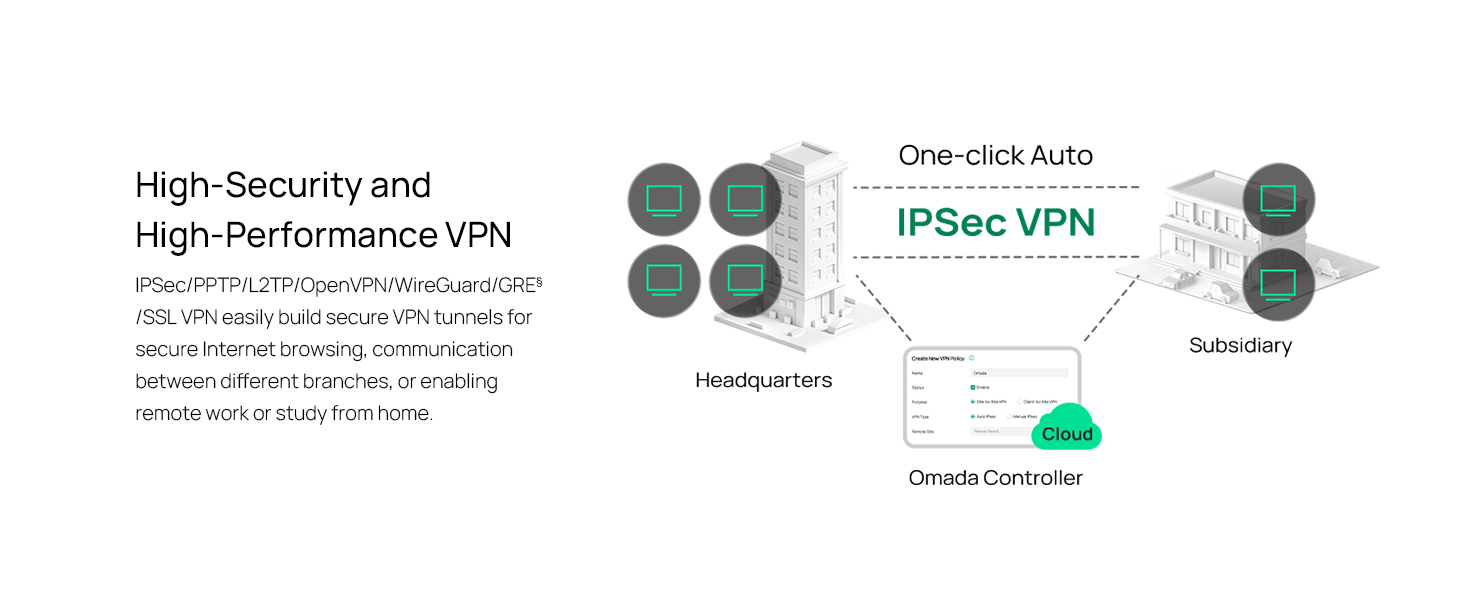
Figure 3: Visual representation of a secure VPN tunnel setup.
- Sieć VPN IPsec: Establish secure tunnels between networks (e.g., office to branch office).
- OpenVPN/SSL VPN: Provide secure remote access for individual users.
- PPTP/L2TP VPN: Legacy VPN protocols for various client connections.
4.3 Funkcje bezpieczeństwa
The router includes advanced security measures to protect your network:
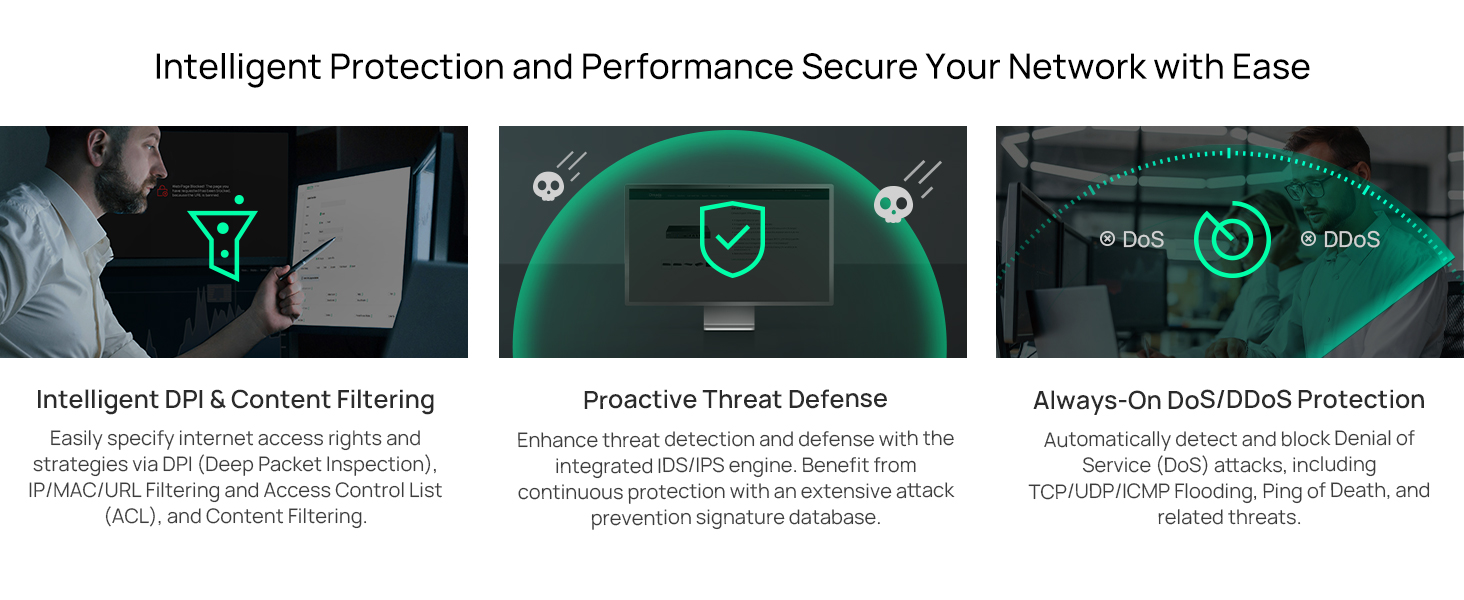
Rysunek 4: Koniecview of intelligent protection and performance features.
- Zapora SPI: Stateful Packet Inspection firewall for network protection.
- Policy-based Firewall: Define rules to control network traffic based on specific criteria.
- Ochrona DoS/DDoS: Defend against Denial of Service and Distributed Denial of Service attacks.
- Lista kontroli dostępu (ACL): Manage network access for specific devices or users.
4.4 Integracja Omada SDN
The ER707-M2 is part of the Omada Software-Defined Networking (SDN) solution, allowing for centralized management of your entire network.

Figure 5: How the ER707-M2 integrates into an Omada SDN network.
- Zarządzanie scentralizowane: Manage the router, access points, and switches from a single interface via the Omada Controller (hardware or software).
- Dostęp zdalny: Access and manage your network from anywhere using the Omada app or cloud portal.
- Seamless Scalability: Easily expand your network by adding more Omada devices.
5. Konserwacja
To ensure optimal performance and security of your ER707-M2 router, regular maintenance is recommended:
- Aktualizacje oprogramowania układowego: Okresowo sprawdzaj oficjalną stronę TP-Link website for the latest firmware versions. Updating firmware can improve performance, add new features, and fix security vulnerabilities.
- Kopia zapasowa konfiguracji: Regularly back up your router's configuration settings. This allows for quick restoration in case of accidental changes or system issues.
- Kontrola fizyczna: Ensure the router is placed in a well-ventilated area, free from dust and obstructions. Check cable connections for secure fit.
- Bezpieczeństwo Review: Okresowo ponownieview your firewall rules, VPN settings, and access control lists to ensure they meet your current security requirements.
6. Rozwiązywanie Problemów
If you encounter issues with your ER707-M2 router, consider the following troubleshooting steps:
- Brak dostępu do internetu:
- Check all cable connections (WAN, LAN, Power).
- Verify your modem or ISP device is working correctly.
- Confirm WAN settings in the router's web interfejs są poprawne.
- Restart the modem, then the router, and then your connected devices.
- Nie można uzyskać dostępu Web Strona zarządzania:
- Upewnij się, że komputer jest podłączony do portu LAN routera.
- Verify your computer's IP address is in the same subnet as the router (e.g., if router is 192.168.0.1, computer should be 192.168.0.x).
- Spróbuj wyczyścić pamięć podręczną przeglądarki lub użyć innej przeglądarki.
- If the issue persists, perform a factory reset (see below).
- Niska prędkość sieci:
- Sprawdź prędkość łącza swojego dostawcy Internetu.
- Ensure all cables are Cat5e or higher for Gigabit/2.5Gig connections.
- Monitoruj wykorzystanie sieci, aby identyfikować aplikacje lub urządzenia zużywające dużą przepustowość.
- Verify duplex settings on connected devices and router ports.
- Przywrócenie ustawień fabrycznych: If all else fails, you can restore the router to its factory default settings. Locate the Reset button on the router (often a small pinhole button), press and hold it for about 5-10 seconds until the system LED blinks, then release. This will erase all custom configurations.
7. Specyfikacje
| Funkcja | Szczegół |
|---|---|
| Marka | TP-Link |
| Nazwa modelu | ER707-M2 |
| Technologia łączności | Sieć Ethernetowa |
| Liczba portów | 6 (1x 2.5G WAN, 1x 2.5G WAN/LAN, 4x Gigabit WAN/LAN, 1x Gigabit SFP WAN/LAN, 1x USB 2.0) |
| Przepustowość portu LAN | 10/100/1000/2500 Mb/s |
| Szybkość przesyłu danych | 2500 megabitów na sekundę |
| Maksymalna szybkość przesyłania danych w górę | 5000 megabitów na sekundę |
| Protokół bezpieczeństwa | SSL, IPSec, GRE, SSH, IKEv1/v2, PPTP, L2TP, OpenVPN |
| Metoda kontroli | Aplikacja, Web Interfejs |
| System operacyjny | ZyNOS (TP-Link Omada) |
| Waga przedmiotu | 1.1 kilograma |
| Pozycja Wymiary (dł. x szer. x wys.) | 12.9" dł. x 9.5" szer. x 3.1" wys. |
8. Informacje o gwarancji
The TP-Link ER707-M2 Omada Multi-Gigabit VPN Router is backed by an industry-leading 5-letnia gwarancja producentaNiniejsza gwarancja obejmuje wady materiałowe i wykonawcze powstałe w wyniku normalnego użytkowania. Prosimy zachować dowód zakupu na potrzeby roszczeń gwarancyjnych.
9. Wsparcie
For technical assistance, product information, or warranty inquiries, please contact TP-Link support:
- Wsparcie telefoniczne: (866) 225-8139 (dostępny od poniedziałku do piątku, od 6:00 do 18:00 czasu PST)
- Produkt Webstrona: myproducts.tp-link.com/us
- Wsparcie e-mailowe: support.USA@tp-link.com