
1. Wprowadzenie
Welcome to the BOSGAME H77 Mini PC user manual. This guide provides essential information for setting up, operating, maintaining, and troubleshooting your new mini PC. Please read this manual thoroughly to ensure proper usage and to maximize the performance and longevity of your device.
2. Koniec produktuview
The BOSGAME H77 is a compact yet powerful mini PC designed for a wide range of applications, from daily productivity to light gaming. It features an AMD Ryzen 7 7735HS processor, 32GB DDR5 RAM, and a 512GB NVMe M.2 SSD, offering high performance in a small form factor.

Figure 2.1: Powerful Performance. This image illustrates the core specifications of the BOSGAME H77 Mini PC, emphasizing its AMD Ryzen 7 7735HS processor with 8 cores, 16 threads, a clock speed range of 3.2 to 4.75GHz, and a Thermal Design Power (TDP) of 35W. A benchmark comparison for Cinebench R23 (Multi-Core) is also shown, positioning the 7735HS favorably against other Ryzen models.

Figure 2.2: Speedy Response. This image highlights the gaming capabilities of the BOSGAME H77 Mini PC, powered by AMD Radeon 680M integrated graphics. It displays estimated frames per second (FPS) for popular games such as League of Legends (148.0 FPS), Fortnite (132.0 FPS), CS:GO (135.0 FPS), Grand Theft Auto (98.0 FPS), and DOTA 2 (178.0 FPS), indicating smooth performance. The image also notes the system's 32GB DDR5 RAM, 512GB SSD, and support for up to 2TB HDD.

Figure 2.3: Triple Screen Display Support. This image demonstrates the BOSGAME H77 Mini PC's ability to support up to three displays simultaneously. It features two HDMI 2.0 ports and one Type-C (USB4.0) port, allowing for a versatile multi-monitor setup suitable for daily tasks, work, and entertainment. Key features like Wi-Fi 6, Bluetooth 5.2, cooling fan with heat sink, and 4K 60Hz support are also highlighted.
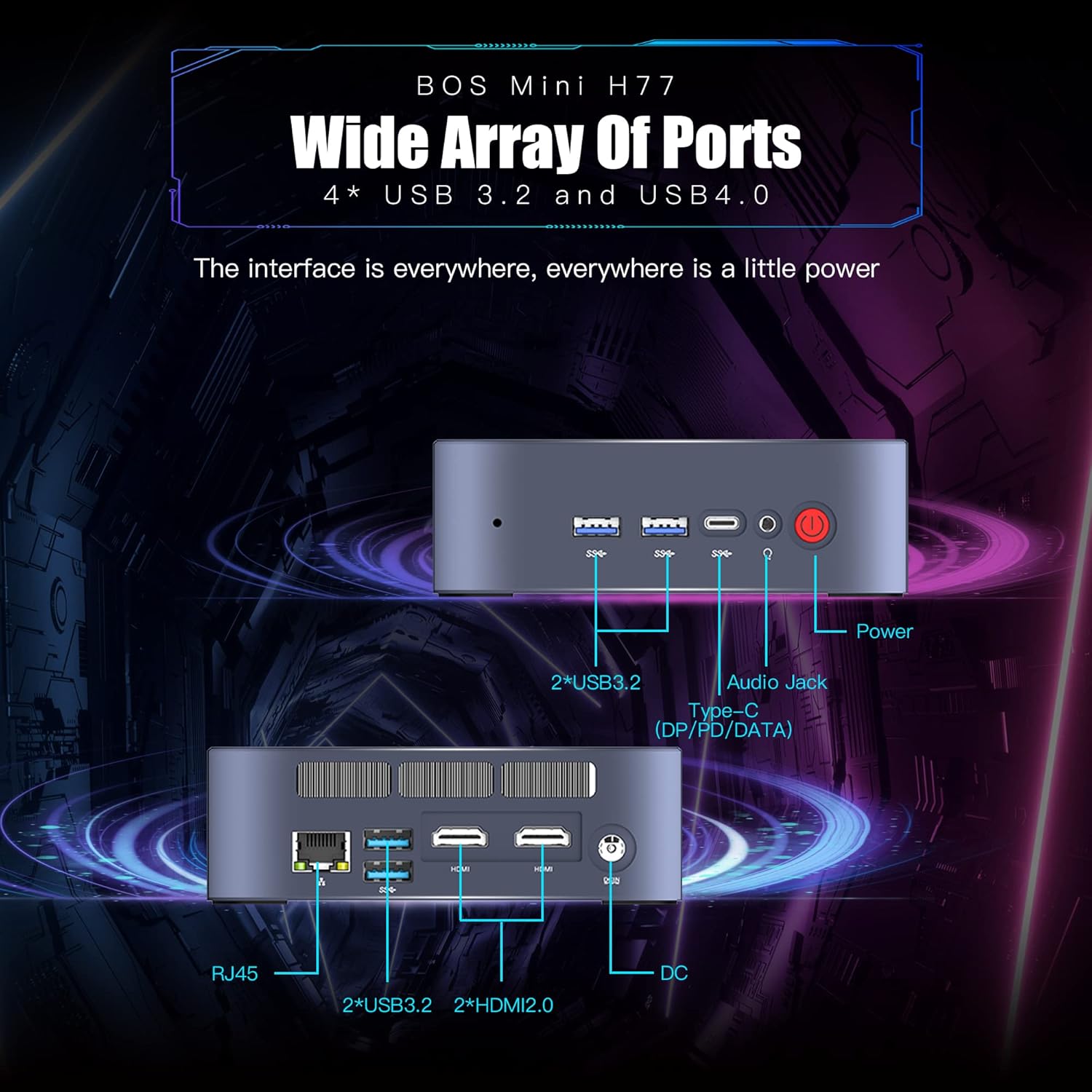
Figure 2.4: Wide Array of Ports. Na tym obrazie przedstawiono szczegółowo view of the BOSGAME H77 Mini PC's connectivity options. The front panel includes two USB 3.2 ports, one USB4.0 Type-C port (supporting DP/PD/DATA), an audio jack, and the power button. The rear panel features an RJ45 Ethernet port, two additional USB 3.2 ports, two HDMI 2.0 ports, and the DC power input. This comprehensive selection of ports ensures broad compatibility with various peripherals and displays.

Rysunek 2.5: Kompaktowa konstrukcja. This image emphasizes the compact and space-saving design of the BOSGAME H77 Mini PC. With a 0.6L body and dimensions of 126mm (length), 112mm (width), and 40.8mm (height), its honeycomb design is both aesthetically pleasing and functional, allowing it to fit into various environments without occupying much space.
3. Przewodnik konfiguracji
3.1 Zawartość opakowania
Przed przystąpieniem do dalszych czynności należy upewnić się, czy w przesyłce znajdują się wszystkie elementy:
- BOSGAME H77 Mini PC
- Zasilacz
- Kabel HDMI
- Instrukcja obsługi (ten dokument)
3.2 Podłączanie urządzeń peryferyjnych
- Podłącz wyświetlacz: Use the provided HDMI cable to connect your monitor to one of the HDMI ports on the rear of the Mini PC. For triple display, connect additional monitors using the second HDMI port and the USB4.0 Type-C port (requires a compatible adapter, not included).
- Podłącz klawiaturę i mysz: Podłącz klawiaturę i mysz USB do dowolnego dostępnego portu USB 3.2 z przodu lub z tyłu komputera Mini PC.
- Podłącz zasilanie: Podłącz zasilacz do portu wejściowego DC z tyłu komputera Mini PC, a następnie podłącz zasilacz do gniazdka elektrycznego.
- Połączenie sieciowe (opcjonalnie): For a wired connection, plug an Ethernet cable into the RJ45 port on the rear. For wireless, ensure Wi-Fi is enabled during initial setup or via Windows settings.
3.3 Pierwsze uruchomienie
- Naciśnij przycisk zasilania z przodu komputera Mini PC. Zaświeci się kontrolka zasilania.
- Follow the on-screen instructions to complete the Windows 11 Pro setup. This typically involves selecting your region, language, creating a user account, and connecting to a network.
4. Instrukcja obsługi
4.1 Włączanie/wyłączanie zasilania
- Włączanie: Naciśnij przycisk zasilania raz.
- Zamknięcie: Click the Windows Start button, then select Power > Shut down. Do not unplug the power adapter directly without proper shutdown to prevent data loss.
- Uruchom ponownie: Kliknij przycisk Start systemu Windows, a następnie wybierz Zasilanie > Uruchom ponownie.
4.2 Łączność sieciowa
- Wi-Fi: To connect to a wireless network, click the Wi-Fi icon in the taskbar, select your desired network, and enter the password. The device supports Wi-Fi 6 for fast wireless speeds.
- Ethernet: If an Ethernet cable is connected, the system will automatically detect and connect to the wired network.
- Bluetooth: To connect Bluetooth devices (e.g., headphones, speakers), go to Windows Settings > Bluetooth & devices, and pair your device. The Mini PC supports Bluetooth 5.2.
4.3 Korzystanie z portów USB
The BOSGAME H77 features multiple USB 3.2 ports and a versatile USB4.0 Type-C port. These ports can be used for connecting external storage, peripherals, or for data transfer.
- USB 3.2: Zapewnia szybką transmisję danych dla kompatybilnych urządzeń.
- USB 4.0 typu C: This port supports DisplayPort (DP) for video output, Power Delivery (PD) for charging compatible devices, and high-speed data transfer.
4.4 Konfiguracja potrójnego wyświetlacza
To utilize the triple display feature:
- Connect your primary monitor to one HDMI port.
- Podłącz drugi monitor do drugiego portu HDMI.
- Connect your third monitor to the USB4.0 Type-C port using a compatible USB-C to DisplayPort or USB-C to HDMI adapter (sold separately).
- Once connected, right-click on the desktop, select "Display settings," and configure your displays (extend, duplicate, etc.) as needed.
5. Konserwacja
5.1 Cleaning the Mini PC
Regularne czyszczenie pomaga zachować optymalną wydajność i wydłużyć żywotność urządzenia.
- Zewnętrzny: Do przecierania powierzchni zewnętrznych należy używać miękkiej, suchej i niepozostawiającej włókien ściereczki. W przypadku uporczywych zabrudzeń należy delikatnie przetrzeć.ampPrzetrzyj szmatkę wodą. Unikaj silnych środków chemicznych.
- Wentylacja: Okresowo usuwaj kurz z kratek wentylacyjnych za pomocą sprężonego powietrza, aby zapewnić właściwy przepływ powietrza i zapobiec przegrzaniu.
5.2 Aktualizacje oprogramowania
Keep your Windows 11 Pro operating system and drivers updated to ensure security, stability, and performance.
- Aktualizacje systemu Windows: Go to Windows Settings > Windows Update and check for available updates.
- Aktualizacje sterowników: Visit the BOSGAME official website for the latest drivers for your H77 Mini PC.
5.3 Zarządzanie magazynem
The 512GB NVMe M.2 SSD provides fast storage. To maintain performance:
- Regularnie usuwaj niepotrzebne filei aplikacji.
- Utilize Windows Disk Cleanup tool to free up space.
- Consider external storage solutions for large files if the internal SSD becomes full.
6. Rozwiązywanie Problemów
This section addresses common issues you might encounter with your BOSGAME H77 Mini PC.
6.1 Brak zasilania
- Upewnij się, że zasilacz jest prawidłowo podłączony do komputera Mini PC i do sprawnego gniazdka elektrycznego.
- Sprawdź, czy gniazdko elektryczne działa prawidłowo, podłączając do niego inne urządzenie.
- Sprawdź, czy zasilacz nie ma widocznych uszkodzeń.
6.2 Brak wyświetlacza
- Confirm the HDMI cable (or USB-C display cable) is securely connected to both the Mini PC and the monitor.
- Ensure the monitor is powered on and set to the correct input source (HDMI 1, HDMI 2, DisplayPort, etc.).
- Spróbuj podłączyć Mini PC do innego monitora lub telewizora, aby wykluczyć problemy z monitorem.
6.3 Problemy z łącznością sieciową
- Wi-Fi: Check if Wi-Fi is enabled in Windows settings. Restart your router/modem. Ensure you are within range of your Wi-Fi network.
- Ethernet: Verify the Ethernet cable is properly connected. Check your router/modem for internet access.
6.4 Spowolnienie lub zawieszanie się systemu
- Zamknij niepotrzebne aplikacje działające w tle.
- Sprawdź Menedżera zadań (Ctrl+Shift+Esc), czy występują procesy intensywnie wykorzystujące procesor, pamięć RAM lub dysk.
- Ensure your system is up-to-date with the latest Windows and driver updates.
- Perform a disk cleanup and check for malware.
Jeśli natrafisz na problemy, które nie zostały tutaj omówione, zapoznaj się z sekcją pomocy, aby uzyskać dalszą pomoc.
7. Specyfikacje
| Funkcja | Specyfikacja |
|---|---|
| Marka | BOSGRA |
| Numer modelu | H77 |
| System operacyjny | Windows 11 Pro |
| Model procesora | AMD Ryzen 7 7735HS (8 Cores, 16 Threads) |
| Prędkość procesora | Up to 4.75 GHz (Base 3.2 GHz) |
| Koprocesor graficzny | Zintegrowana karta graficzna AMD Radeon 680M |
| Rozmiar zainstalowanej pamięci RAM | 32 GB pamięci DDR5 SDRAM |
| Dostępne gniazda pamięci | 2 |
| Opis dysku twardego | Dysk SSD NVMe M.2 o pojemności 512 GB |
| Interfejs wyjścia wideo | 2x HDMI, 1x USB4.0 Type-C (DP support) |
| Maksymalna rozdzielczość wyświetlacza | 3840 x 2160 pikseli (4K) |
| Łączna liczba portów USB | 4x USB 3.2, 1x USB4.0 Type-C |
| Technologia łączności | Ethernet, HDMI, LAN, Wi-Fi |
| Kompatybilność bezprzewodowa | Wi-Fi 6 (802.11ax), Bluetooth 5.2 |
| Metoda chłodzenia | Powietrze |
| Kolor | Czarny |
| Dodatkowe funkcje | Czytnik kart pamięci |
8. Gwarancja i wsparcie
Your BOSGAME H77 Mini PC comes with a standard manufacturer's warranty. Please refer to the warranty card included in your package for specific terms and conditions, including warranty duration and coverage details.
For technical support, troubleshooting assistance, or warranty claims, please visit the official BOSGAME webOdwiedź witrynę lub skontaktuj się z obsługą klienta. Zachowaj paragon i numer seryjny produktu, gdy będziesz szukać pomocy.