
1. Wprowadzenie
The Intelbras GX 3000 is a multifunction wireless mesh router designed to provide high-speed internet connectivity via 5G/4G networks and Wi-Fi 6. This device integrates advanced Qualcomm technology for both its 5G modem and Wi-Fi 6 solution, ensuring high performance and reliability. It supports up to 128 devices simultaneously on the Wi-Fi network and offers wired connectivity options. The GX 3000 is suitable for various environments, from home to office, providing robust network performance.
This manual provides instructions for setting up, operating, and maintaining your Intelbras GX 3000 router. Please read it carefully before use.
2. Package Contents & Device Overview
2.1. Zawartość opakowania
- Intelbras GX 3000 Wireless Mesh Router
- Zasilacz
- Kabel sieciowy
- Szybki przewodnik (nie jest zawarty w tym podręczniku)
2.2. Urządzenie ponadview
Rycina 1: Przód View of the GX 3000 Router
This image displays the front of the Intelbras GX 3000 router, showing its sleek white design and LED indicators for 5G, 4G, call status, Wi-Fi, and WPS button.

Figure 2: GX 3000 Router with Highlighted Indicators and Ports
This image provides a closer look at the router, emphasizing the LED indicators on the front (5G, 4G, Call, Wi-Fi, WPS) and the various ports located on the rear panel, including LAN, WAN, and TEL ports.
2.2.1. Porty na tylnym panelu

Figure 3: Rear Panel of the GX 3000 Router
This image shows the rear panel of the router, clearly displaying the LAN, WAN, and TEL ports for wired connections.
- Porty LAN: For connecting wired devices such as computers, smart TVs, or gaming consoles.
- Port WAN: For connecting to an external modem or internet source (if not using 5G/4G).
- Port telefoniczny: For voice services (if supported by your service provider).
- Pobór mocy: Podłączany do dołączonego zasilacza.
2.2.2. Bottom Panel Features

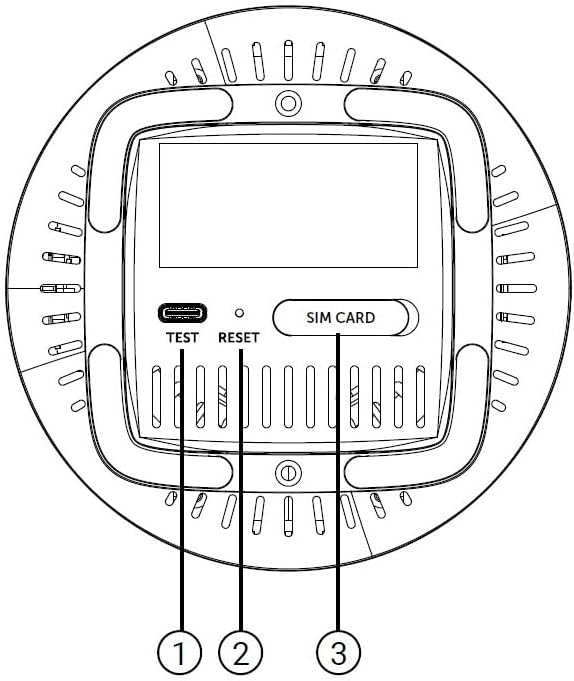
Figure 4: Bottom Panel Features of the GX 3000 Router
This diagram illustrates the bottom panel of the router, highlighting the TEST port, RESET button, and SIM CARD slot.
- TEST Port: Do celów diagnostycznych.
- Przycisk reset: Służy do przywracania ustawień fabrycznych. Naciśnij i przytrzymaj przez 10 sekund, gdy urządzenie jest włączone.
- SIM CARD Slot: Insert your 5G/4G SIM card here for mobile broadband connectivity.
3. Konfiguracja
3.1. Początkowe umiejscowienie
Place the router in a central location within your desired coverage area, away from obstructions, metal objects, and other electronic devices that may cause interference. Ensure good ventilation around the device.
3.2. Wkładanie karty SIM
- Upewnij się, że router jest wyłączony.
- Locate the SIM CARD slot on the bottom panel of the router (refer to Figure 4).
- Insert your activated 5G/4G SIM card into the slot with the gold contacts facing down and the notched corner oriented correctly. Push until it clicks into place.
- Aby wyjąć kartę SIM, delikatnie wciśnij ją ponownie, aż wyskoczy.
3.3. Podłączanie zasilania
- Connect one end of the power adapter to the Power Input port on the rear of the router.
- Podłącz drugi koniec zasilacza do standardowego gniazdka elektrycznego.
- The router will power on automatically. Wait for the LED indicators to stabilize.
3.4. Wired Connections (Optional)
If you wish to connect devices via Ethernet:
- Connect one end of the provided network cable to a LAN port on the rear of the router.
- Connect the other end of the network cable to the Ethernet port of your computer, smart TV, or other wired device.
3.5. Początkowe połączenie Wi-Fi
The default Wi-Fi network name (SSID) and password are usually printed on a label on the bottom of the router. Follow these steps to connect:
- On your wireless device (smartphone, laptop, tablet), open the Wi-Fi settings.
- Scan for available networks and select the SSID corresponding to your GX 3000 router.
- Enter the default Wi-Fi password when prompted.
- Po nawiązaniu połączenia możesz uzyskać dostęp do routera web interface to customize settings.
4. Instrukcja obsługi
4.1. Wskaźniki LED
Diody LED na panelu przednim wyświetlają informacje o stanie urządzenia:
- Dioda 5G: Wskazuje stan sieci 5G.
- Dioda 4G: Wskazuje stan sieci 4G.
- Dioda LED połączenia: Wskazuje status usługi głosowej.
- Dioda Wi-Fi: Oznacza aktywność sieci Wi-Fi.
- Dioda WPS: Wskazuje status funkcji WPS.
Refer to the full user manual (if provided separately) for detailed LED behavior (e.g., solid, blinking, color) and their meanings.
4.2. Dostęp do Web Interfejs zarządzania
To configure advanced settings, manage your network, or change Wi-Fi credentials, access the router's web interfejs:
- Ensure your device is connected to the GX 3000's Wi-Fi network or via an Ethernet cable.
- Otwórz web przeglądarka (np. Chrome, Firefox, Edge).
- W pasku adresu wpisz domyślny adres IP routera (najczęściej
192.168.1.1or192.168.0.1) and press Enter. This information is usually on the label on the bottom of the router. - Wprowadź domyślną nazwę użytkownika i hasło (znajdują się one również na etykiecie routera).
- You will now be in the router's management interface, where you can customize settings such as Wi-Fi name, password, security protocols, and more.
4.3. Wi-Fi Protected Setup (WPS)
WPS allows you to connect Wi-Fi devices without entering the password manually:
- Press the WPS button on the front of the GX 3000 router (refer to Figure 1). The WPS LED will start blinking.
- Within two minutes, press the WPS button on your client device (e.g., Wi-Fi adapter, printer).
- Urządzenia połączą się automatycznie.
Note: WPS is a convenient feature but may be less secure than manual password entry.
4.4. Mesh Network Expansion
The GX 3000 supports mesh networking to expand Wi-Fi coverage. You can add other compatible Intelbras Qi5 line products to create a seamless mesh network. Each additional Wi-Fi 6 router can extend coverage by up to 300 m². It is recommended to use up to 6 routers in the same mesh network for optimal performance.
Refer to the specific instructions provided with additional mesh units for pairing and configuration.
5. Konserwacja
5.1. Czyszczenie urządzenia
- Przed czyszczeniem upewnij się, że router jest wyłączony i odłączony od zasilania.
- Do przecierania zewnętrznej części urządzenia należy używać miękkiej, suchej ściereczki.
- Do not use liquid cleaners, aerosols, or solvents, as they may damage the casing lub komponentów wewnętrznych.
- Utrzymuj otwory wentylacyjne w czystości, bez kurzu i zanieczyszczeń.
5.2. Aktualizacje oprogramowania sprzętowego
Periodically check the Intelbras official webStrona z aktualizacjami oprogramowania sprzętowego. Aktualizacje oprogramowania sprzętowego mogą poprawić wydajność, dodać nowe funkcje i zwiększyć bezpieczeństwo. Należy ściśle przestrzegać instrukcji dołączonych do pakietu aktualizacji oprogramowania sprzętowego.
5.3. Przywracanie ustawień fabrycznych
If you encounter persistent issues or forget your login credentials, you can reset the router to its factory default settings:
- With the router powered on, locate the RESET button on the bottom panel (refer to Figure 4).
- Używając spinacza biurowego lub podobnego przedmiotu o ostrym zakończeniu, naciśnij i przytrzymaj przycisk RESET przez około 10 sekund.
- Release the button. The router will restart with all settings restored to their original factory defaults.
- You will need to reconfigure your Wi-Fi settings and any other custom configurations after a factory reset.
6. Rozwiązywanie Problemów
| Problem | Możliwa przyczyna | Rozwiązanie |
|---|---|---|
| No power / Router not turning on | Zasilacz nie jest podłączony lub jest uszkodzony; Gniazdo elektryczne nie działa. |
|
| No internet connection (5G/4G) | SIM card not inserted correctly; SIM card not activated; No 5G/4G signal; Service provider issue. |
|
| Nie można połączyć się z siecią Wi-Fi | Incorrect Wi-Fi password; Wi-Fi disabled; Device too far from router. |
|
| Niska prędkość internetu | Network congestion; Poor signal strength; Interference; Outdated firmware. |
|
| Zapomniałem web hasło interfejsu | Password forgotten or changed. |
|
7. Specyfikacje
| Funkcja | Szczegół |
|---|---|
| Marka | Inteligentny |
| Model | GX 3000 |
| Technologia łączności | 5G, 4G, Wi-Fi 6 (802.11a/b/g/n/ac/ax) |
| Klasa pasma częstotliwości | Dwuzakresowy |
| Standard komunikacji bezprzewodowej | 802.11a |
| Szybkość przesyłu danych | Do 900 megabitów na sekundę |
| Przepustowość portu LAN | 1000 Mb/s (Gigabit Ethernet) |
| Typ anteny | Wewnętrzny |
| Kompatybilne urządzenia | Computer, Notebook, Tablet, Smart TV |
| Cechy specjalne | Remote Access, Mesh Wi-Fi capability |
| Kolor | Biały |
| Waga przedmiotu | 1000 gram |
| Zawarte komponenty | Power supply, Network cable |
| Anatel Homologation Number | 13571-22-00180 |
8. Gwarancja i pomoc techniczna
8.1. Informacje o gwarancji
Intelbras products are covered by a limited warranty. For specific warranty terms and conditions, please refer to the warranty card included with your product or visit the official Intelbras webZachowaj dowód zakupu na wypadek roszczeń gwarancyjnych.
8.2. Wsparcie techniczne
If you require technical assistance or have questions not covered in this manual, please contact Intelbras customer support. You can find contact information (phone numbers, email, support portal) on the official Intelbras webstrona:
Oficjalny Intelbras Webstrona: www.intelbras.com.br
When contacting support, please have your product model (GX 3000) and serial number ready.