
1. Wprowadzenie
Dziękujemy za zakupasing the eppfun SK001 USB Speakerphone. This device is designed to provide clear and efficient audio conferencing for home offices, remote work, and small to medium-sized meeting rooms. It features 360° voice pickup, smart voice enhancement, and broad compatibility with popular conferencing platforms.
2. Zawartość opakowania
Sprawdź, czy w przesyłce znajdują się wszystkie elementy:
- eppfun SK001 USB Speakerphone
- Kabel USB-C do USB-C
- Kabel USB-A do USB-C
- Instrukcja obsługi (ten dokument)
3. Koniec produktuview
The eppfun SK001 features intuitive controls for managing your calls and audio settings.

Obraz: Góra view of the eppfun SK001 speakerphone showing its control buttons. The buttons include microphone mute, microphone volume up/down, and speaker volume up/down.
Przyciski sterujące:
- Przycisk wyciszenia mikrofonu: Press to mute or unmute the microphone. An indicator light will show the mute status.
- Microphone Volume Up/Down: Adjusts the microphone input sensitivity.
- Speaker Volume Up/Down: Adjusts the speaker output volume.
Porty:
- Port USB-C: For connecting to your computer using the provided USB cables.
4. Konfiguracja
The eppfun SK001 is a plug-and-play device, requiring no driver installation for most operating systems.
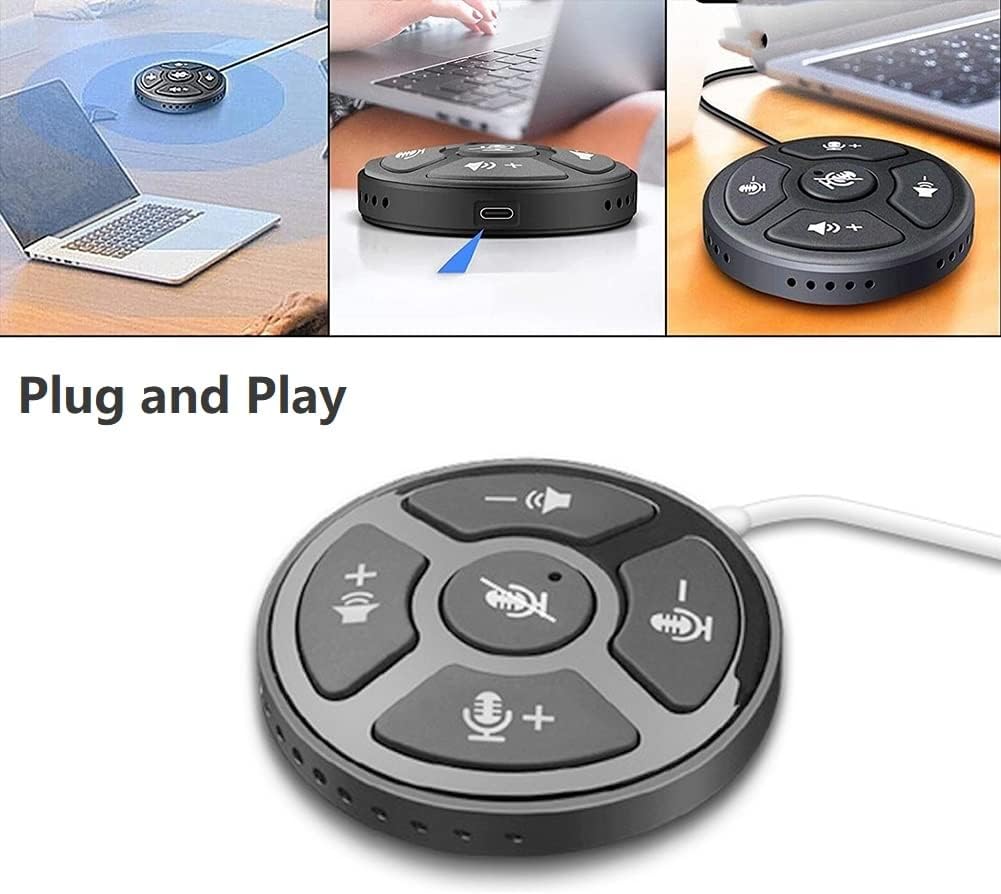
Image: A collage showing the eppfun SK001 speakerphone connected to a laptop via USB, highlighting its plug-and-play functionality.
- Podłącz głośnik:
- Use the provided USB-C to USB-C cable or USB-A to USB-C cable.
- Connect one end of the cable to the USB-C port on the SK001 speakerphone.
- Connect the other end of the cable to an available USB port (USB-A or USB-C) on your computer (PC, laptop, or Mac).
- Rozpoznawanie systemu: Twój komputer powinien automatycznie wykryć i zainstalować niezbędne sterowniki. Ten proces może potrwać chwilę.
- Wybierz jako urządzenie audio:
- Open your operating system's sound settings (e.g., Windows Sound Settings, macOS System Preferences > Sound).
- Select "eppfun SK001" as your default input (microphone) and output (speaker) device.
- In your conferencing software (e.g., Zoom, Microsoft Teams, Skype), navigate to its audio settings and select "eppfun SK001" for both microphone and speaker.
5. Instrukcja obsługi
Basic Call Management:
- Regulacja głośności: Use the speaker volume up (+) and down (-) buttons on the device to control the playback volume.
- Wyciszenie mikrofonu: Press the central microphone mute button to toggle the microphone on or off. A red indicator light typically signifies that the microphone is muted. This mute function is linked with Zoom Meeting certification.
- Czułość mikrofonu: Use the microphone volume up (+) and down (-) buttons to adjust the microphone's input sensitivity.
Główne cechy:
- 360° wielokierunkowy odbiór głosu: The SK001 is equipped with high-performance microphones capable of capturing voices from all directions within a 5-meter radius, ideal for small to medium-sized conference rooms.
- Smart Voice Enhancement: Features echo cancellation, reverberation suppression, and noise reduction to ensure clear audio during calls.
- Certyfikat Zoom Meeting: Guarantees high-quality calls and seamless integration with Zoom, including synchronized mute status.
6. Konserwacja
- Czyszczenie: Use a soft, dry cloth to clean the surface of the speakerphone. Do not use liquid cleaners or aerosols.
- Składowanie: Przechowuj urządzenie w chłodnym, suchym miejscu, gdy nie jest używane.
- Obsługiwanie: Unikaj upuszczania urządzenia i narażania go na działanie ekstremalnych temperatur lub wilgoci.
7. Rozwiązywanie Problemów
- Brak dźwięku / Mikrofon nie działa:
- Sprawdź, czy kabel USB jest prawidłowo podłączony zarówno do głośnika, jak i do komputera.
- Verify that "eppfun SK001" is selected as the default audio input and output device in your computer's sound settings and within your conferencing application.
- Check if the microphone is muted on the device (red indicator light) or within your software.
- Adjust the volume levels on both the speakerphone and your computer.
- Try connecting the speakerphone to a different USB port or a different computer to rule out port or system issues.
- Słaba jakość dźwięku:
- Ensure the speakerphone is placed on a stable surface, away from obstructions.
- Confirm that the microphone sensitivity is appropriately set.
- Check for background noise in your environment. The device has noise reduction, but extreme noise can still affect quality.
- Verify your internet connection stability if experiencing issues during online calls.
- Urządzenie nierozpoznane:
- Odłącz i podłącz ponownie kabel USB.
- Uruchom ponownie komputer.
- Wypróbuj inny port USB na swoim komputerze.
- Upewnij się, że Twój system operacyjny jest aktualny.
8. Specyfikacje
| Funkcja | Szczegół |
|---|---|
| Numer modelu | SK001 |
| Marka | śmiech |
| Technologia łączności | USB (USB-C, USB-A) |
| Współczynnik kształtu mikrofonu | Mały |
| Wzór biegunowy | Omnidirectional (360°) |
| Czułość audio | 30 decybeli |
| Zakres odbioru dźwięku | Do 5 metrów |
| Platforma sprzętowa | Laptop, komputer osobisty |
| Kompatybilne systemy operacyjne | Windows XP/Vista/7/8/10/11, Mac OS |
| Waga przedmiotu | 80 gramów (2.82 uncji) |
| Wymiary opakowania | 6.1 x 4.72 x 1.3 cala |
9. Gwarancja i wsparcie
The eppfun SK001 comes with a 12-miesięczna gwarancja od daty zakupu. Niniejsza gwarancja obejmuje wady produkcyjne i usterki powstałe podczas normalnego użytkowania.
For technical support, warranty claims, or any questions regarding your eppfun SK001 speakerphone, please contact eppfun customer service. Refer to the contact information provided on the eppfun official webwitryny lub dokumentacji zakupu.
Prosimy zachować dowód zakupu w celach gwarancyjnych.